
Automatic payments
Automatic payments let you pay for authorized purchases with a linked card without confirming each charge. You choose which payment types to allow; saving a card alone does not enable automatic payments.
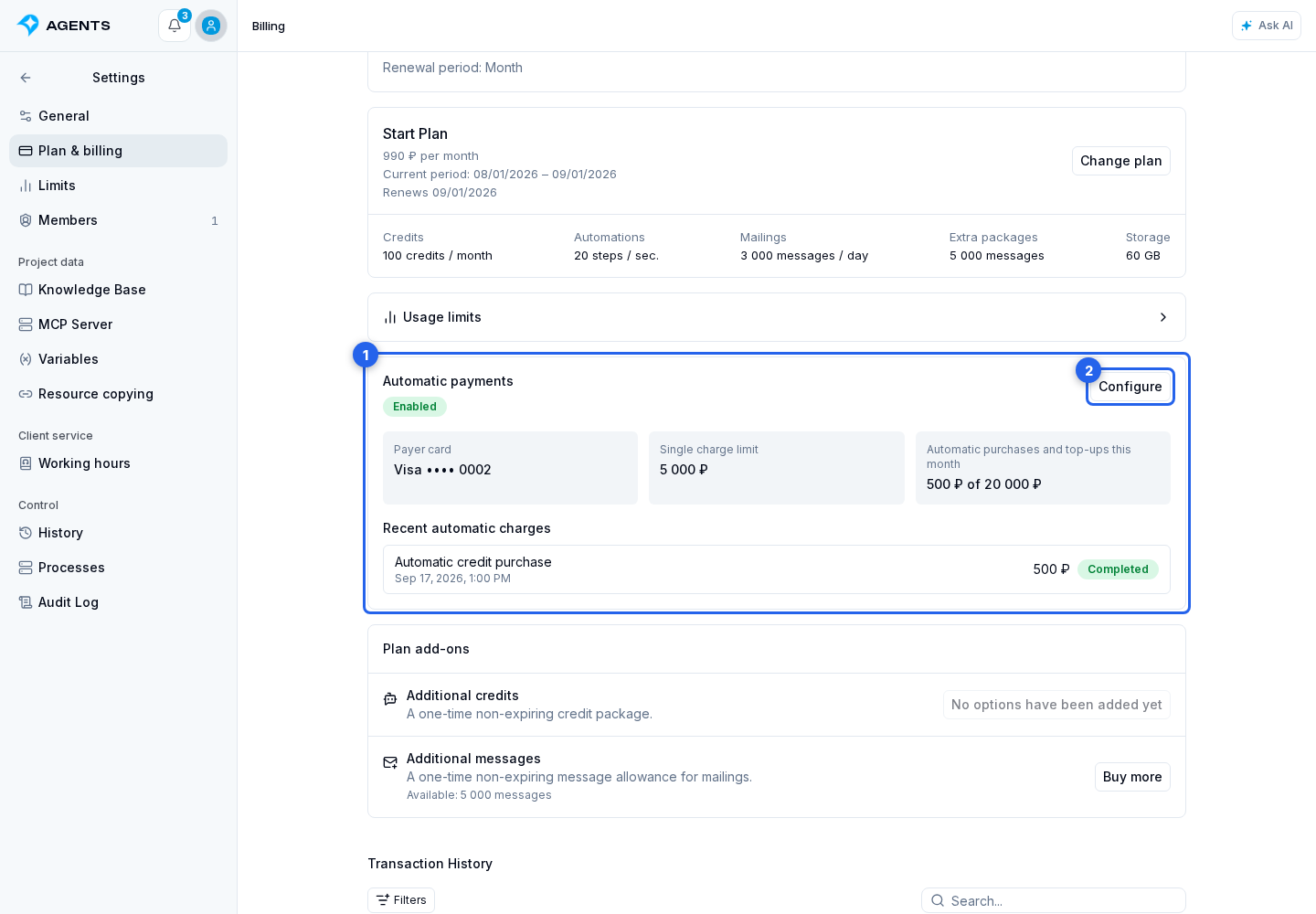
- In Settings → Plan and billing, find Automatic payments.
- Select Connect or Configure.
Choose a card
In the settings dialog, select your linked card. To use a new card:
- Choose Add card.
- Complete linking on the T-Bank page. If it did not open automatically, use the Open bank page link that appears.
- Return to the cabinet. The card appears in the list after verification.
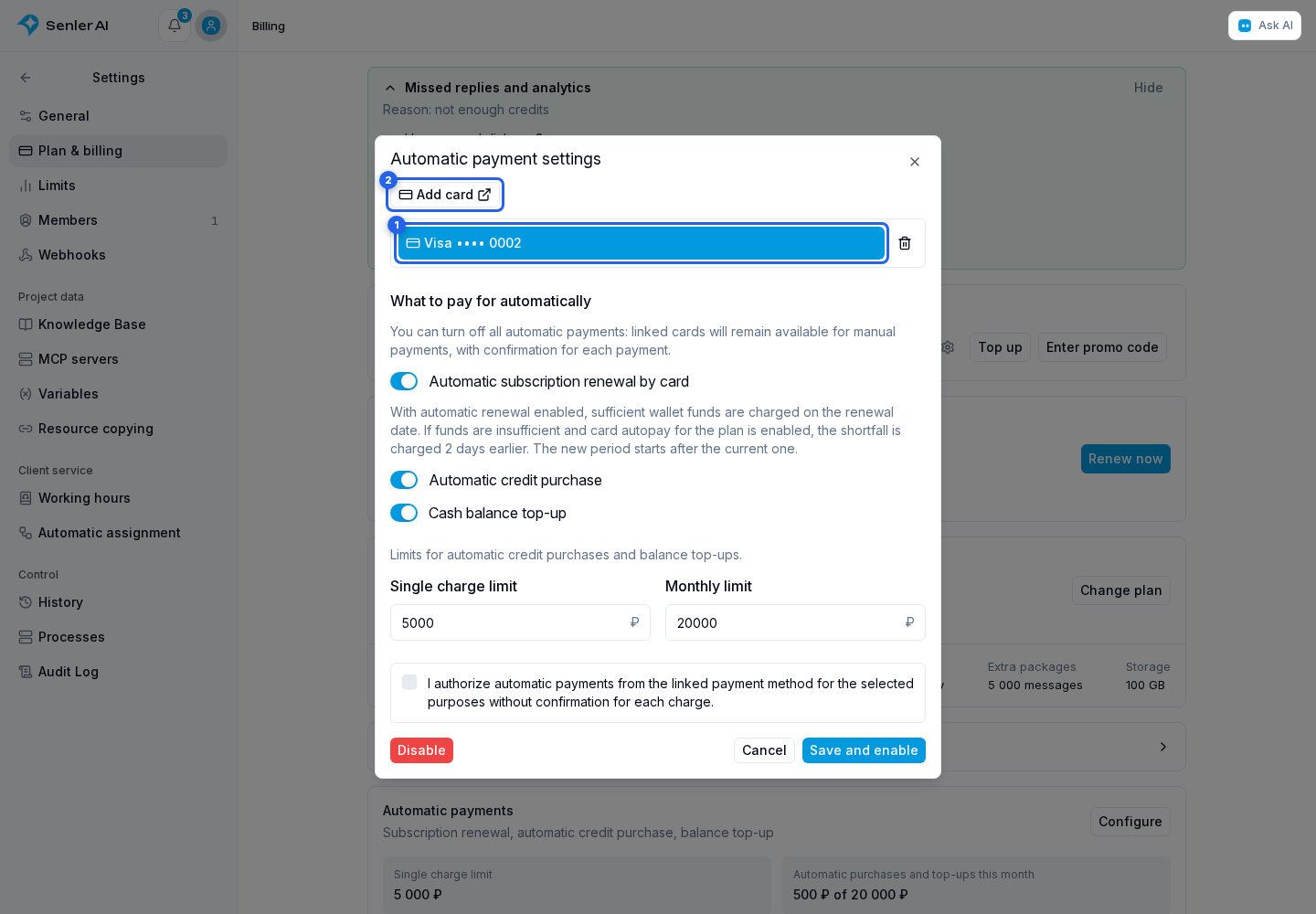
The selection list contains your cards, not other project members' cards. Configuring automatic payments requires your own card, even if another member paid for the project before. Linking is supported for Russia and a RUB balance; set the receipt email in payment settings.
Allow the charges you need
The What to pay for automatically section controls automatic charges only. If automatic payments have not been configured or are disabled, all switches are off. You can use a linked card for manual payments by confirming each payment.
- Automatic subscription renewal by card allows the missing amount to be charged to the card when the project balance cannot cover the next renewal. It does not change the subscription term, configuration, or renewal setting. If the balance is insufficient, the card charge can start two days before the paid period ends; the next period starts after the current one, not on the charge date. See project subscription for prepaid renewal rules.
- Automatic credit purchase allows a card charge for an automatic package purchase when the cash balance is insufficient. The switch does not select a package or enable automatic purchasing in the subscription. Without a separately configured automatic package purchase, this permission alone is not enough. For a manual purchase, open Buy credits.
- If automatic balance top-ups are already enabled for the project, a Cash balance top-up switch also appears. You can turn it off along with the other automatic payment types.
With automatic purchases allowed, Single charge limit and Monthly limit appear. The monthly limit must be at least the single-charge limit. It covers a calendar month in Moscow time. A completed payment belongs to the month when the charge started, even if confirmation arrives later. Until an operation finishes, its amount stays reserved against the limit, including after the month changes. A refund does not restore the limit for the month of the charge.
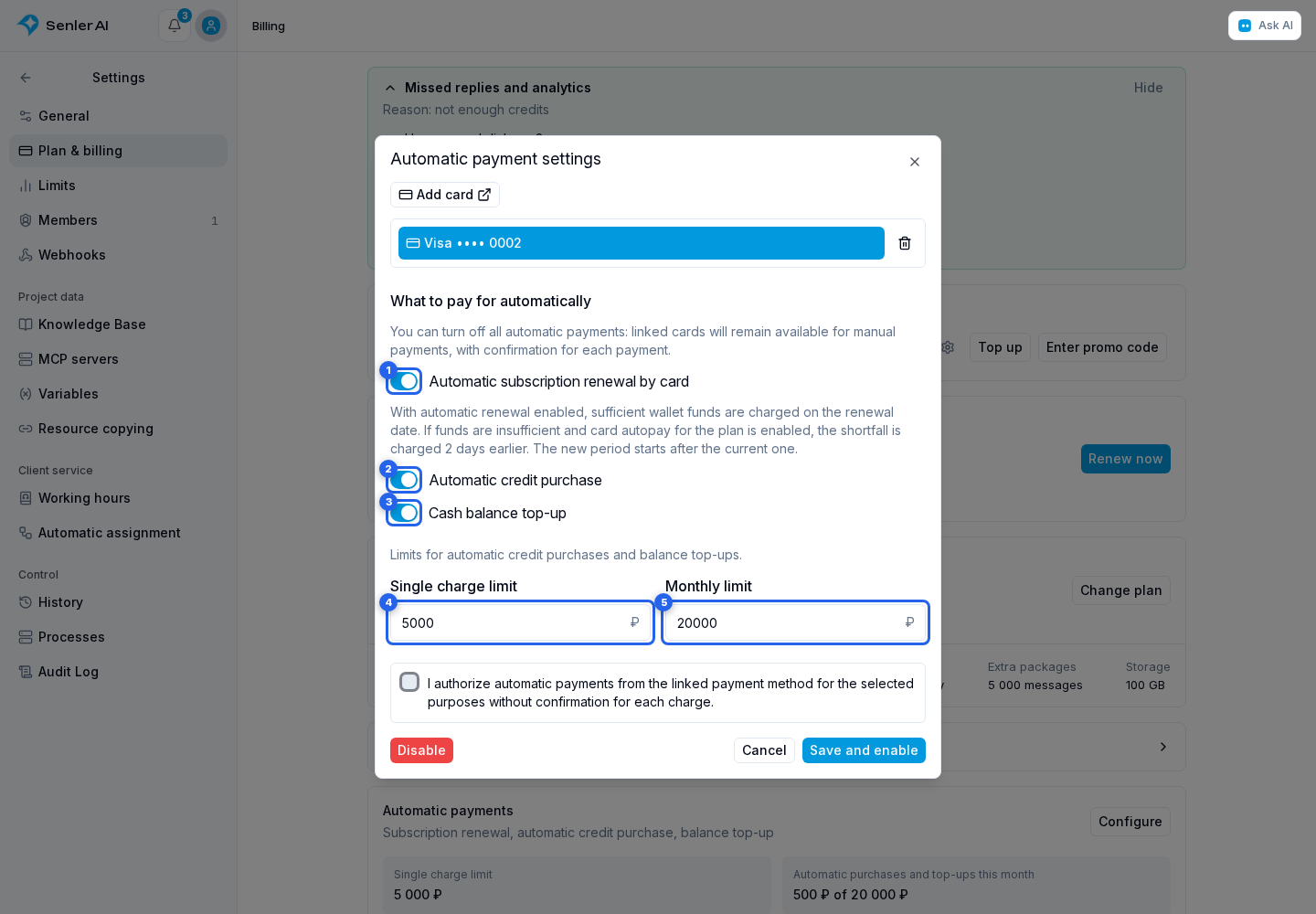
Limits apply to automatic credit purchases and automatic balance top-ups, if such top-ups have already been configured. Subscription renewals are not included. Reaching a limit prevents new automatic purchases above the budget but does not disable authorized renewal. If only renewal is allowed, limit fields are not shown.
Save the authorization
If at least one automatic payment type is selected:
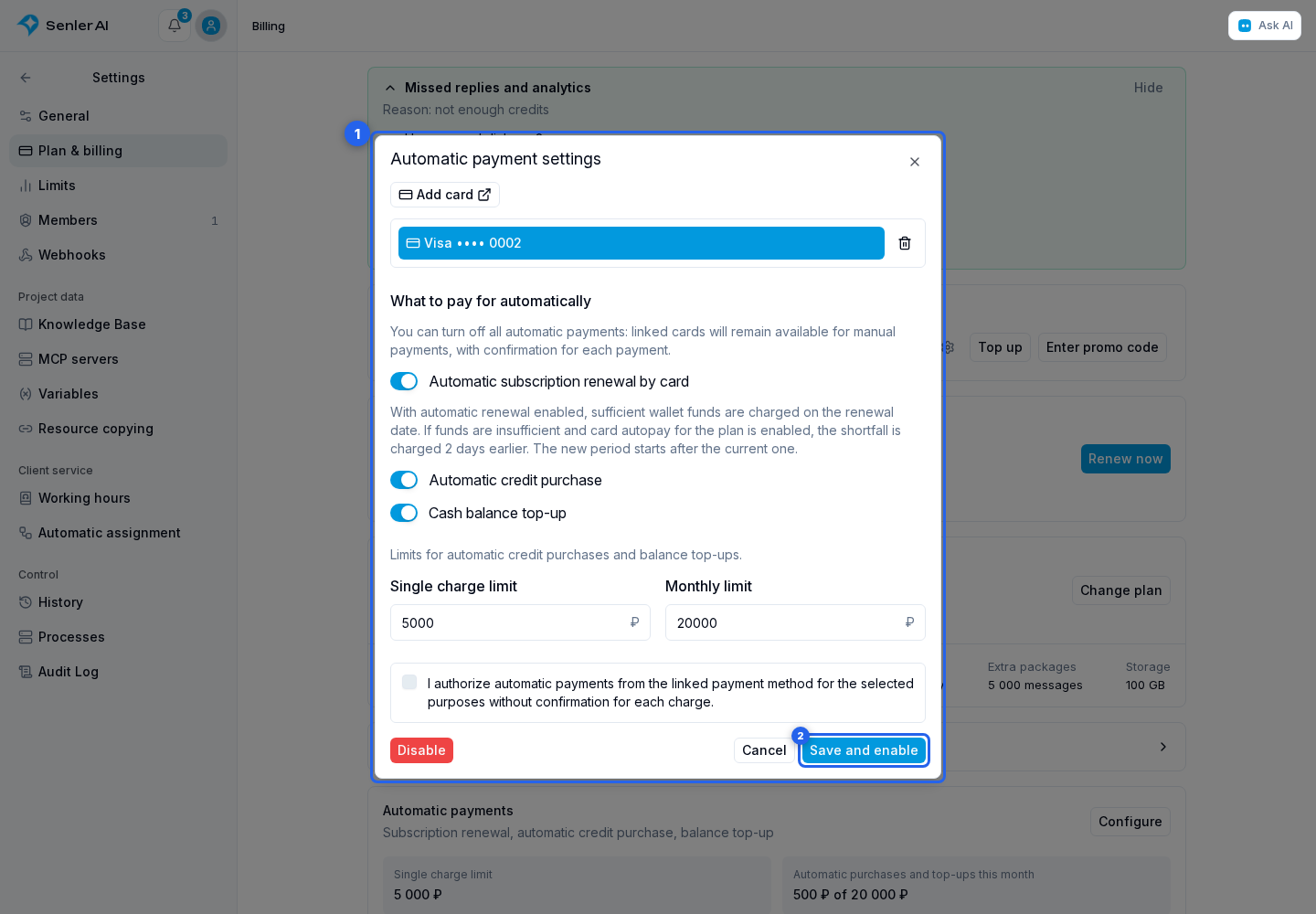
- Read and select the consent to charges without confirming each payment.
- Select Save and enable.
If everything is off, the button is called Save and automatic charge consent is not required. Saving with all switches off disables the project's automatic payments while keeping linked cards available for manual payments. Changes in the open form do not apply until saved.
Check the result
Below the block heading, the enabled charge purposes are listed: subscription renewal, automatic credit purchases or balance top-ups. Card linked, automatic payments disabled means the card is saved but automatic charges are not authorized. Check the selected card in the Configure dialog.
Below that are the five latest operations with amounts and purposes, if any have occurred. When automatic purchases or top-ups are allowed, it also shows the single-charge limit and the used part of the monthly budget.
Processing means there is no final result yet. Completed means the operation has finished. Funds credited means the money reached the balance, but the purchase could not be applied: you can place it using the project balance. Full payment and refund details are in transaction history.
Disable automatic payments or remove a card
The Disable button revokes automatic charge permission in this project. The card remains saved. This does not cancel the subscription, refund previous charges, or disable renewal paid from the project balance.
Disabling automatic payments or saving new terms cancels prepared automatic charges that have not yet been sent to the bank. A charge already sent may still complete: changing settings neither recalls it nor issues a refund.
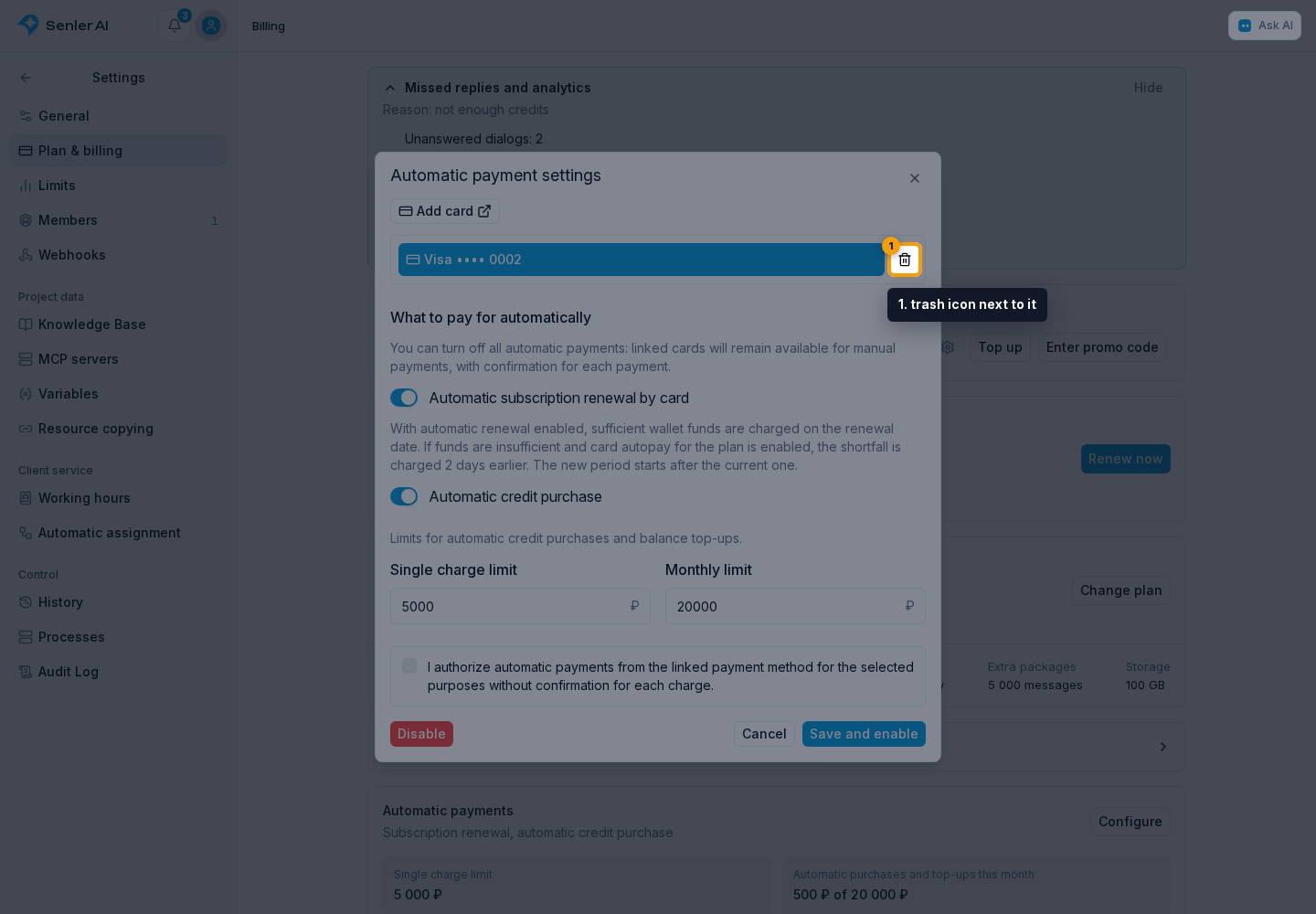
To unlink a card, open automatic payment settings and select the trash icon next to it.
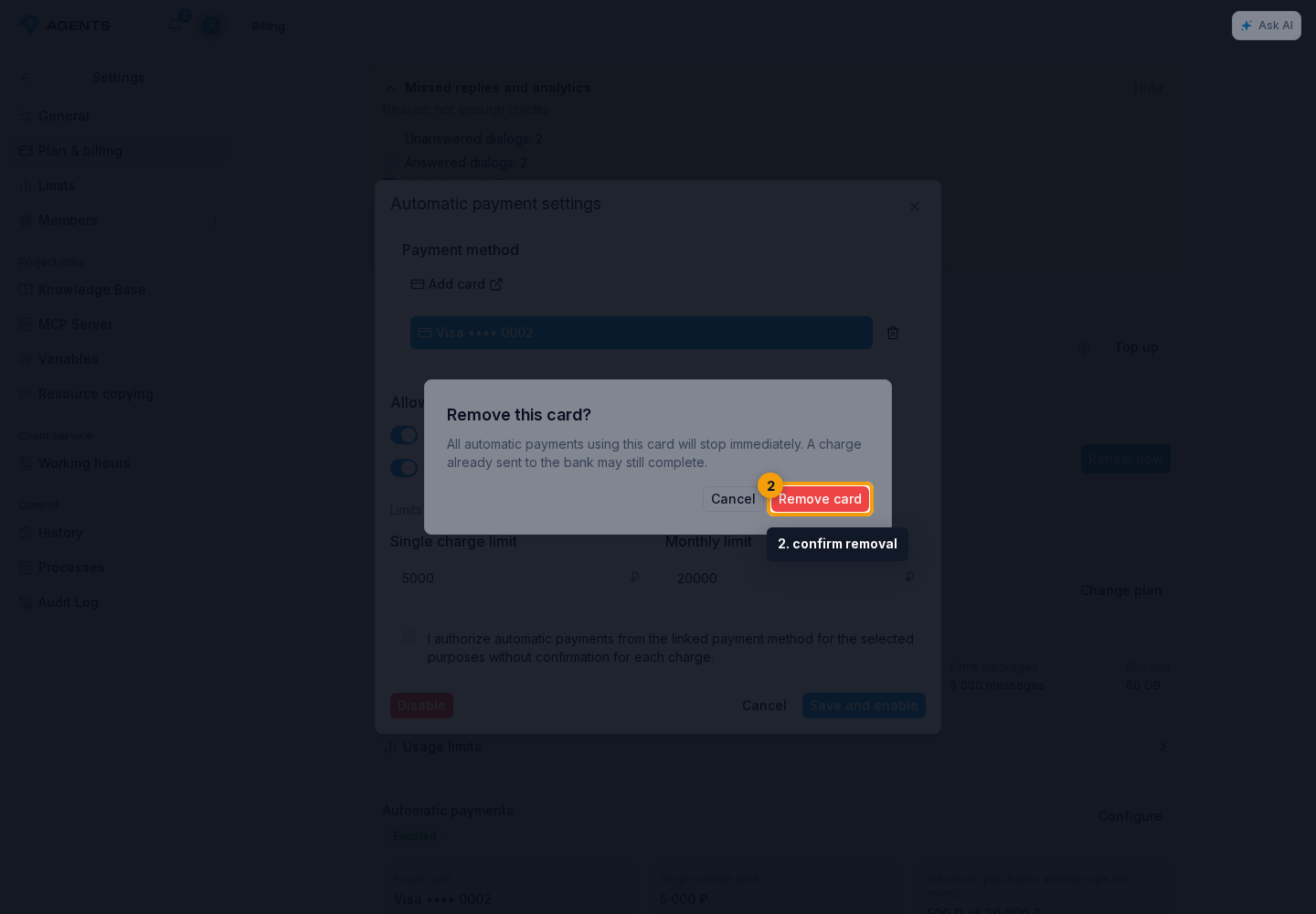
In the dialog that opens, confirm removal. Automatic payments in every project using that card are disabled, not just the current project. A charge already started may still complete; removing the card is not a refund.
Viewing requires billing view permission; configuration requires billing management permission. The payer can also revoke their authorization; only the card owner can delete a personal card.