
OAuth Permissions
Open the application OAuth settings.
Two access scenarios
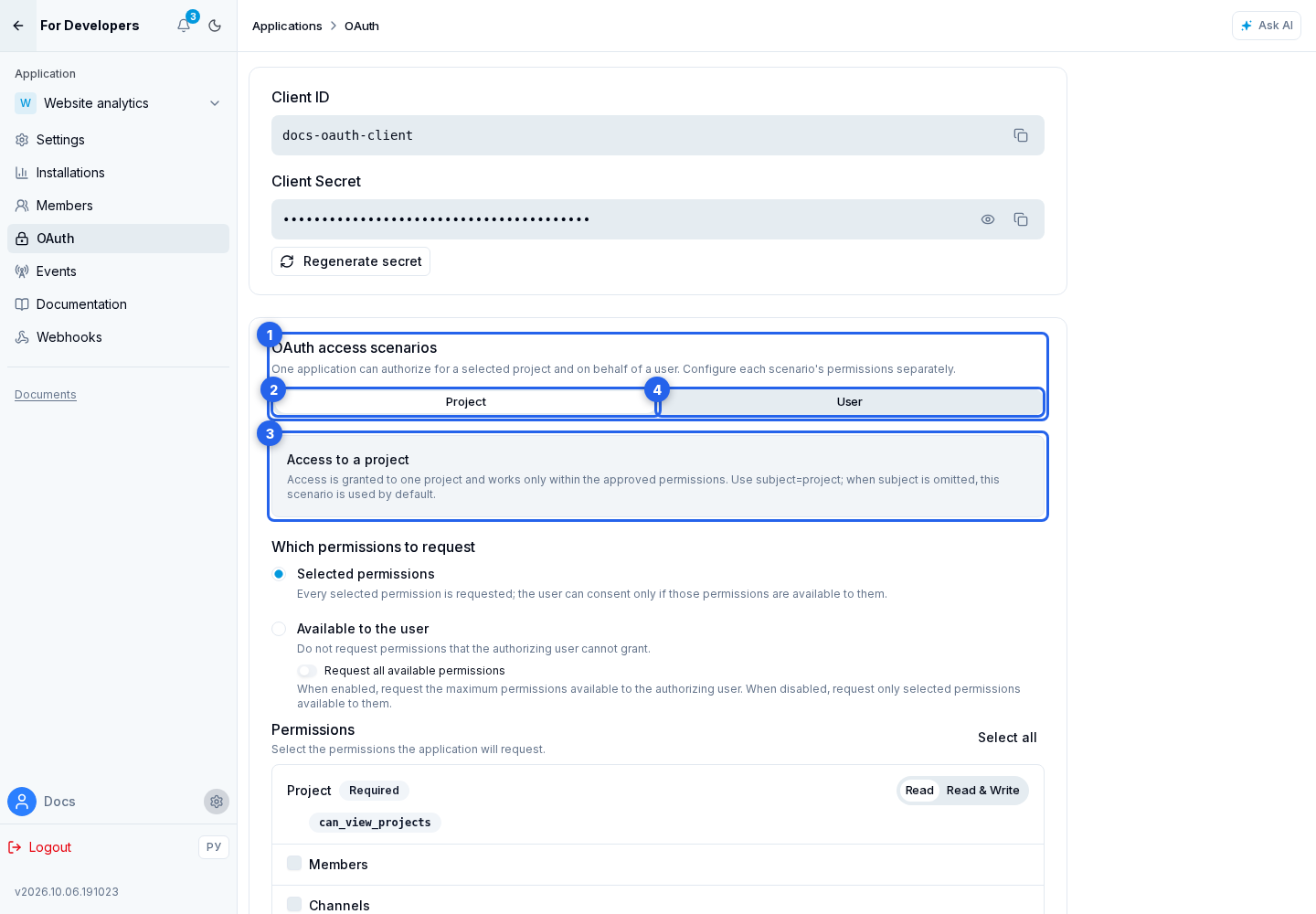
A Website integration configures two scenarios independently in OAuth access scenarios:
-
the Project tab opens the project policy. The authorization belongs to one project, and the API checks the permissions granted in that project;
-
the User tab opens the user policy. The application acts on the user's behalf, while every call remains limited by both the approved permissions and the user's current access to the target resource.
The scenario is selected by each authorization request through subject, not when the application is created. For subject=project, project_id is optional: when it is absent, Senler AI asks the user to select an available project. For subject=user, do not pass project_id. When subject is absent, project is used. A Plugin supports only the project scenario.
Permissions
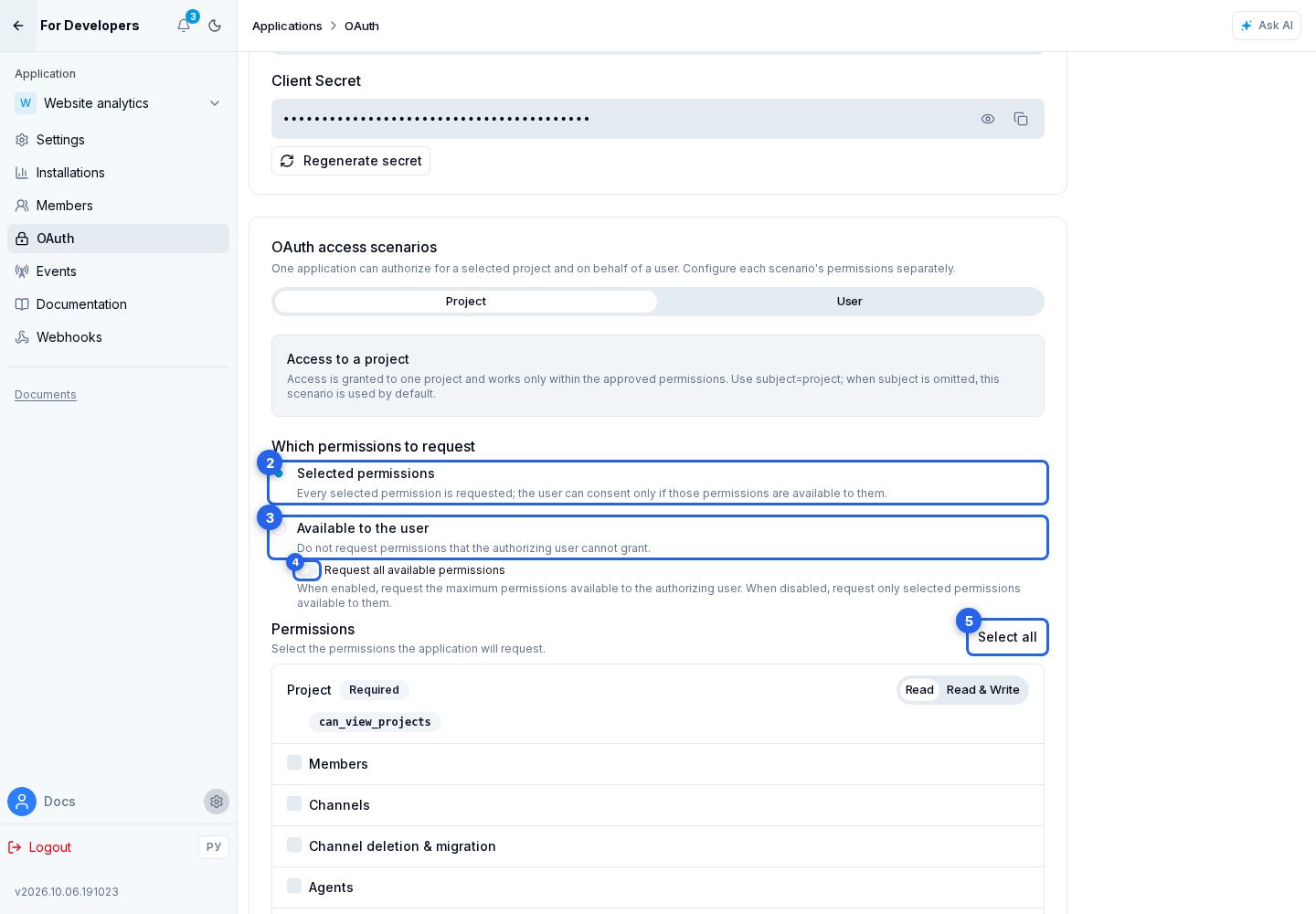
Project and user policies each have their own permissions. Two modes are available for each policy:
- Selected permissions requests the entire selected set when
scopeis absent. Thescopemay contain a subset. The user must be able to grant every requested permission; - Available to the user makes Senler AI exclude permissions the authorizing user cannot grant. Pass
scope=project_accessorscope=user_accessfor the corresponding scenario, or omitscope.
In the second mode, Request all available permissions sets the upper boundary. When disabled, the application receives the intersection of selected and available permissions; when enabled, it receives every permission allowed for that OAuth scenario that the user can grant. The exact set is always shown before consent.
For project authorization, can_view_projects is added automatically and cannot be removed. User authorization can include project, application, and account permissions, but it cannot manage API tokens, Client Secrets, or application deletion.
Narrowing a policy immediately narrows active authorizations; a user authorization with no remaining permissions is revoked. Expanding a policy does not add permissions to previously issued tokens—the user must complete OAuth again. Select all and Deselect all change optional permissions.
Save applies both policies and the Redirect URIs.
Pass the selected scenario and permissions in the authorization request.