
Automatic operator assignment
Automatic assignment distributes requests among available operators. In project settings, open Automatic assignment in the Client service group. This page manages routing rules and groups; working intervals are configured separately in Working hours.
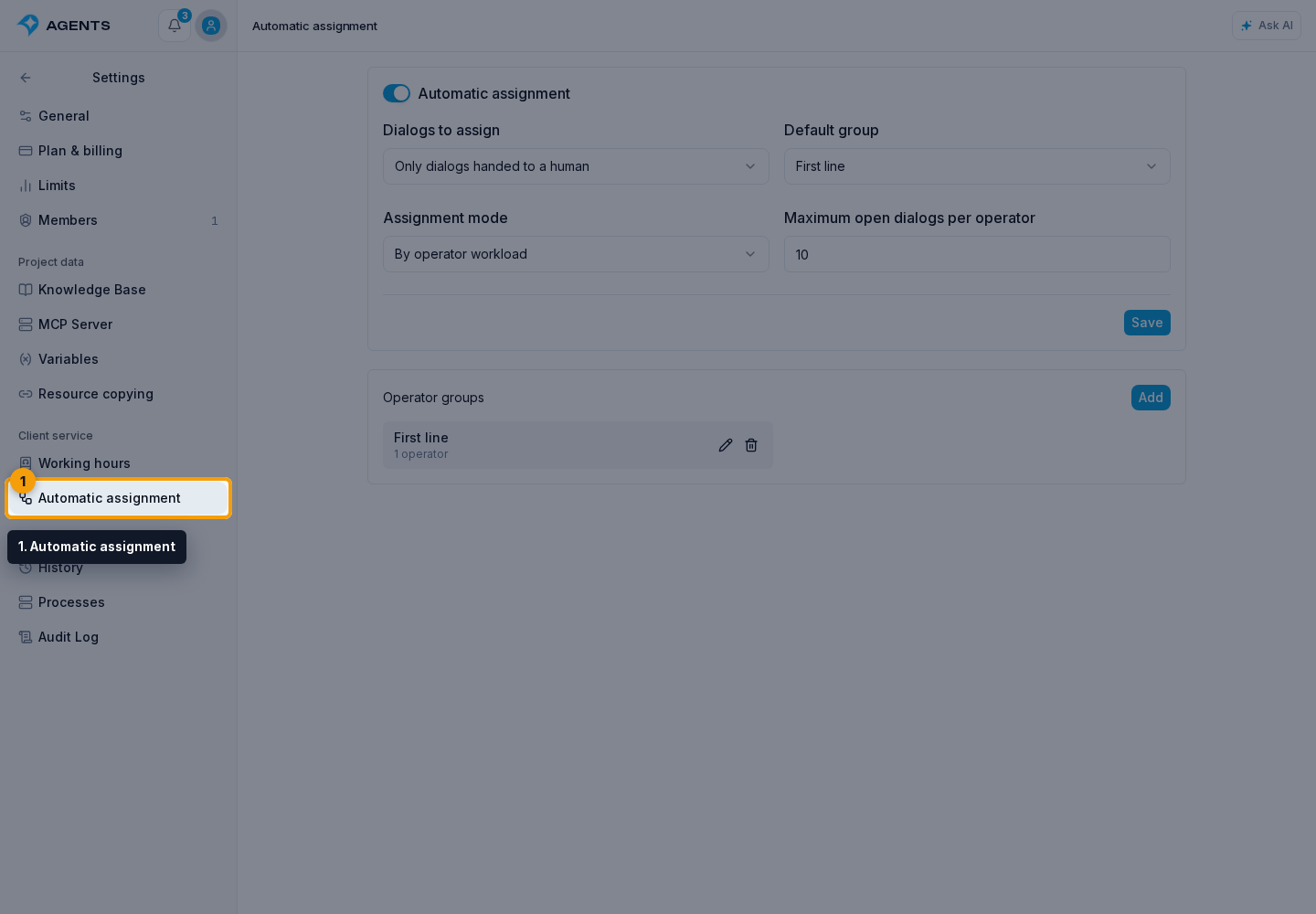
Operator groups
On the Automatic assignment page, in the Operator groups block, select Add, enter a name, such as First line, and select operators. Select Save.
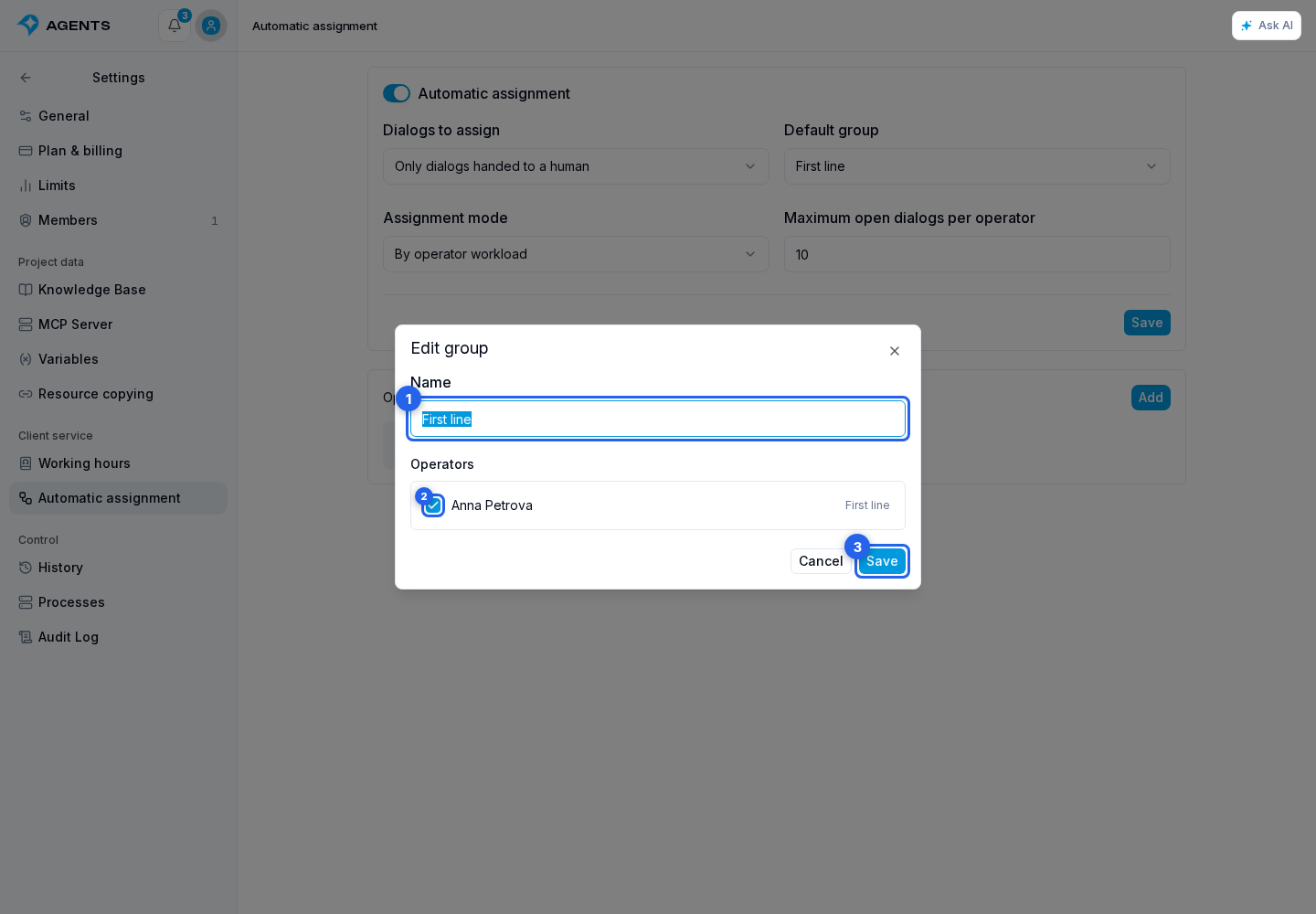
An operator has one primary group. Selecting an operator who belongs to another group moves them into this group. You can also change their group on the member page. Enable the support operator setting for that member first.
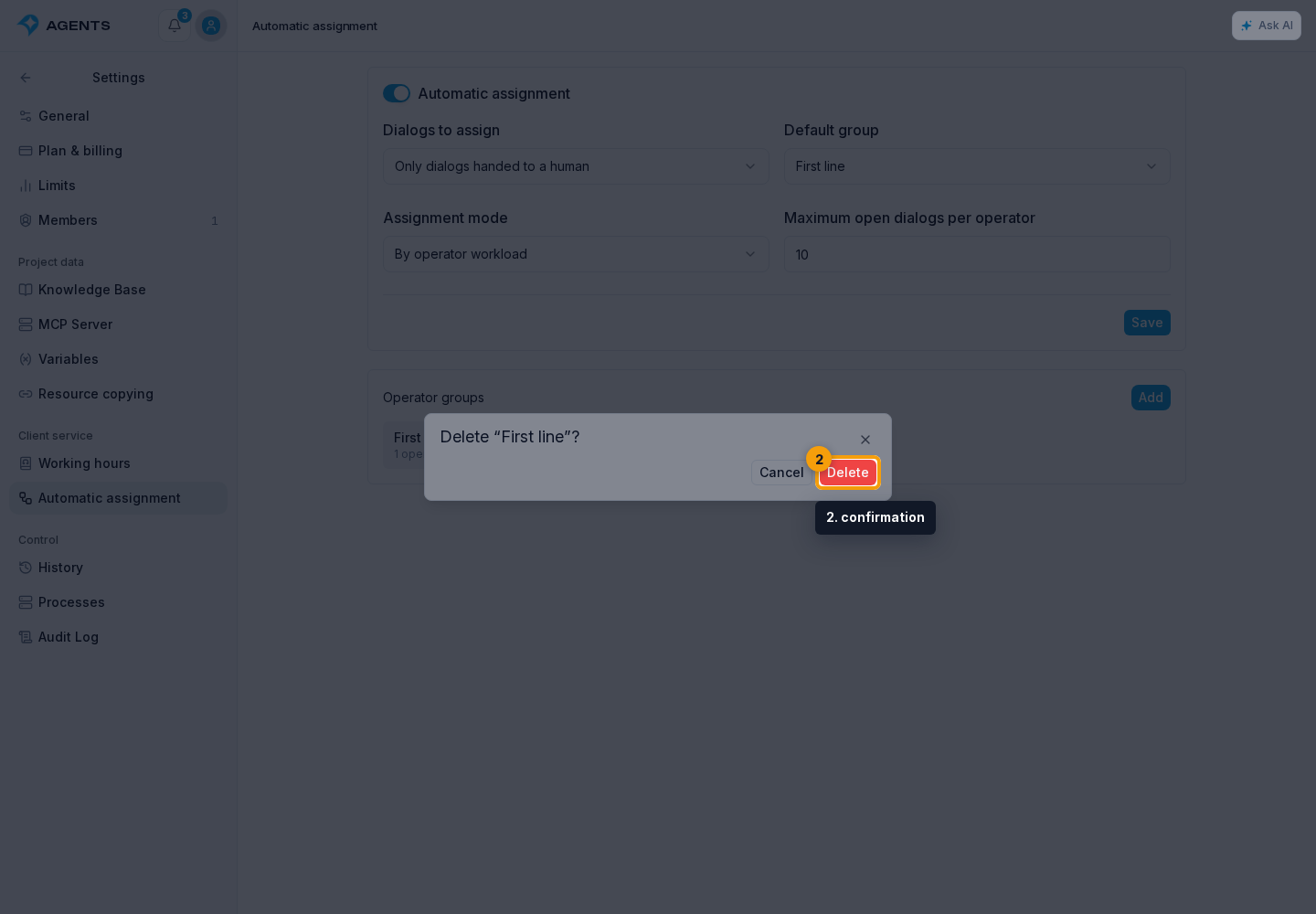
Editing changes the group name and membership. Deletion requires confirmation: the group stops receiving new assignments, while history references remain. Before deletion, move operators, current and future shifts, and open or snoozed dialogs. Remove the group from autoassignment settings even when disabled. Closed dialogs retain the historical group name.
Dialog routing
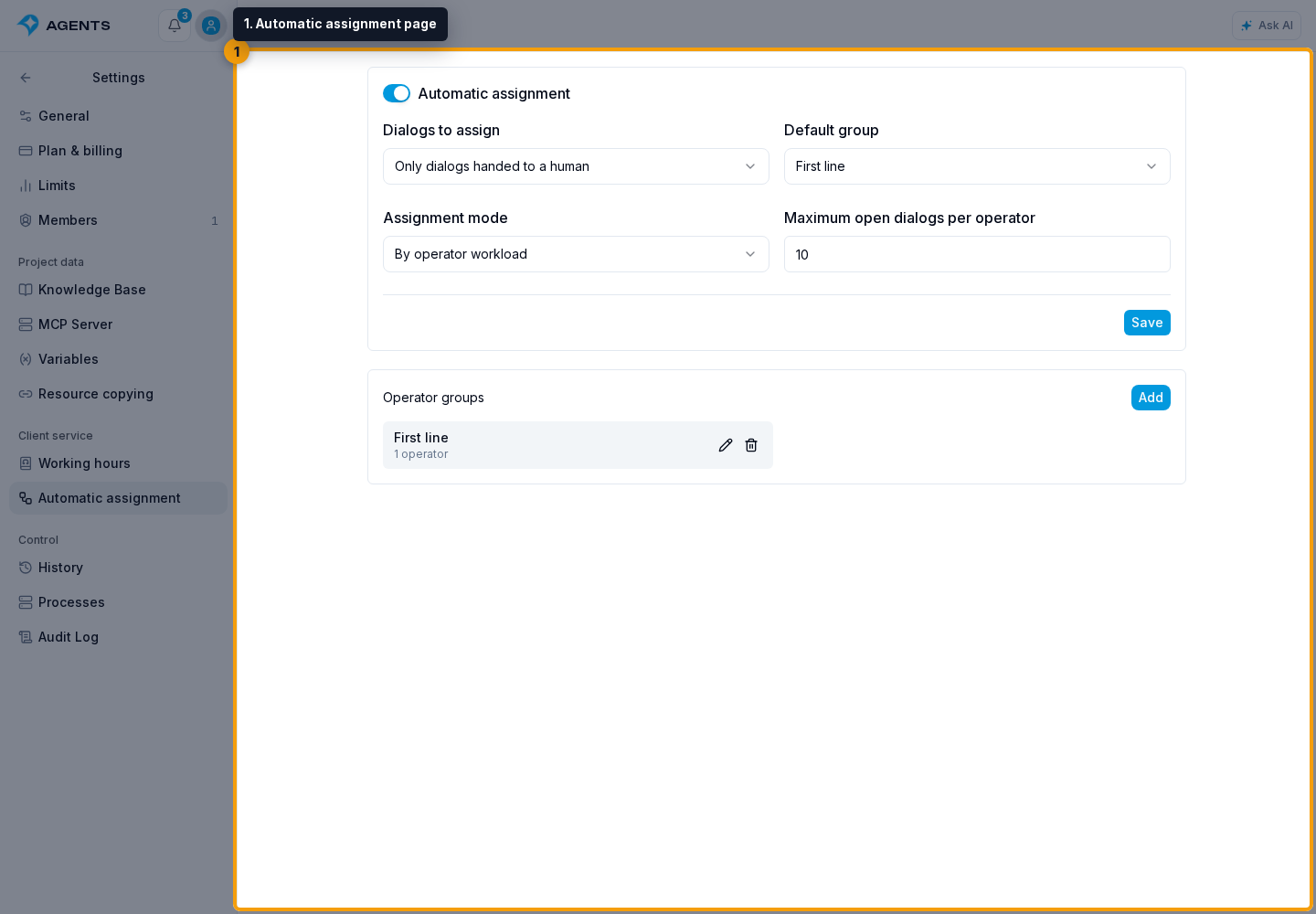
On the Automatic assignment page:
- Enable automatic assignment.
- Choose the dialogs to assign: all incoming dialogs or only dialogs handed to a human.
- In Default group, choose a specific group or All groups. All groups distributes new dialogs among all available operators on shift. If a dialog has already been transferred to a specific group, only operators in that group are considered.
- Choose an assignment mode: Round robin takes turns; By operator workload selects the operator with fewer open, non-snoozed dialogs. Equal workloads use round robin.
- Optionally set the maximum open dialogs per operator from 1 to 1000; leaving it empty means no limit. Select Save.
Only active operators currently on shift and permitted to manage the dialog can receive automatic assignments. If none is available or their limit is reached, the dialog waits in its group queue. Assignment is retried when a shift starts or capacity becomes available. After assignment from all groups, the dialog stores the selected operator’s group for that shift. Closed and snoozed dialogs do not consume capacity. Test dialogs do not participate in automatic routing.
Manual assignments are preserved while the operator is active and permitted to manage the dialog. If the member is removed, disabled as an operator or loses the required permissions, the system removes their assignments from open and snoozed dialogs while preserving the dialog group. With automatic assignment enabled, an open dialog is assigned again; if it is disabled or nobody is available, the dialog waits. A snoozed dialog keeps its return time. Assignment history in closed dialogs is unchanged.
Agent handoff to a human is available when the agent can detach from the dialog; define when to hand off in its instructions. The API can also request a handoff. It disables assigned agents and cancels their pending responses. Editing the group or operator in dialog information changes responsibility and keeps AI enabled. All-incoming assignment permits AI and a responsible operator to work together. The schedule statistics switch is independent of automatic assignment.