
Funnel stages
A lead can participate in several funnels but occupies only one stage in each.
- Open a funnel.
- Switch to “Edit”.
Add a stage
- Click “Add stage” beside the columns.
- Set its name.
- Choose a color.
- Click “Save”.
A funnel supports up to 30 stages.
Edit a stage
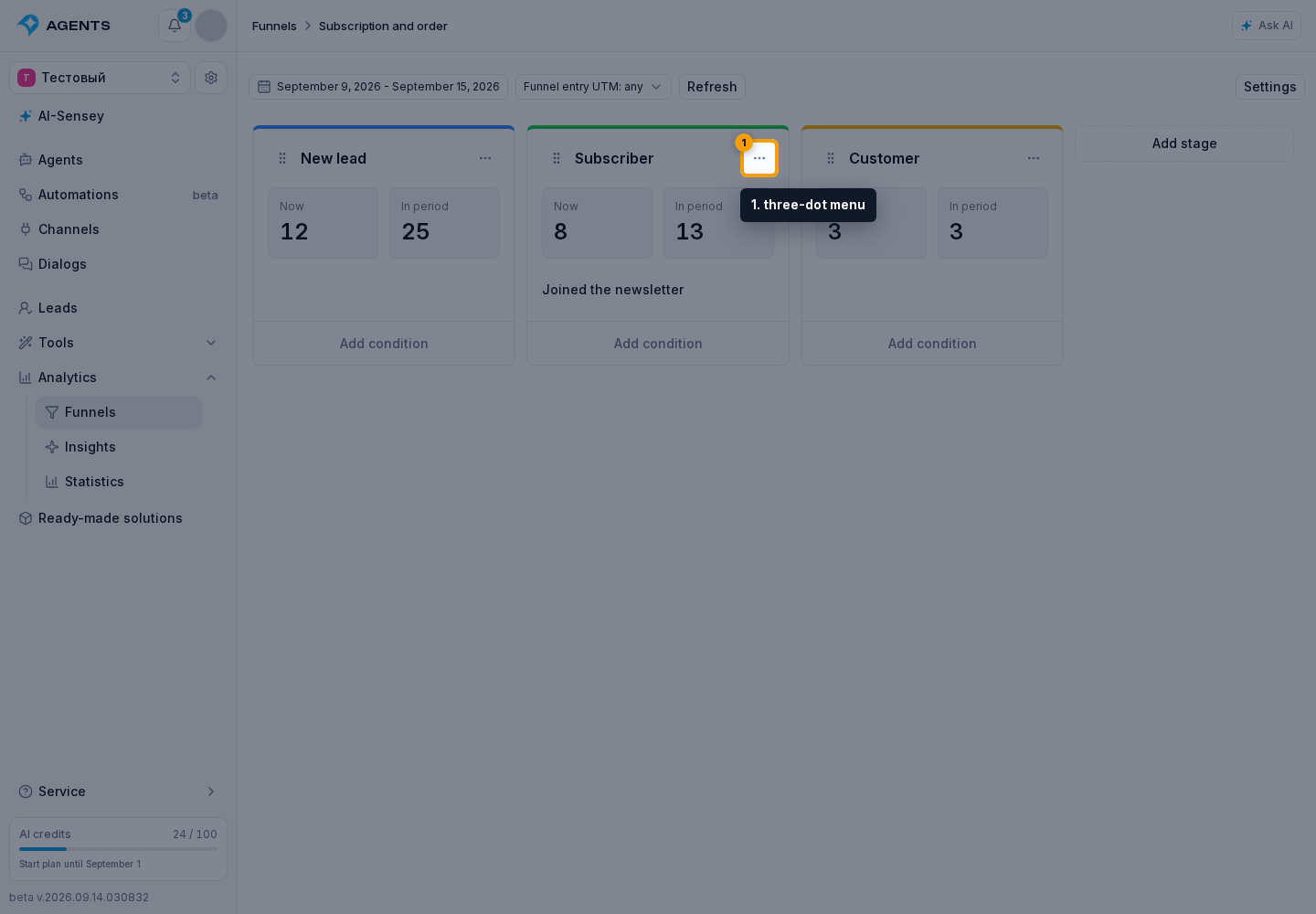
In the stage column, open the three-dot menu to the right of its name.
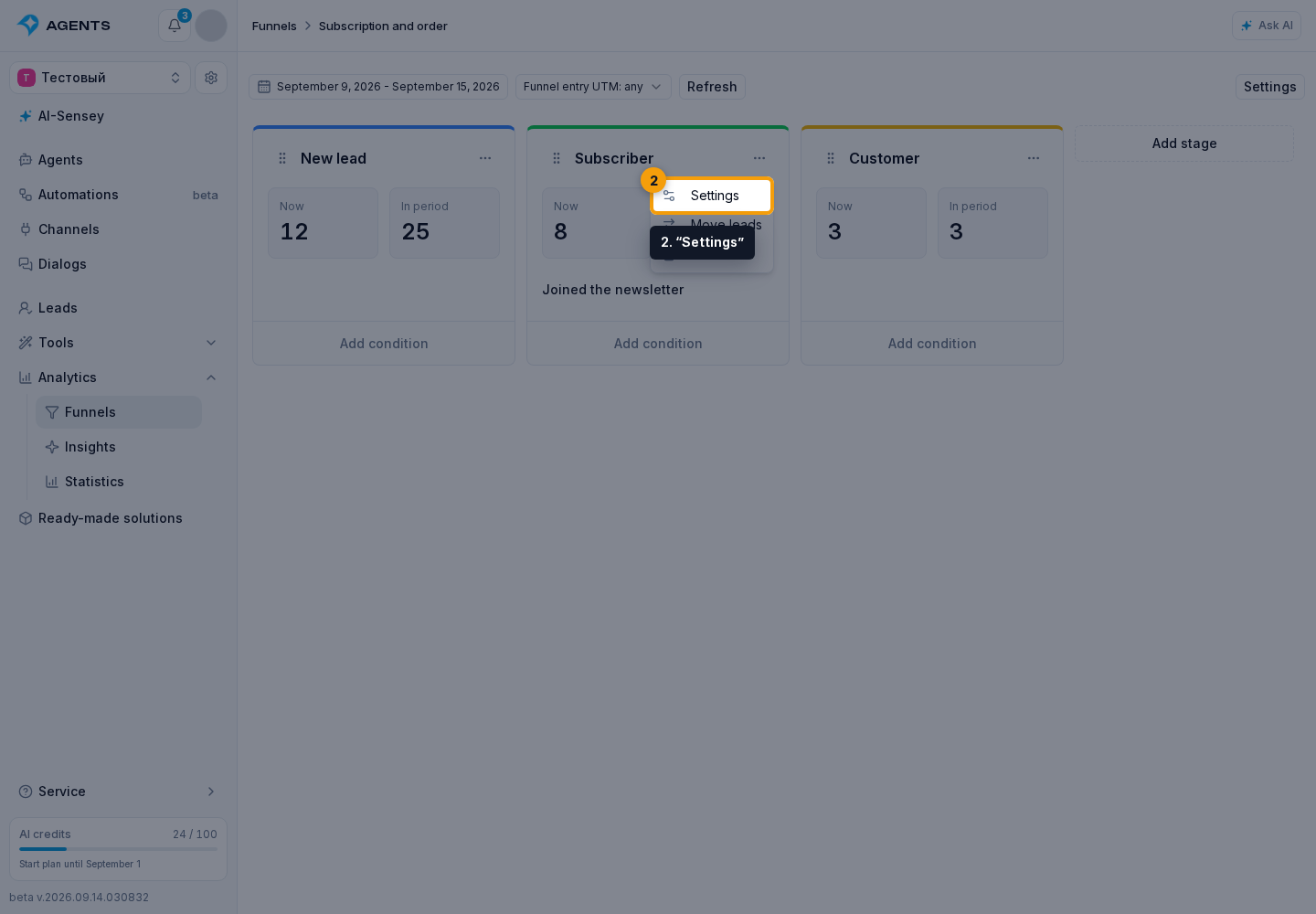
Select “Settings”.
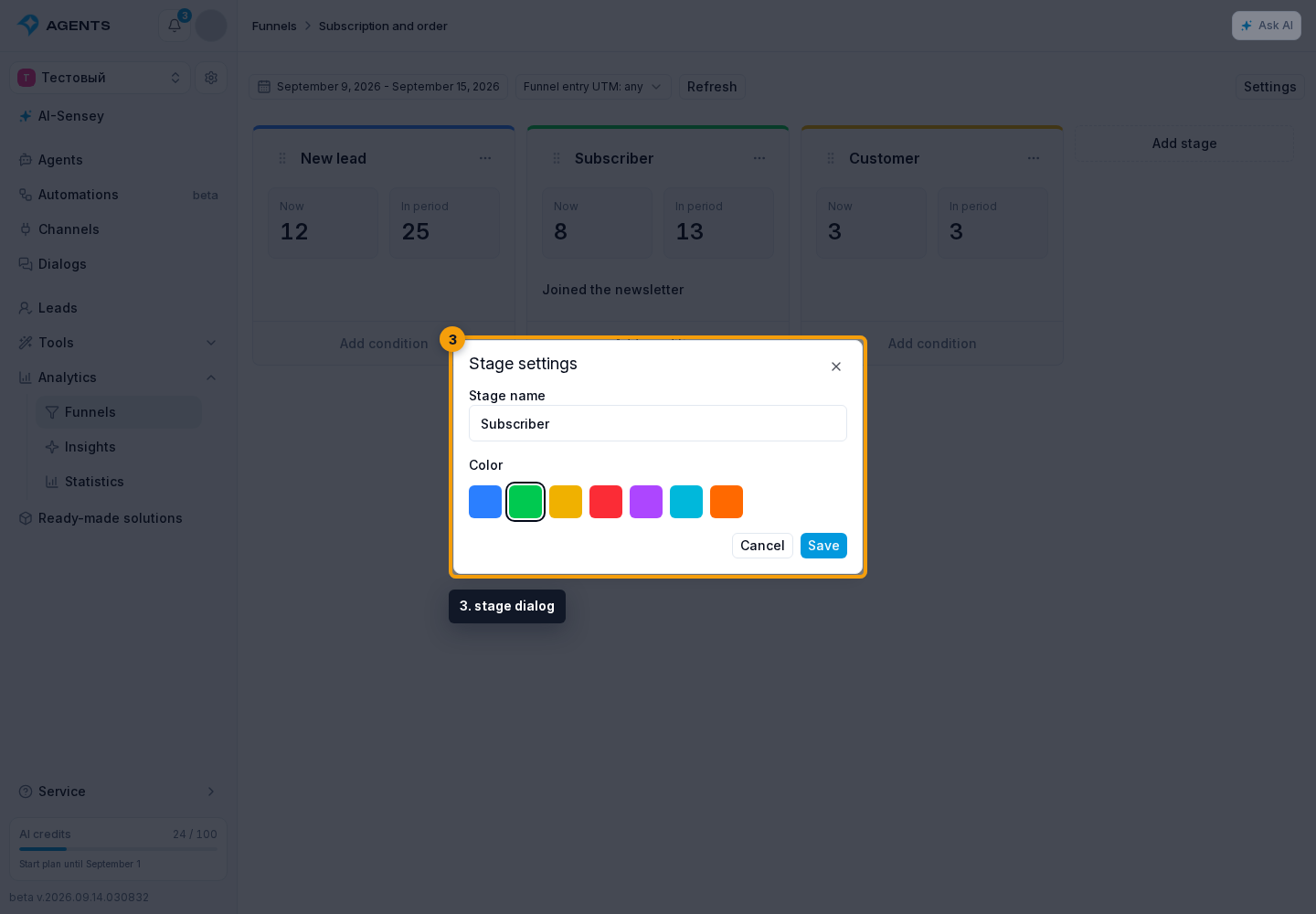
- In the stage dialog, set its name.
- Choose a colored square.
- Click “Save”.
The selected color has an outline and appears as a stripe at the top of the column.
Change the order
Drag a column by the handle to the left of its name to the desired position. The order is saved immediately.
To move a stage with a keyboard:
- Focus the move handle.
- Press Space.
- Move the stage with the left or right arrow key.
- Press Space again to finish, or Escape to cancel the move.
Order affects transition rules: they only move leads to later stages.
Delete a stage
Only an empty stage can be deleted: move its leads to another stage first. At least one stage must remain.
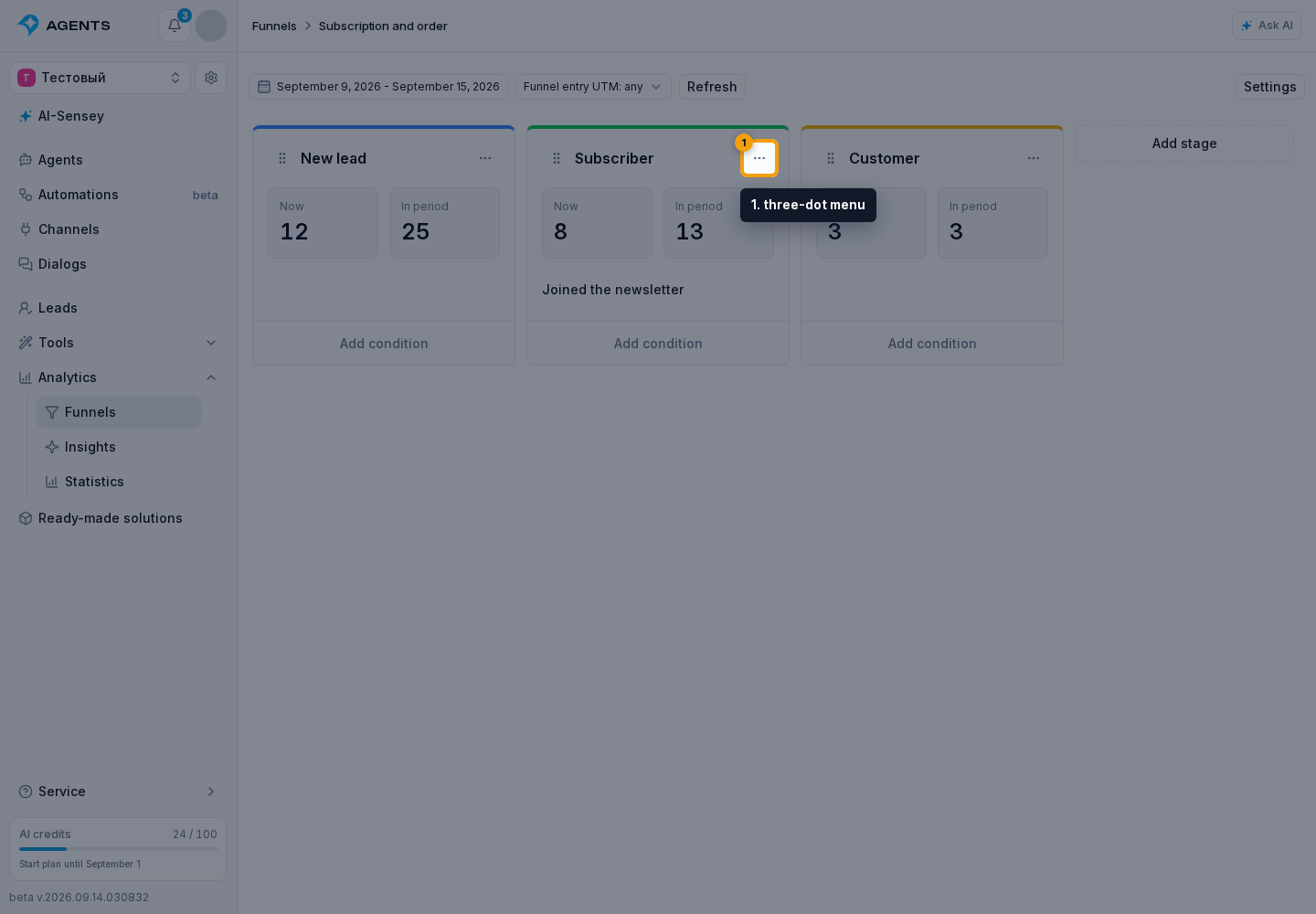
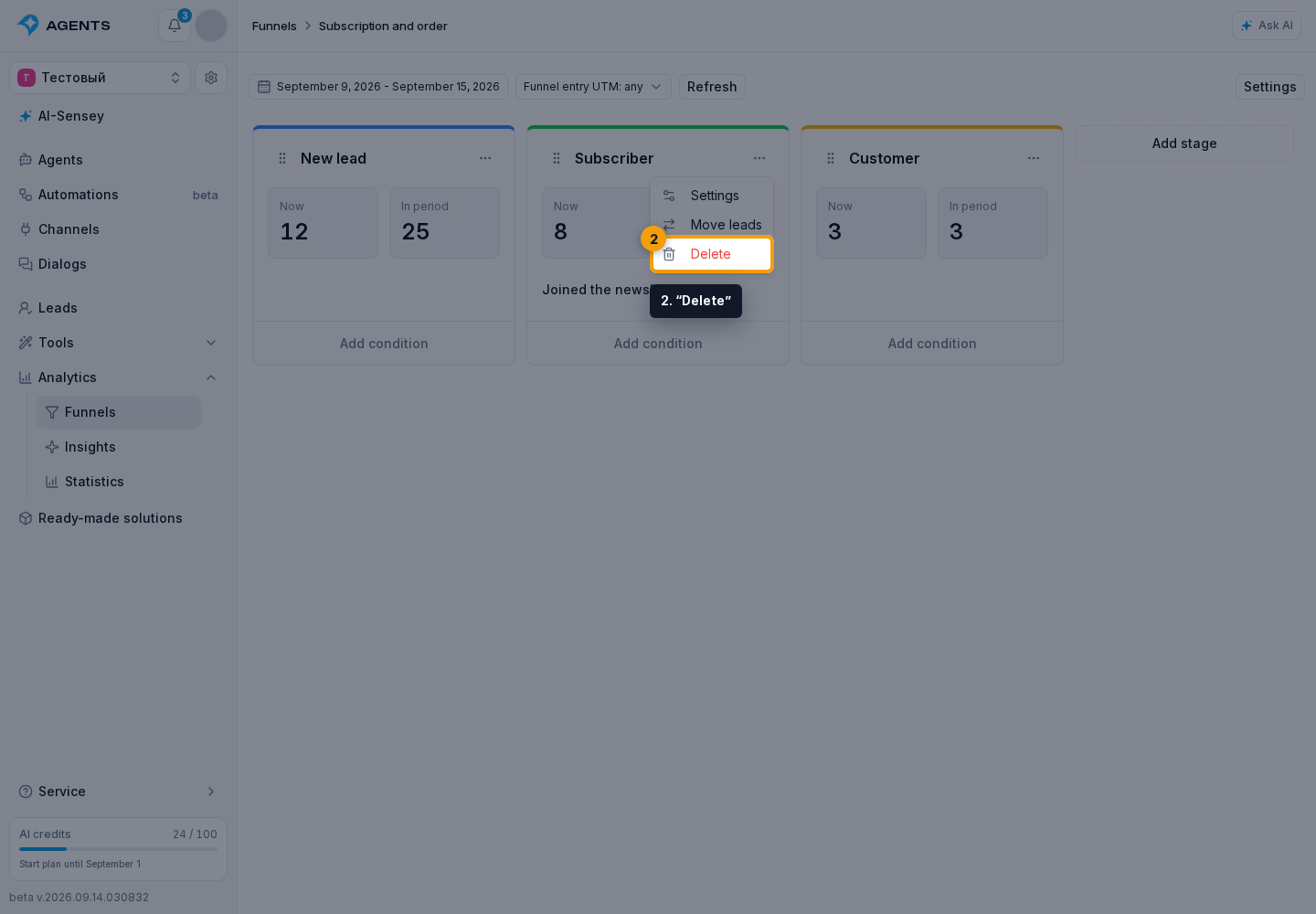
Open the required stage's three-dot menu.
Select “Delete”.
Click “Delete” in the confirmation dialog.
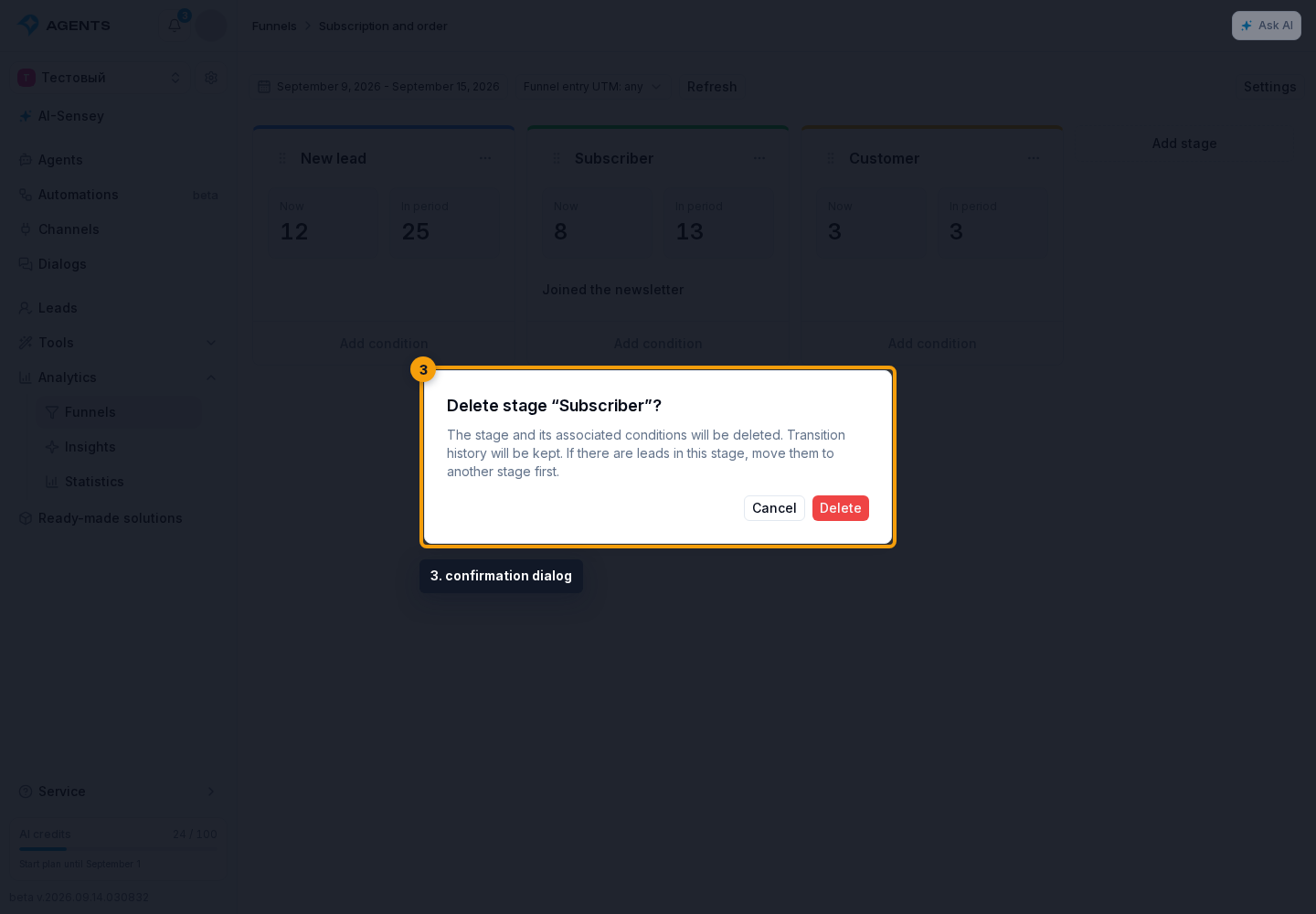
The deleted stage is hidden from the funnel, while its record and history are kept. Conditions targeting the deleted stage are deleted; conditions for other stages are kept.
Use markers to label different lead states within a stage without creating additional stages.