
Autostart
Choose the messages and channels in which the agent is assigned automatically.
Find Autostart in agent settings.
Choose a mode
Autostart determines when an agent is assigned to a dialog automatically. It is not the agent's activity switch: to pause the agent, use the status in the header.
In the Autostart mode field, choose one of these options:
- Off — the agent is assigned manually or by another rule;
- By Keywords and Link — the agent launches on configured phrases and can be subscribed to by link;
- On All Messages — the agent is assigned automatically to matching new messages.
When a mode is enabled, additional settings appear below it.
- Use the channel list to choose where the agent should start.
- Choose the dialog types: all, private, or group.
- Set the agent role in Agent priority in dialog: primary or background.
A dialog can have one primary and one background agent. Both can reply to the client and perform actions. The role determines which position the agent occupies when assigned; it does not enable or disable replies. Message delivery depends on the agent's reply mode and instructions.
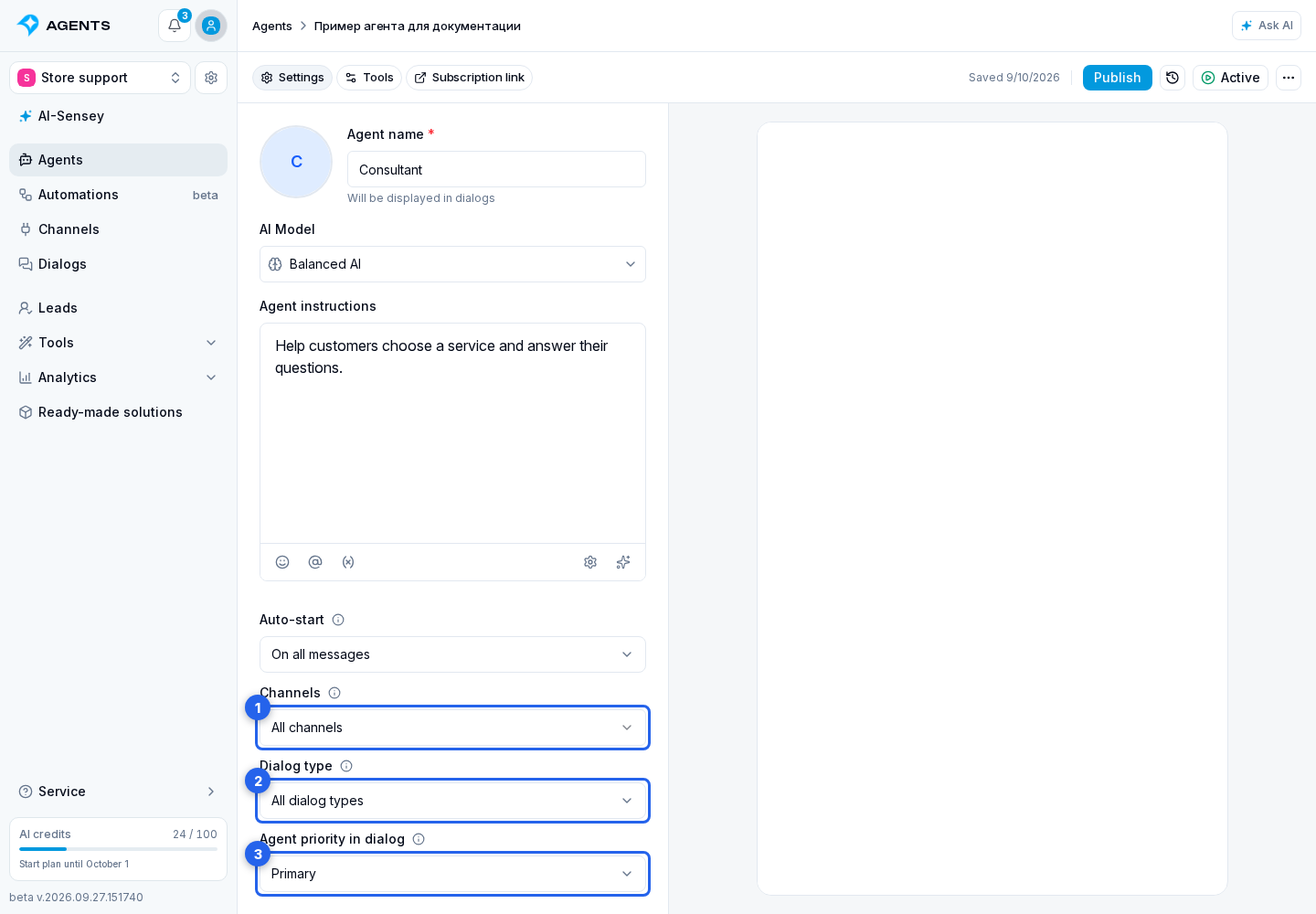
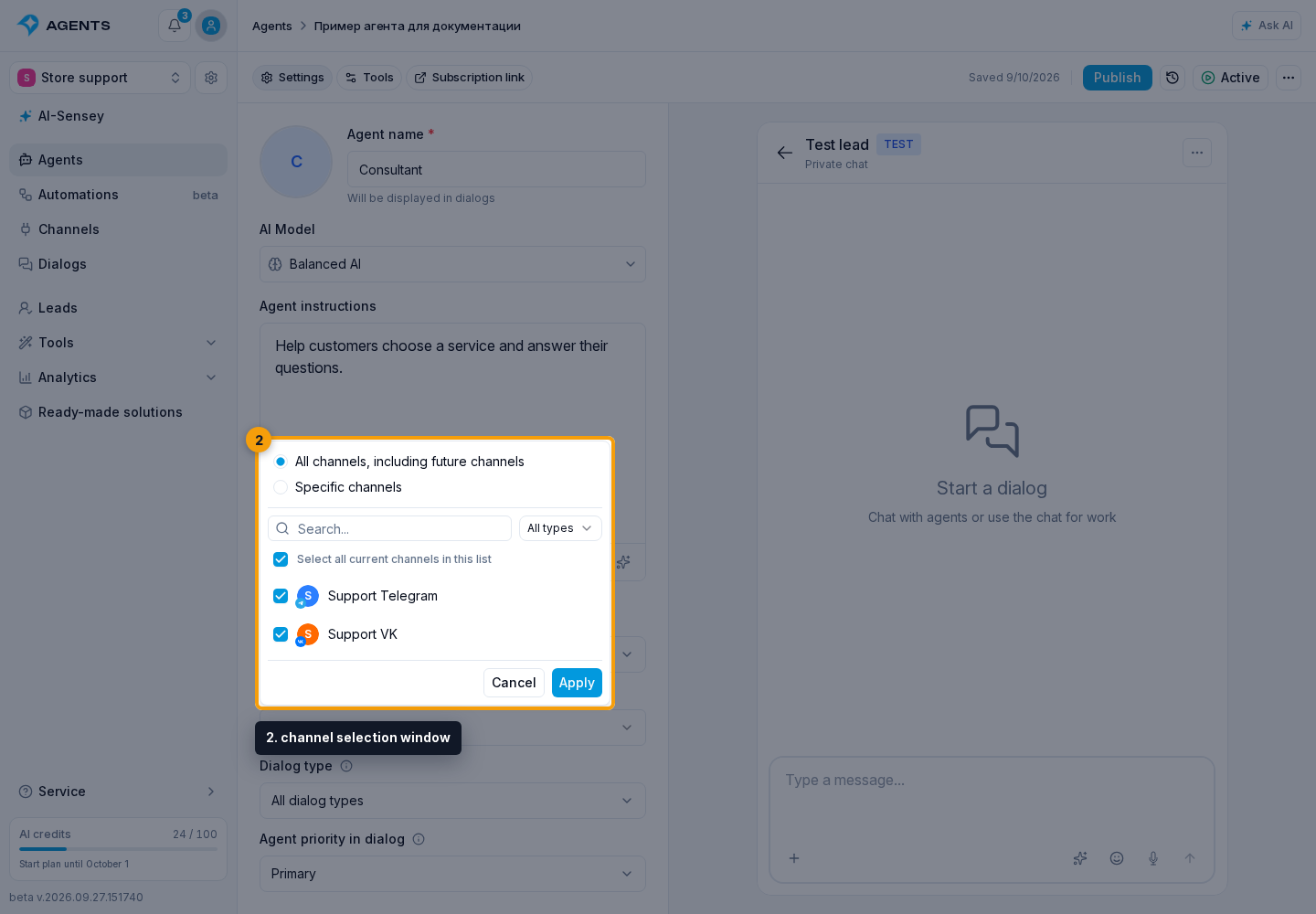
To configure channels, open their list. In the channel selection window:
- In channel selection mode, choose All channels, including future channels or Specific channels.
- For Specific channels, check the desired channels. This list stays fixed even when it contains the only project channel or every current channel.
- Click Apply.
Switching between On All Messages and By Keywords and Link preserves the selected channels, dialog types, and role. Off clears autostart settings.
A background agent can identify the customer's interests, save useful information, and add the customer to suitable segments. Describe this task in its instructions and configure access to data and tools.
Assigning an agent to an existing dialog does not by itself start a review of earlier messages. When the customer next gets in touch, the agent can take the available history into account. To look into a past conversation now, turn to AI-Sensey.
For automatic selection in each role, a matching segment rule takes priority, followed by a channel rule, then a project rule. Therefore, On All Messages for a channel does not override assignment from a segment. A newly assigned agent replaces the previous one in the same role; one agent cannot occupy both roles at once.
If an agent stops replying after the lead joins a segment, open the dialog details and check which agent is currently assigned. Then check the segment rule and that agent's reply mode. Changing the role from background to primary does not enable disabled replies or override another assignment rule.
When published rules overlap, the form shows auto-assignment conflicts. Publishing can require an overwrite confirmation: previous rules for the same area are disabled. Segment rules are changed separately on the segment page.
Keywords
If you chose By Keywords and Link, fill in the keyword field that appears and configure channels, dialog types, and the role as described above. Type a word or phrase, then press Enter or leave the field. The added value appears as a separate tag. Wait for draft autosave; the rule changes in live dialogs after publication.
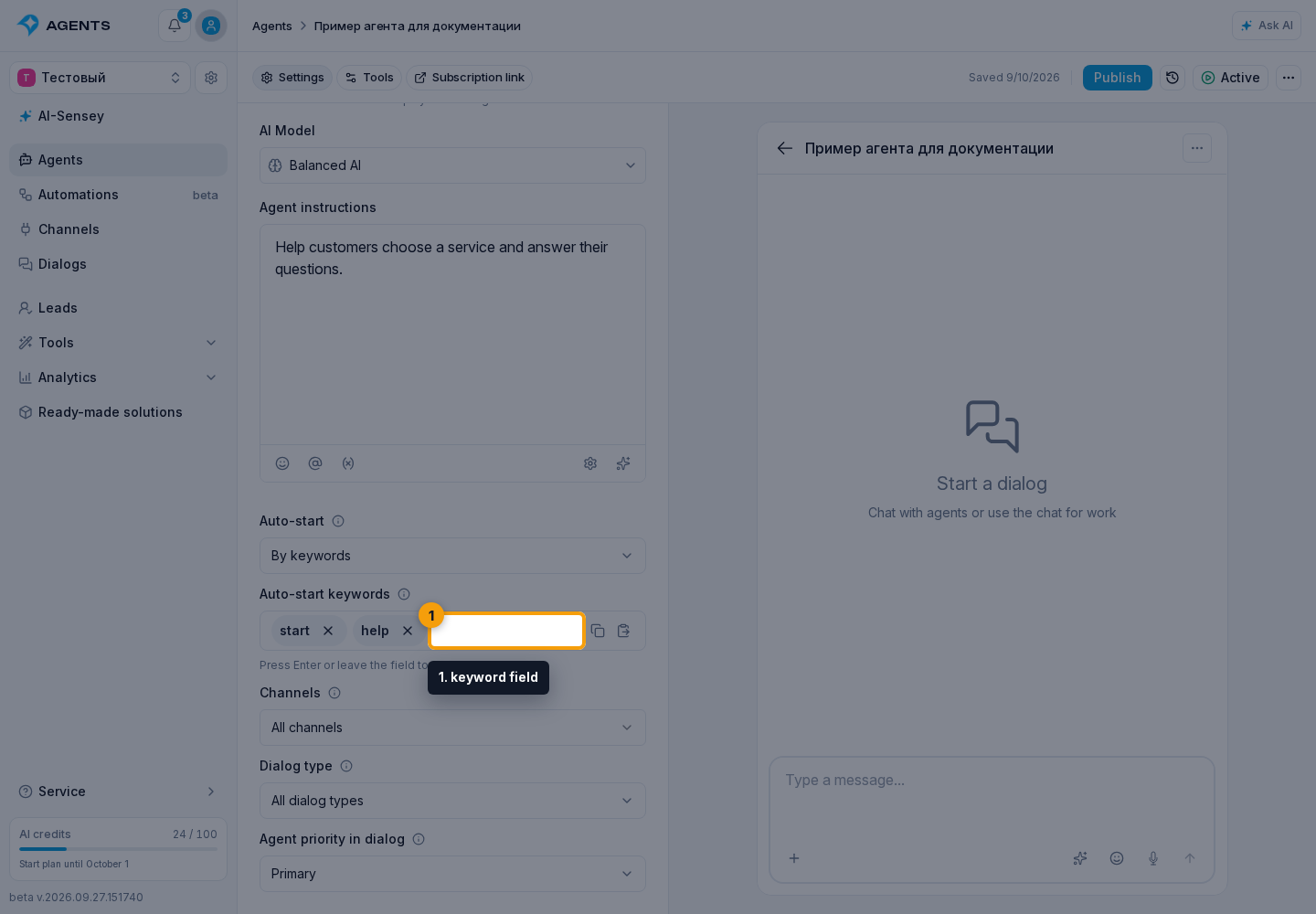
For example, to start on the word “Trainer”, add it to this field, select the required VK channel, publish the settings, and activate the agent. A separate automation is not required just to start the agent on a keyword.
Without keywords, this particular rule will not trigger on a message. That does not prevent an already assigned agent from replying or being assigned in another way.
Assignment for segment members is configured in the segment, and the agent's subscription link has its own page.