
Working with automations
Distribute incoming requests between the agent and automations so the same event does not receive two independent replies.
Main section: Tools.
Let An Automation Handle The Event
When both an agent and an automation can react to a message, you can leave it to the automation. For example, an automation handles orders triggered by the word "Order", while the agent answers other questions.
On the Tools tab, click Configure next to Working with automations. In the settings dialog that opens:
- Enable Do not start the agent while an automation is processing the dialog. The setting is off by default. A short description appears below the switch; the help icon beside it provides details and an example.
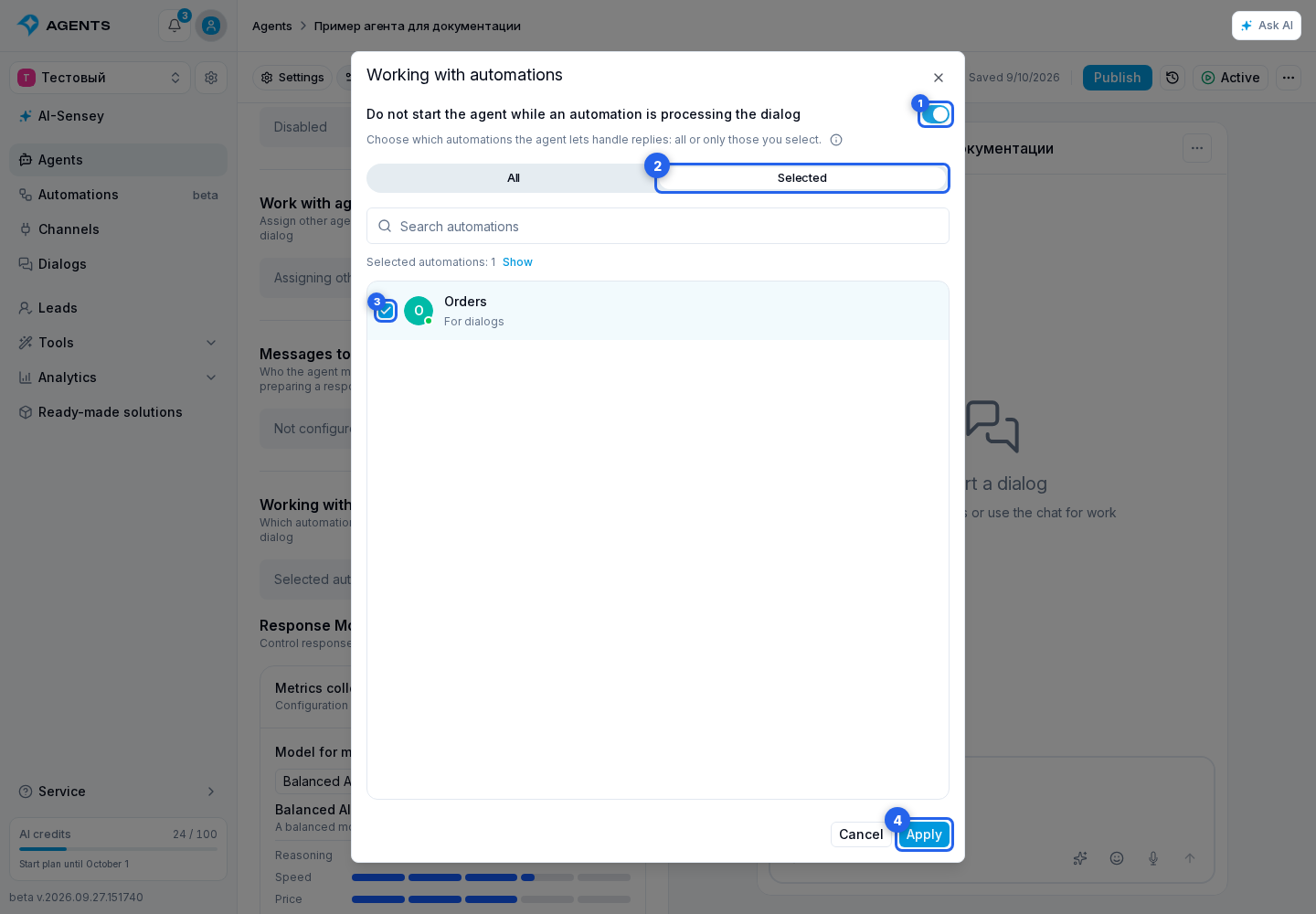
- Select All to consider any project automation, or Selected to specify particular ones.
- In Selected mode, find an automation using search and check at least one automation in the list. Each row shows the automation's avatar, name, type, and status.
- Click Apply to copy the settings to the agent form. Cancel or closing the dialog keeps the previous values. Then save the draft and publish the agent.
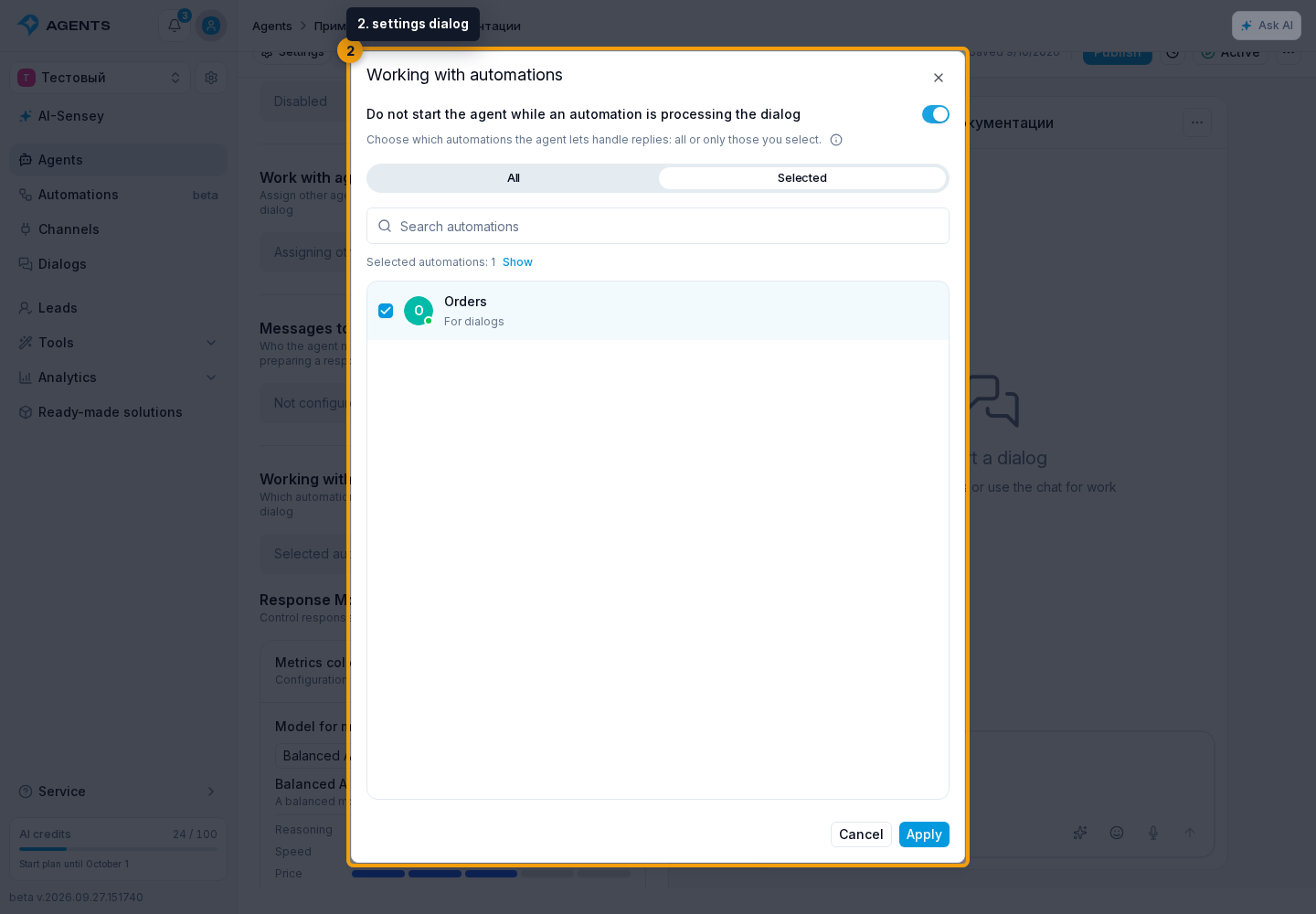
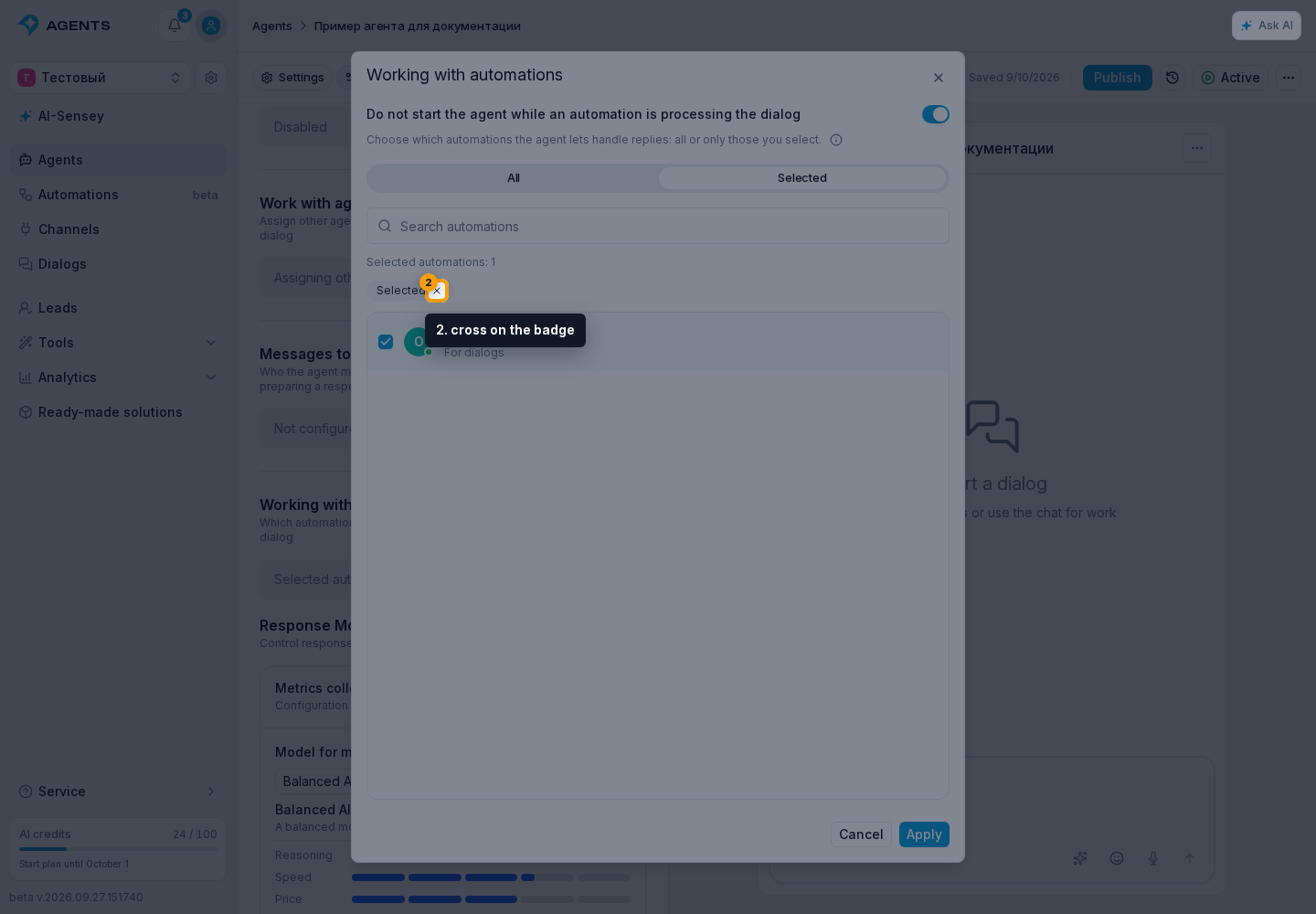
Click Show next to the counter to see only selected automations. Search is cleared, and a Selected badge appears below the counter. The cross on the badge removes this filter while preserving the automation selections.
The agent does not start an automatic reply if at least one of the specified automations accepts the event or is already processing this dialog: running a process, waiting in the queue, or waiting on a timer. The automation does not have to send a message or finish first. Waiting for a button click or customer reply alone does not block the agent. If an automation accepts the click or reply, including to continue a Message step waiting for a reply, the agent skips that event.
Completion or failure of a run does not block an automatic reply by itself. However, an available button or an expected reply can continue that run; the agent then also skips the event accepted by the automation. Cancelled and paused runs do not block new automatic replies. The setting does not cancel an agent reply that has already started.
The setting does not disable the agent in the dialog. An automation can still explicitly call it with Run agent or assign it with last-event processing. Check this separation of replies in a live dialog: the rule does not apply in the agent's test chat.
If An Automation Replies First
If an automation sends a dialog message while the agent is preparing a reply to the client's previous message, the enabled Cancel a pending reply if an automation responds first setting stops the pending agent reply. The client receives the automation message without a duplicate agent response immediately afterwards.
The setting is enabled by default, appears under Reply mode, and is visible only when AI response generation is enabled. It applies to live dialogs; agent testing does not cancel a response because of a test automation message.
If you turn it off, an agent response that has already started may be sent after the automation message. Save and publish the agent draft for the change to reach live dialogs.
Unlike letting an automation handle the event, this setting cancels a reply already being prepared, and only after the automation sends a message. To prevent parallel starts, use the setting above; pending-reply cancellation can remain enabled alongside it.