
ZIP Import
ZIP archives
ZIP is useful for moving a whole documentation structure: folders, Markdown files, documents, tables, and images. During import, the archive is placed under a root folder named after the ZIP file; if the archive already contains that root folder, an extra duplicated root is not created.
Archive limits:
- ZIP size - up to 500 MB;
- total uncompressed size - up to 500 MB;
- one file inside the archive - up to 25 MB;
- up to 6000 entries, up to 5000 files, and up to 2000 folders;
- path depth - up to 12 levels;
- path segment length - up to 255 characters.
Service files such as __MACOSX, .DS_Store, and Thumbs.db are skipped. Unsafe paths, paths that are too deep, and unsupported files should not be included in the imported structure.
Markdown images and links
Images can be uploaded as separate files or placed in a ZIP next to Markdown. Archives support PNG, JPEG, GIF, WebP, BMP, SVG, and AVIF. After upload, these images become separate knowledge base materials and can be used in Markdown preview.
If Markdown links to a file from the same knowledge base, for example  or [PDF](docs/rules.pdf), the cabinet tries to connect that link with the uploaded material. This lets Markdown preview show images and helps the agent understand that the instruction also has a related file.
Start the Import
Select the archive in the upload form. Before starting, choose an image recognition mode: it affects image processing and costs.
Wait for Processing
A ZIP has two stages. While the browser is sending the archive to the server, the cabinet is temporarily blocked on mobile. Once the server accepts the ZIP and Creating files from the archive begins, you can continue working or close the page; the server completes the import independently.
If you reload the page or return to the cabinet later in the same browser, the panel finds the accepted server operation and resumes displaying its progress. You do not need to select the ZIP again. Select it again only when the transfer stopped before the server accepted the archive and the cabinet explicitly reports this.
Conflicts and import summary
If the selected folder already contains a material with the same name, the cabinet shows a conflict and offers to upload the new material under another name, replace the existing material, or cancel the import. For folders, check what exactly will be replaced so you do not accidentally remove needed nested materials. When a conflict occurs during background processing, the same actions remain available after a page reload.
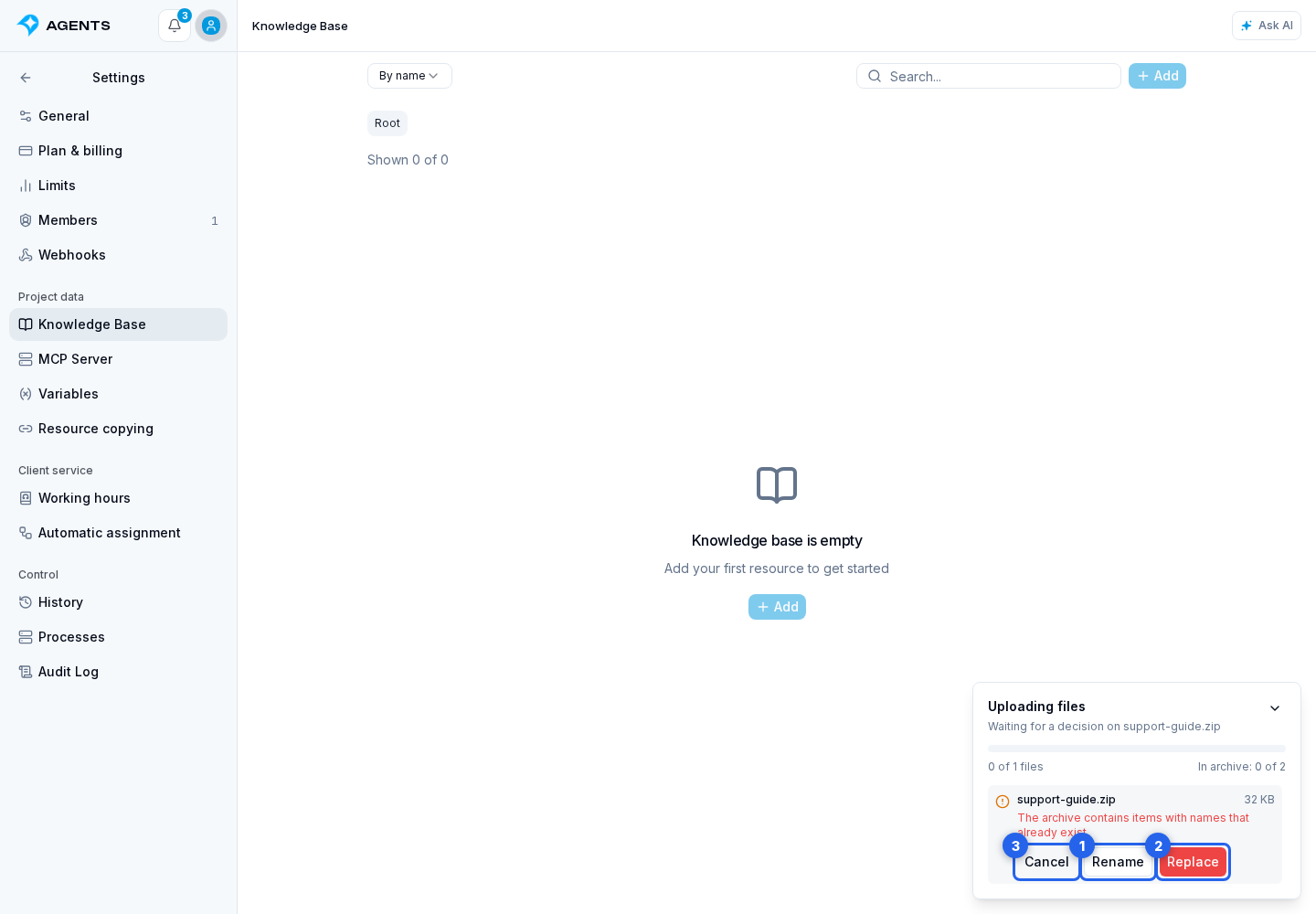
After a successful import, the cabinet shows a summary: which root folder was created, how many folders and files were added, which materials were replaced or renamed, and how many files are still waiting for text extraction.
When uploading a ZIP with recognition disabled, the new version becomes available as a whole after file preparation. Existing materials remain available while their replacement is prepared. A preparation error does not replace them partially. The storage limit is checked against the final size after replacement, not the sum of the old and new archives. This mode cannot replace a folder containing knowledge-base tables or a nested ZIP folder published separately: use another folder for the archive.
For automated integration uploads, checking results, and returning to a retained version, use the archive import API.
If Import Does Not Finish
For a single file, retry the upload and check its size. For large sets, use a ZIP up to 500 MB and follow the archive limits; if the structure is too large, split it into several archives. Do not upload a ZIP again after the server accepts it: reload the page and wait for the recovered status. Select the archive again only after a message that the server did not accept it, or after a completed failure when the required materials are absent.