
Substitution in instructions
Substitute project, lead, and dialog values into instructions and use conditions to choose text variants.
Open the agent instructions.
Current dialog data
For each reply, Senler uses a selected part of the current dialog rather than the entire project database. It contains the current event, message times, authors, and explicit reply relationships. In a group dialog, the service markup identifies participants by their internal Senler Lead ID; an available name or username may also appear next to an author.
This markup helps the agent follow the conversation, but user-written instructions should not parse it. When a rule depends on an exact field of the current lead, insert that field from Lead data. For example, {{lead_data.id}} is the internal Senler Lead ID, while {{lead_data.external_user_id}} is the user's ID in the connected channel. They are different values.
System data is selected for the lead associated with the current event. If that event has no separate lead, the dialog's primary lead is used. In a group chat, the inserted value belongs to the current lead; it does not represent every participant at once.
Insert data into instructions
- Place the cursor at the required position in the agent instructions.
- Select Insert variable. The Data and variables dialog opens.
- Select Project, Lead, Dialog, or Lead data.
- Find the field by its label or system name.
- Select Value to insert it into the text, or Condition to choose between two instruction fragments depending on the value.
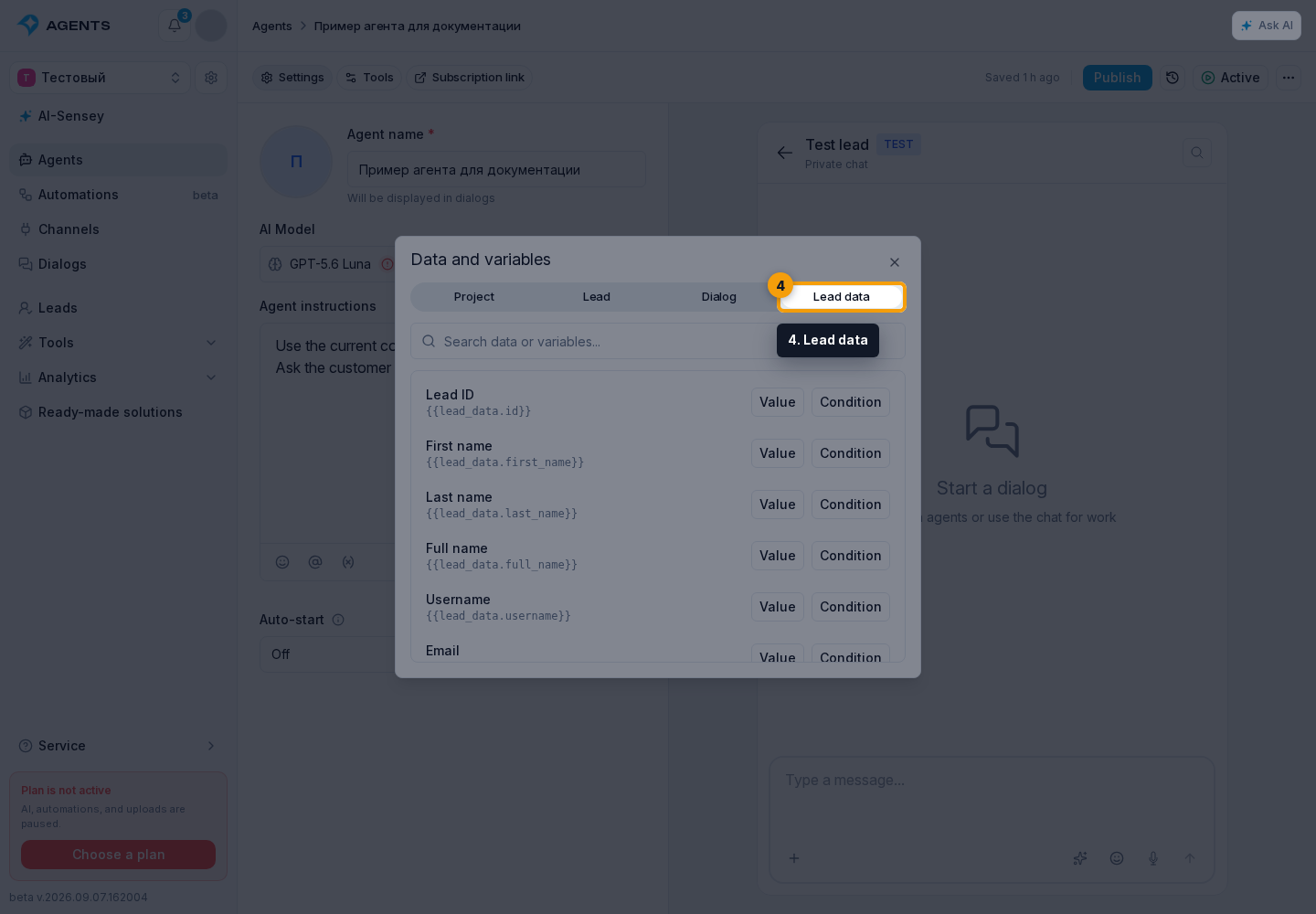
After insertion, the editor contains a token such as {{lead_data.first_name}}. Before each response, Senler replaces it with the current lead's actual value and only then passes the instructions to the agent. If no value exists, the token becomes an empty space. This substitution does not allow the agent to change data.
Condition inserts a {{#if ...}} block. For example, use it to set how the agent addresses the customer:
{{#if lead_data.first_name}}
Address the customer by name: {{lead_data.first_name}}.
{{else}}
First ask how to address the customer.
{{/if}}
In this example, a present name selects the first fragment, while a missing name selects the fragment after {{else}}. For other data types, note that the condition is also false for the number 0, the boolean false, an empty array [], an empty object {}, and a whitespace-only string. The string "0", in contrast, selects the first fragment.
Do not use this condition as a universal “value is set” check: a zero balance, for example, is a known value but selects the else branch. Replace the text in both branches with rules for your task.
System lead data
Lead data provides these fields:
| Field | Inserted value |
|---|---|
{{lead_data.id}} | Internal Senler Lead ID |
{{lead_data.first_name}} | First name |
{{lead_data.last_name}} | Last name |
{{lead_data.full_name}} | Full name assembled from the available name fields |
{{lead_data.username}} | Username in the channel, when available |
{{lead_data.email}} | |
{{lead_data.phone}} | Phone number |
{{lead_data.avatar_url}} | Avatar URL |
{{lead_data.channel_id}} | Internal connected channel ID |
{{lead_data.channel_type}} | Channel type |
{{lead_data.external_user_id}} | User ID on the channel side |
{{lead_data.language_code}} | Lead language code |
{{lead_data.lead_source}} | Lead creation source |
{{lead_data.lead_type}} | Lead type |
{{lead_data.created_at}} | Lead creation date and time |
{{lead_data.updated_at}} | Lead last update date and time |
These fields come from the current lead card and are not created manually. Dates are inserted in a system format containing the date, time, and time zone. If a person needs a friendlier date, tell the agent how to display it.
For a manager notification, use {{lead_data.full_name}} for the client's name, {{lead_data.channel_type}} for the platform, and {{lead_data.channel_id}} for the internal Senler channel ID. The external user ID is in {{lead_data.external_user_id}} and belongs to the user's platform. When sending to another dialog, select the run's lead and dialog data so the notification contains the client's details, rather than the recipient's.
Instruction examples
Addressing the customer by name:
When the name is present, address the customer by name: {{lead_data.first_name}}.Passing the correct identifier to an external tool:
When a tool requires the internal Senler Lead ID, use {{lead_data.id}}.
When it requires the channel user ID, use {{lead_data.external_user_id}}.
Do not substitute one identifier for the other.
Shared project data:
End the response with the current address: {{project.office_address}}.A variable reference and a value substitution are different
The @ button opens the unified instruction reference catalog. Under Variables, you can add a visible tag for a project, lead, or dialog variable. This tag helps anchor a rule that uses the variable and immediately grants the agent read access to the selected variable.
Insert variable adds a {{...}} template. Senler substitutes its value before the agent runs, so this substitution does not require separate tool permission. However, the template does not let the agent fetch another field later in the conversation or save a new value.
When the agent only needs one predefined value, substitution is enough. When it must read or change variables independently, add a rule to the instructions and configure tool permissions.