
Conversation Status
Close a Resolved Issue
Open the required conversation in the dialog list.
Click the checkmark button, Close dialog, in the chat header. In the window that opens, select the Close now tab and confirm with Close dialog.
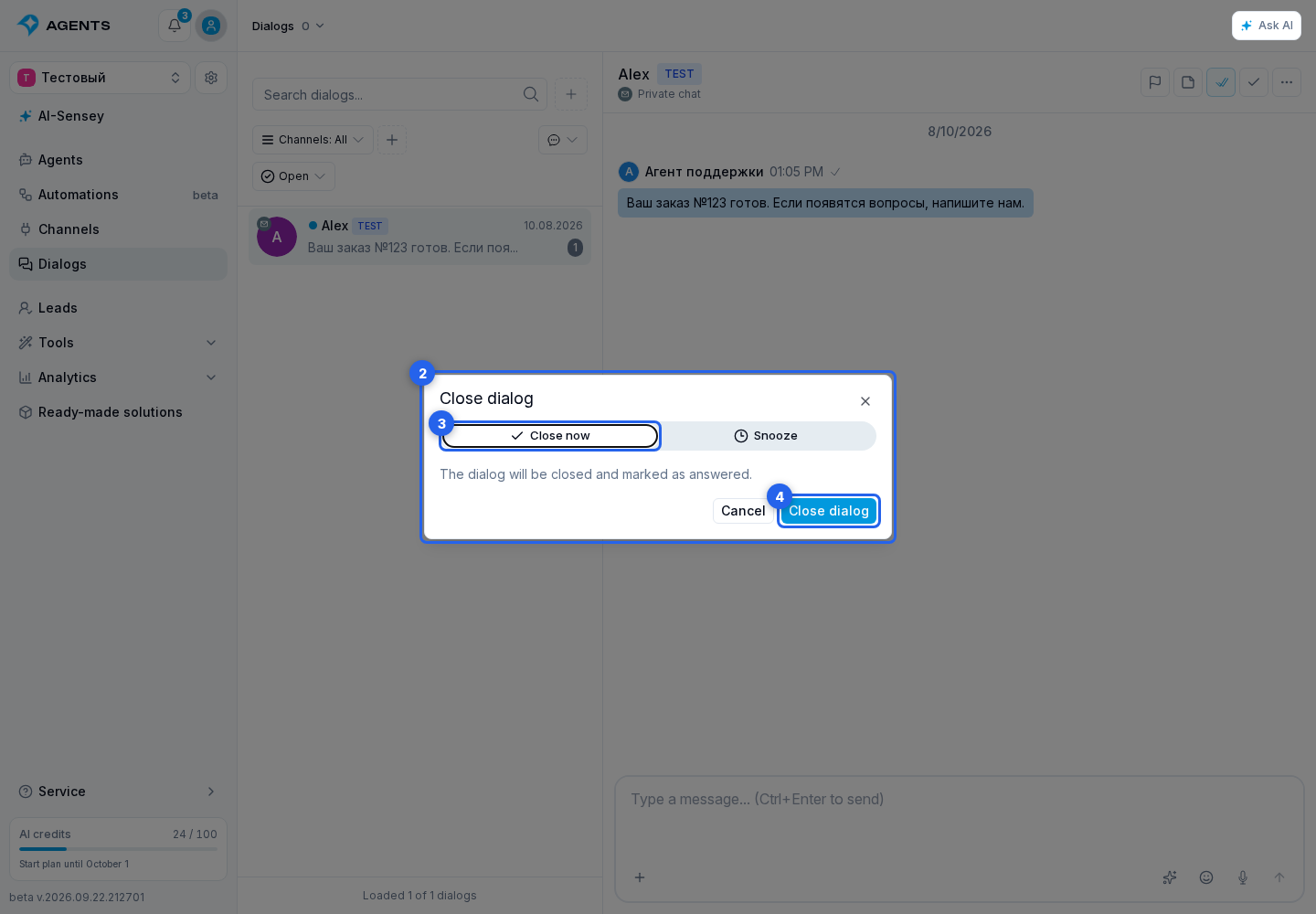
Closing resolves the current issue, marks it Answered, and stops the current response wait. History remains; a new customer message opens a new issue in the same chat. Sending a reply or marking the dialog Answered does not close it. Read new customer messages before closing.
Snooze a Dialog
To snooze the dialog, open the same window using the checkmark button and select the Snooze tab. Choose 30 minutes, 2 hours or tomorrow at 09:00, or enter a date and time. These options only set the time: click Snooze dialog to apply it. Times use your browser timezone.
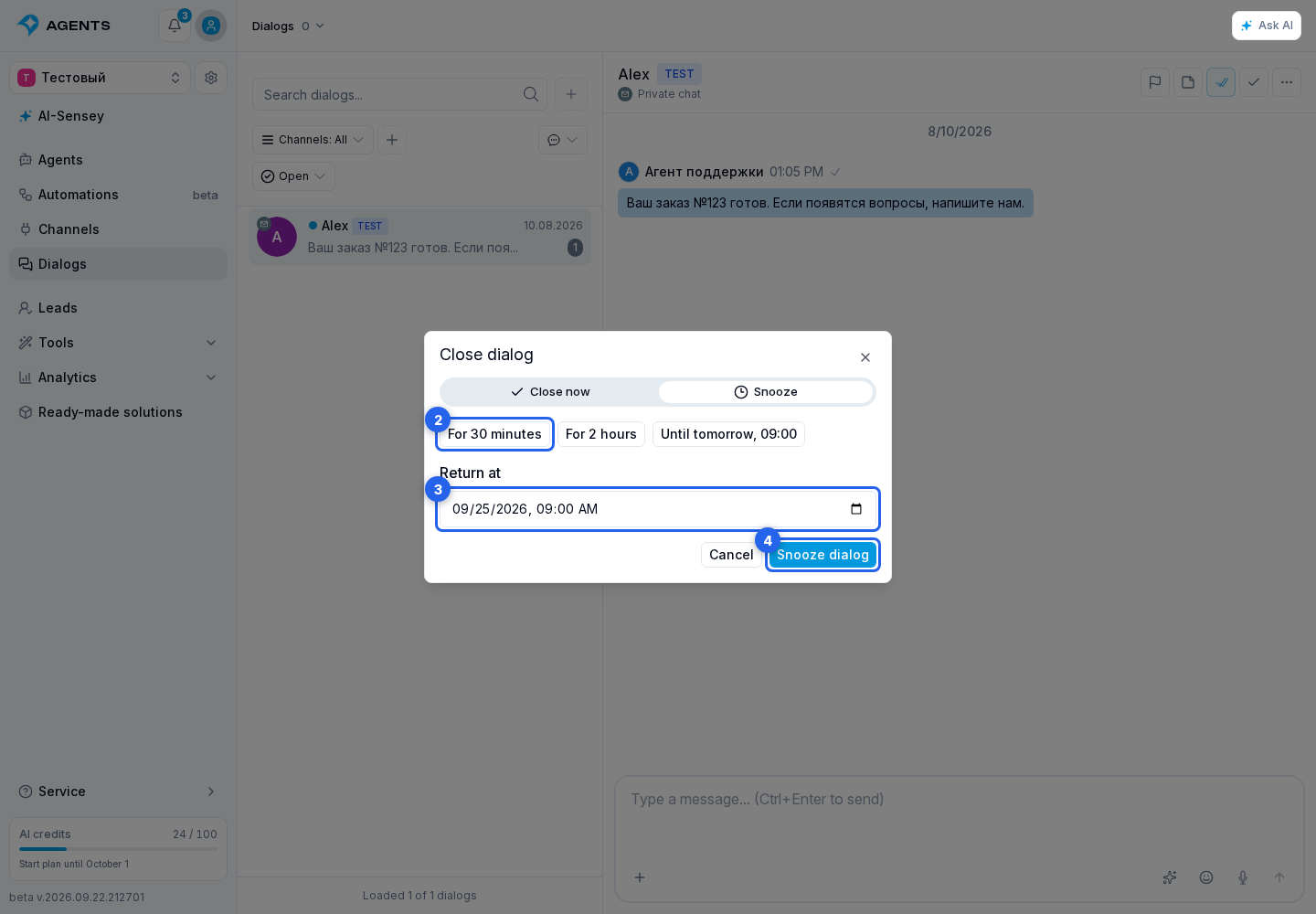
A snoozed dialog stays outside the Open selection until the chosen time. Find it using the Snoozed status filter. A new customer message returns the dialog sooner. A snoozed issue remains unresolved; response waiting time and SLA continue.
Reopen the Dialog
Reopen dialog manually returns a closed or snoozed dialog. For a closed dialog, this button is in the header; for a snoozed dialog, it is in the window opened with the checkmark button.
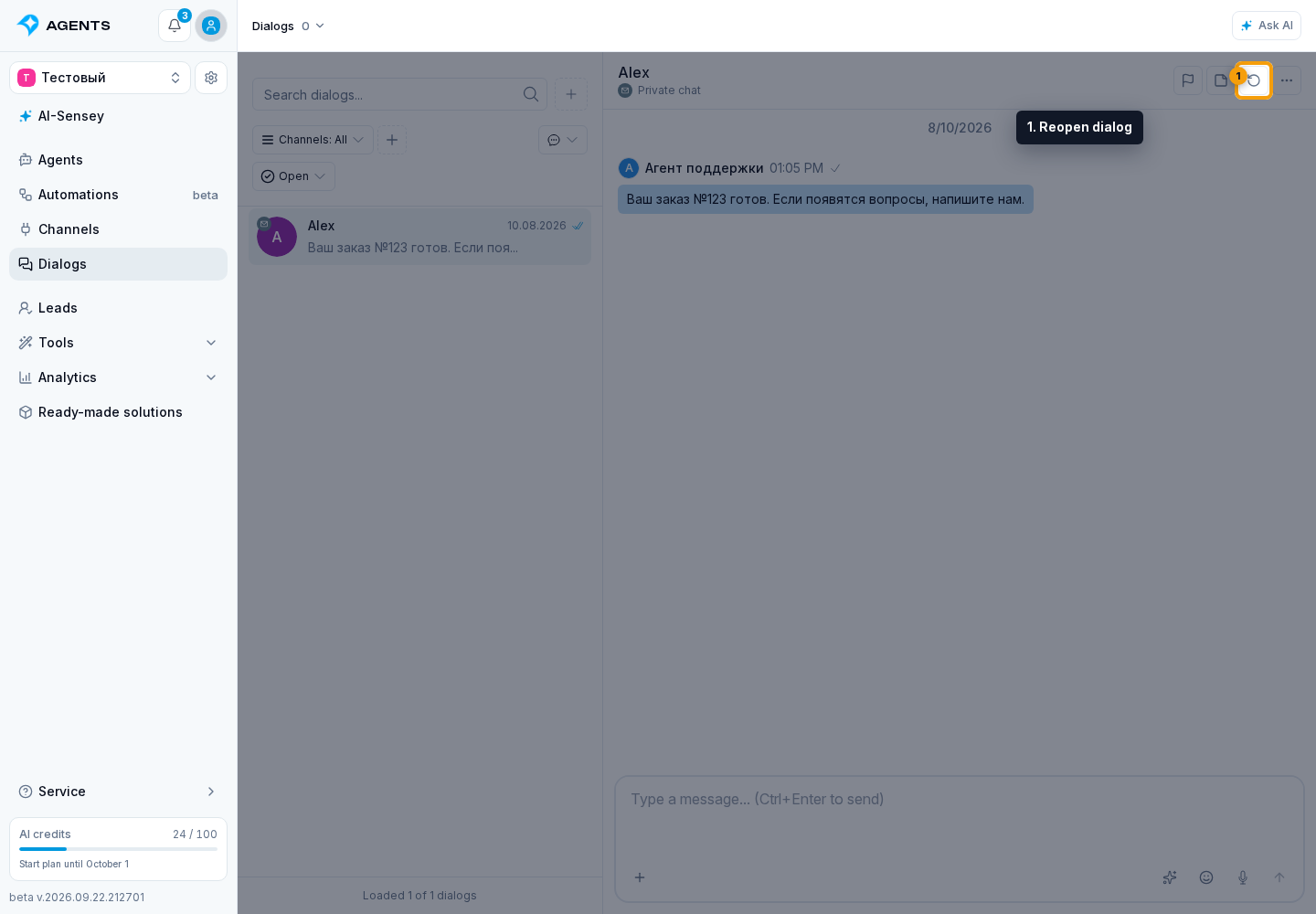
A snoozed dialog keeps its operator after their shift ends while they remain active and permitted to access it. A new issue in a closed dialog checks the previous operator’s shift and otherwise returns to the group for assignment. If nobody is available, it waits in the queue.