
Webhooks
A webhook sends project events to your bot, CRM, or another service. For example, the recipient can create a support ticket from a new message or update a customer record after an unsubscribe event. You do not need to create an application for this integration: specify the recipient URL and select the events you need.
Connecting
- Open project settings.
- Select Webhooks.
- On the webhooks page, select Add and configure the recipient.
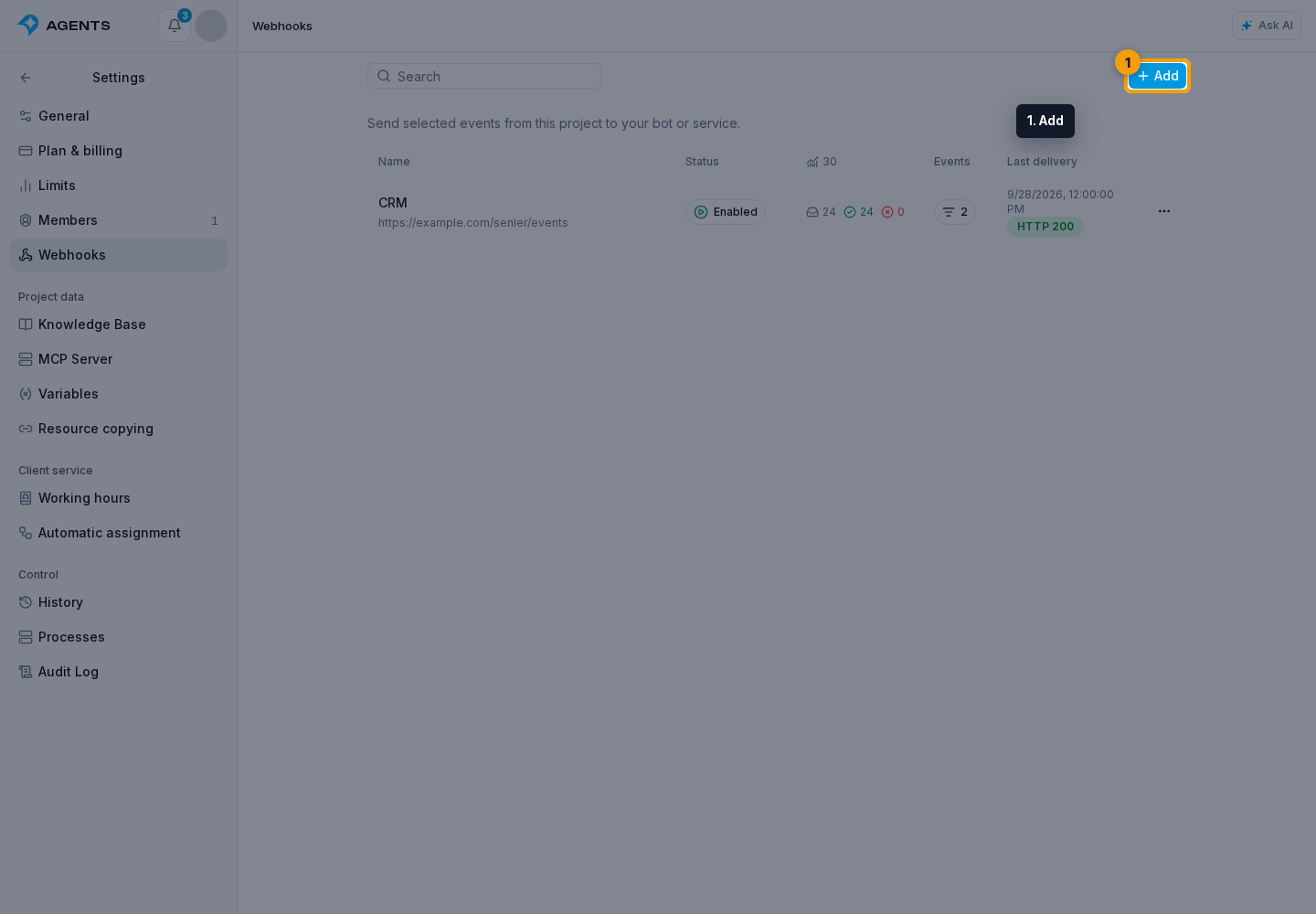
After creation, give the signing secret to the recipient's developer and send a test.
Webhook list
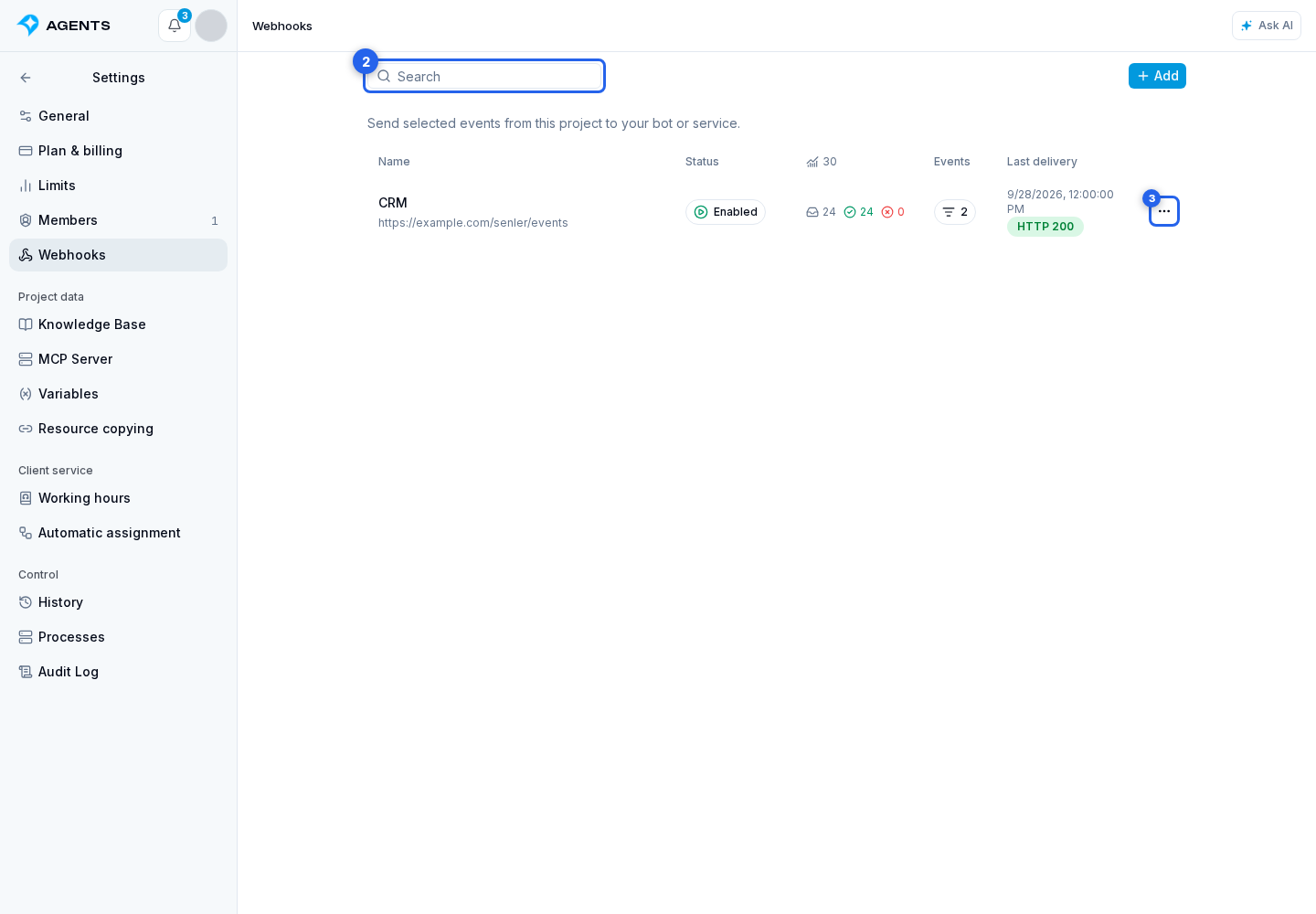
Use search to find a recipient by part of its name or URL. The list shows selected events, status, delivery statistics for 30 days, and the result of the last attempt.
Select a webhook row to open its settings. With view-only access, the request history opens instead.
The three-dot menu provides:
- Edit: name, URL, and events;
- Requests: delivery history and recipient responses;
- Signing secret: the secret used to verify incoming requests;
- Send test: connection check.
Disabling and deleting
The status switch disables or enables delivery without deleting the configuration. A disabled webhook receives no new events or retries; a delivery already in progress may finish.
To remove a recipient:
- Select Delete in its menu.
- Check the name and URL in the confirmation dialog.
- Select Delete.
Delivery to this URL stops; connecting it again requires creating a webhook.
Access and other integrations
The list and requests are available with the View webhooks permission. Creating, editing, testing, reading the secret, and deleting require Manage webhooks. Delivery also stops if the project is deactivated or the webhook creator loses that permission.
A webhook receives events but does not grant the bot access to actions in Senler. For actions, connect Senler.io MCP with separate authorization or use a project API key.
If you are building an application for installation in multiple projects, use application webhooks. Their settings and secret are independent of individual project webhooks.