
Project notification settings
Open Notifications. First connect and confirm a messenger; for push, use the mobile app.
Configuring notifications for a project
- In Project notifications, open the project selector.
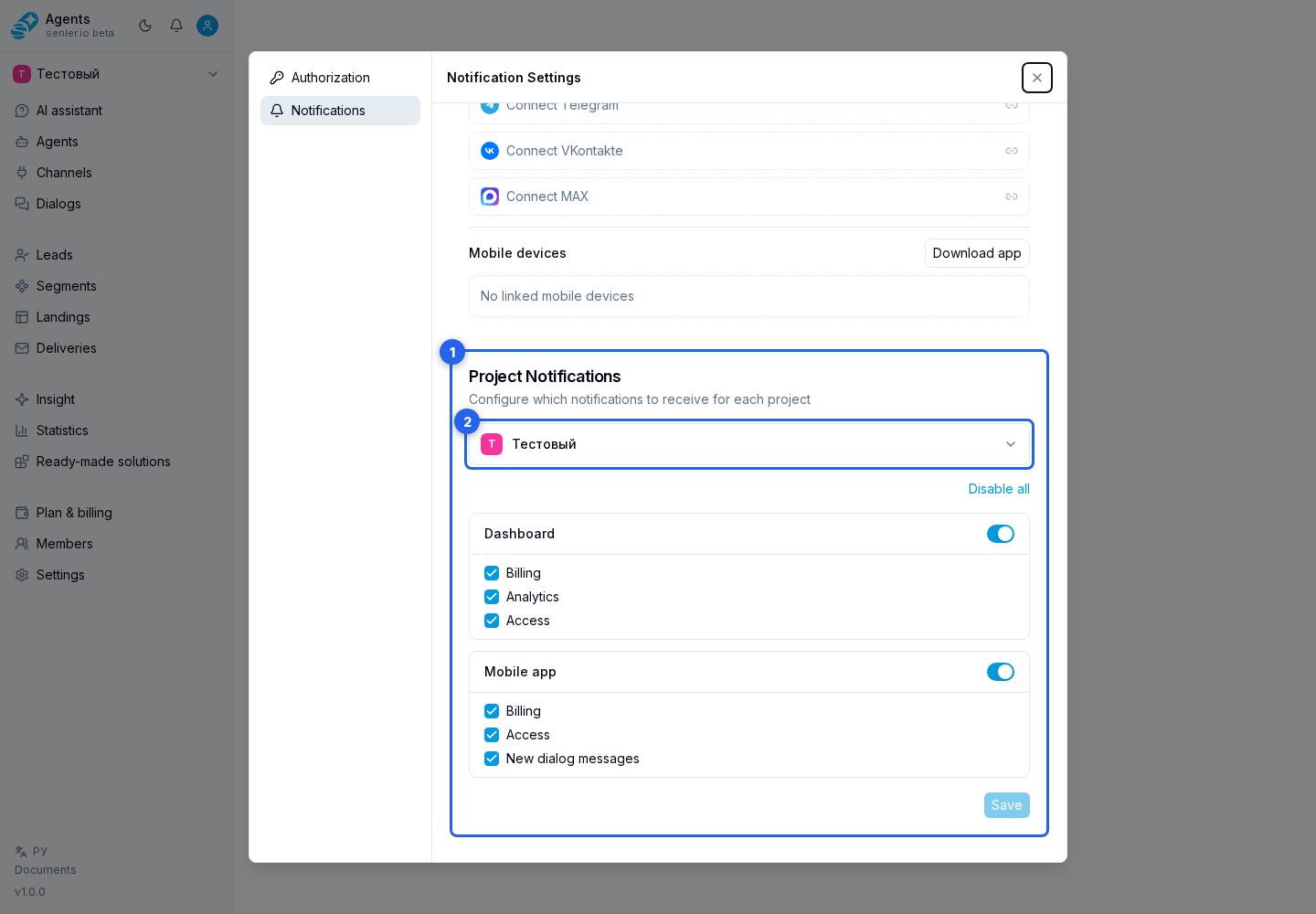
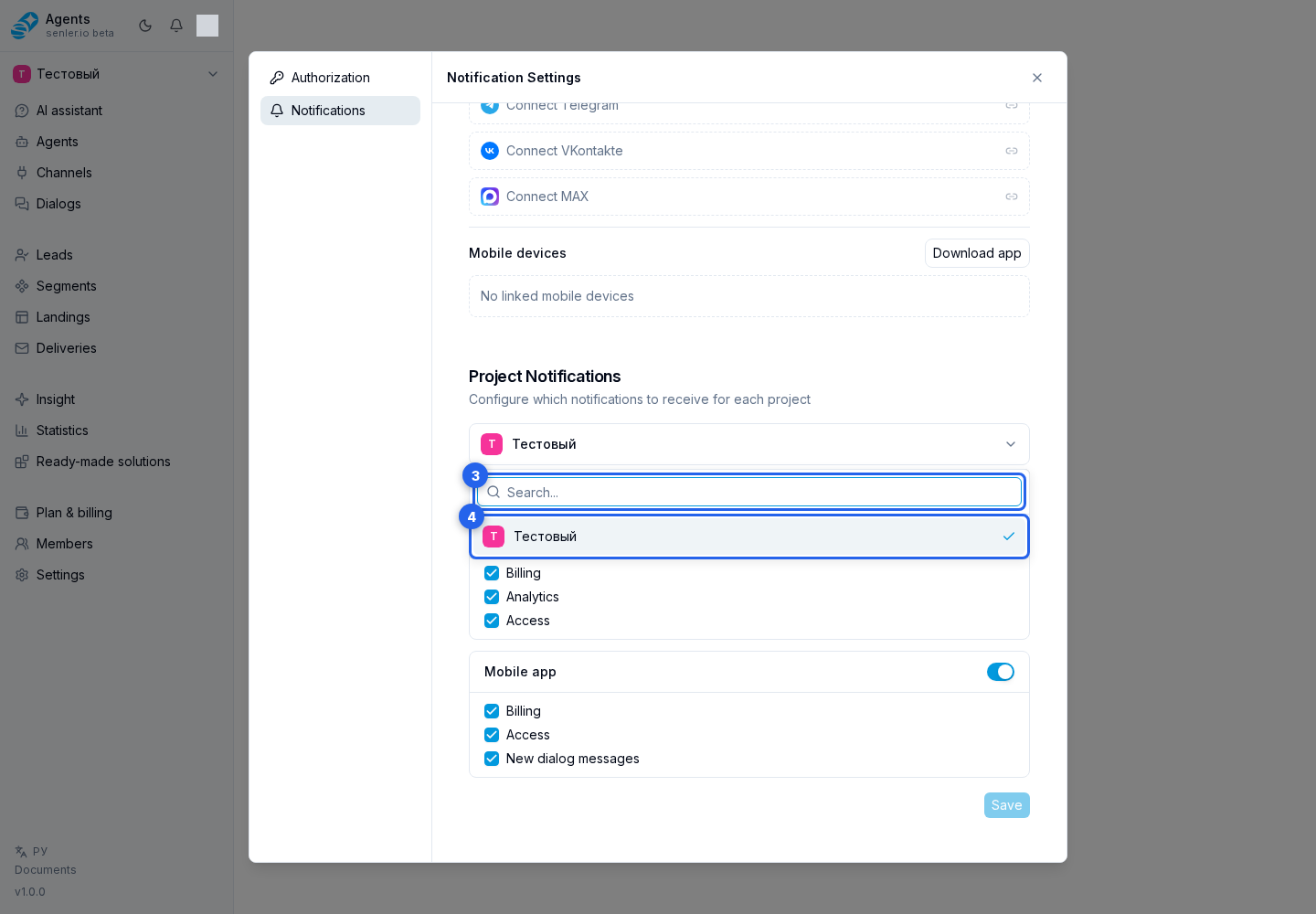
- When needed, use search and select the required project.
- Use enable or disable everything, or configure channels individually.
- Keep only the required categories and select Save.
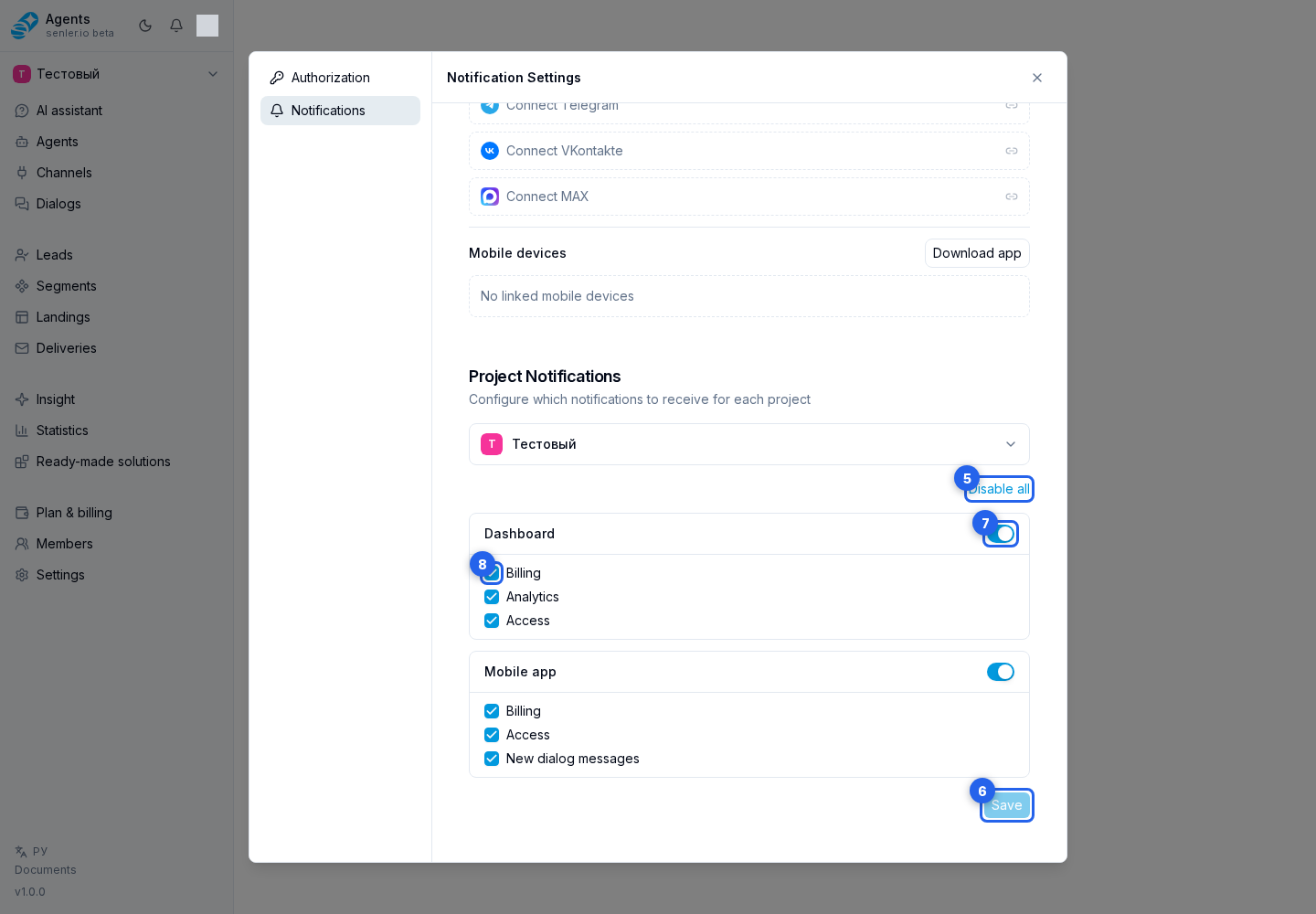
Each project's settings are independent. Changes in one project do not affect the others.
Notification categories
| Channel | Available categories |
|---|---|
| Cabinet | Billing, Analytics, Access |
| Telegram | Billing, Analytics, Access |
| VK | Billing, Analytics, Access |
| MAX | Billing, Analytics, Access |
| Mobile app | Billing, Access, New dialog messages |
The channel switch enables or disables all of its notifications, while the checkboxes below retain only selected events. To receive push notifications for new messages, enable Mobile app and New dialog messages.
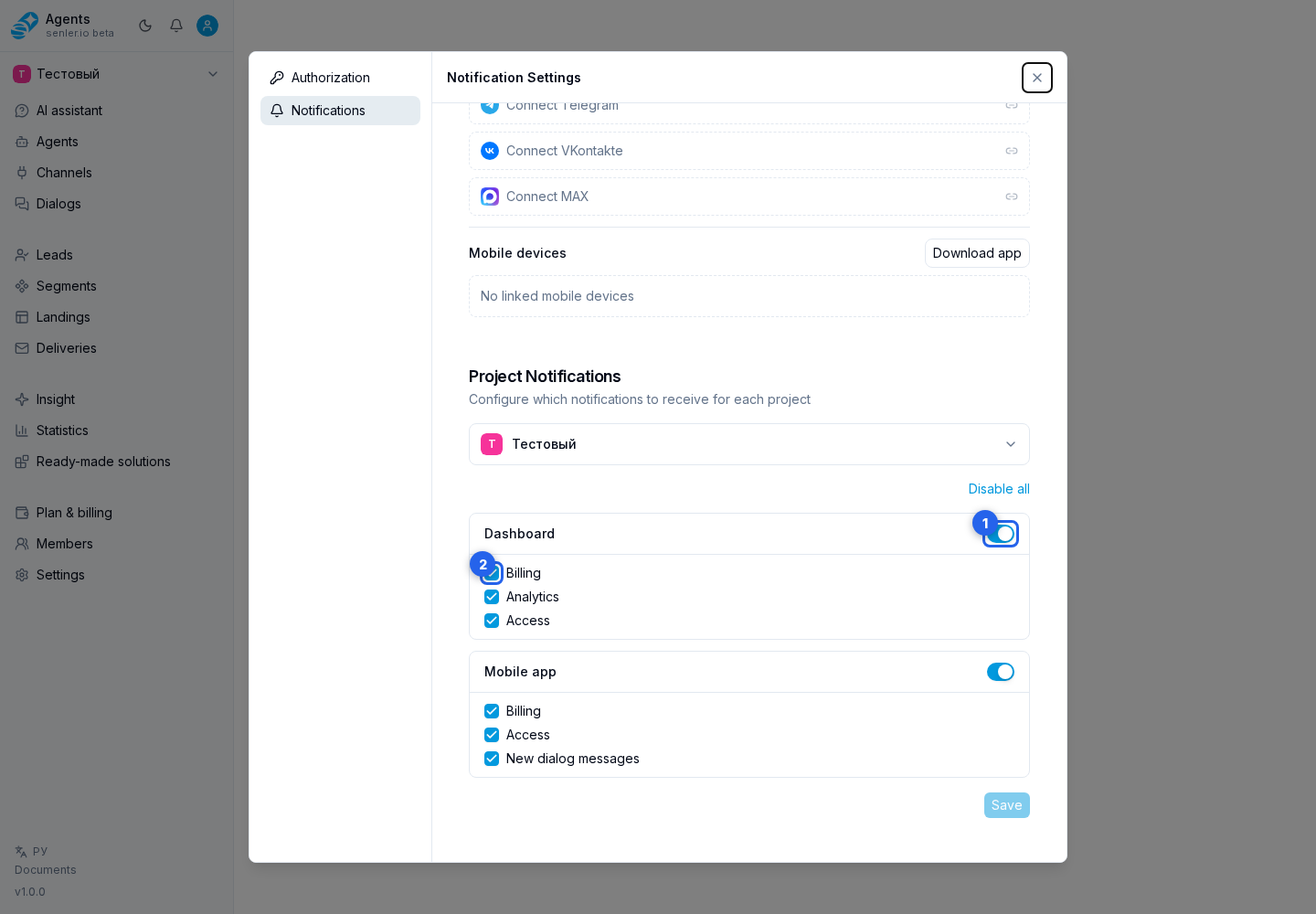
Switching projects before saving
The cabinet shows an unsaved changes warning. You can stay and save the settings, or switch projects without saving.
If the settings were edited in another tab at the same time, refresh the data, review the current state, and repeat your changes.
If events do not arrive
Check the selected project, delivery channel, and categories. Dialog messages require the mobile app category New dialog messages. Save the settings; if delivery still fails, check the messenger or device.