
Landing Settings
Open a landing from the list.
Page settings
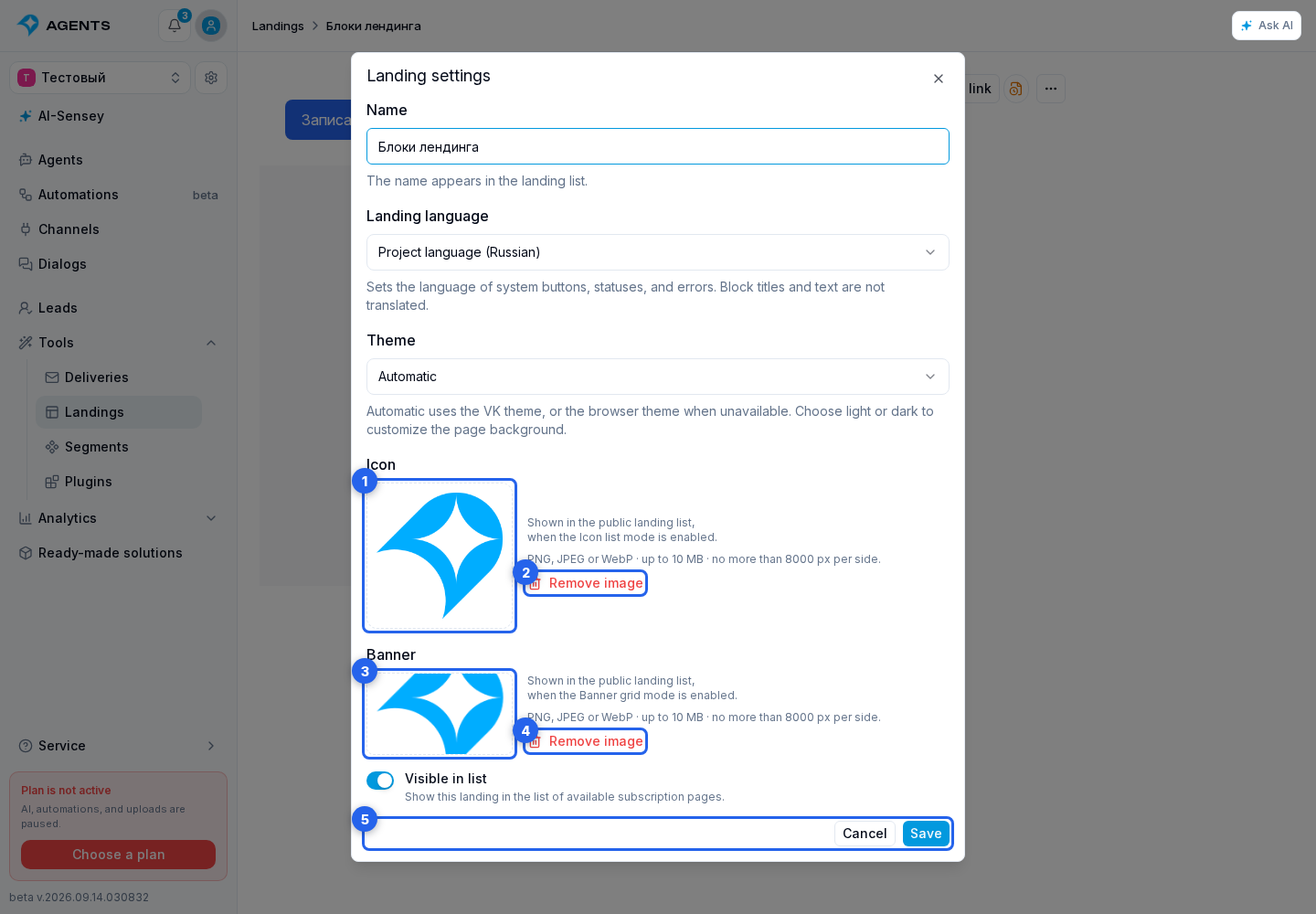
In the editor's top toolbar, next to the three-dot actions menu, click the separate Settings button.
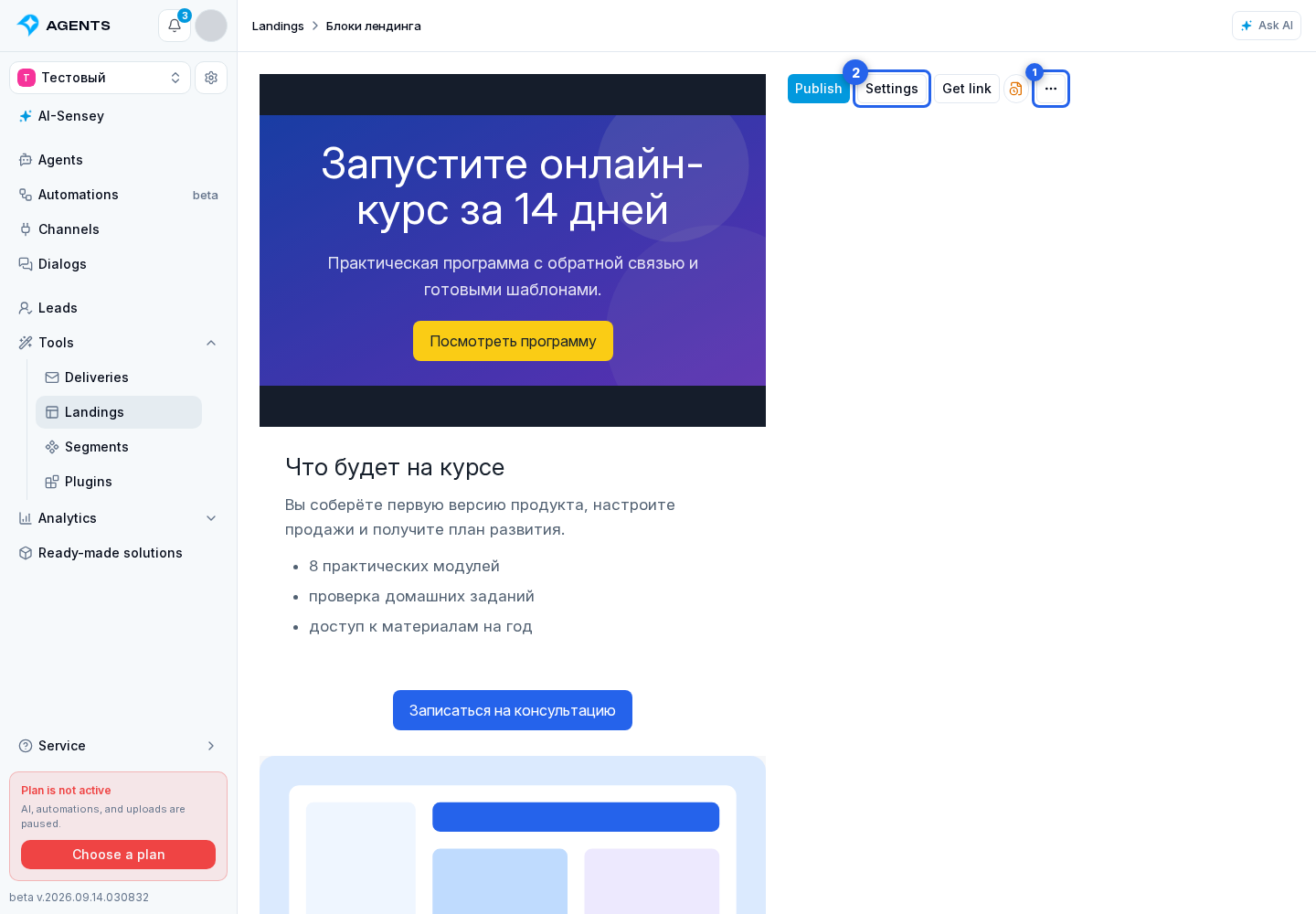
Continue setting up the page in the open dialog:
- Enter the name you will use to find the page in Cabinet.
- Select the landing language. It follows the project language by default; you can select Russian or English for an individual page. This controls system buttons, statuses, and errors, not a translation of your block text.
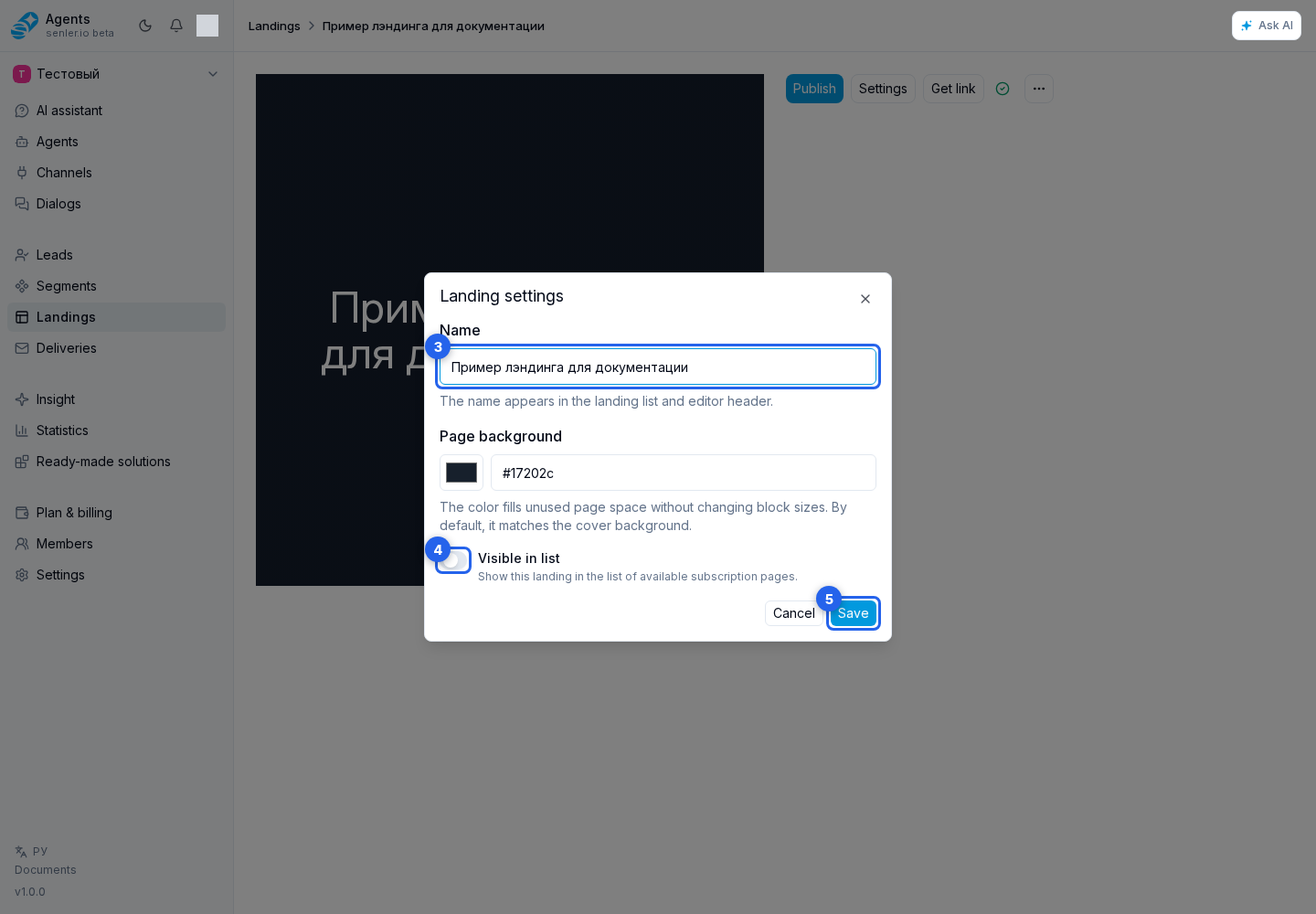
Page Appearance
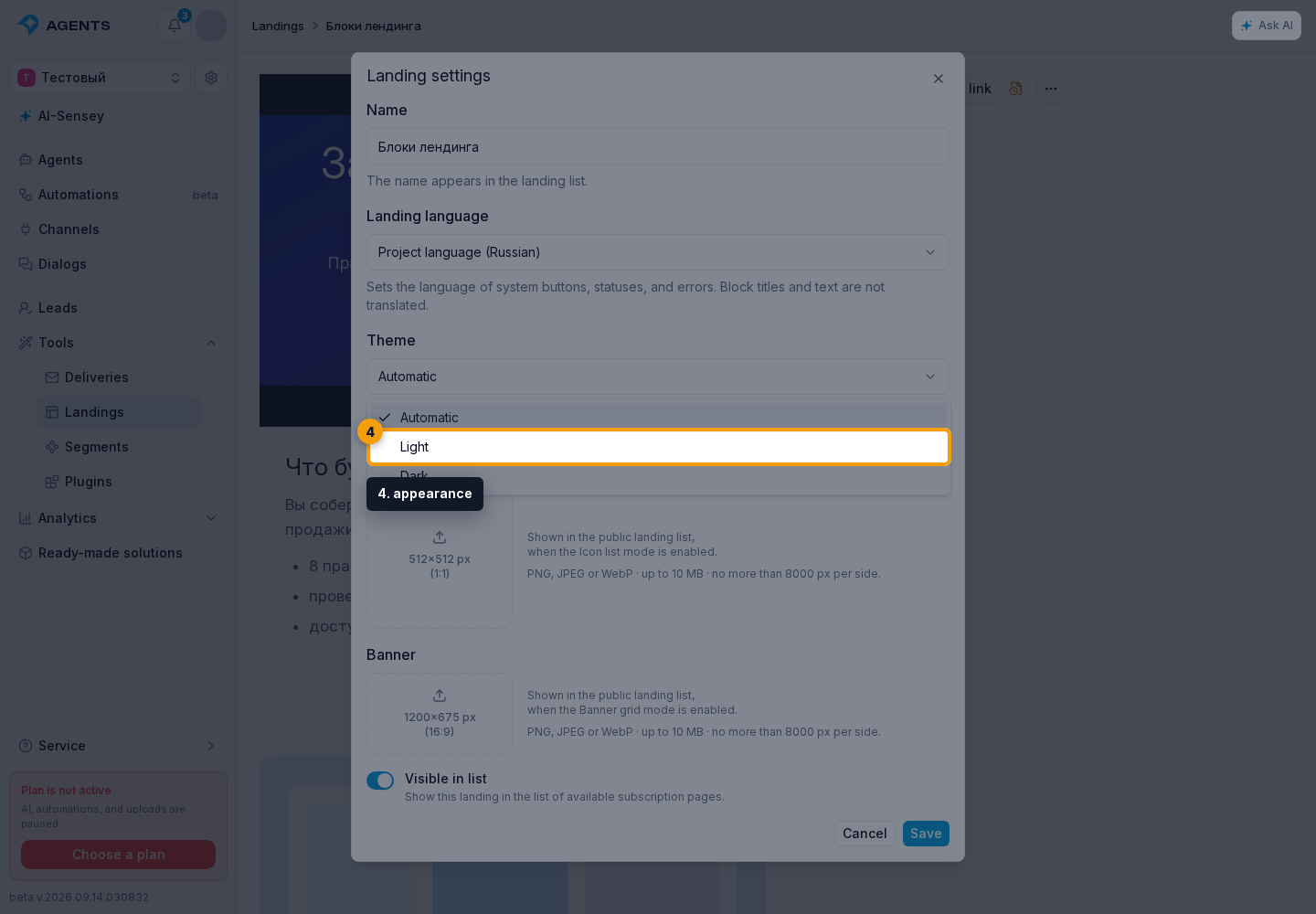
In Theme, choose the appearance:
- Automatic follows the VK theme when opened inside VK, or the visitor's browser theme if the VK theme cannot be retrieved. Cabinet preview uses the browser theme. This is the default for new landings.
- Light or Dark uses the selected theme regardless of the visitor's settings.
If you chose Light or Dark, set Page background: click the color swatch or enter a color code such as #f6f7f9. This is the background around the blocks. In Automatic mode, the field is hidden and the background follows the theme. Switching to another theme resets a custom color, so choose the theme first and the background second.
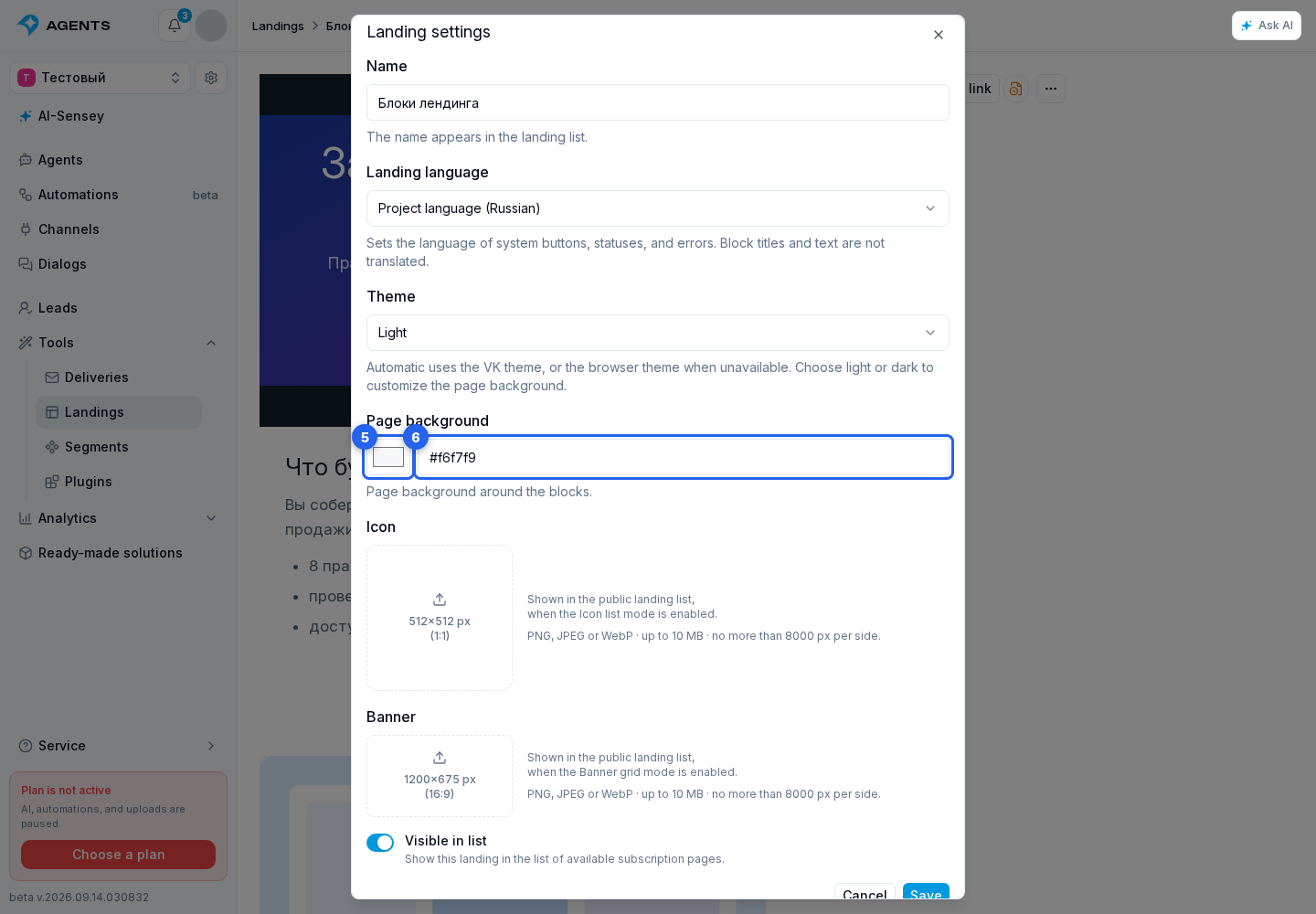
Catalog Images
Upload images to display the page in the catalog. Clicking the image area opens the file picker; you can also drag a file onto that area.
- The icon is used in Icon list mode and cropped to a square before upload. A remove icon button appears below the selected image.
- The banner is used in Banner grid mode and cropped to a 16:9 ratio. A remove banner control appears below it.
Enable visibility in the shared landing list. For displaying the page in the catalog, see Landings in channels.
The save and cancel buttons are at the bottom of the dialog. Select Save to apply the settings, including replaced or removed images. Cancel closes the dialog without saving.
Check the result in preview and publish the landing so visitors see the language and appearance changes. For an agent subscription page, publish the agent instead of publishing the landing separately.
Collaborative Editing
If another editor changed the same settings at the same time, Cabinet lists the conflicting fields. Keep mine retains your values, while Accept server replaces only conflicting fields with server values. Other local edits are preserved. For a Theme and page background conflict, you choose the entire appearance together: the theme and background color from one version. Save the settings again after choosing.
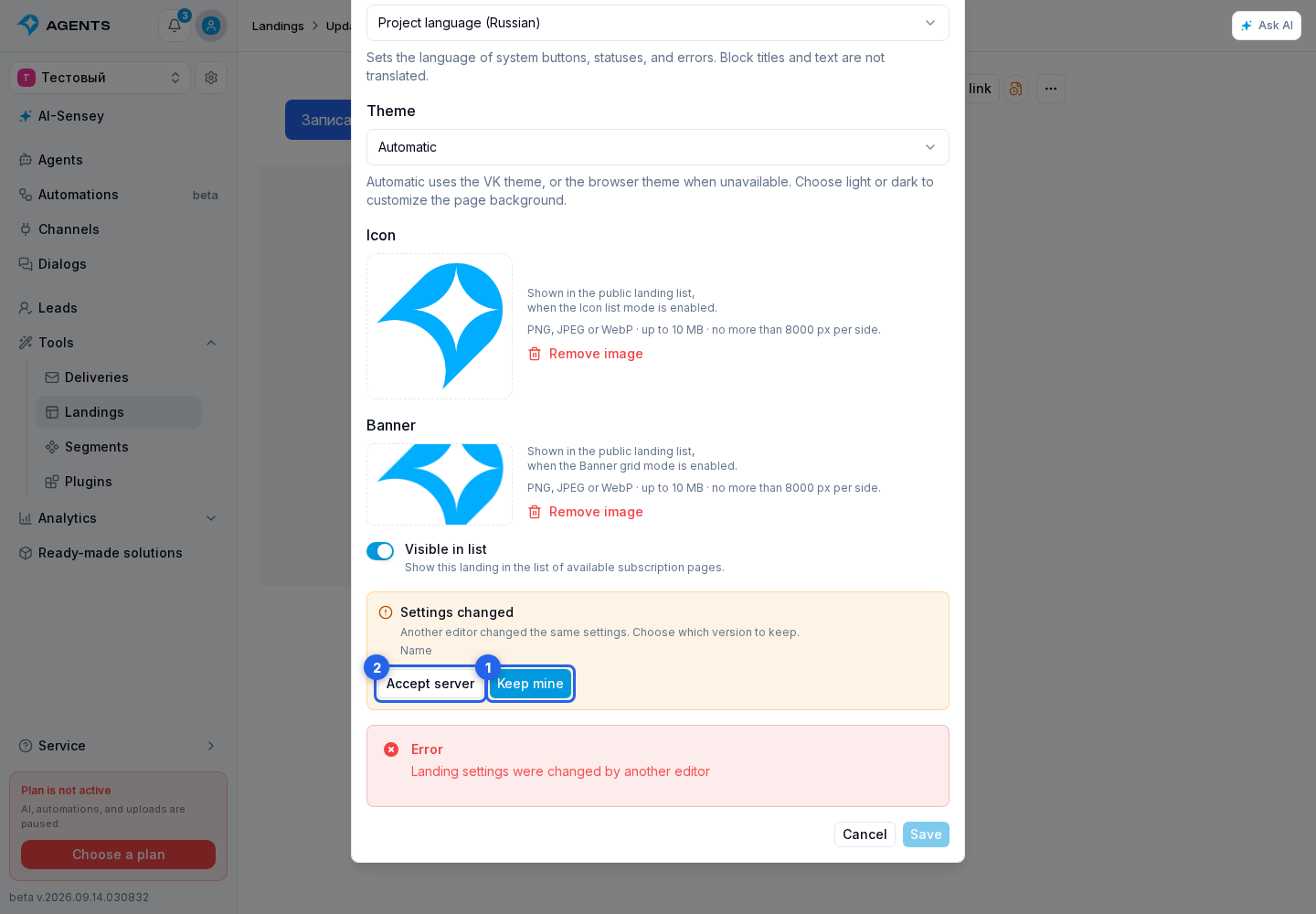
While the dialog is open, the page address contains ?panel=settings. Following that link opens settings directly. Refreshing the page opens the dialog again but does not save entered values, so select Save before refreshing.