
Lead Contact
In the Message step, first choose the recipient. The customer contact is attached separately and does not change the message recipient.
Attach A Lead Contact
A contact helps hand a client over to a manager: the message includes a contact card or a name with a link. The lead whose contact is attached and the message recipient are selected separately. For example, the recipient can be a manager in MAX and the contact can belong to a client from VK.
- Select the paperclip below the message editor.
- Open the Lead contact tab.
- In the contact settings, choose Whose contact:
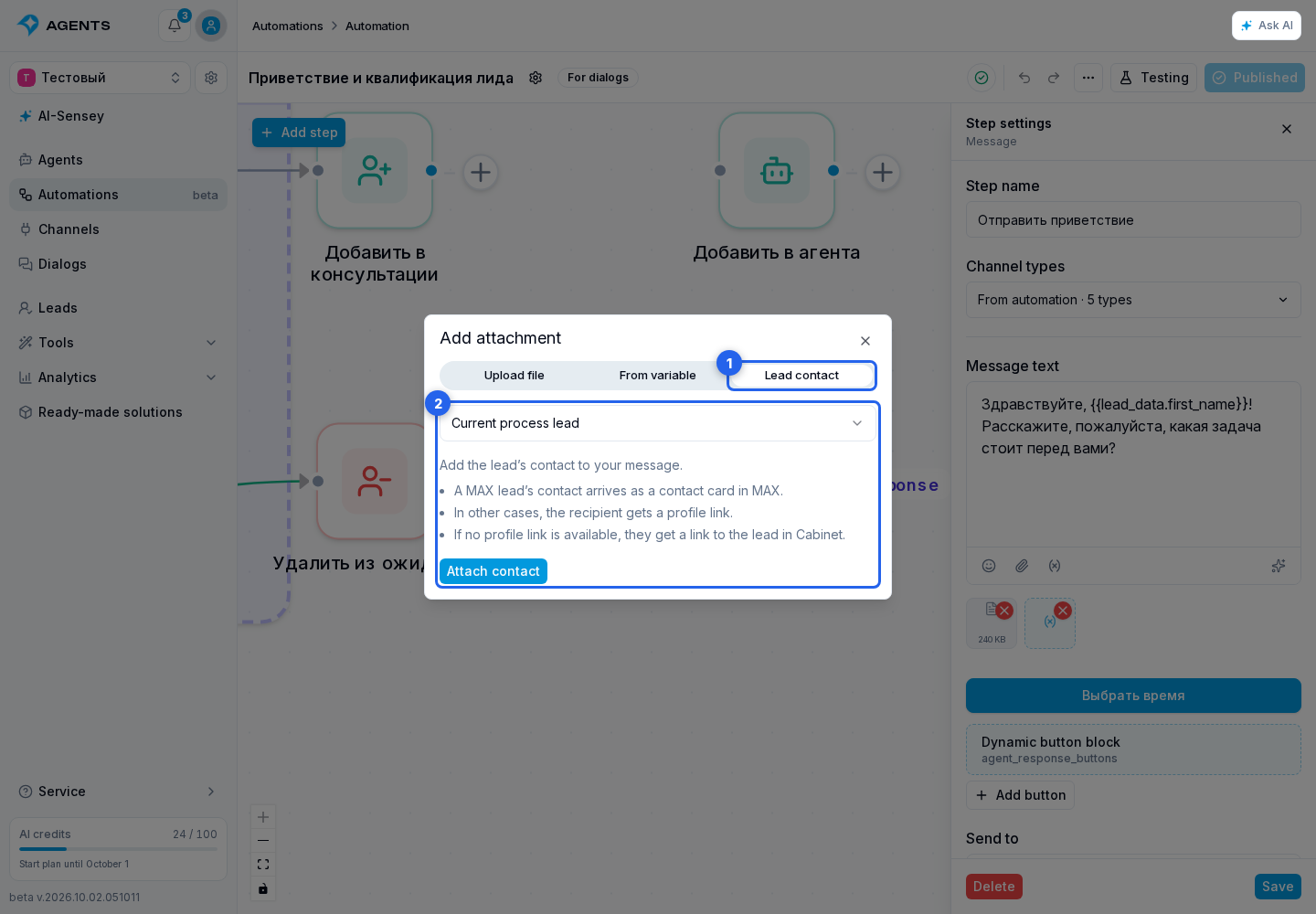
- Current process lead: the client the automation is running with. This option is unavailable in a background automation.
- Selected lead: open the lead picker and find a project client using search.
- ID from a variable: choose a string variable containing the internal Senler lead ID. This is not the user's VK, Telegram, or MAX ID. Background automations offer Run and Project variables.
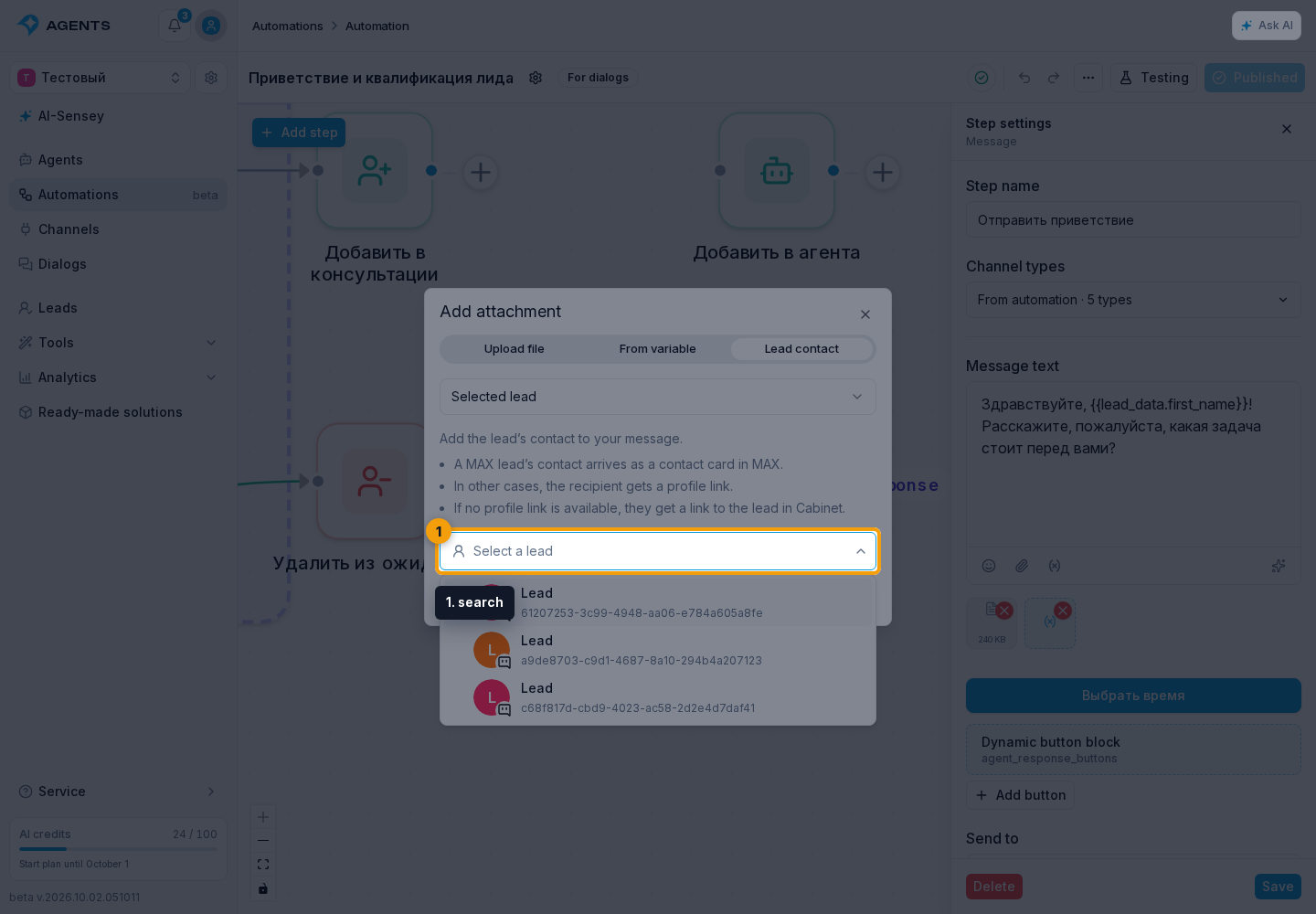
- Select Attach contact.
- Save the step settings.
Even when the text uses recipient data, Current process lead and the variable containing the contact ID refer to the original run. Changing the text's variable source therefore does not replace the client's contact with the manager's.
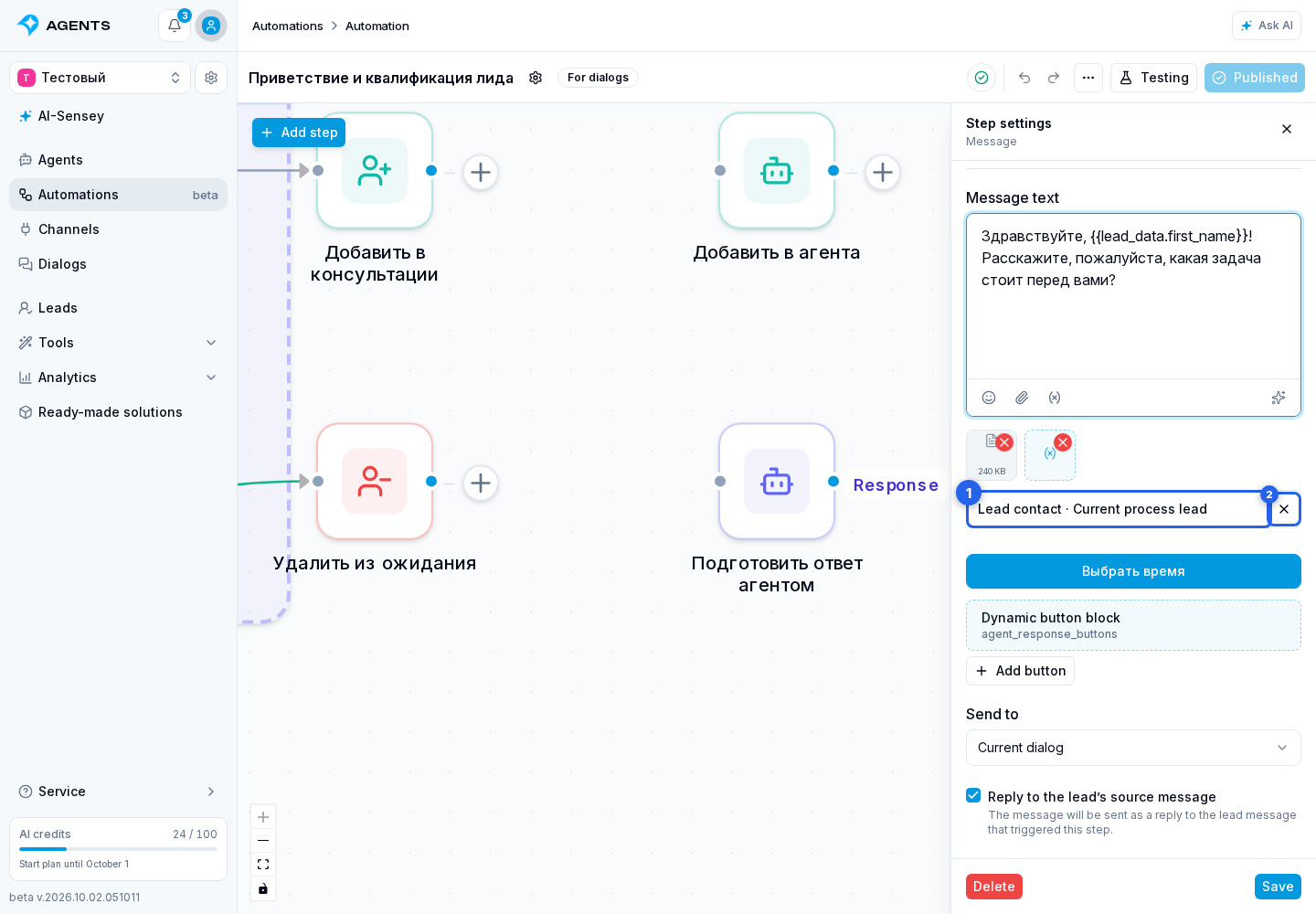
A contact badge appears below the editor. Select it to change the contact, or use the cross next to it to remove the contact. Then save the step. A contact can also be sent without additional text.
What The Recipient Sees
- A MAX user's contact sent to MAX arrives as a contact card. If text, files, or multiple buttons are included, the text, files, and buttons arrive first, followed by the contact card in a separate message. A card without text or files can include one button.
- A VK user or community is sent as a profile or community link.
- Telegram uses a username link. A numeric Telegram ID alone is not enough for this link.
- A MAX contact that is not sent as a card uses a username link when a username is available.
- If a public link cannot be built, the message contains a link to the lead's profile in the Senler cabinet. The recipient needs project access to open it.
When sent as a link, the name and profile URL are added to the message text. In the example with a VK client and a MAX manager, the manager receives a VK link, not a MAX user card.
To let an agent decide when to send a contact, enable the lead contacts permission in its tools.
The contact is attached when the automation sends the step. When this step is displayed as the widget greeting before a dialog starts, the contact is not included. Use text and previously uploaded attachments for the greeting, and send the contact in a separate step after the conversation starts.