
Dialog filters
Filter conversations by status, participants, channel, period, and other conditions.
Open Dialogs in the project menu. The section page contains the conversation list.
Filter the Dialog List
Filters are in the panel above the list. To filter, including by status, click the plus button and choose a filter type. Then open the added filter, choose a value, and click Apply.
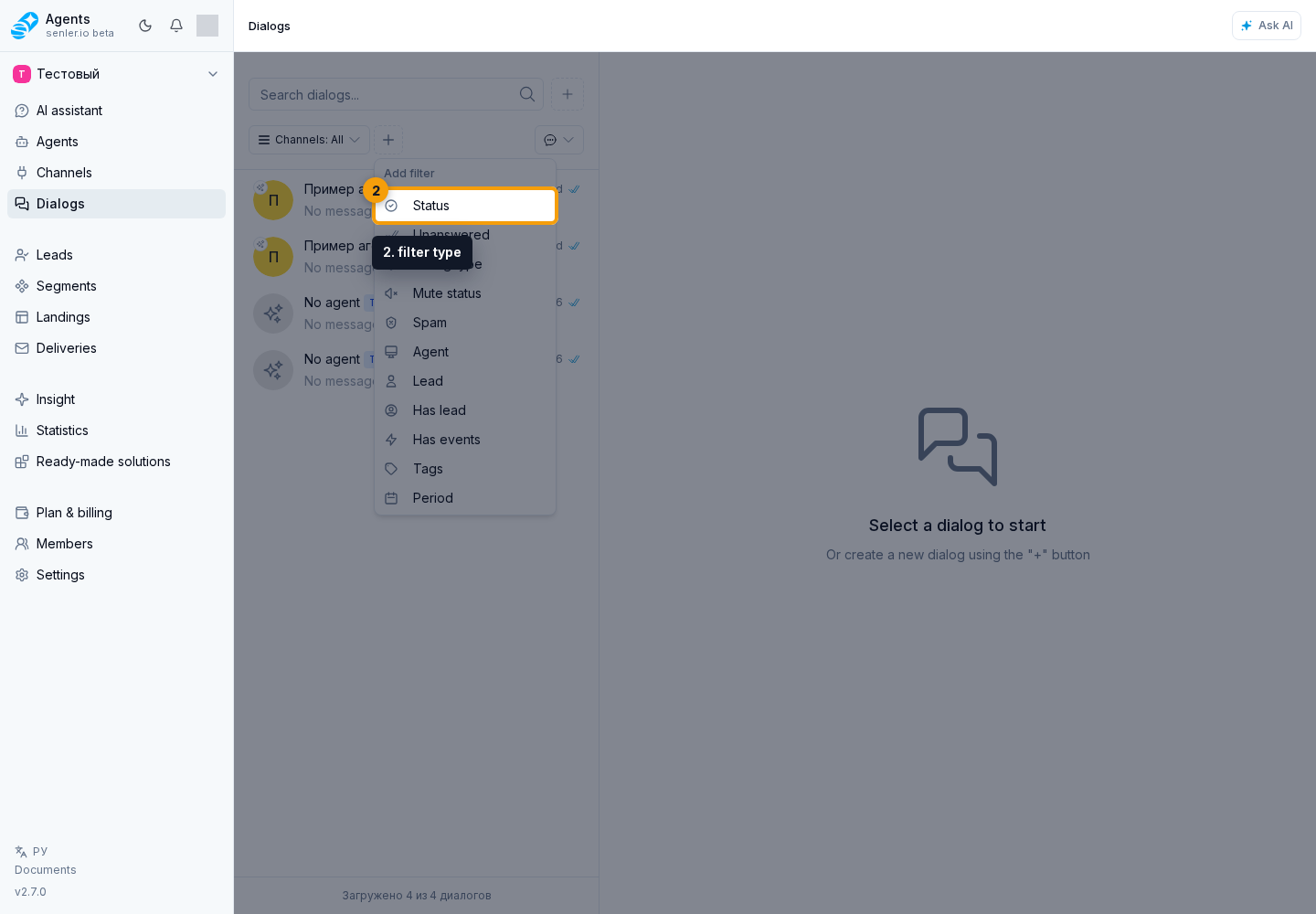
Search uses the selected channels and filters. Without a status restriction, the list includes open, snoozed, and closed dialogs, but not archived ones. The reset filters button restores this selection. To remove Status separately, open it and click Remove. To search archived dialogs, add it and choose Archived. If an AI summary selection appears above the list, you can remove only that selection by clicking the close icon on its chip.
By Status
Add Status using the plus button if it is not on the panel. Open the Status filter, choose one option, then apply:
- Open: dialogs in progress, excluding snoozed dialogs.
- Snoozed: dialogs postponed until a chosen time.
- Closed: dialogs with a resolved request.
- Archived: archived dialogs.
- All except archived: open, snoozed and closed dialogs. This is the initial selection.
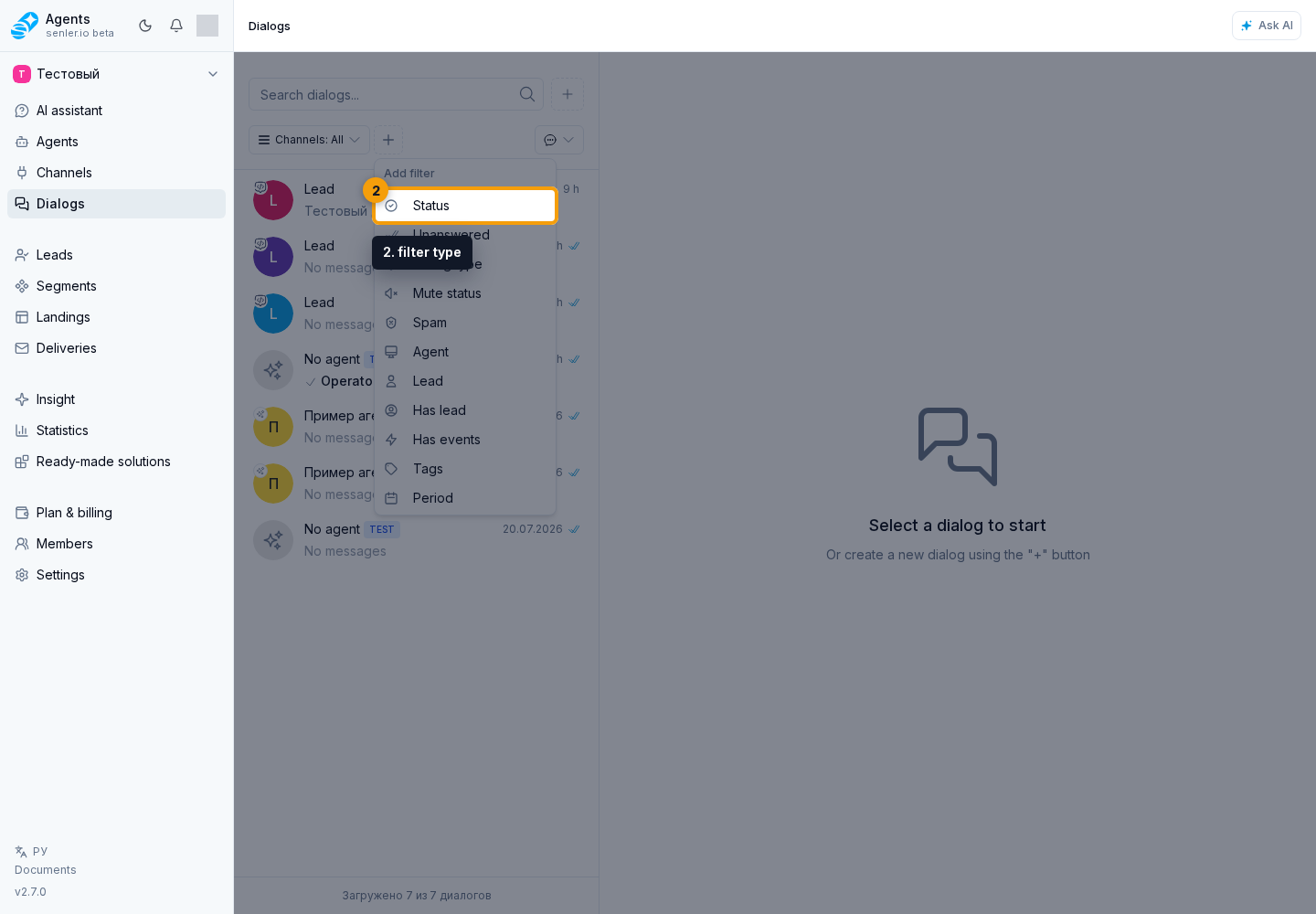
By Agent or Lead
In the Agent filter, find a team member using search, select the required agent, and apply the filter.
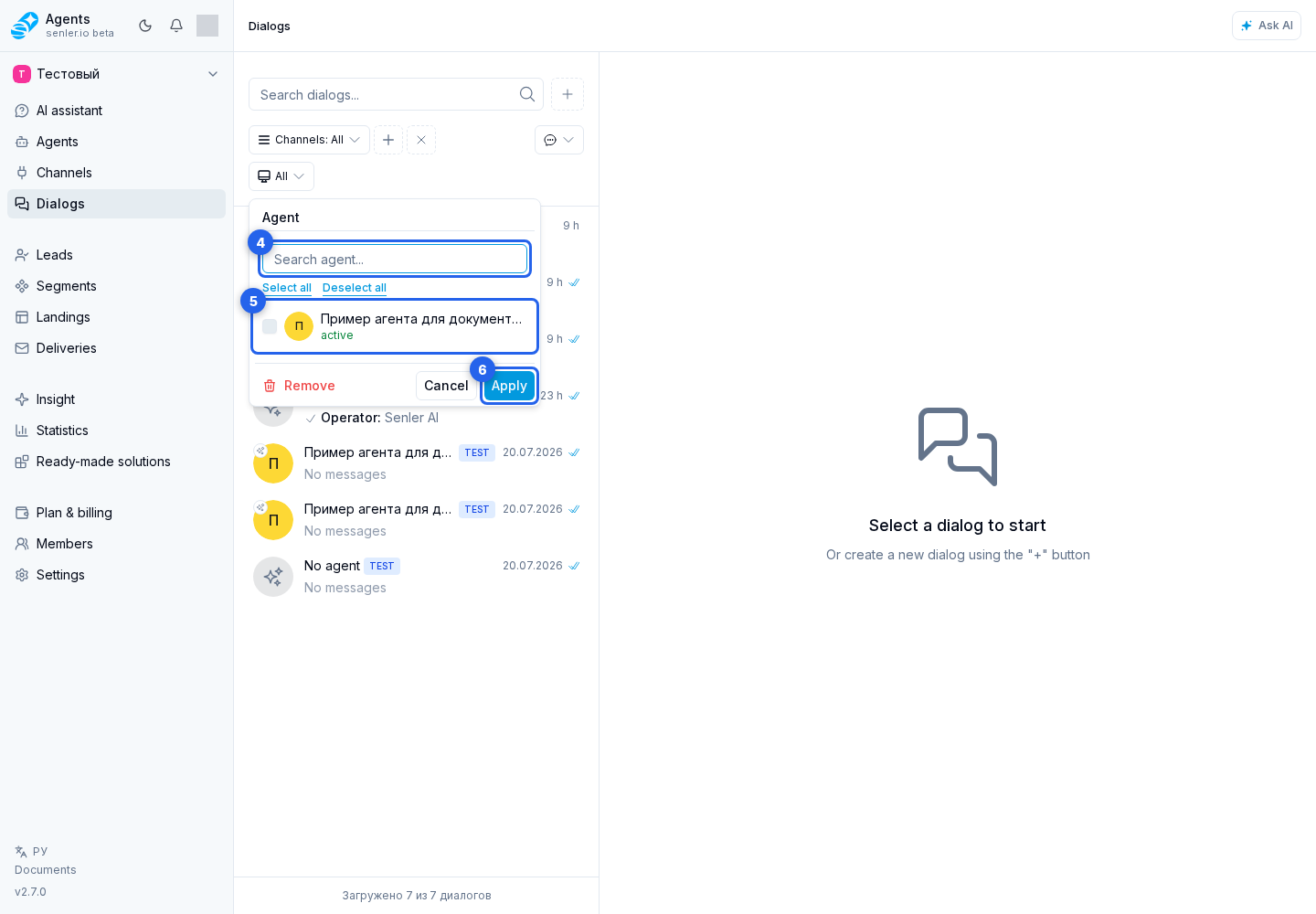
The Lead filter works the same way: use search, select the lead you need, and click Apply.
By Message Notes
- Select the add filter button and choose Message notes.
- Open the added Message notes filter.
- Choose Present to show conversations with at least one note, or Absent to show conversations without notes. All leaves the list unrestricted by this property.
- Select Apply.
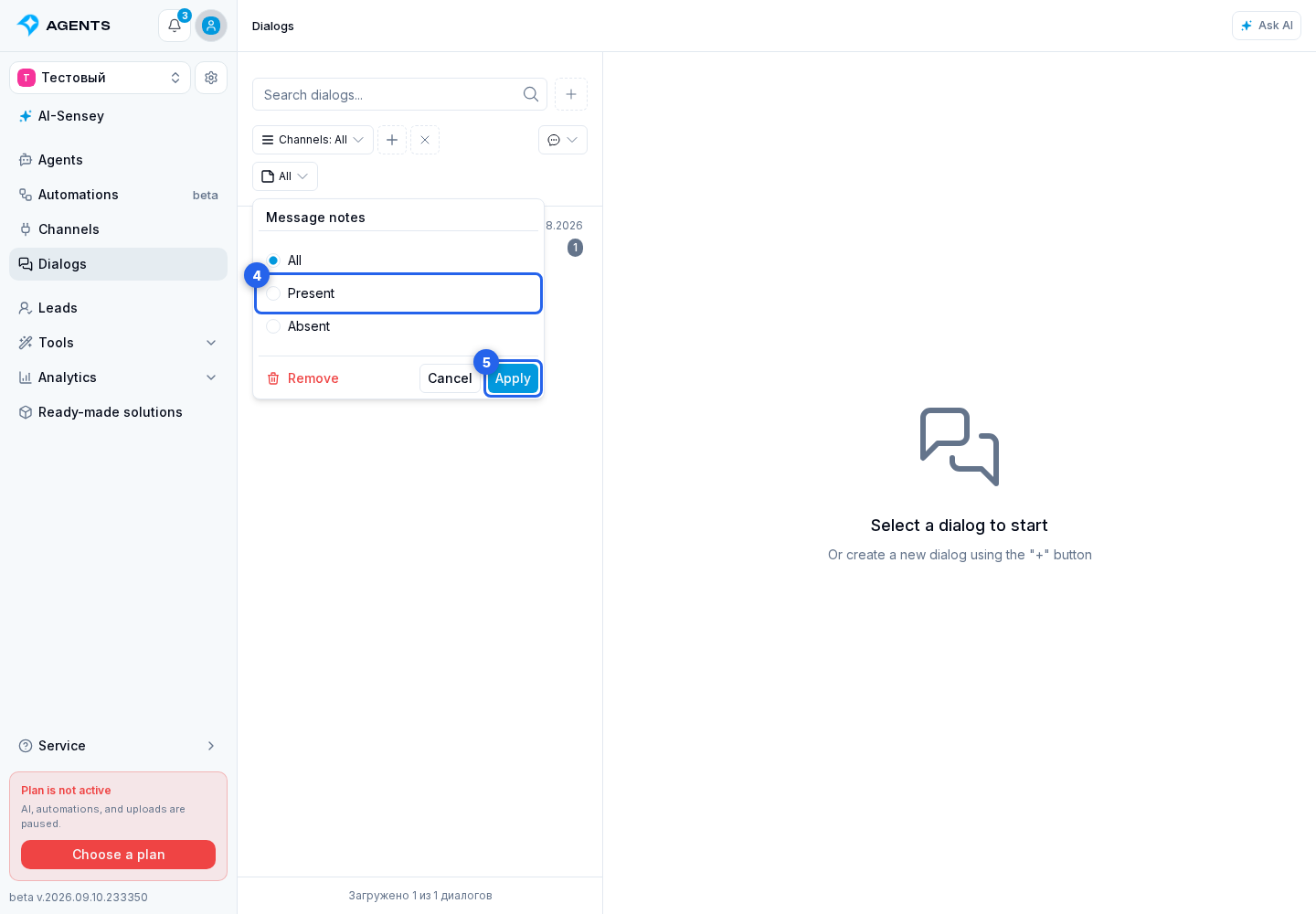
The filter uses notes on individual messages, not lead notes. It works together with search and other filters. Adding a note or deleting the last one updates the dialog in the selected results.
By Period
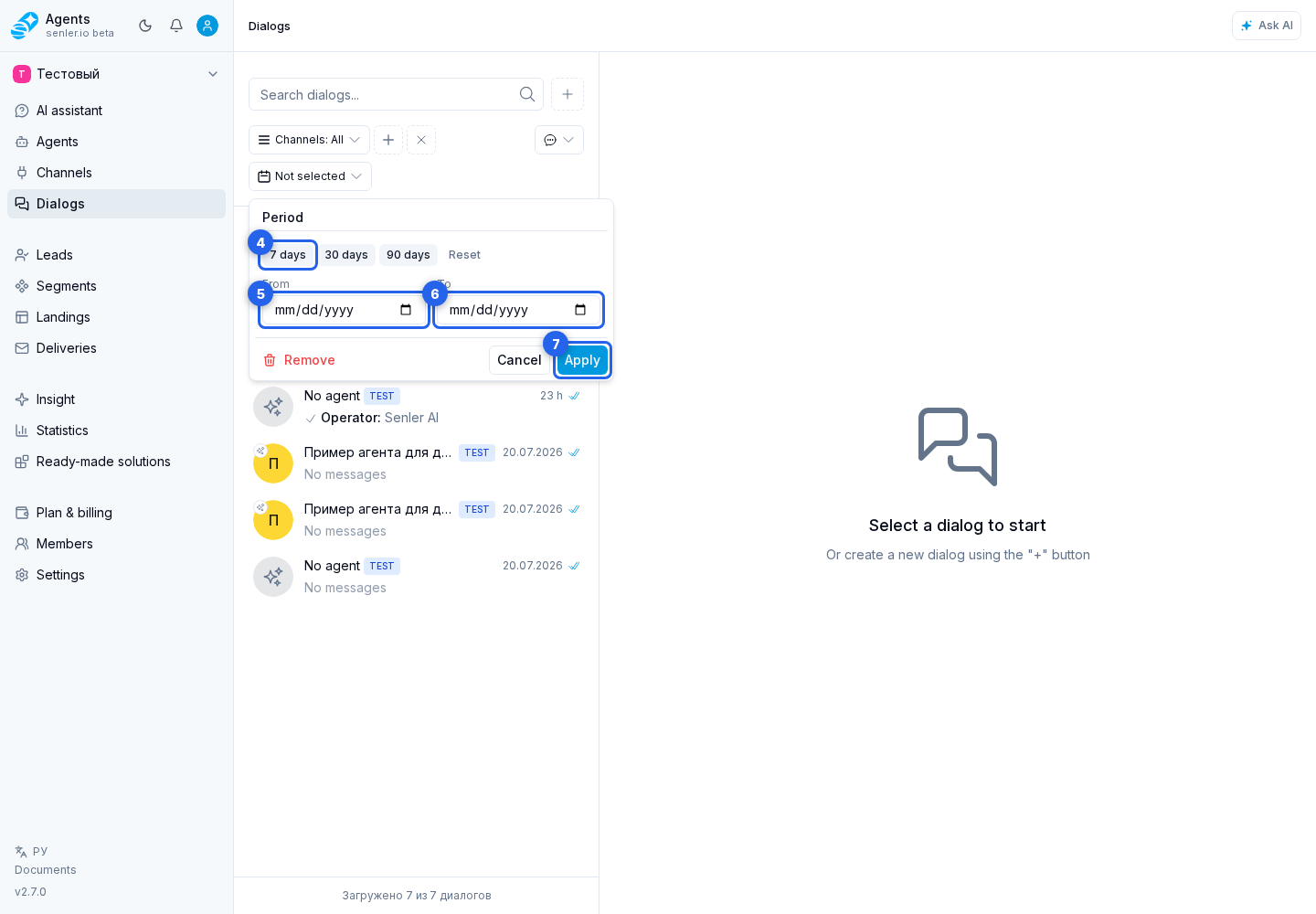
Open the Period filter. Choose a preset of 7, 30, or 90 days, or enter the from and to dates, then apply the filter.
Other Filters
You can configure the other filters in the same way:
- Dialog type: select Private, Group, or Comments and apply the filter;
- Has lead: select an option and apply the filter;
- Has events: select an option and apply the filter;
- Sound: select a state and apply the filter;
- Spam: select a state and apply the filter;
- Tags: enter a tag in the field, add it, remove it when necessary, and apply the filter.
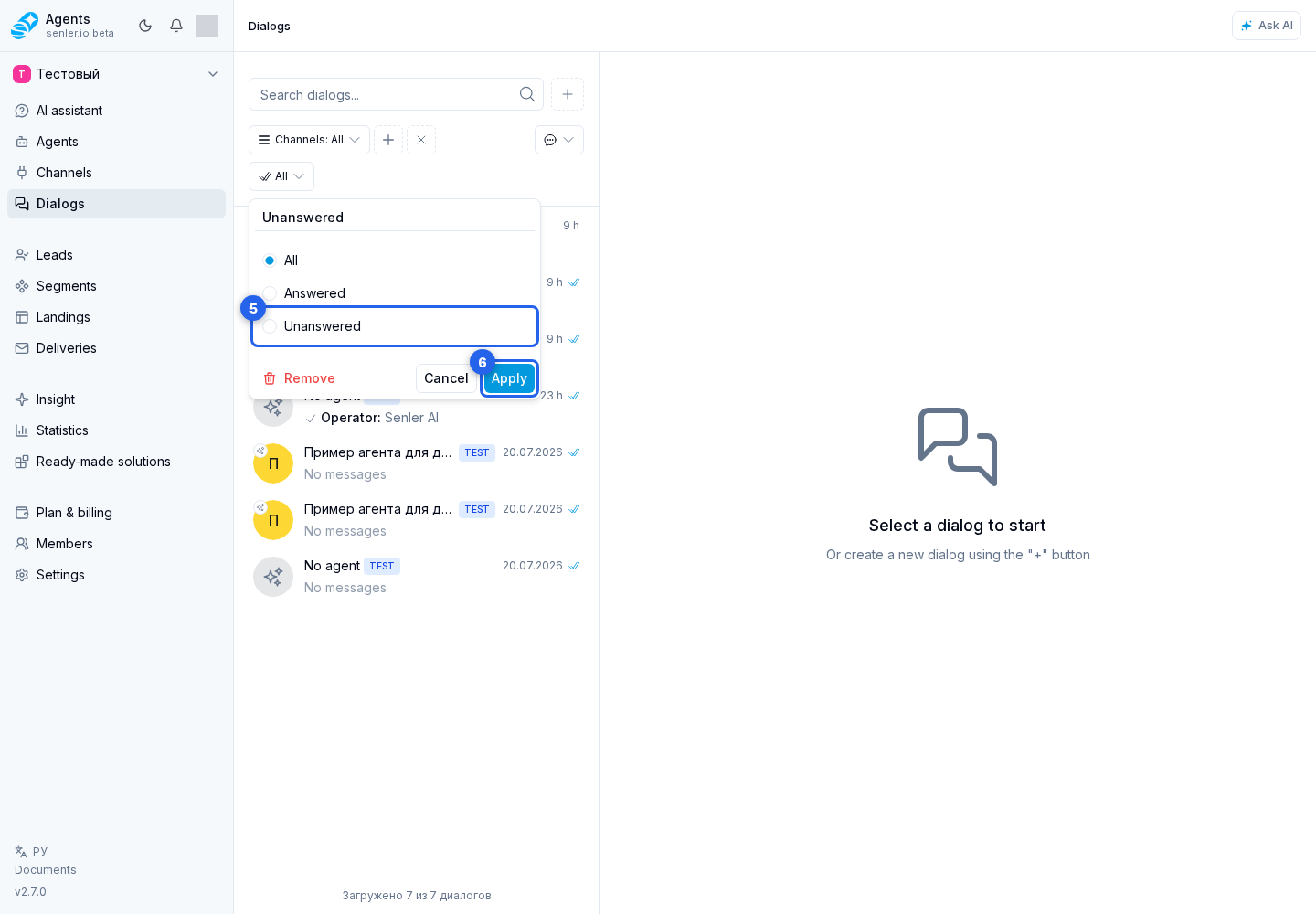
Show Only Unanswered Dialogs
- Click the plus button.
- Choose the "Unanswered" filter.
- Open the added "Unanswered" filter.
- Select the "Unanswered" value and click Apply.
Choose Conversation Sources
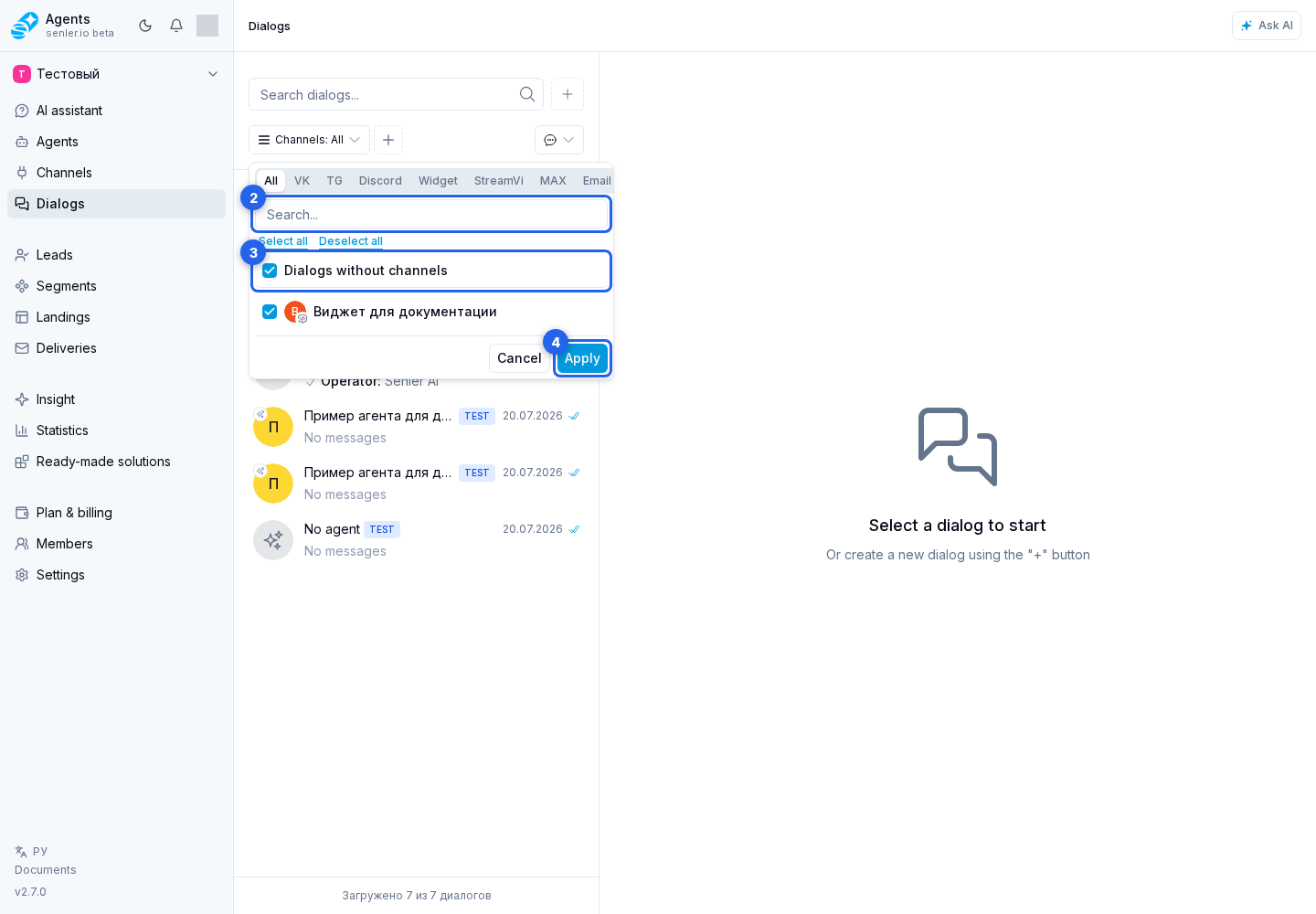
If the project has several sources connected in the Channels section, open the channel filter. Use search or choose a channel type, then select the channels you need. You can also include dialogs without a channel. Finally, apply the filter.
Operator and group filters
Use the add-filter button to choose a filter:
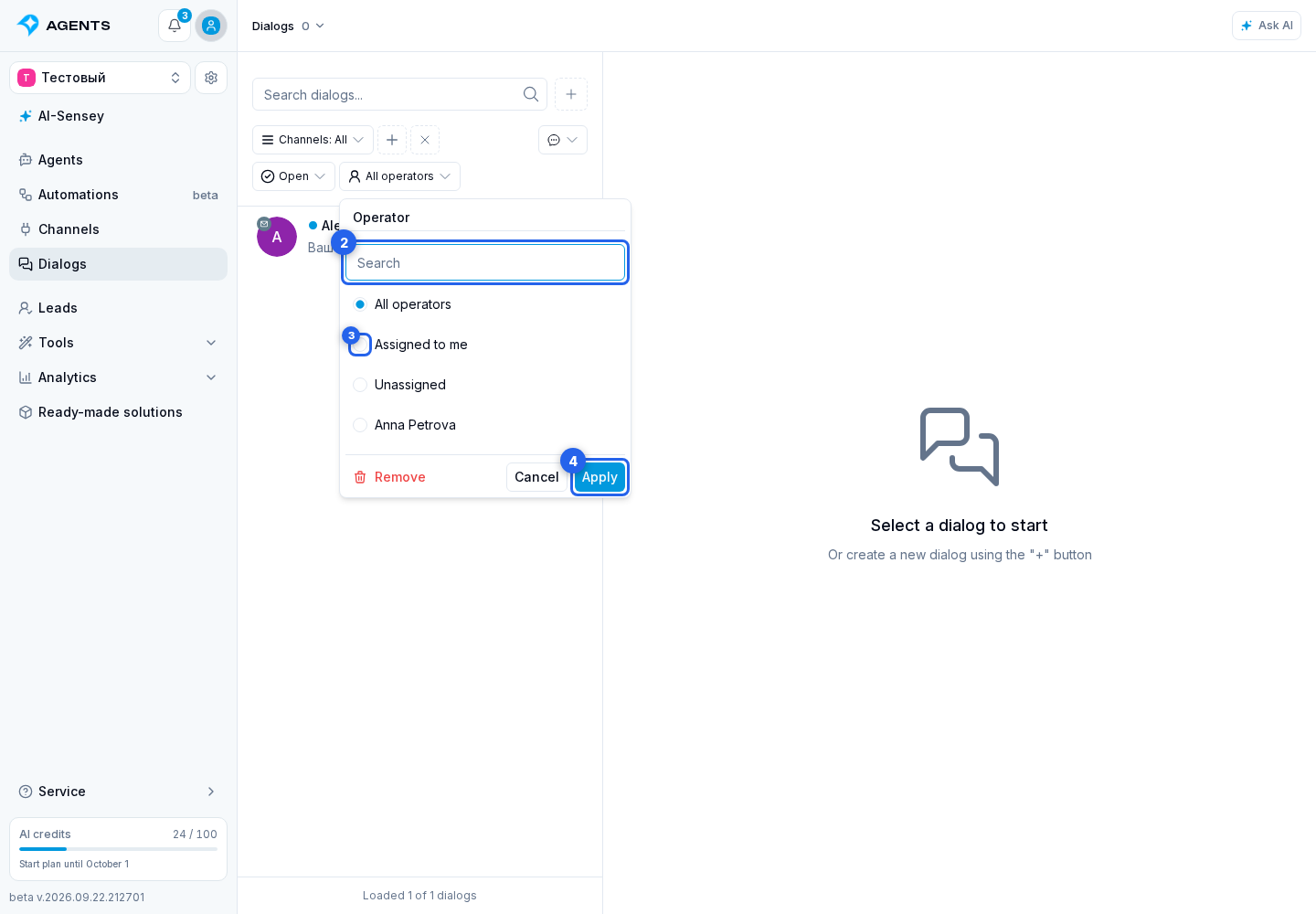
Operator: find an operator using search, select an operator or preset (All operators, Assigned to me, Unassigned), then select Apply.
Operator group: use group search, select a group, all groups or ungrouped dialogs, then apply the filter.
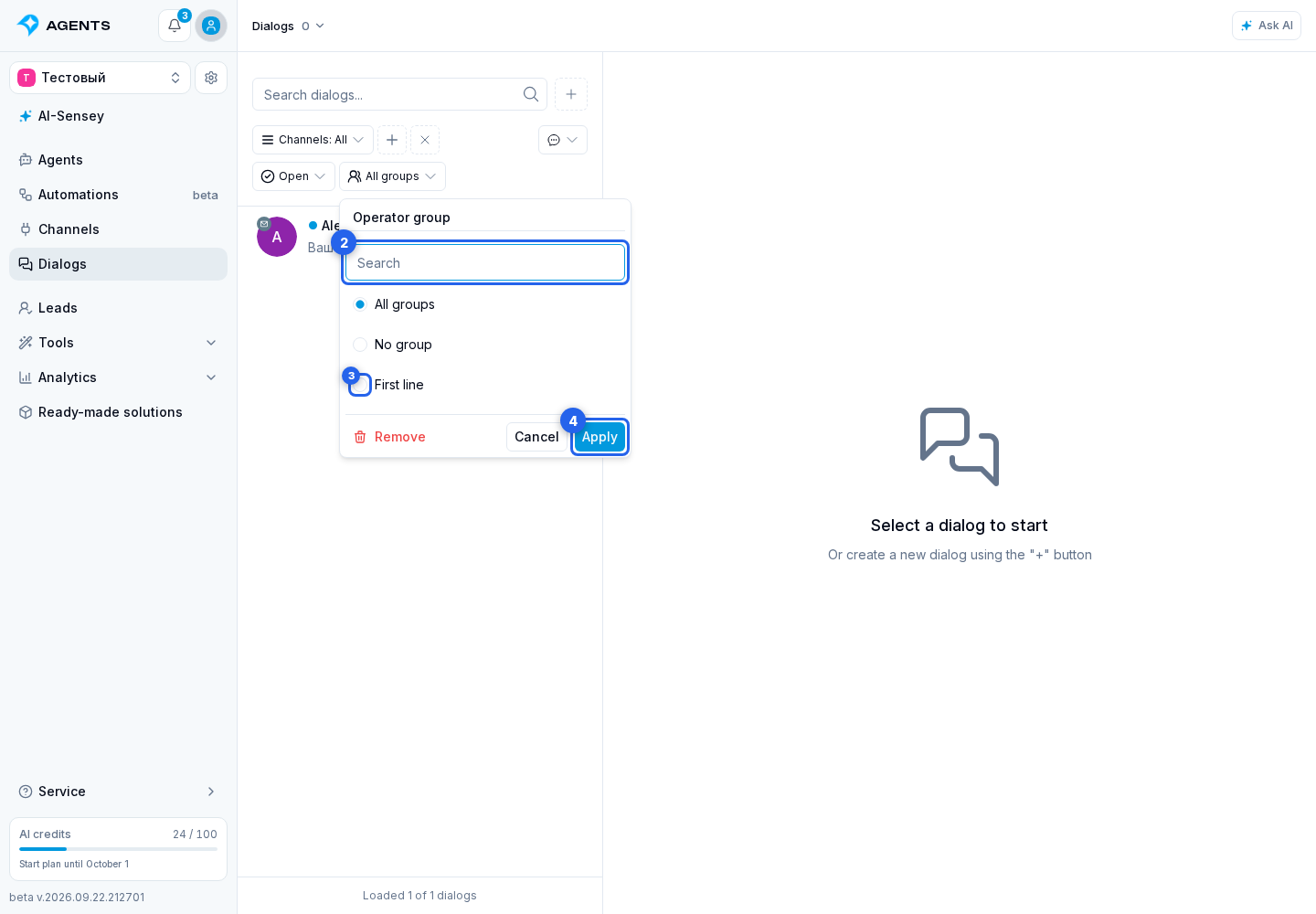
These settings combine with search, status, and other filters.