
Version history
View earlier table states and restore the version you need.
Open history
- Select History.
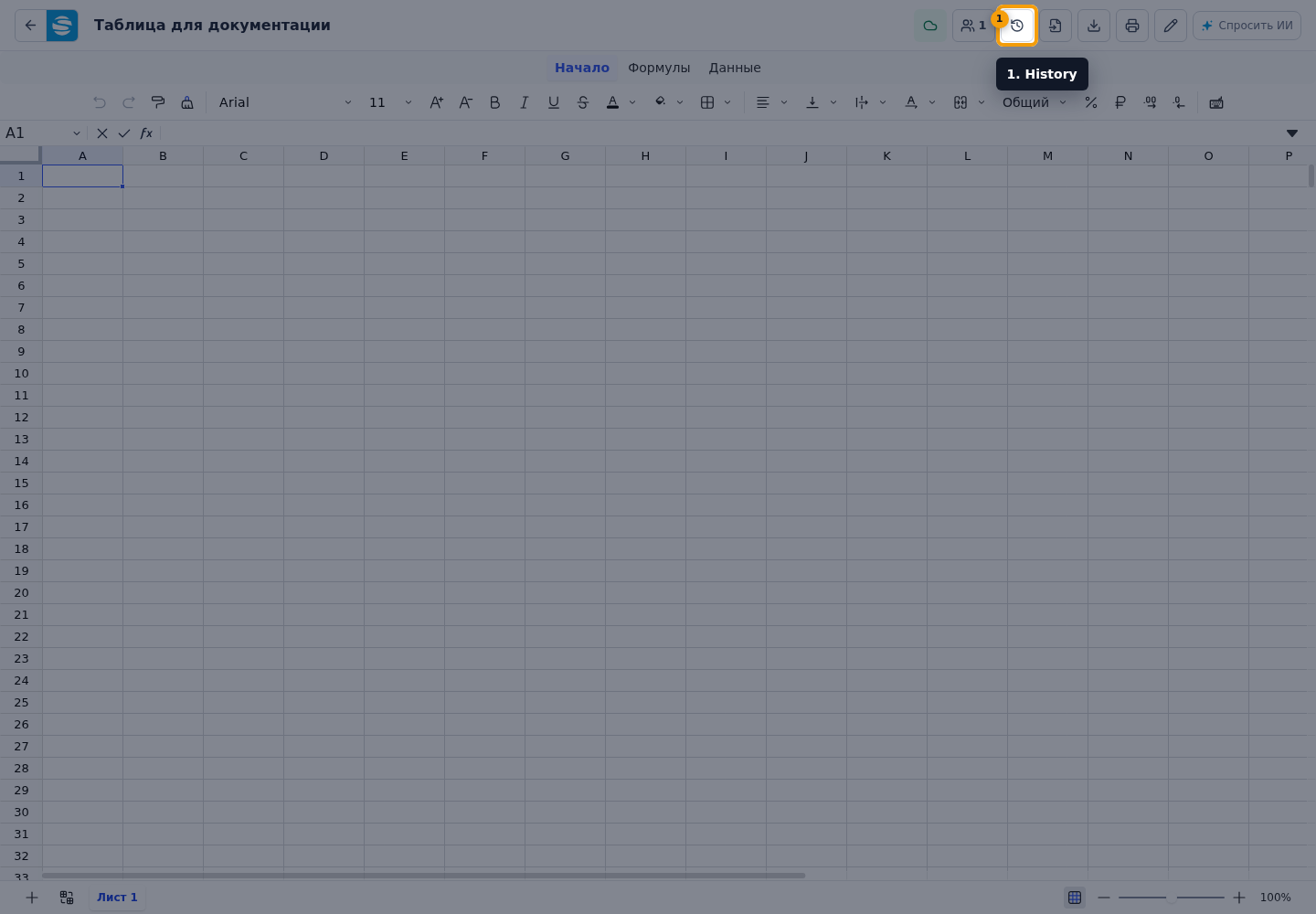
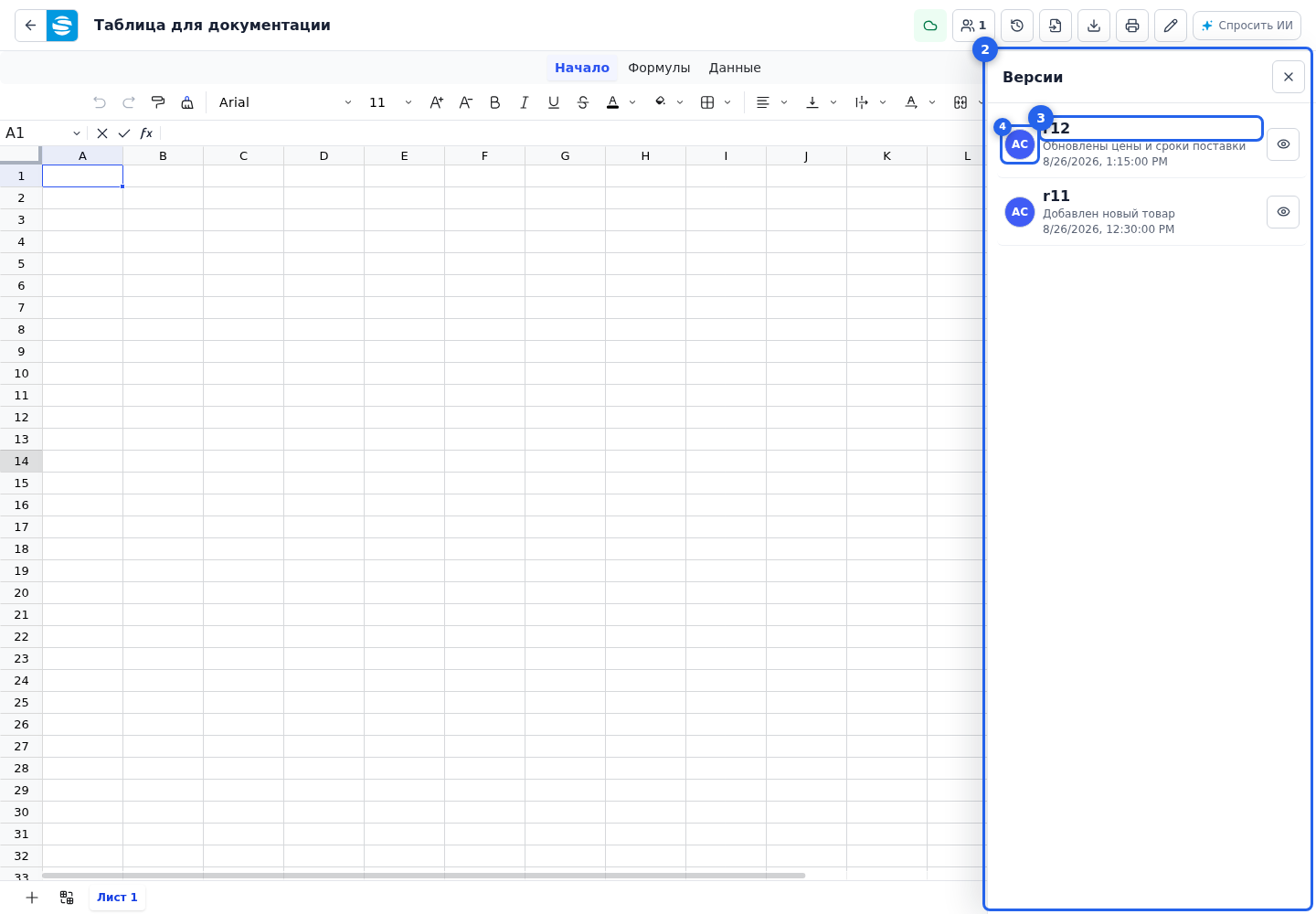
- Wait for the version panel to open.
- Select the required version to preview it.
- Select the author avatar to view the author's details.
- In the author card, you can copy the author ID.
- Select the close button to close history.
For integration changes, the author may be shown as API key or OAuth app with a short identifier. This identifies the key or installed application used to modify the table. With OAuth access on behalf of a user, that user remains the author.
Return to a previous version
Open History as shown above. Then select a version to preview. The first row is the newest saved version; older versions appear below it. The table opens the selected version without changing the current data.
Finish preview
- Select Return to current to leave preview without changes.
- To make this version current, select Apply this version. Check the contents again before applying it because the working table changes for every participant.
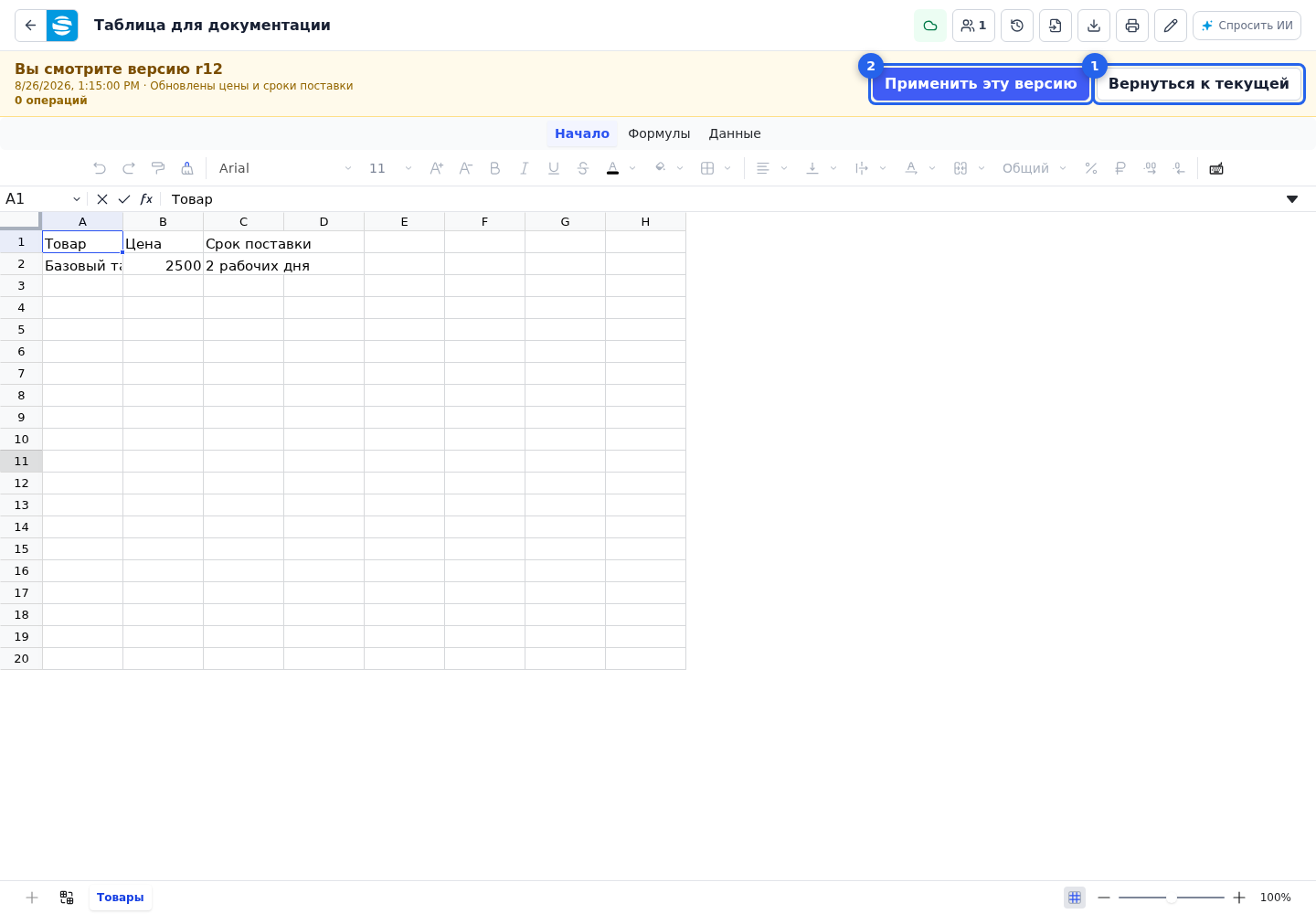
If history or an old version preview is open, return to the current table before making changes. Preview is for checking a previous version, not for editing working data.