
Read Status
Read and unread messages
Operator and recipient read statuses are tracked separately. In an open dialog, the operator's read mark advances to a viewed message: it must remain in the visible chat area while the window is active and scrolling has stopped. Scrolling quickly or leaving a background tab open does not by itself mark the whole conversation as read.
Viewing combined lead history does not mark all of the lead's dialogs as read at once. Open a particular conversation separately to work with it. Recipient read status depends on the information reported by the channel.
In the website widget, replies are marked as read when the visitor can see the chat and has reached the latest messages. A closed widget or a background browser tab does not count as reading. If the widget sits inside a website's own hideable panel, the developer must report its visibility.
Mark all dialogs as read
- Open the unread dialog counter next to the Dialogs heading.
- In the menu, click Mark all as read.
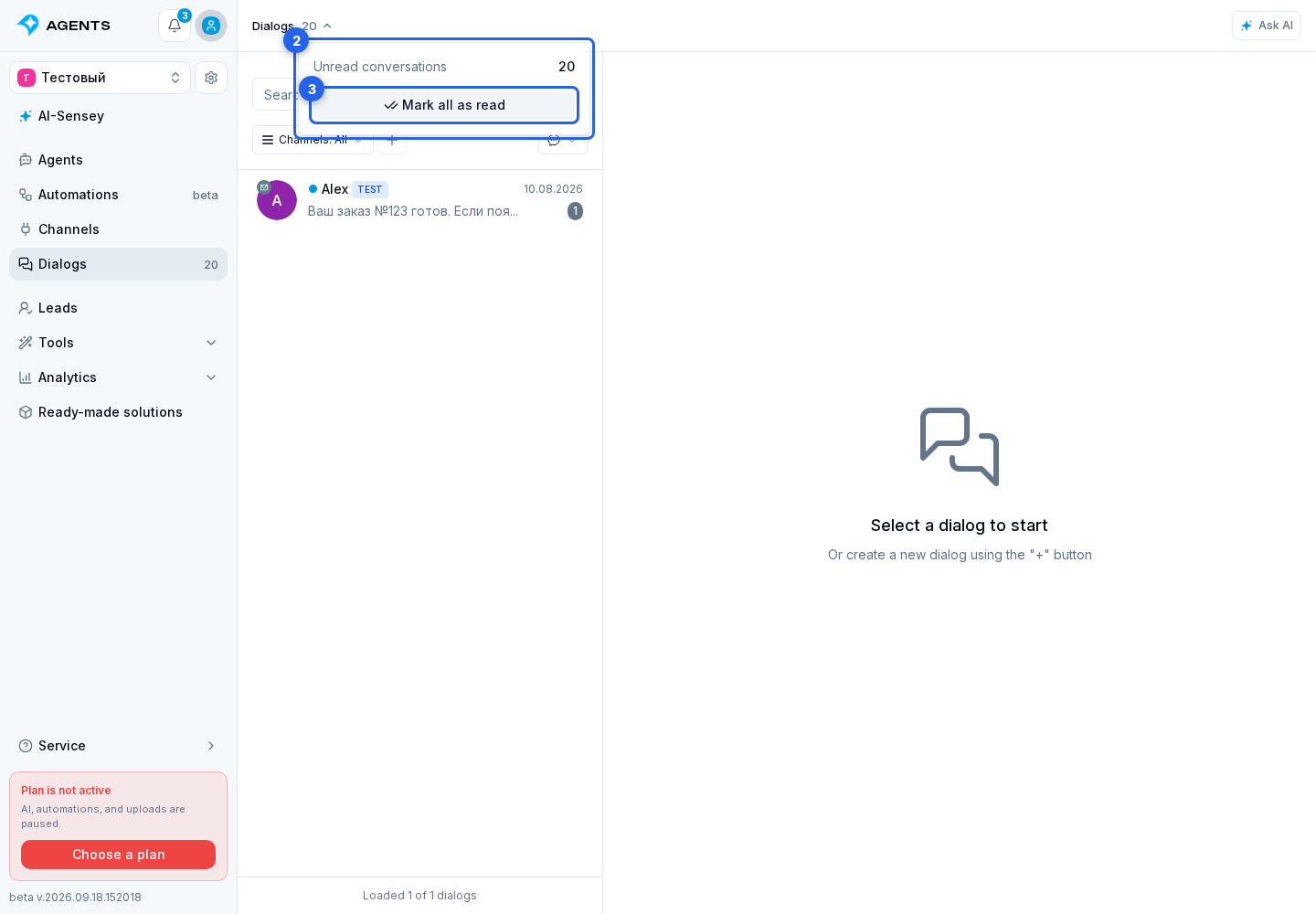
This affects all unread dialogs in the project, including archived and test dialogs, not only the current list filter. It changes the operator-side read mark, not the customer's read status. Messages arriving after the operation starts remain unread. Starting the operation requires permission to manage dialogs.
The menu shows progress. Click Stop to stop after the current batch; existing read marks are kept. On the same page, the button changes to Continue so you can finish the operation.
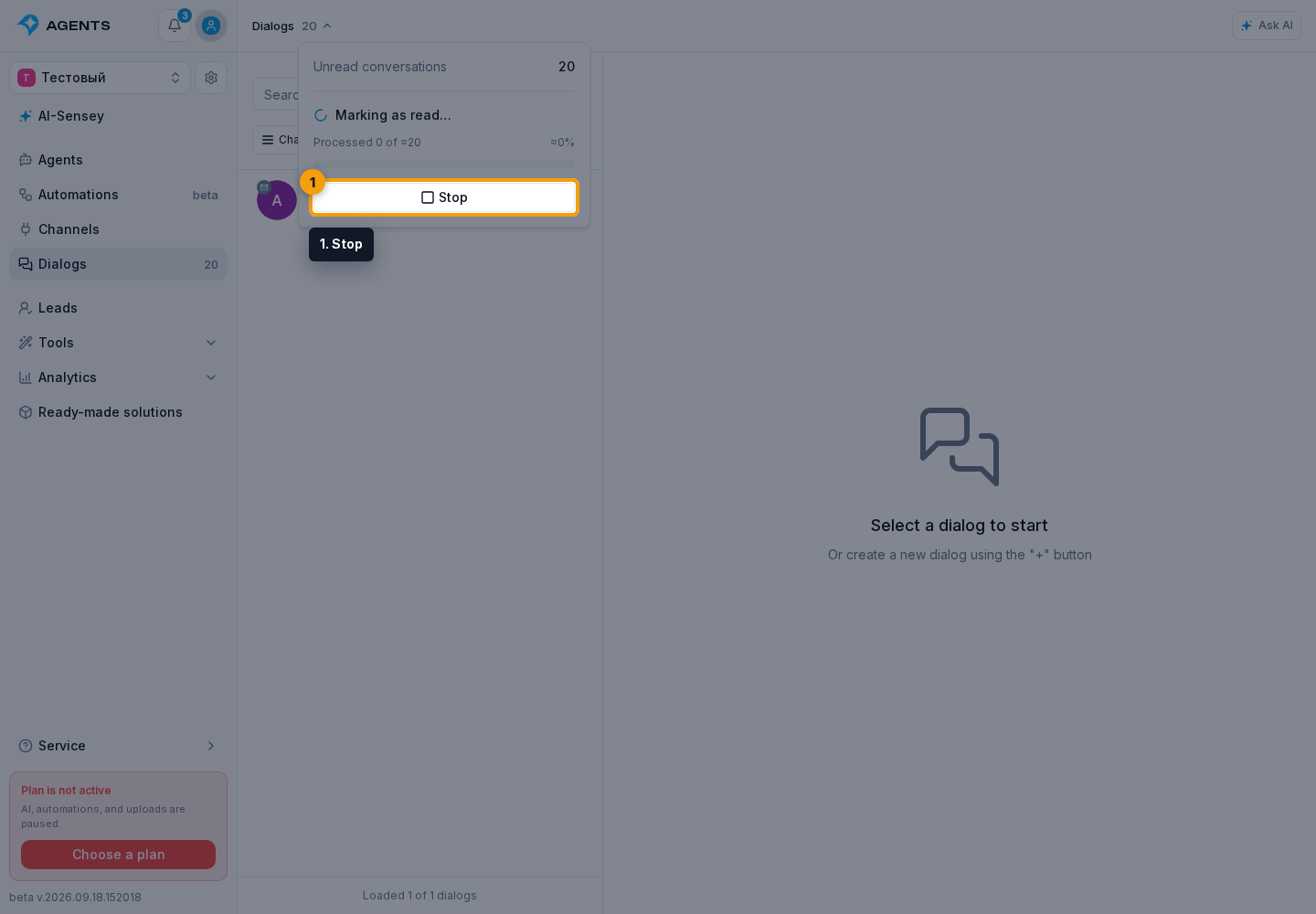
Closing the menu does not stop the operation. Leaving the page stops further processing, so wait for Done to mark the whole project.