
Image Recognition
Open the upload form and select images or a ZIP archive.
Choose a Mode
The upload form lets you choose an image recognition mode for search:
- “Estimate first” — inspect the selected files without importing them and show the image count, approximate time, and cost for every mode. Estimation does not charge credits;
- “Do not recognize” — upload files without AI image analysis;
- “Only without a Markdown description” — recognize images without a caption or nearby Markdown text and skip unchanged images that were already recognized;
- “Only unrecognized” — ignore Markdown captions but reuse existing AI descriptions for images with the same content;
- “Re-recognize all” — process every image again, even when an AI description already exists.
Language and Start
For every mode except Do not recognize, select the AI description language: RU or EN. This controls the language of text added to the search context and does not change the source file's language.
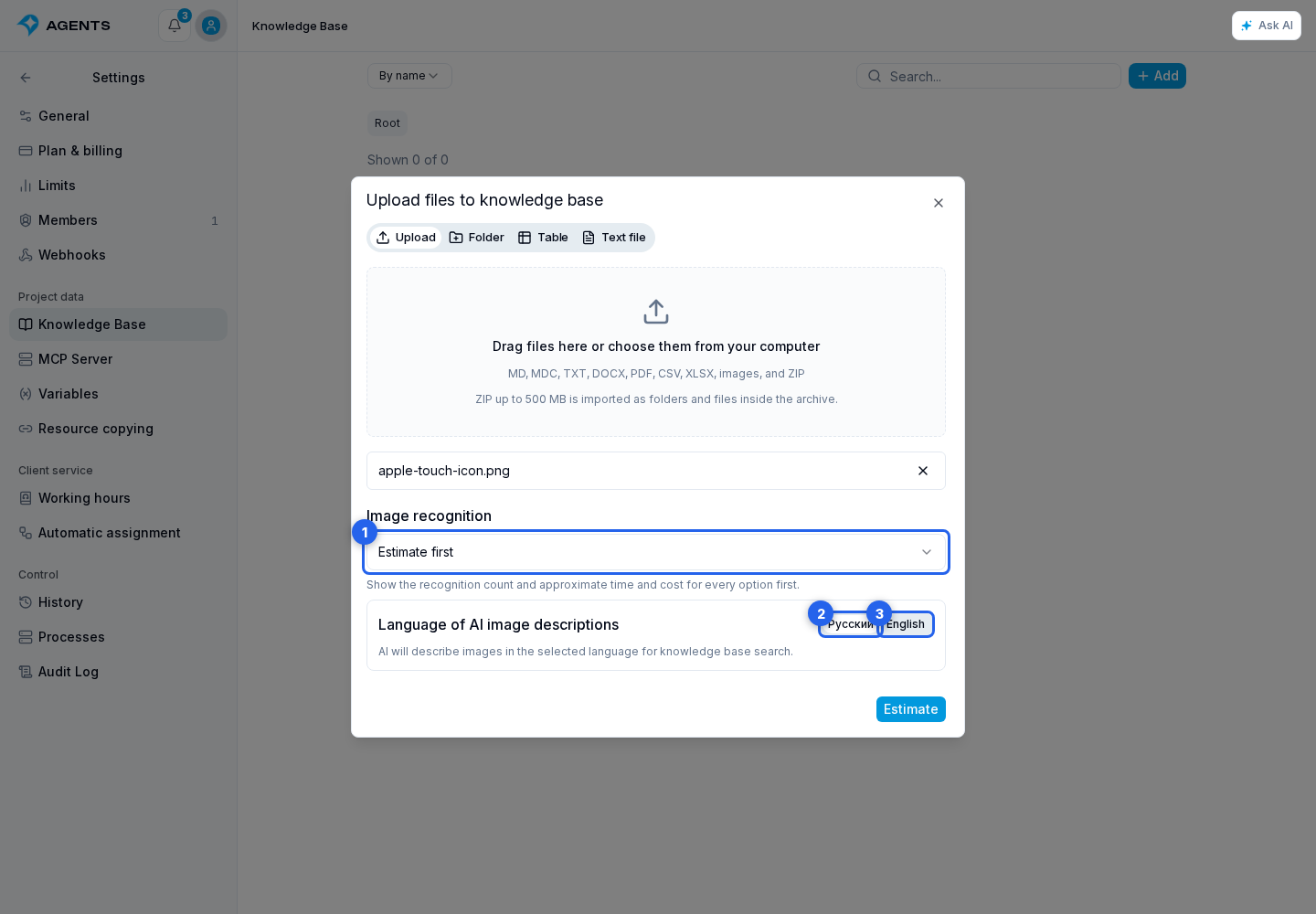
After the estimate, select one of the four upload modes. You do not need to select the file or ZIP again. If you select a mode directly, the cabinet starts uploading without another confirmation.
The generated AI description is stored separately and does not change the source Markdown. Search uses both the Markdown text and the image description. An identical image in one knowledge base is recognized once by content; if several Markdown files reference it, the description helps find every related instruction. A separately uploaded image without Markdown also becomes searchable after recognition.
Recognition runs in the background. The time and credit values shown before start are approximate. Estimation itself neither reserves nor charges anything; actual credits are calculated for completed AI calls.
View the Image and Description
Image - a separate knowledge base material that can be used next to Markdown instructions and in document preview. Open it through the material menu: the preview can be expanded, while the adjacent area shows the AI description used for search or its processing state.
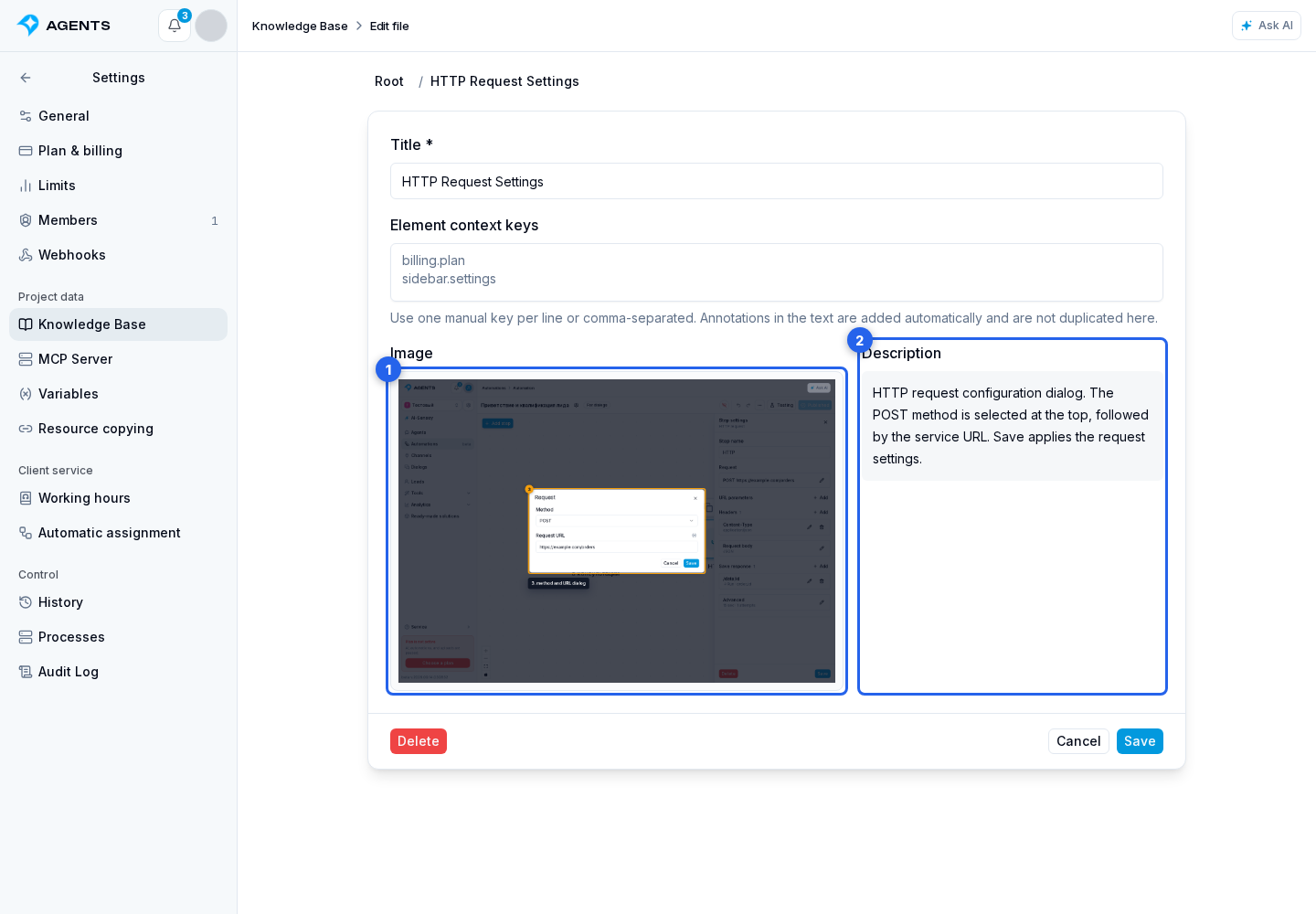
An image page shows the picture and recognition result instead of a text editor. The state can indicate that a description is still being prepared, recognition failed, the description is ready, or recognition was not requested. The AI description can be reviewed but cannot be edited as Markdown text.