
Attachment Delivery Errors
Open the conversation in the dialog list.
Check File Preparation
The attachment status shows whether the file is ready:
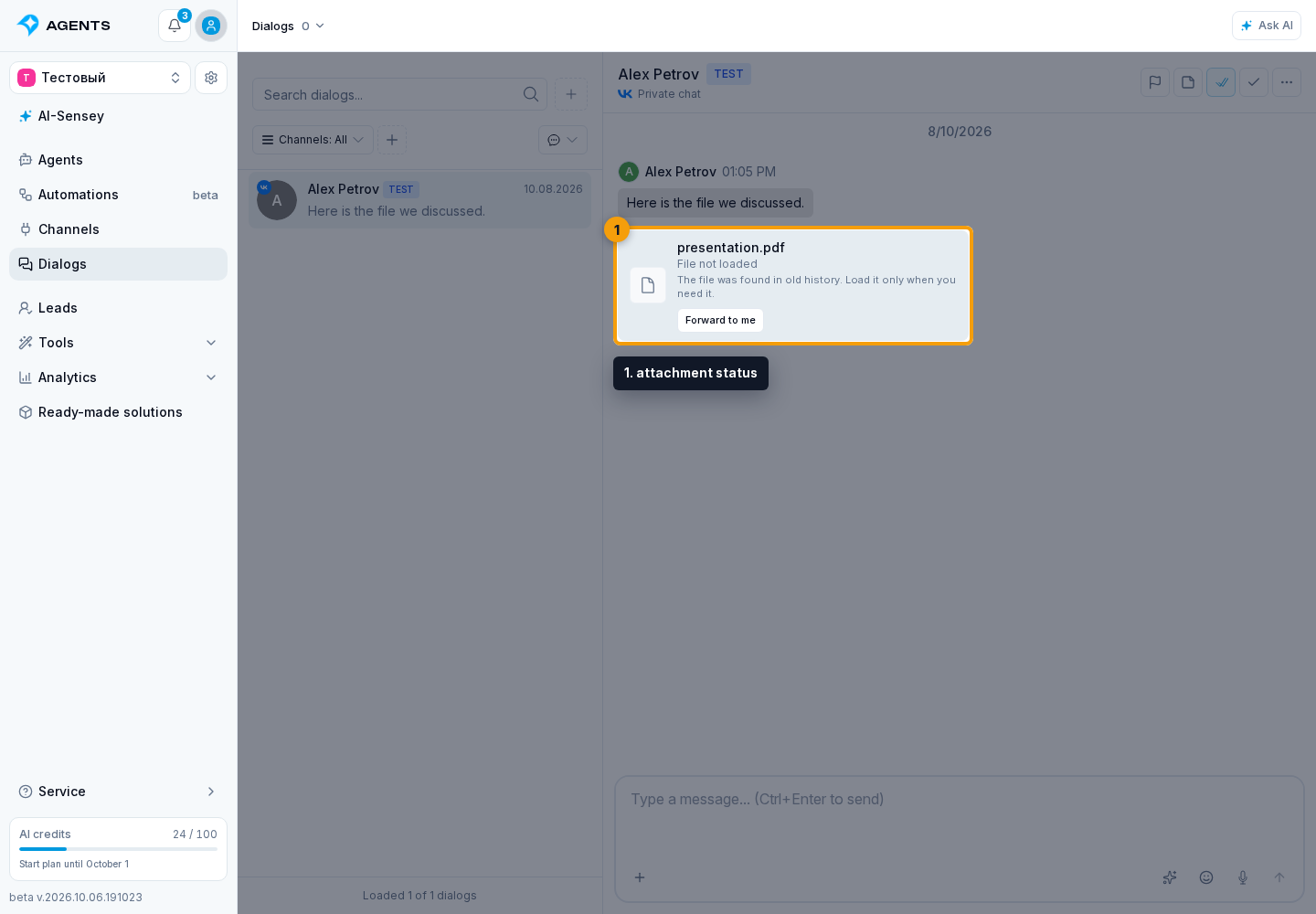
- "File not loaded" means the attachment was found in old history but has not yet been requested from the platform. Select Load only when you actually need the file. The card updates after a successful load; if it fails, the cabinet shows "Failed to load the file from the platform."
- “File is being prepared” - the service receives the file from the platform.
- "File is downloading" - the file is saved in the storage.
- "VK is processing the video" - VK is still preparing the source video; this is a waiting state, not an upload failure.
- "File source is unavailable" - the platform no longer provides the source file.
- "Failed to save file" - the source was received but could not be saved to storage.
- "The file could not be received from the platform" - the exact cause could not be determined.
- "Image unavailable" - the prepared image link did not open; when an external link exists, its button remains on the card.
Outgoing attachment delivery
Preparing a file in Senler AI and delivering it to the connected channel are separate stages. A file can be stored successfully and then be rejected by Telegram, VK, MAX, or another platform.
Message information can show a separate status for each outgoing attachment: waiting to be sent, uploading to the platform, uploaded and waiting to be sent, sent, or not sent. When available, the cabinet also shows the failure reason received for that attachment.
If the text has been sent but one or more attachments were not delivered, the message shows a Text sent, some attachments were not delivered warning. This does not mean that you should send the text again. First inspect the warning for the affected file or open message information, which shows the number of undelivered attachments.
VK has a separate SVG restriction: the platform does not accept this format as a photo. Convert the image to PNG or JPEG before sending it.
Common causes of errors
- HTTP 404 - platform link is unavailable or has expired.
- HTTP 403 - the platform prohibited downloading the file, often due to channel rights.
- Timeout - the platform did not respond on time.
- Limit exceeded - the file is larger than the current upload limit for project attachments.
- Source unavailable - the source link or file is no longer available on the platform.
- Upload failed - the file could not be saved after it was received.
If the file is larger than the limit, Senler AI offers to open the limit settings in the project storage.
Old attachments marked File not loaded are not errors and do not need to be loaded in advance. You do not need to load the whole history manually; request only the files you want to open, download, or pass on.
Video
Video from supported MP4/MOV/M4V containers is converted to MP4 fast start so that it opens better in the browser. If video preparation fails but the source file is available, the cabinet may show a warning and a download button instead of the normal player.
"VK is processing the video" means the platform has not provided a ready file yet. Do not send the video again or treat it as lost: wait and refresh or reopen the dialog. When VK completes processing, the attachment is prepared automatically; a separate error appears only if the video still cannot be retrieved.