
Additional Outputs
First configure the Run agent step. It prepares a result for the current dialog but does not send a message to the customer itself.
Before continuation, the result is saved to the selected variables.
Configure Additional Outputs
Under Additional outputs, you can define up to 10 continuation options.
- Select Add.
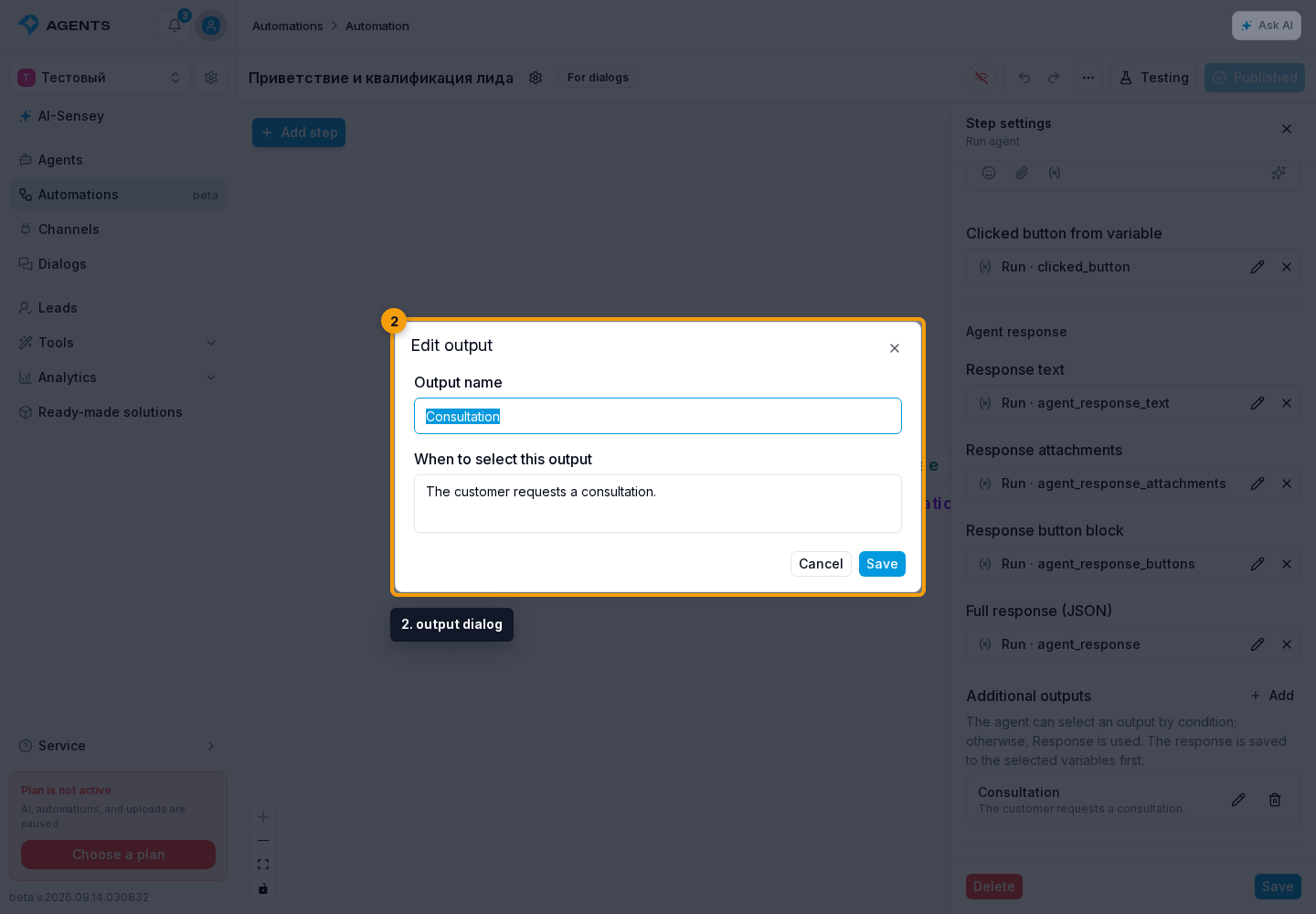
- In the output dialog, enter a name and describe when the agent should select it.
- Select Save in the output dialog, then save the step settings themselves.
- Connect the new output on the workflow to the next step.
To edit an output, select the pencil in its row. Cancel in the output dialog keeps the previous values. You can delete an unused option; its connection is also removed when you save the step settings.
How Continuation Is Selected
Additional outputs apply only to this automation invocation. The agent can select one additional output or finish its reply without choosing; in that case, the regular Response output is used. Selecting an output does not end generation: text, attachments, and buttons are saved to the configured variables first, then the automation continues through one output. An agent execution error does not count as a response without a selection.
For example, select an agent with an inexpensive model for simple questions and add a Needs expert output with the condition “The task requires complex analysis.” After it, add Message using the response text variable, then Run agent with a more capable model, followed by another Message with the result. The first agent can prepare “Passing this to an expert, please wait”; the customer sees it when the Message step runs.
This workflow runs in the current private or group dialog without changing its assigned agent. Use run variables for intermediate results so concurrent runs in the same dialog do not overwrite each other's values. Each new invocation starts without a selection; no assignment needs to be restored after the expert replies.