
Poll Step
The Poll step sends a question with answer options to the current private dialog and waits for the customer's answer. It is available in For dialogs automations for VK, Telegram, MAX, the widget, and Discord. This step does not work in group dialogs or other channel types.
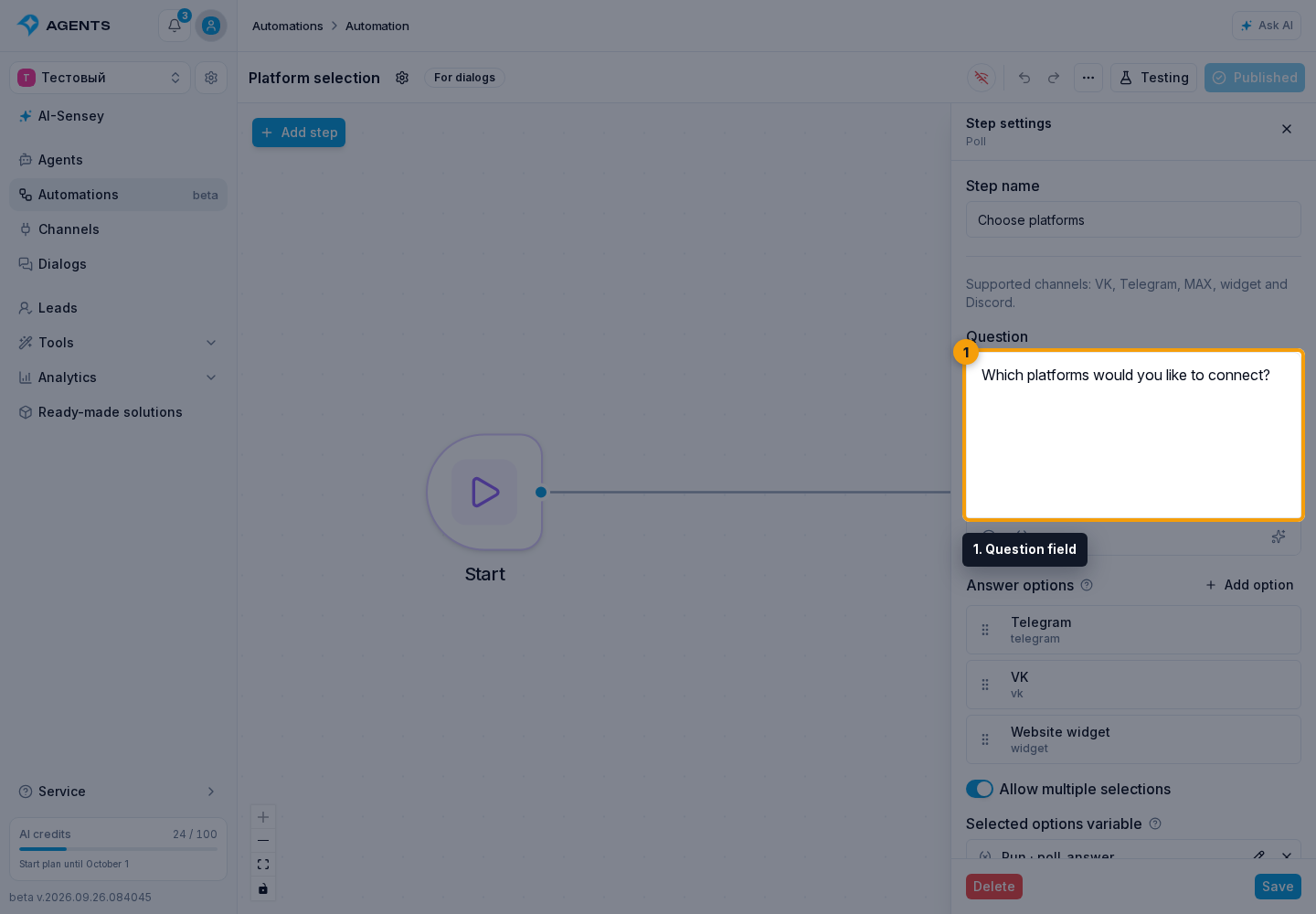
Set the Question and Options
- Select Poll in the step catalog and open its settings panel.
- Enter up to 1600 characters in the Question field.
- Under Answer options, click Add option. Enter the Label the customer will see and the Value to save to the variable. For example, use the label Telegram and the value
telegram. - Add 2 to 8 options. Labels can have up to 38 characters and values up to 80. Option values must be unique.
- Click an option to edit it. In the option dialog, click Save or Delete. Cancel closes the dialog without changing the option. Drag the handle on the left to reorder options.
Save Selected Answers
Enable Allow multiple options if the customer can select several answers. Disable it to allow only one.
In Selected options variable, choose a process variable of type Array. It receives option values, not labels. Even a single choice remains an array, for example ["telegram"]. Multiple answers are stored in the order of the poll options.
Set Confirmation button text, for example Done, using up to 40 characters. The customer must select at least one option and click this button. Only then does the process continue through Answer received. Selecting an option alone does not start the next step.
Allow a Text Answer
Enable Allow custom answer and choose a separate String process variable in Custom answer variable. The customer's text is saved to it, the poll closes, and the process follows Custom answer.
Each new poll clears the selected-options array and sets the custom-answer variable to an empty string when custom answers are enabled.
In the widget, selections are submitted only when the confirmation button is clicked. If the visitor sends their own text instead, unconfirmed selections are not saved. In messengers, option clicks already accepted are also saved when the customer sends a custom answer.
Continue the Scenario
Click Save in the step panel. Connect Answer received to the next step for selected options, and Custom answer to the handling of free text. For example, add a variable check after confirmation to offer different instructions for the selected platforms.
When the poll is complete, its selection buttons are removed: a closed poll cannot be answered again. Publish and test the automation with each output you use.