
Version Resources
First, create a version draft.
Add Resources
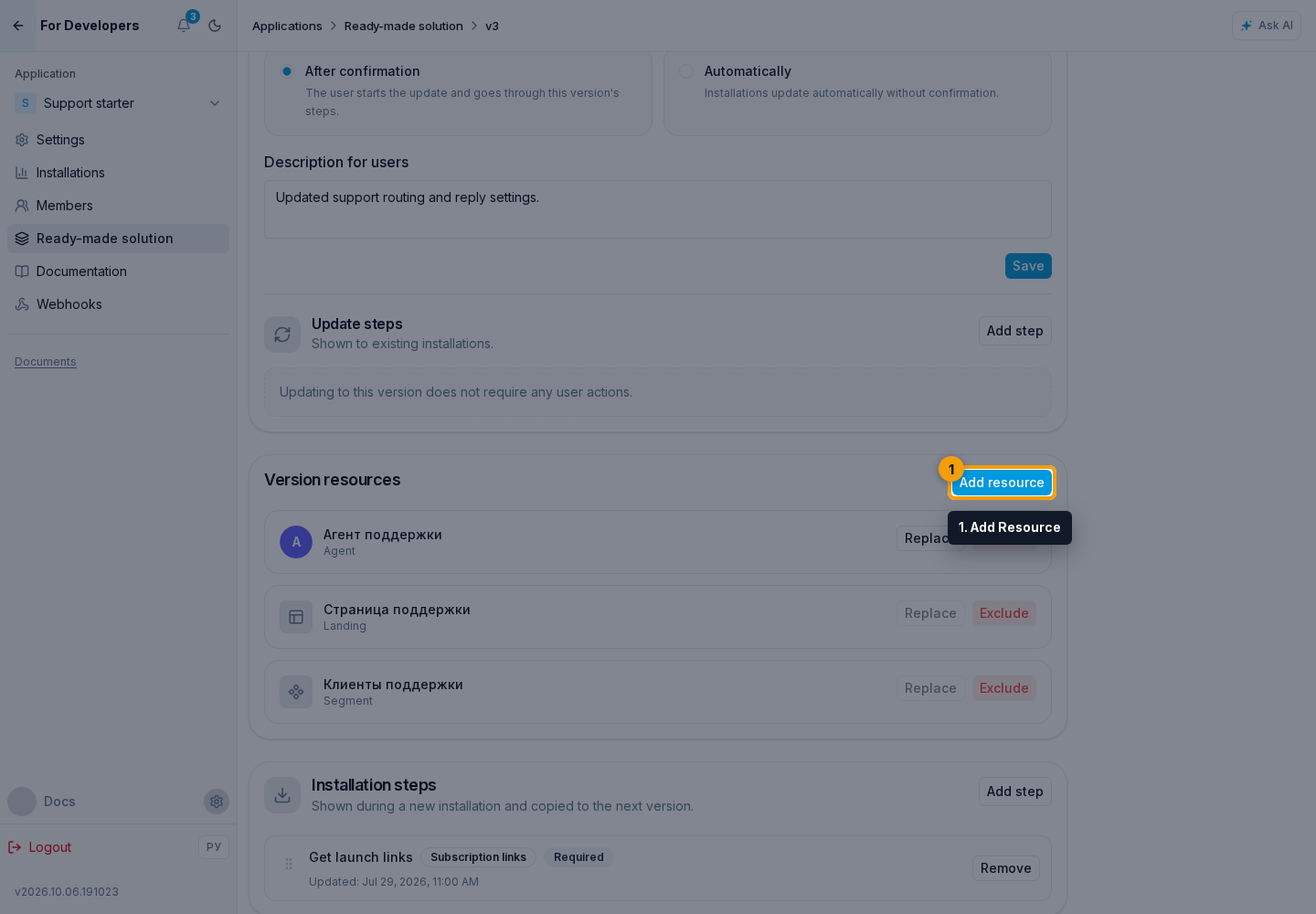
- In the resources section, click Add Resource.
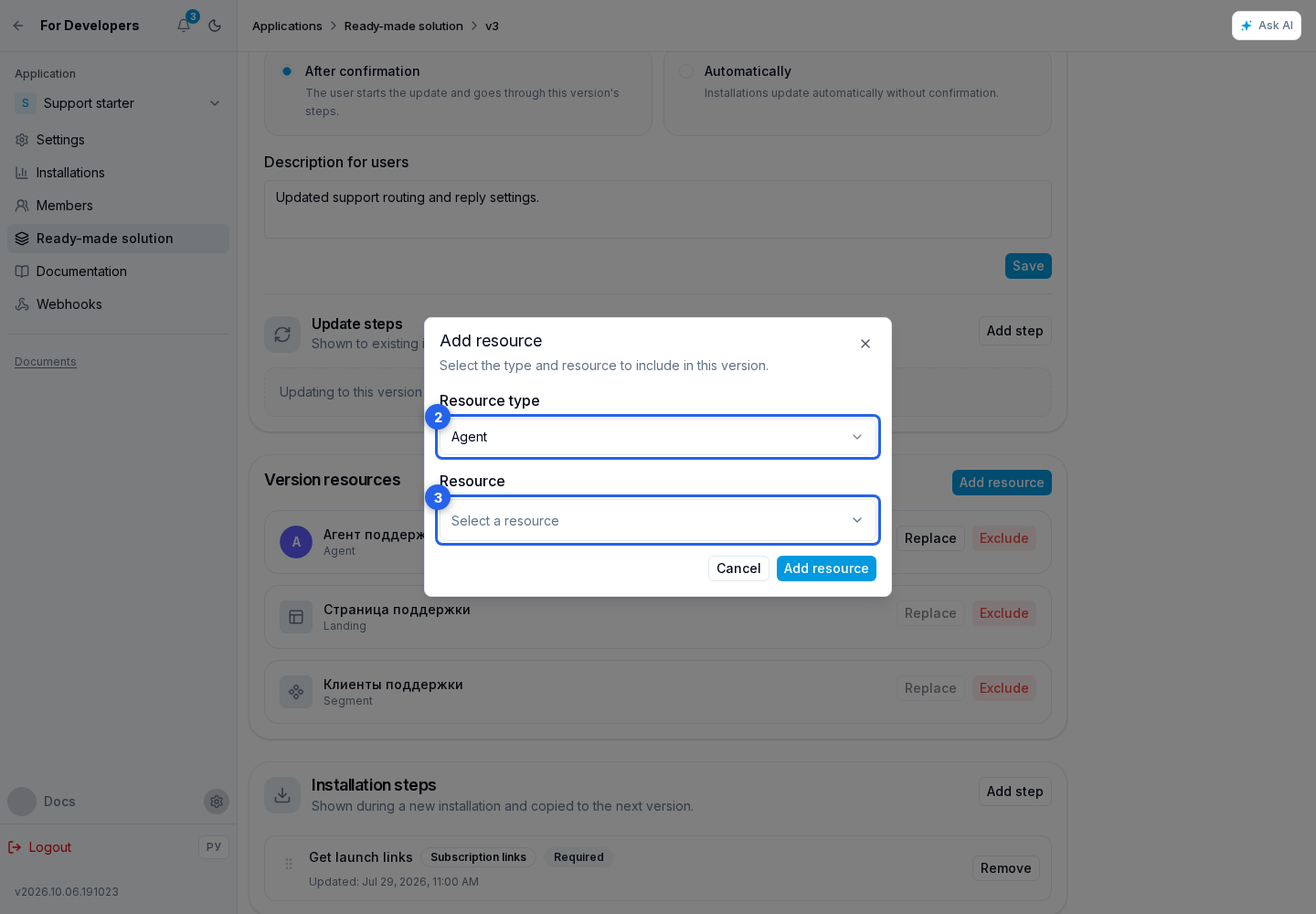
- In the dialog, choose a primary resource type: automation, agent, segment, landing, or trigger.
- Open the resource selector.
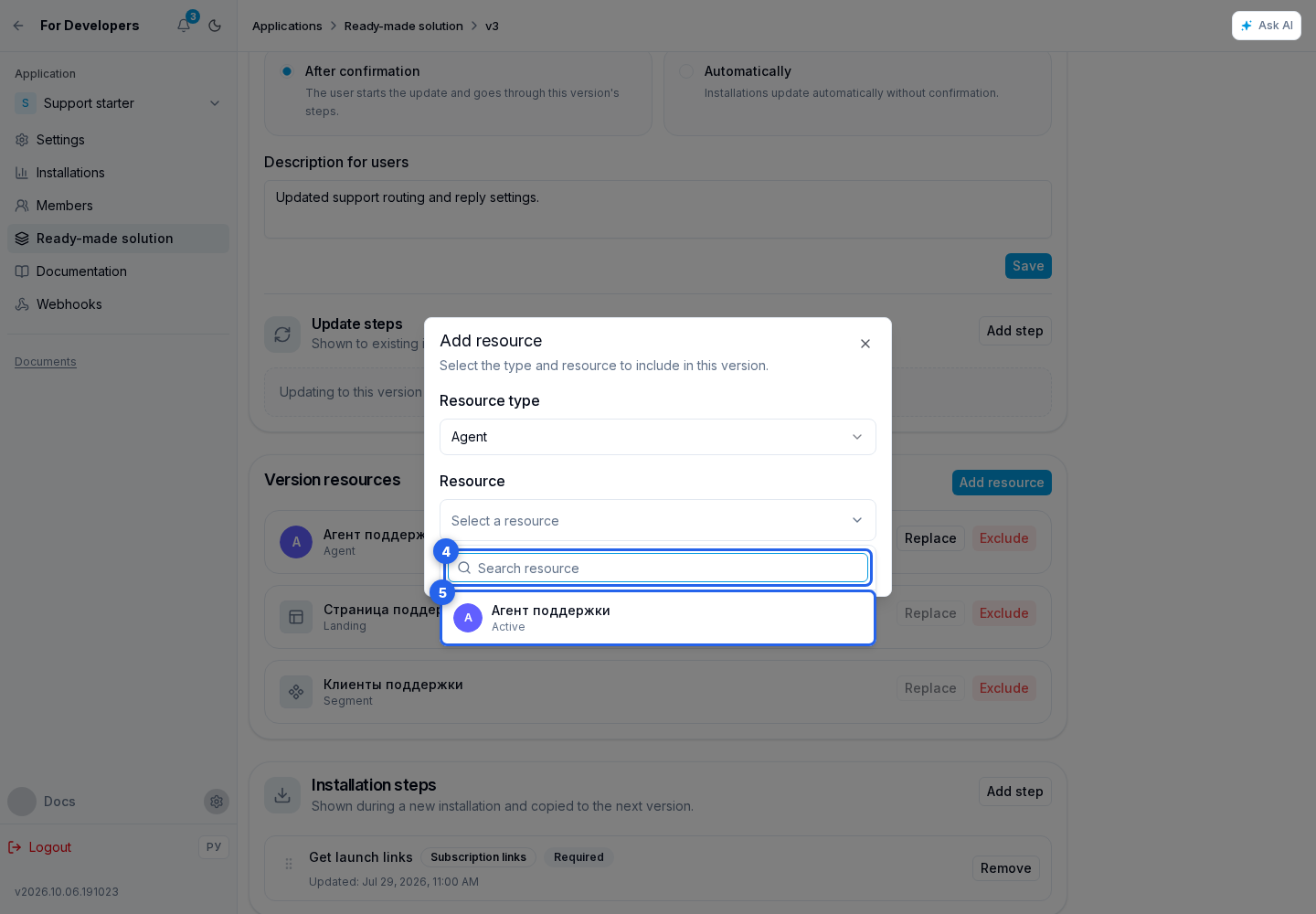
- Use search when needed.
- Choose the required resource and click Add Resource at the bottom of the dialog.
The cabinet adds dependencies automatically and shows which resource or setup step requires each one. Dependencies can include segments used by a landing button or trigger, an agent's MCP servers and knowledge sources, custom metrics, knowledge folders, and project or lead variables. An automatic dependency cannot be removed separately; change or remove the primary resource or step that requires it. An inactive source shows a warning, while a deleted or unavailable source must be fixed before publication.
Do not change the name, type, or constraints of a released variable while keeping it as the same resource: an installed ready-made solution may already store a value in the old format. For an incompatible change, create a new variable in the source project and move ready-made solution resources and steps to it.
Replacing resources
Replacement is used when a new resource must take the previous resource's place while preserving the IDs of installed copies.
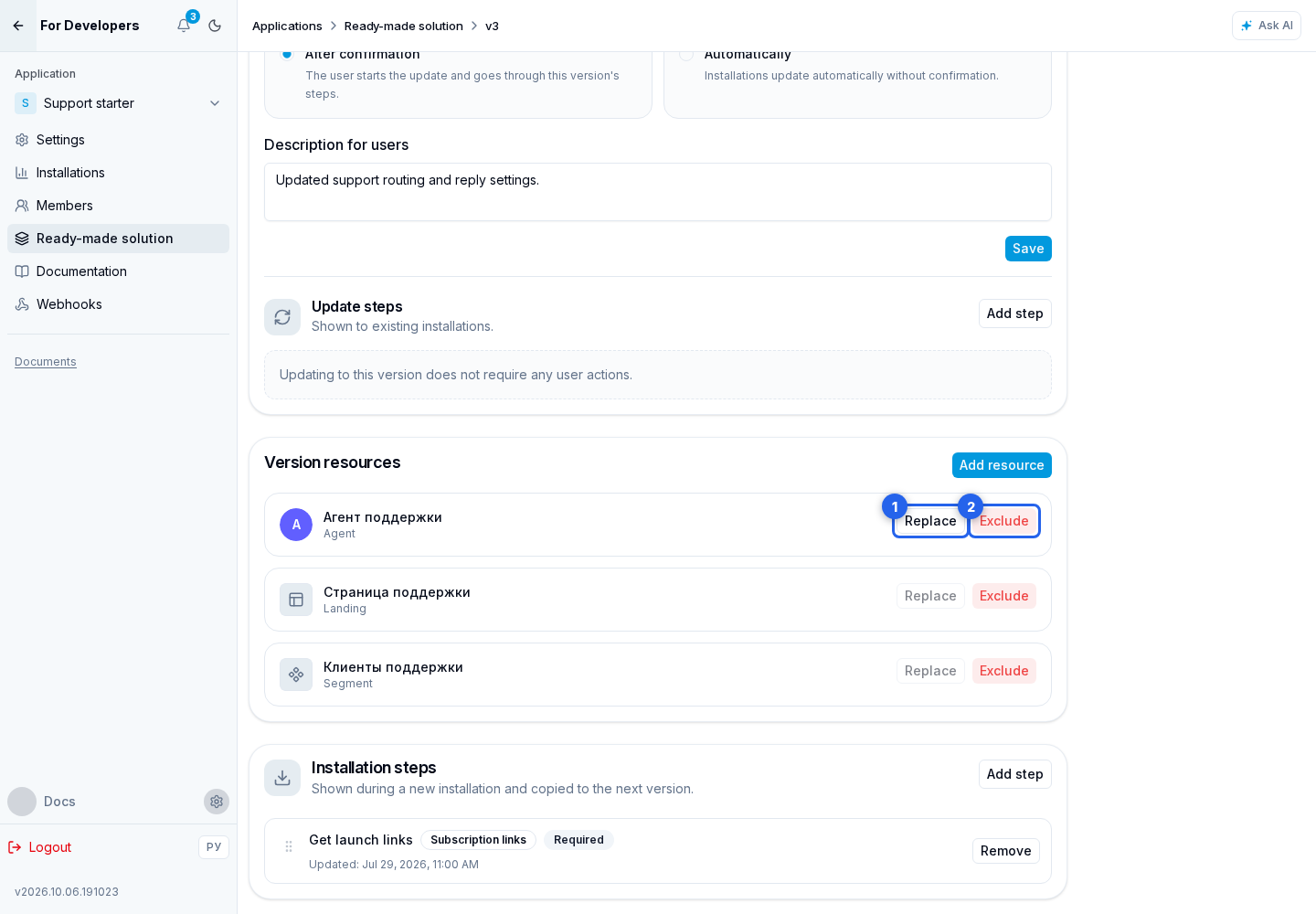
- Click Replace in the source resource row.
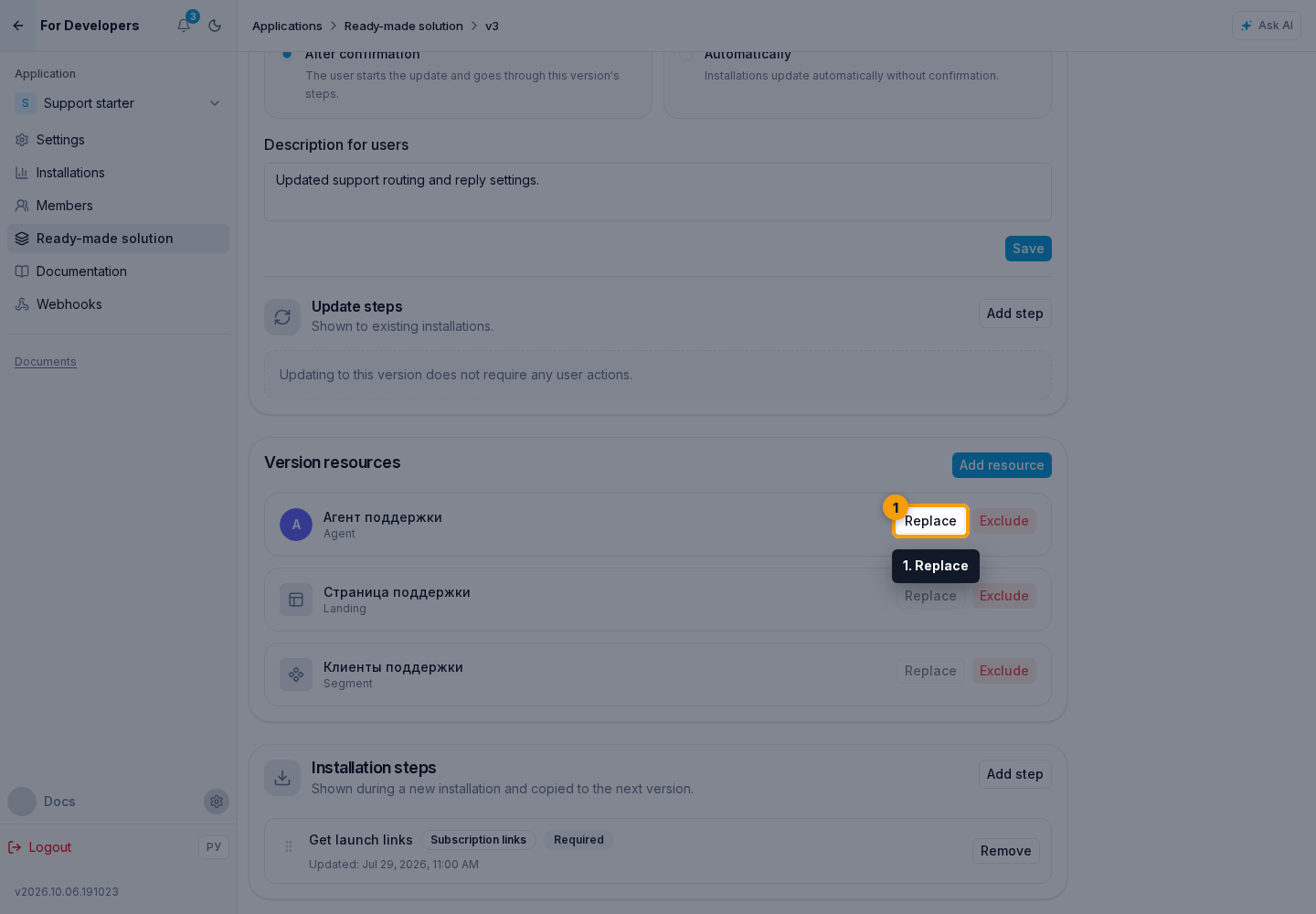
- Select a new source of the same type in the Replace with field and confirm with Replace.
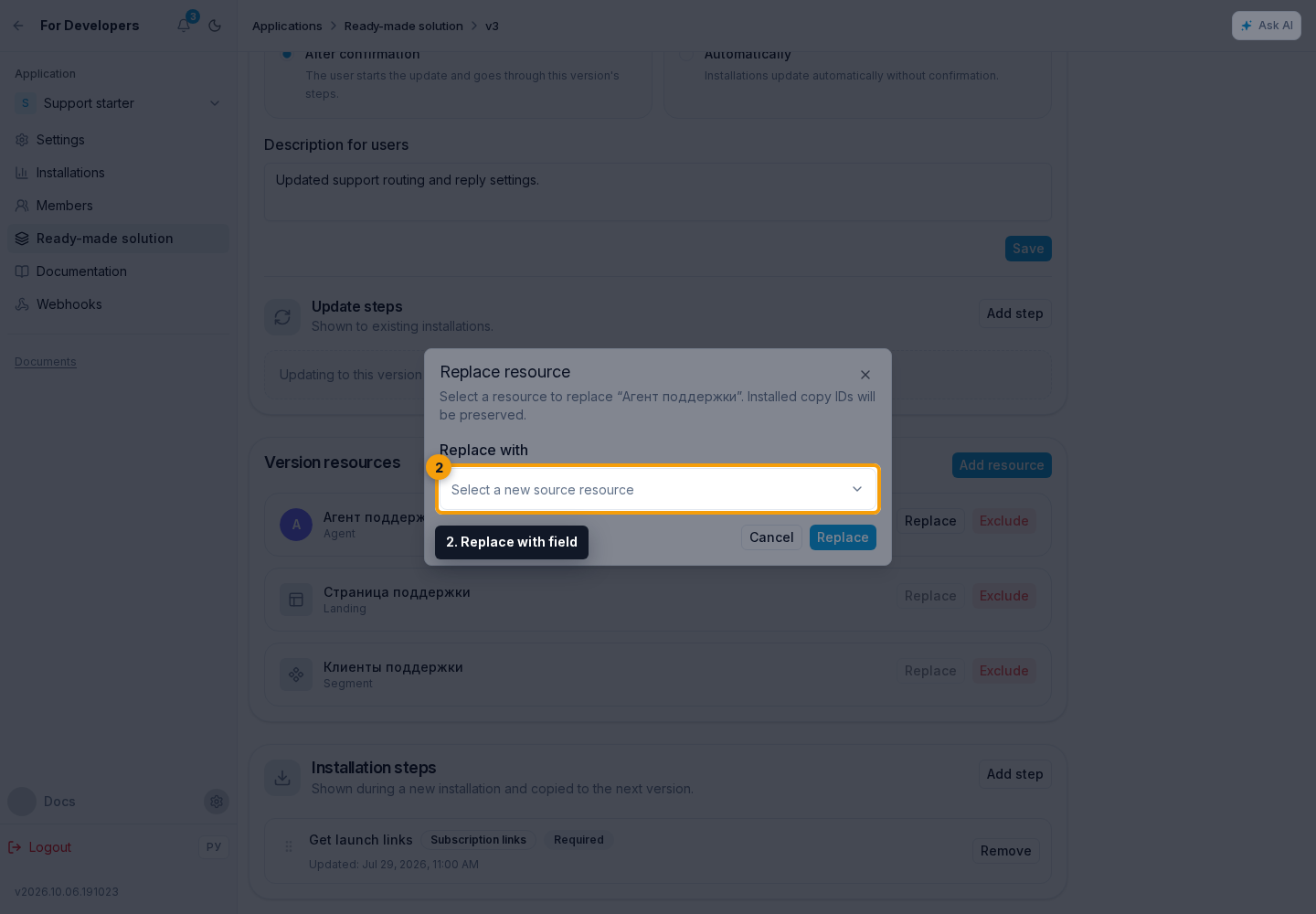
Each replacement is applied separately. The cabinet immediately recalculates automatic dependencies, so review the updated resource composition before another replacement or publication. The button is disabled while source resources are loading or when the source project has no other selectable resource of the same type.
Exclude removes the primary resource and dependencies no longer needed from the version. Use Restore to include an excluded resource again. If an agent is referenced by a setup step, change or delete that step first.
Version Steps
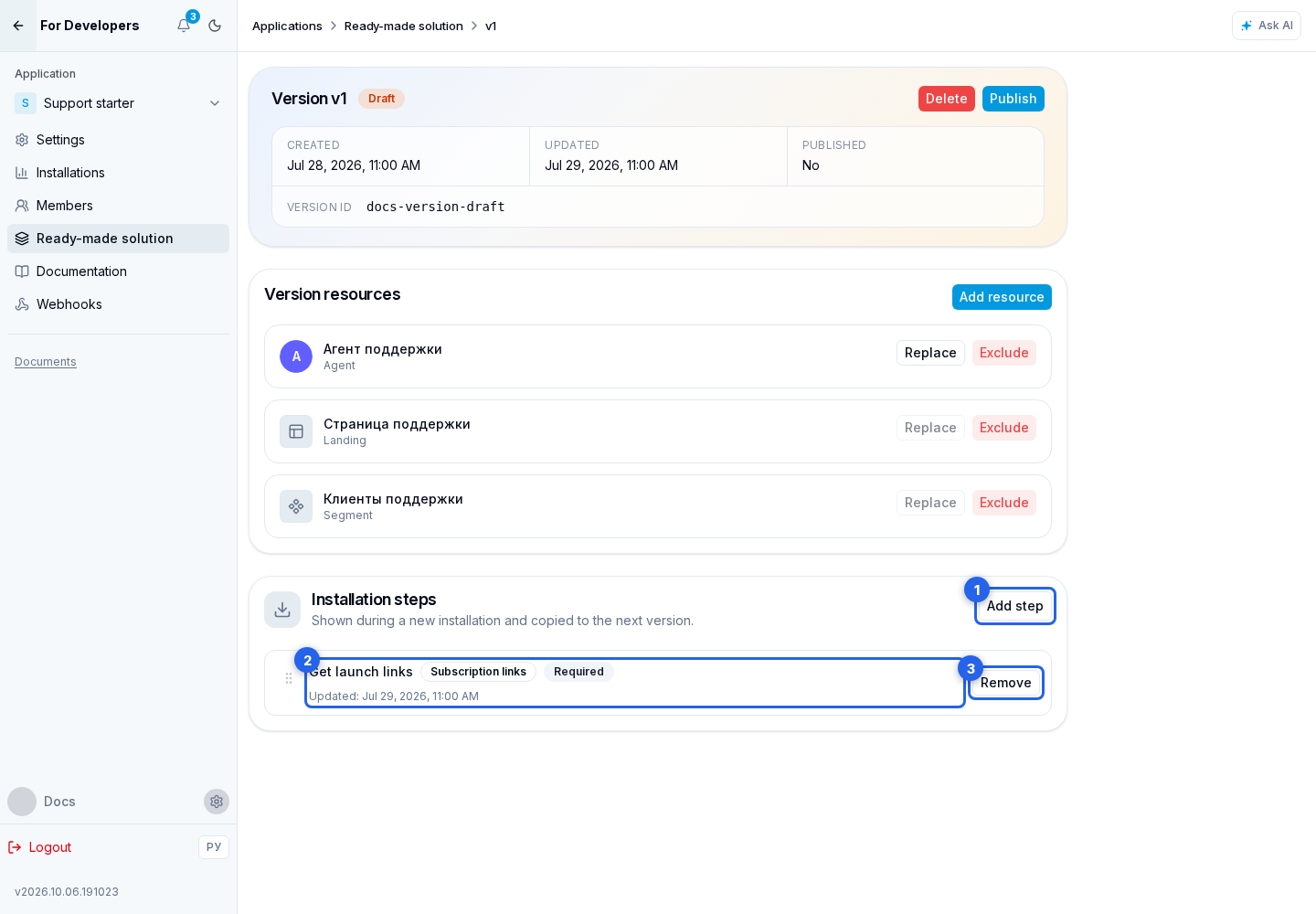
In Installation Steps, click Add Step when an action is required during the first installation of this version. Open an existing step to edit it, or use remove step directly in the list. Step types and fields are described in Installation Steps.
In Update Steps, add only actions for projects moving to this version from an earlier release. These steps are not shown during a new installation and are allowed only in After Confirmation mode. See Update Steps for details.
The update mode, release notes, resources, and steps can be changed only in a draft. A published version is read-only; create a new draft for the next release.