
Selecting objects
Select agents and automations, a period, and the group to review in diagnostics.
Open Diagnostics in the project.
Selecting entities
In the Analytics group in the left menu, open Diagnostics. The page for selecting objects to check opens.
1. In the first selector, choose what to check: Entire project, Automations or Agents.
For agents and automations, a second selector appears. It defaults to All agents or All automations: diagnostics selects a group only from that type. To check one entity, enter its name in search and click the agent or automation. To return to selection by type, choose “All agents” or “All automations” again.
Changing the type clears the specific entity selection. The selected type is retained in the report and when adding entities to the check. In “Entire project” mode, the second selector is hidden and the group can include both types. The filter limits entity selection; connected agents and nested automations are still considered when reviewing the selected scenario.
You can manually select disabled agents and draft automations as well. Executions are not required: their settings are reviewed, while execution data may be unavailable.
2. Choose the observation period: the last 7 or 30 days.
3. In the Check with AI block, enter the number of entities, from 1 to 50. The adjacent count shows how many matching entities are available, such as “10 of 37”. When the full list size is not yet known, the number has a “+” sign. Selecting a specific agent or automation checks one entity.
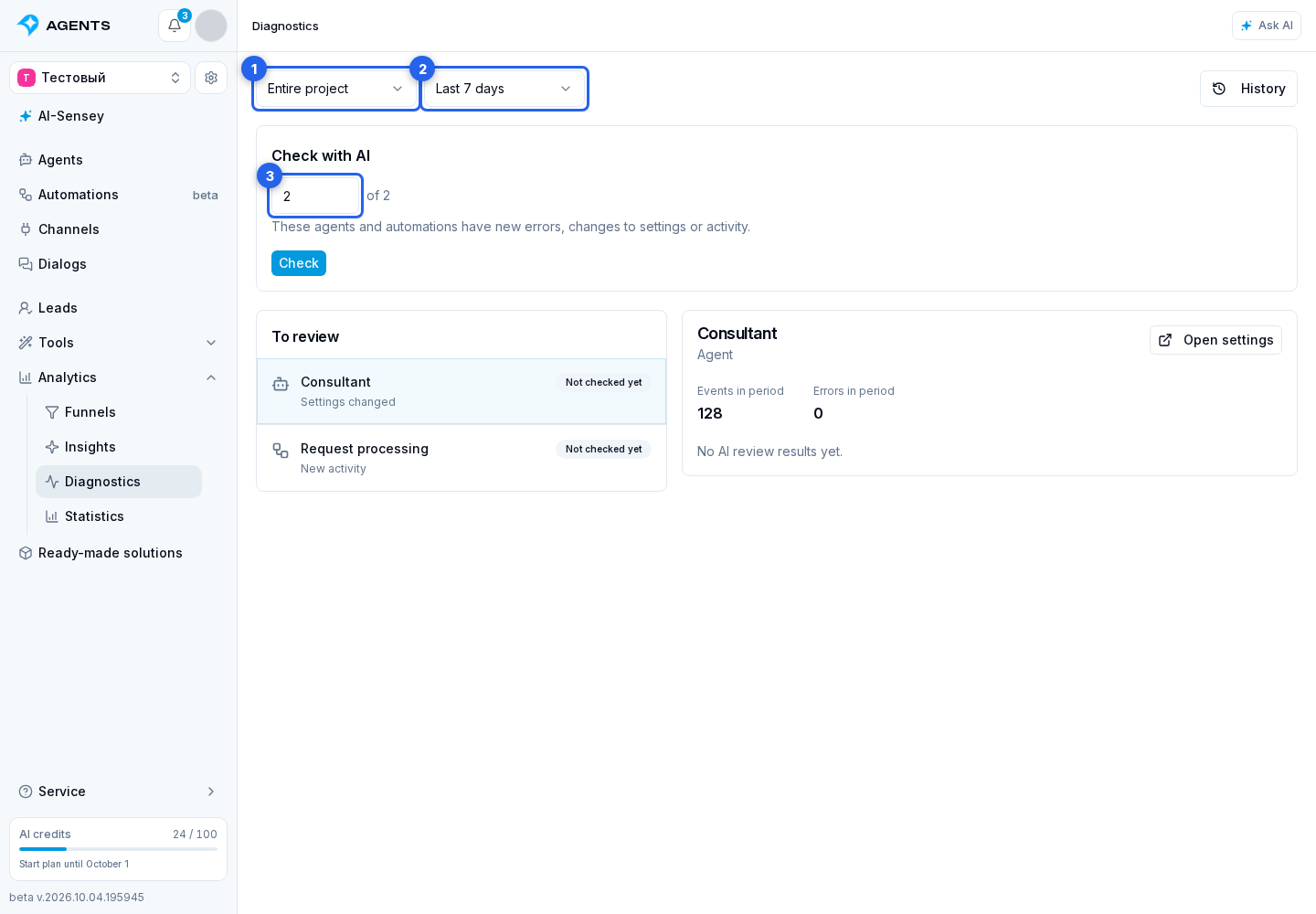
Changing the type, specific entity, period, or quantity automatically updates the selection. This preview does not call AI or spend credits. If no matching entities have been found yet and the search is unfinished, select Continue searching.
How the group is selected
Diagnostics selects objects with new data to review. The group is filled from the candidates found in this order:
- New errors. Entities qualify when an error within the selected period was absent from the previous AI analysis data. If there was no previous analysis, any error within the period qualifies. The newest errors come first, including automation incidents that have already been closed.
- Unreviewed settings. If places remain, enabled agents and running automations with a published version qualify when their current settings have not been reviewed. The most recently changed come first. Executions are not required. Settings may have been created or changed before the selected period. Editing a draft when a published version exists does not count as changing the reviewed version.
- New activity. Remaining places go to entities with events within the period that were absent from the previous analysis data. Entities never reviewed come first, followed by those with the oldest review. Successful and failed executions count as activity. More executions do not increase priority.
Each entity takes one place. There are no separate quotas for the three groups: for example, when you select 10 entities and enough have new errors, all 10 places go to entities with errors. With two entities with new errors, three with unreviewed settings and enough candidates with new activity, the group is 2 + 3 + 5.
Only settings and observations with a completed AI analysis count as reviewed. Opening a group does not mark anything as reviewed. A partially supplied graph does not establish a full configuration review. An error or settings change during AI analysis remains new for the next selection. Disabled agents and drafts without activity are not selected automatically. If history is unavailable or incomplete, the period is not marked as reviewed. Reviewed intervals are retained separately: after a seven-day review, expanding to 30 days can discover older errors. If the added period has no new observations, changing the period alone does not require another AI analysis.
An overview without a started AI review lasts 15 minutes. Saved results for matching data are reused.