
Testing the Request
First configure the HTTP request and open its step in the automation editor.
A test request calls the real external service and can change its data. To select a field without sending a request, use an existing JSON sample.
Test the step
In Save response, click Choose a field from an example to the right of JSON path to open the response field picker. To send a request, switch to the Request tab. The “Test request” field contains a copy of the method, URL, headers and body from the step settings. Edit it directly or paste a complete HTTP request with a full URL or a cURL example. You can also paste just a JSON body: the method, URL, URL parameters and headers come from the step. File reads and shell commands in cURL are not executed.
Replace the variables you need with test values directly in the request. For example, replace "{{run.order_id}}" with 101. An unchanged {{run.order_id}} is sent as text without substitution; this also applies to project and all other variables. If a variable specifies the service address itself, replace it with a full URL. There are no separate run or trigger inputs. Changes in this dialog are not saved to the step settings; “From step settings” restores the original request.
Click “Send request”. This really sends a request to the external service: for example, POST may create a record. Only the test request is executed, once. Variables stay unchanged, neighboring steps do not run, and the result is excluded from automation run history and statistics.
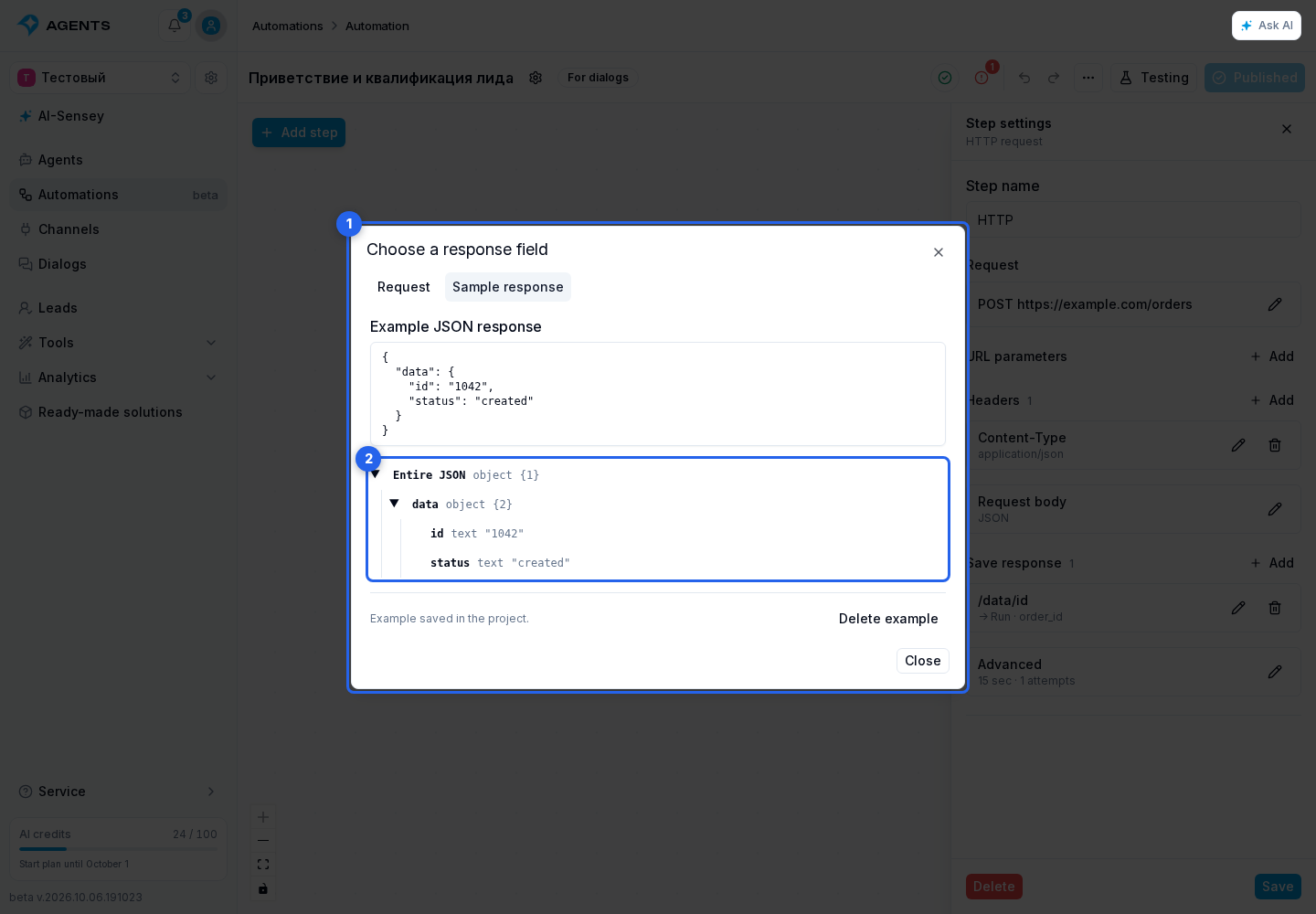
The response shows the HTTP status, duration, headers, and a JSON tree with field names, types, and values. Click a field, object, array, or Entire JSON to fill in the current rule’s path automatically. Saving a rule changes only the step settings. To save text, the HTTP status, or a header, select that source in Save response.
Saved Sample
The example is stored on the server separately for each HTTP step and is available to project members with automation access. Reopening the picker, reloading the page or switching devices loads the saved example. All Save response rules in the step share it; it is not included in the published automation. One example of up to 262,144 characters is stored, with large numeric IDs preserved without rounding.
JSON from a test request is saved automatically. Manually pasted JSON is saved when you select a field, close the dialog or click Save example. Invalid JSON does not replace the saved example; Close without saving discards manual changes. Delete example clears this step’s example.
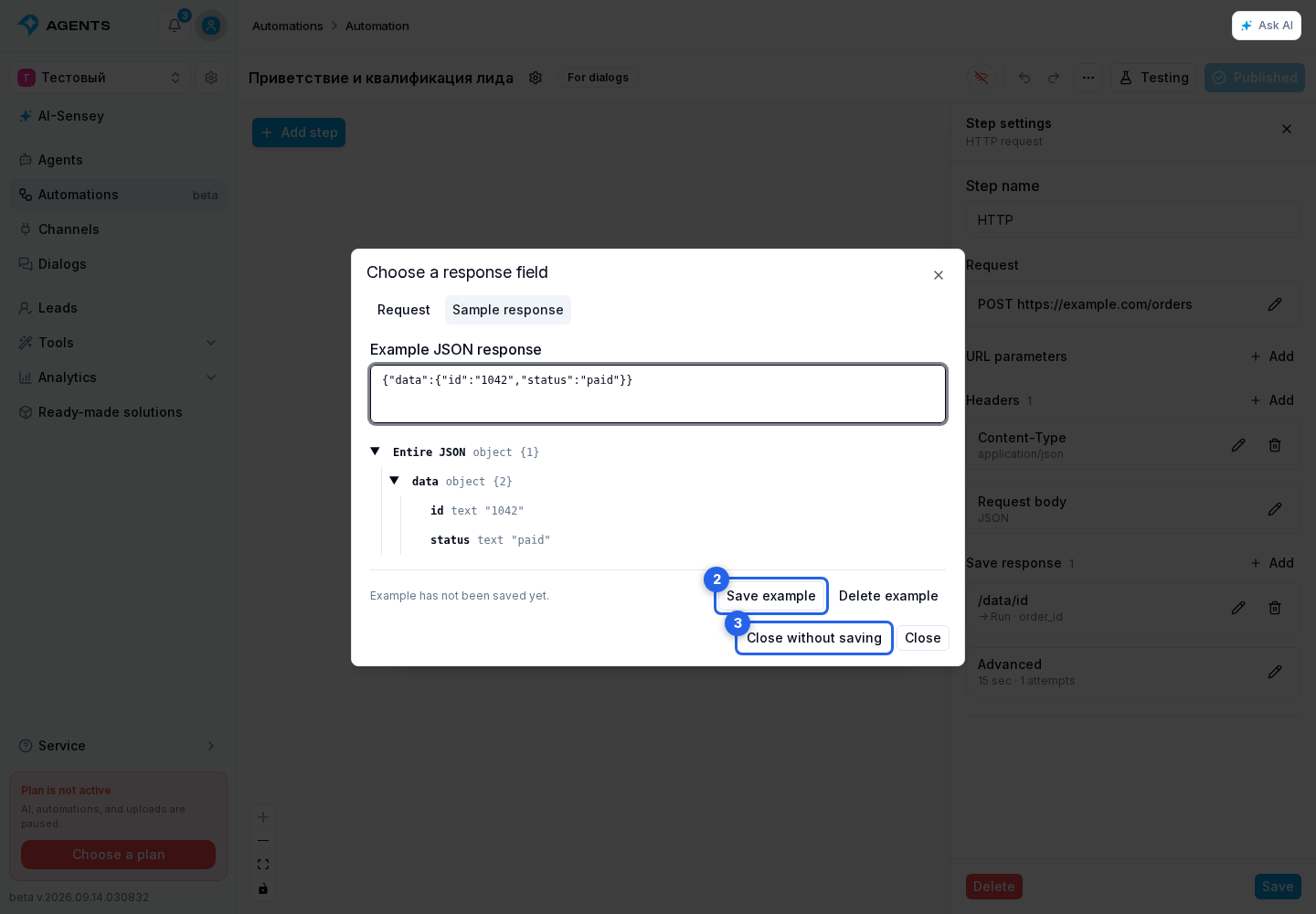
If another window has changed the example, it will not be overwritten: click Load saved example. If the response was received but the example could not be saved, you do not need to repeat the service request — click Save example.
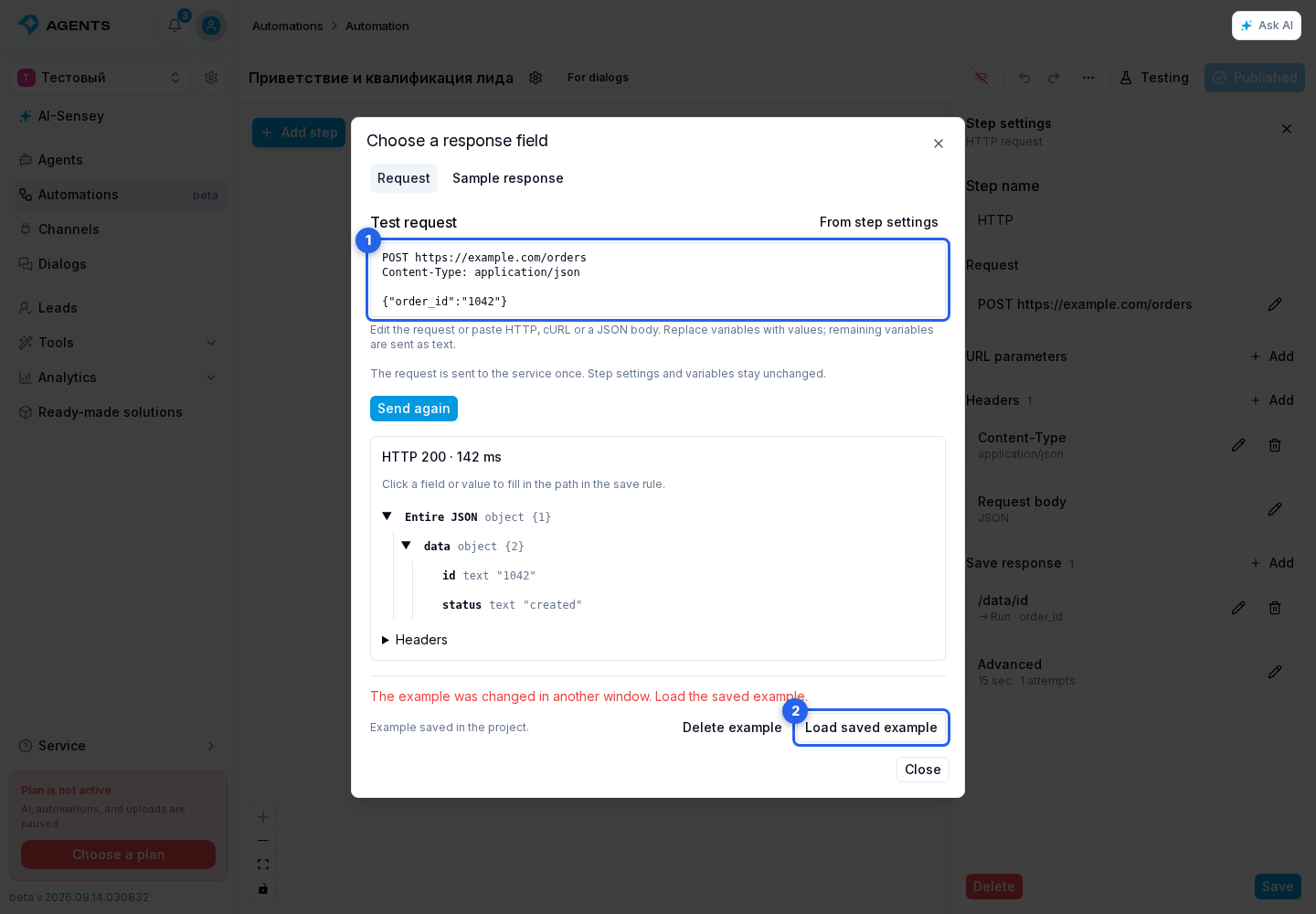
Changing the test request hides the previous result on the Request tab. Send it again to get a new response. The saved example remains available on Sample response and is replaced by a new JSON response or manual input.
Sending a request is optional. “Sample response” lets you paste your own JSON response; entering the path manually in a mapping remains available. /json/order is needed only when the service actually returns an object named json containing an order field. There is no required /json prefix.
A test run of the entire automation sends real requests to external services. Responses can be saved to test process variables; project, lead, and dialog variables stay unchanged during a test.
The selected path is applied to the response storage rule.