
Fill Variables
In the version draft, create an installation step and complete its common fields.
Fill Variables step
Click Add Variable. Its settings open in a separate dialog. The step must contain at least one variable.
Configure the Field
Configure each variable:
- Project Variable Name: a variable with this name must already exist in this ready-made solution's source project;
- on the Russian tab, a user-facing label and hint;
- on the English tab, an English label and hint;
- an example value that matches the variable's type and restrictions;
- whether the field is required during installation.
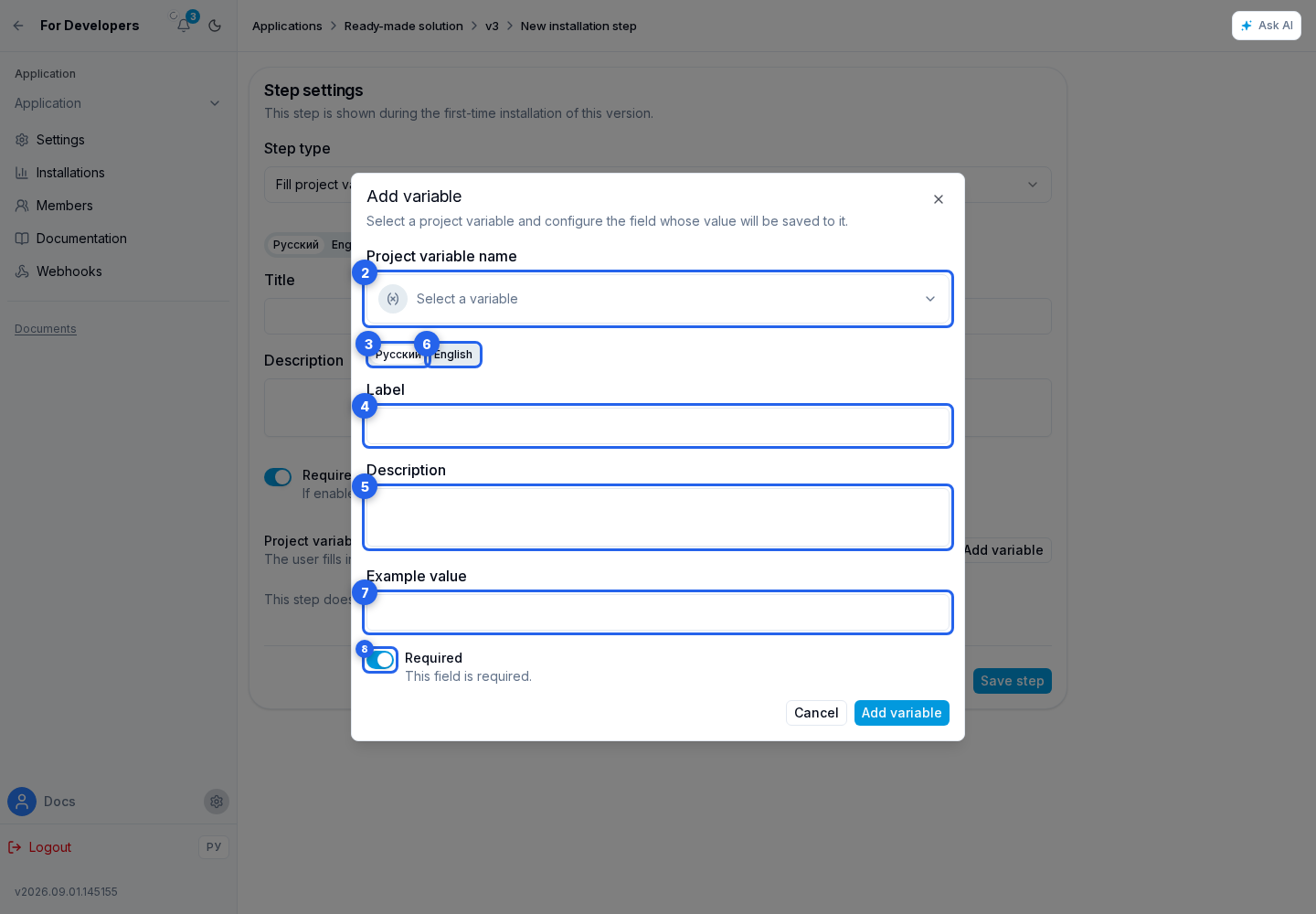
Click Add Variable at the bottom of the dialog. The variable appears in the step list; use the pencil button to open it for editing. The same project variable cannot be added to a step twice. Remove an unnecessary field with the remove variable button in the list.
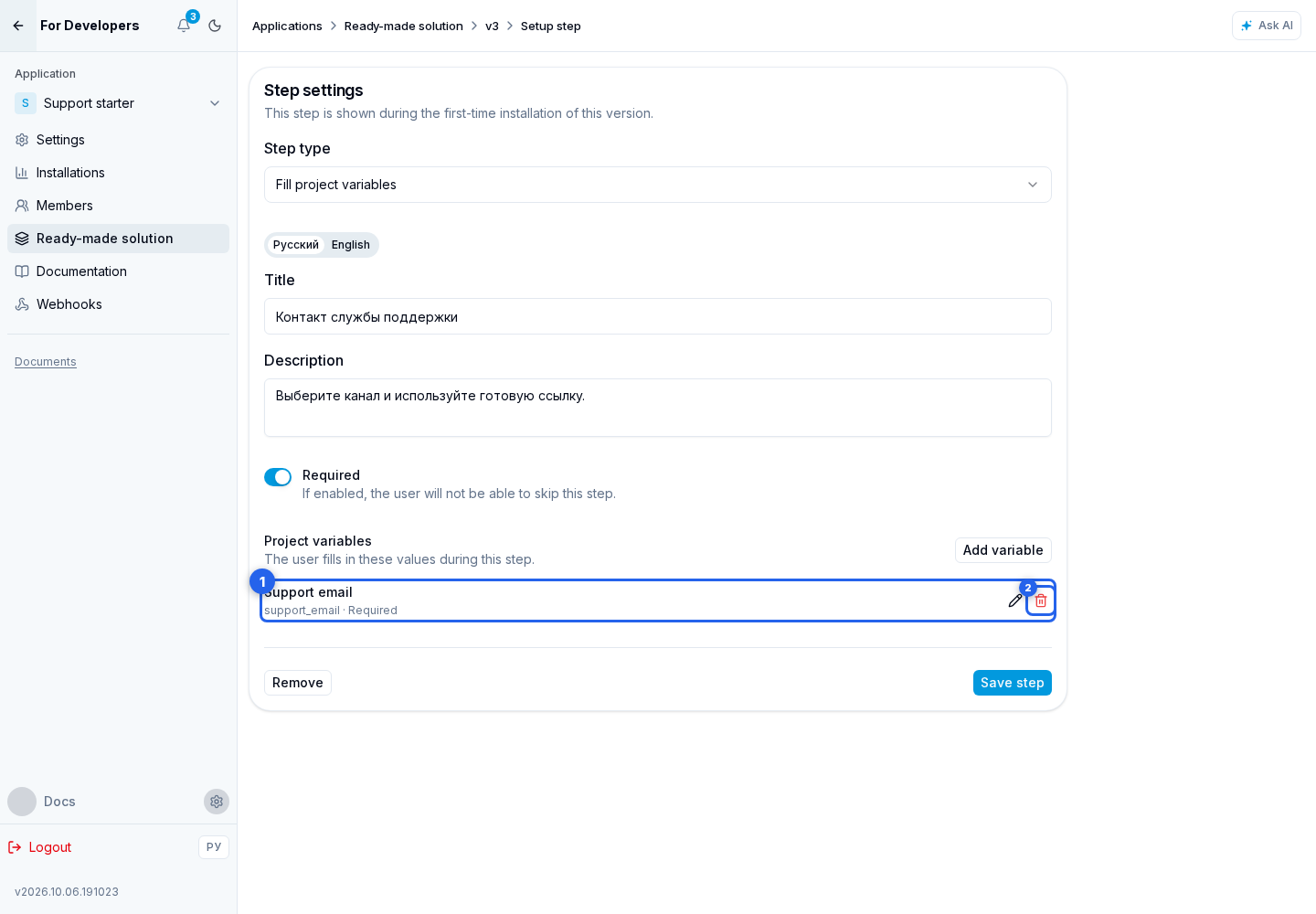
After configuration, save the step.