
Text Editing
Open the Edit Menu
In text fields that support AI, select the AI icon beside the field or selected fragment to open the editing menu. The action applies to the entire field or the selected text, depending on where you opened the menu.
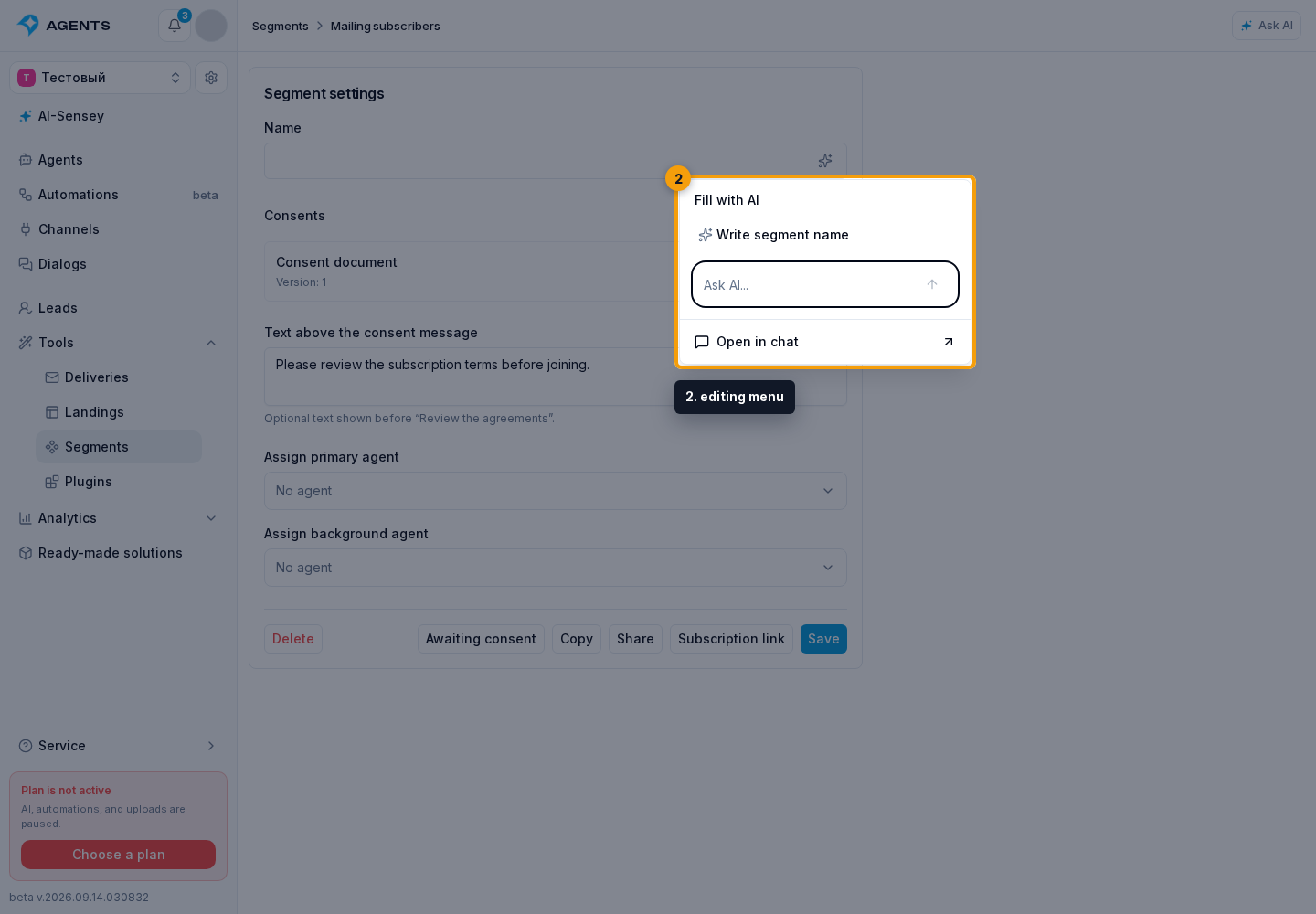
Write New Text
An empty field offers a text-writing command. Its name may specify the task, such as Write segment name or Write agent instructions. Selecting the command sends the request immediately.
Revise Existing Text
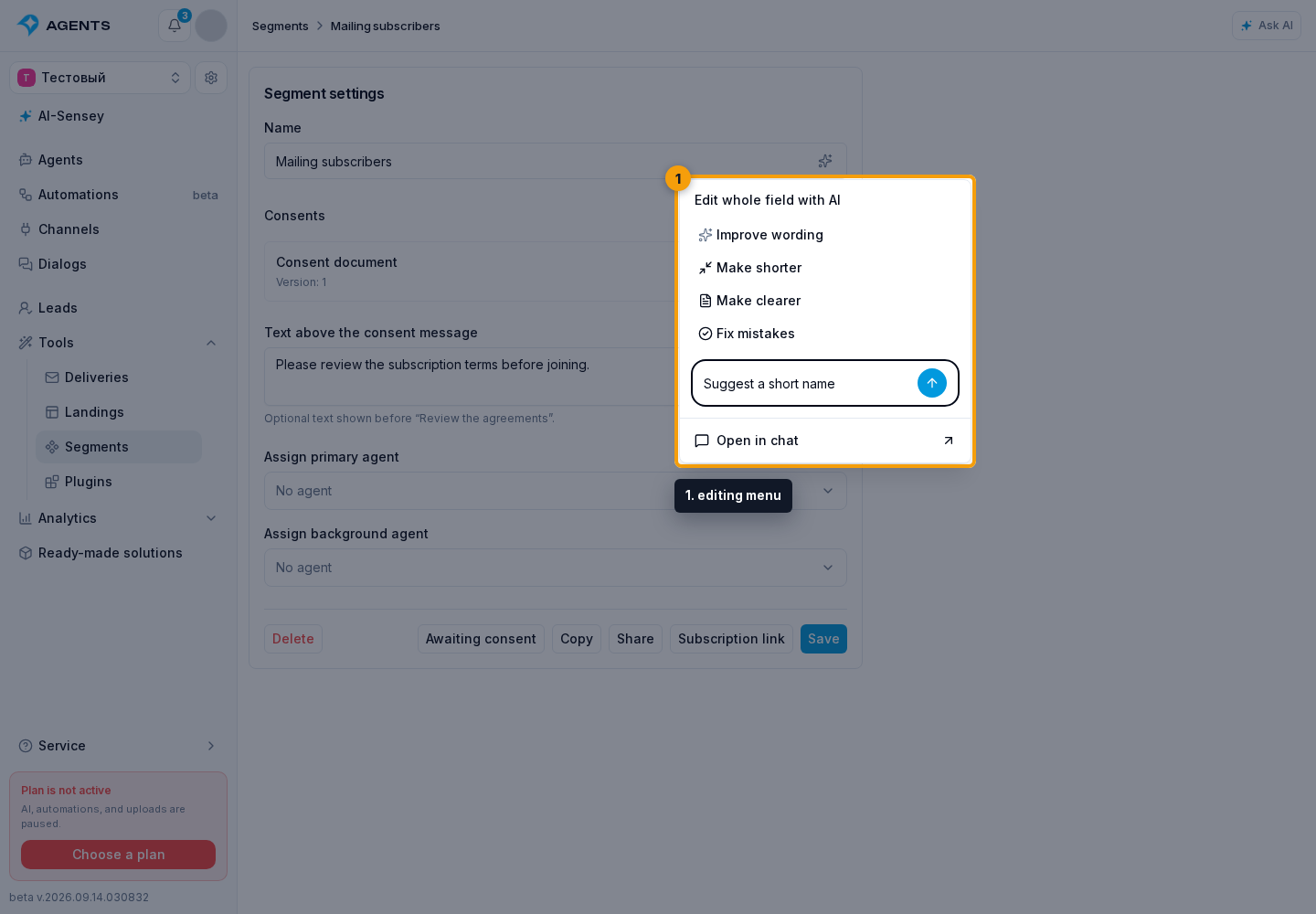
For existing text, select Improve wording, Make shorter, Make clearer, or Fix mistakes. These commands also send the request immediately.
For a custom task, fill in the request field and select the send arrow. Open in chat moves the discussion to the assistant with the selected text as context.
Review the Suggestion
A prepared edit first appears for comparison: removed text is crossed out and added text is highlighted. Select the accept checkmark to apply the suggestion. The revert button and cancel cross reject the suggestion without changing the original text. The chat button in the edit review lets you discuss the result before accepting it.
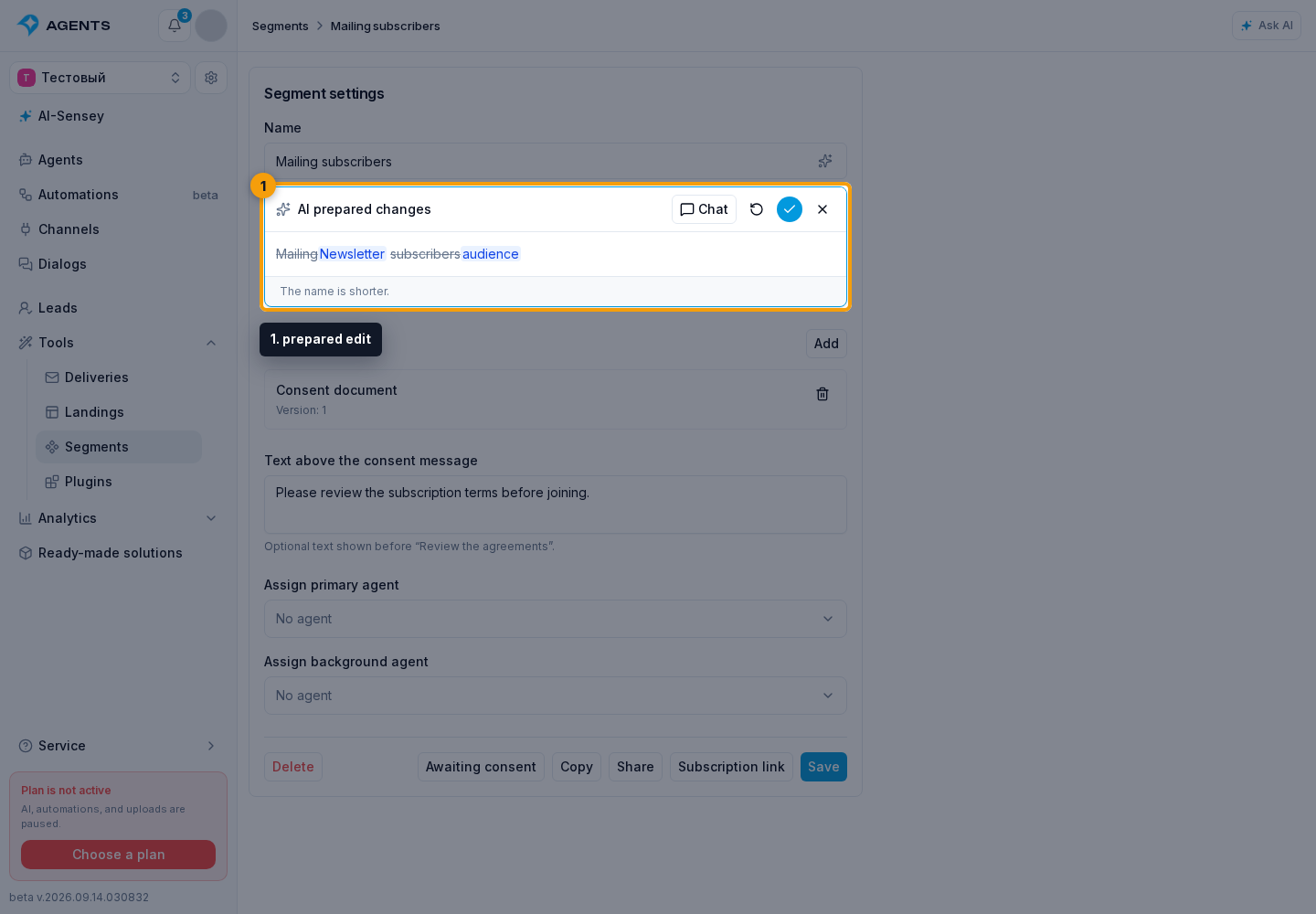
Accepting changes the editor field, rather than automatically publishing the resource: the form's normal save and publication rules still apply. If the field's source text changed after the suggestion was prepared, the stale edit is not applied; request a new one.