Chat history
Return to earlier conversations, find a chat, and rename it.
Dialogs and search
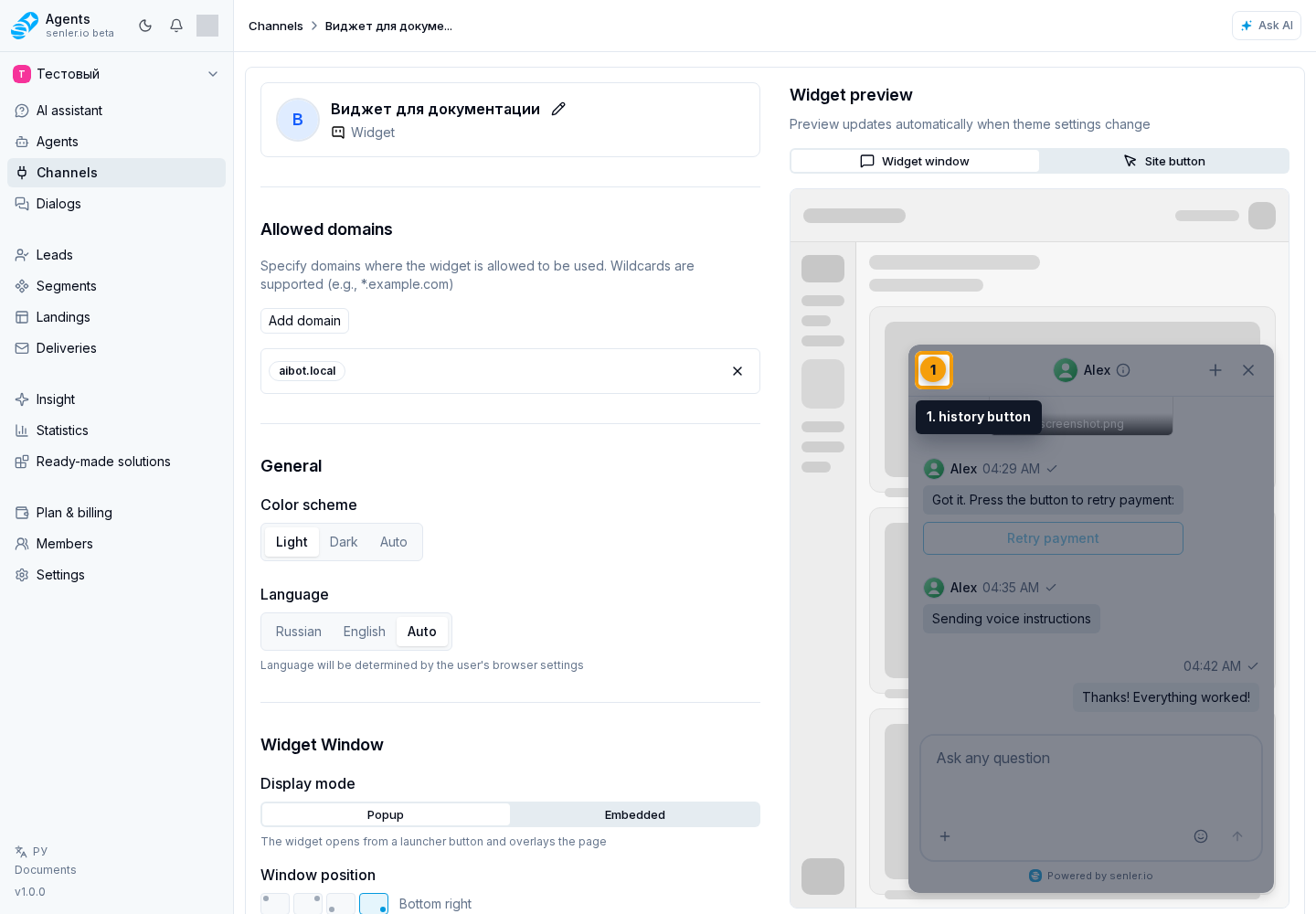
To return to an earlier conversation, select the history button on the left of the open chat header.
A compact list over the conversation opens. If there are many dialogs, use search: enter at least two characters. Select the matching dialog row to open the conversation.
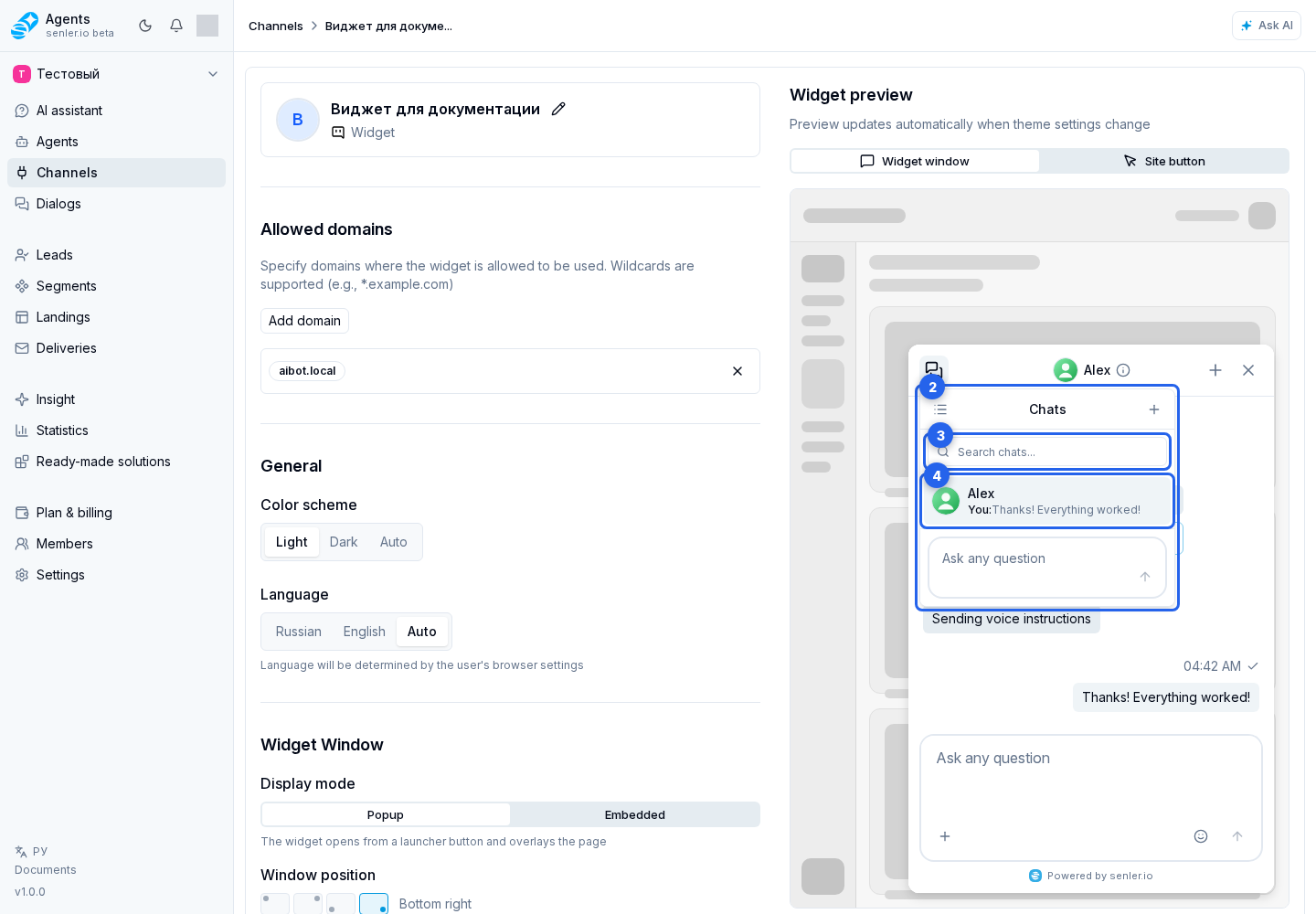
To open the full dialog list, select the list icon to the left of the Chats title in this menu. On the screen that opens, select a dialog or use search. Clearing the field restores the full list. If there are no matches, use clear search; if there have been no conversations yet, use create the first dialog.
If the list fails to load, retry loading dialogs requests the data again.
Rename a chat
In history, right-click the relevant dialog row; on a phone, press and hold it. Choose “Rename” in the context menu. The same action is available in the full dialog list.
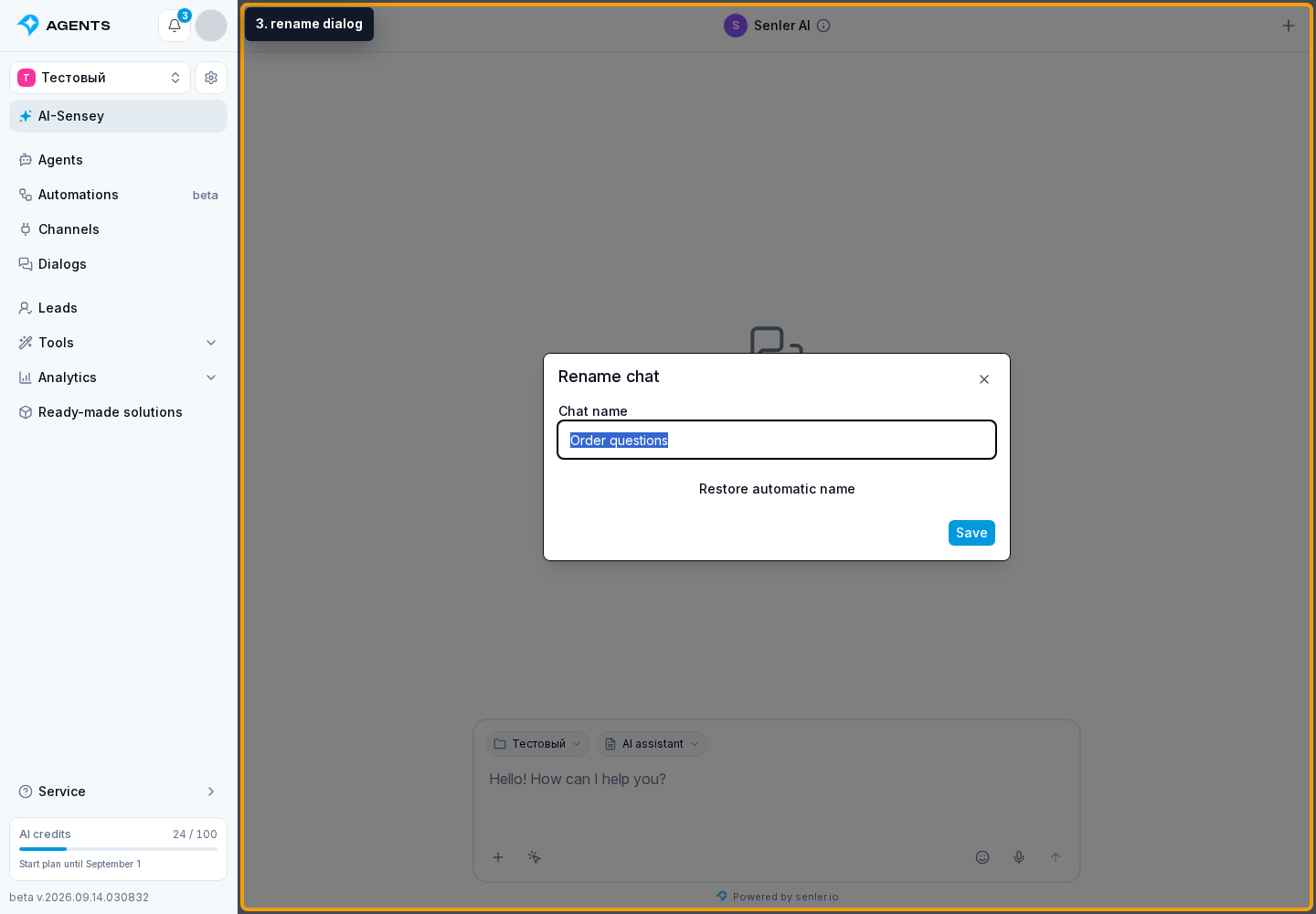
In the rename dialog, enter a chat name, such as “Order questions”, and click “Save”. Use 1 to 200 characters; leading and trailing spaces do not count. The name appears in the list, history, and header of this chat. The visitor's name and the channel name stay unchanged.
If the chat already has a custom name, the same dialog offers “Restore automatic name”. This switches the widget back to the other participant's name. Visitors can rename only their own chats.