
Check history
Open a saved diagnostics report without running AI analysis again.
Open Diagnostics in the project.
Open a report
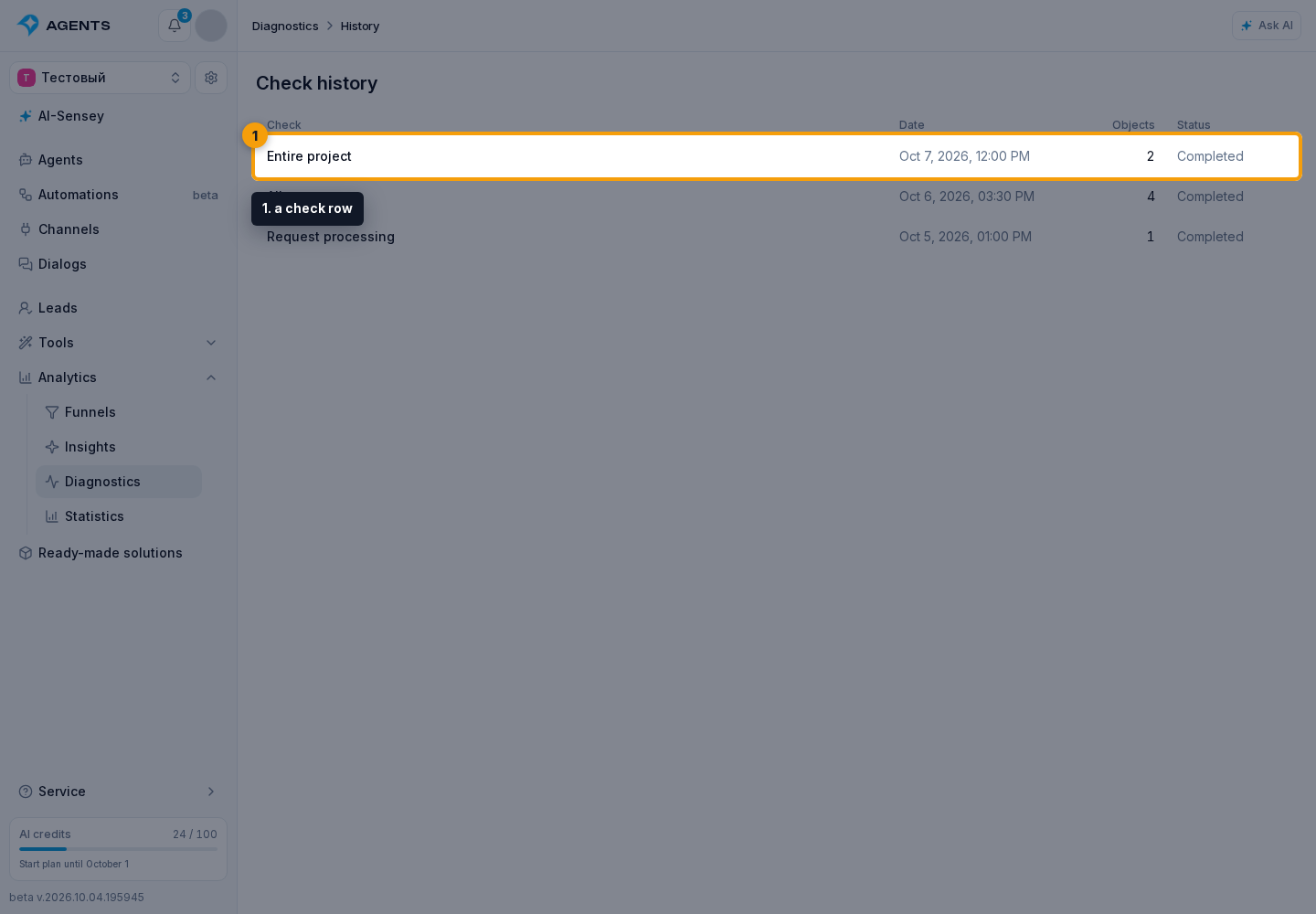
Select History to the right of the entity and period filters. A separate page shows a table of checks, with the selected scope, start date, number of objects and status of each check.
- Select a check row to open its report without a new AI request or credit charge.
To return to entity selection, select Diagnostics in the breadcrumbs at the top of the page.
Select Show more for earlier entries.
Saving reports
An entry appears when AI analysis starts or when a selection of existing results is explicitly saved. Changing filters does not add history entries. “Check more” extends the same report; a new run from the setup form creates a separate report. History is shared within the project and available to members with analytics, agent and automation viewing permissions, including after signing in again.
Results remain in project history. Working data for continuing analysis is available for 30 days after the last stage. When it is unavailable, saved findings can still be read, but the old check cannot be resumed or extended — start a new one.