
Saving the Response
First configure the HTTP request and open its step in the automation editor.
Save the response
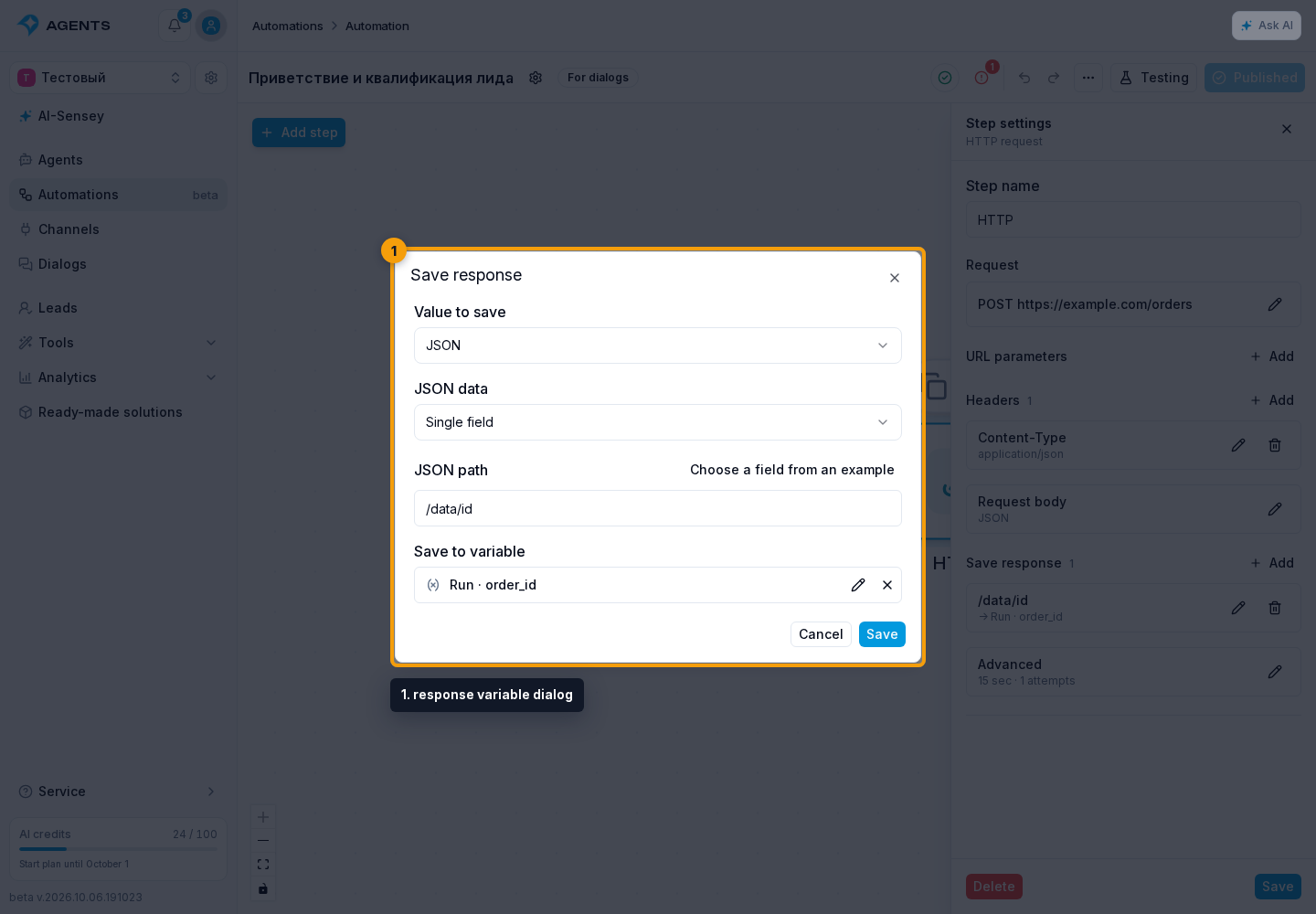
Under Save response, click Add to open the response variable dialog. Choose JSON, response text, HTTP status or a header, then select the destination variable. Each rule appears as a short row in the panel; the pencil opens it for editing.
JSON Path
For JSON, choose Single field or Entire JSON. You can enter the path manually. Choose a field from an example, to the right of JSON path, opens a dialog where you can send a test request or paste JSON manually. Clicking a tree field fills in the current rule’s path and returns to Save response. The selected destination variable stays unchanged.
The path /data/items/0/id selects the first array item's id. Choose Entire JSON to save the complete JSON response. In field names, escape / as ~1 and ~ as ~0. Numbers, false, null, arrays and objects keep their types. Choose a suitable variable and, if needed, a nested field. Missing JSON fields or invalid JSON turn a successful HTTP response into a step mapping error.
Saving Variables
A contextual automation can write process, project, lead and dialog variables. A background automation can write process and project variables. Selected persistent variables are saved in one operation, so a failed write does not leave a partial result. If saving fails after a successful HTTP request, reprocessing uses the saved response.
To select a path from a tree, fetch or paste a sample response. If the request or saving the result failed, check the Error output and retry rules.