
Assign an Agent to a Dialog
Open the conversation and the dialog information panel.
Assign a Primary or Background Agent
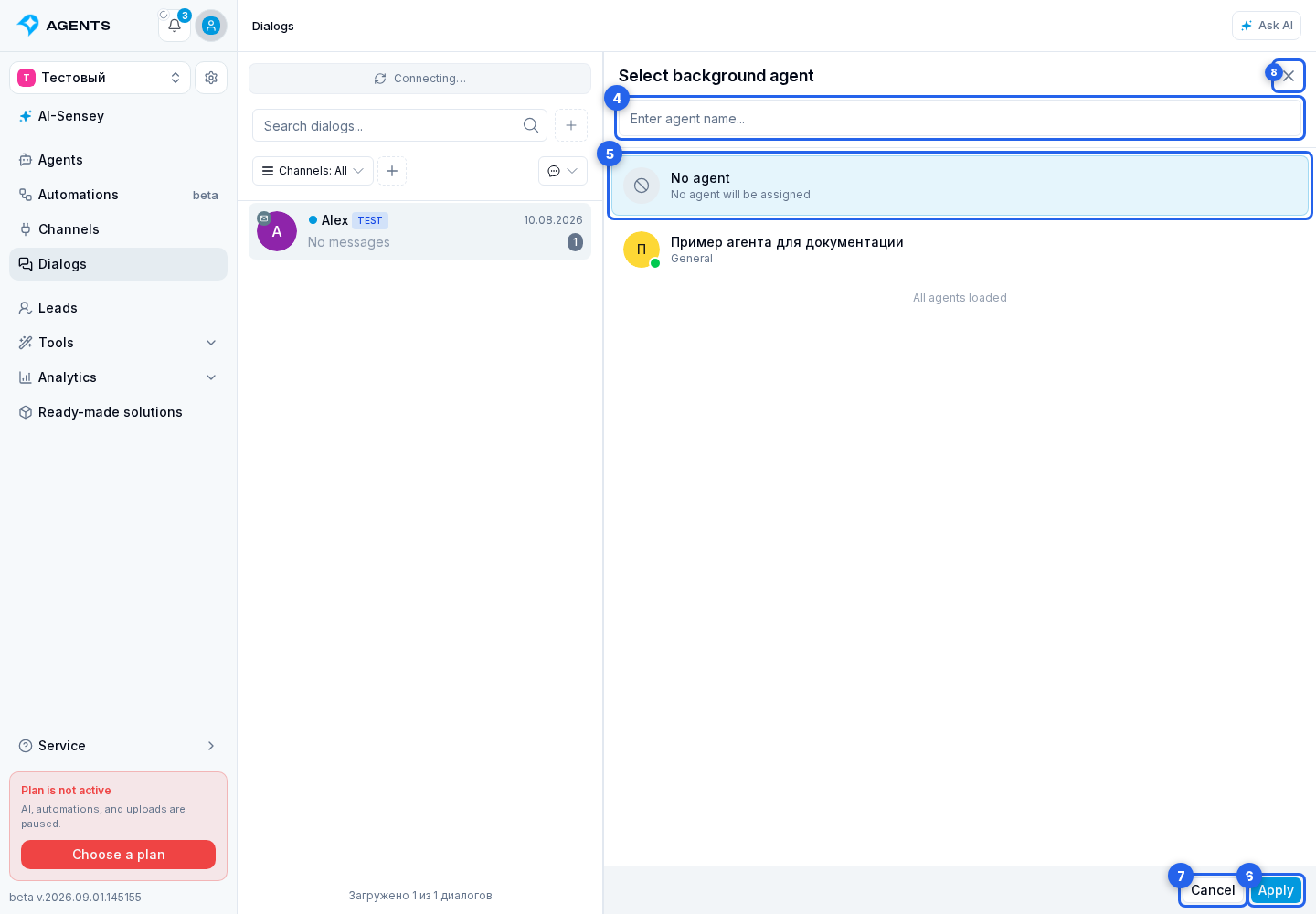
- Open dialog information and select Change next to the primary agent or background agent.
- In the panel that opens, use search and select the required agent. To remove an assignment, select No agent.
- Select Apply. Cancel returns to dialog information without saving, while the close button closes the panel.
Handoff by Agent Instruction
To let an agent transfer the conversation to another agent based on its instruction, configure Work with agents. This is a separate permission, not a manual assignment from this panel.