
Funnel access
Allow the agent to move leads to the right stages and assign markers according to its instructions.
Main section: Tools.
Working with funnel stages
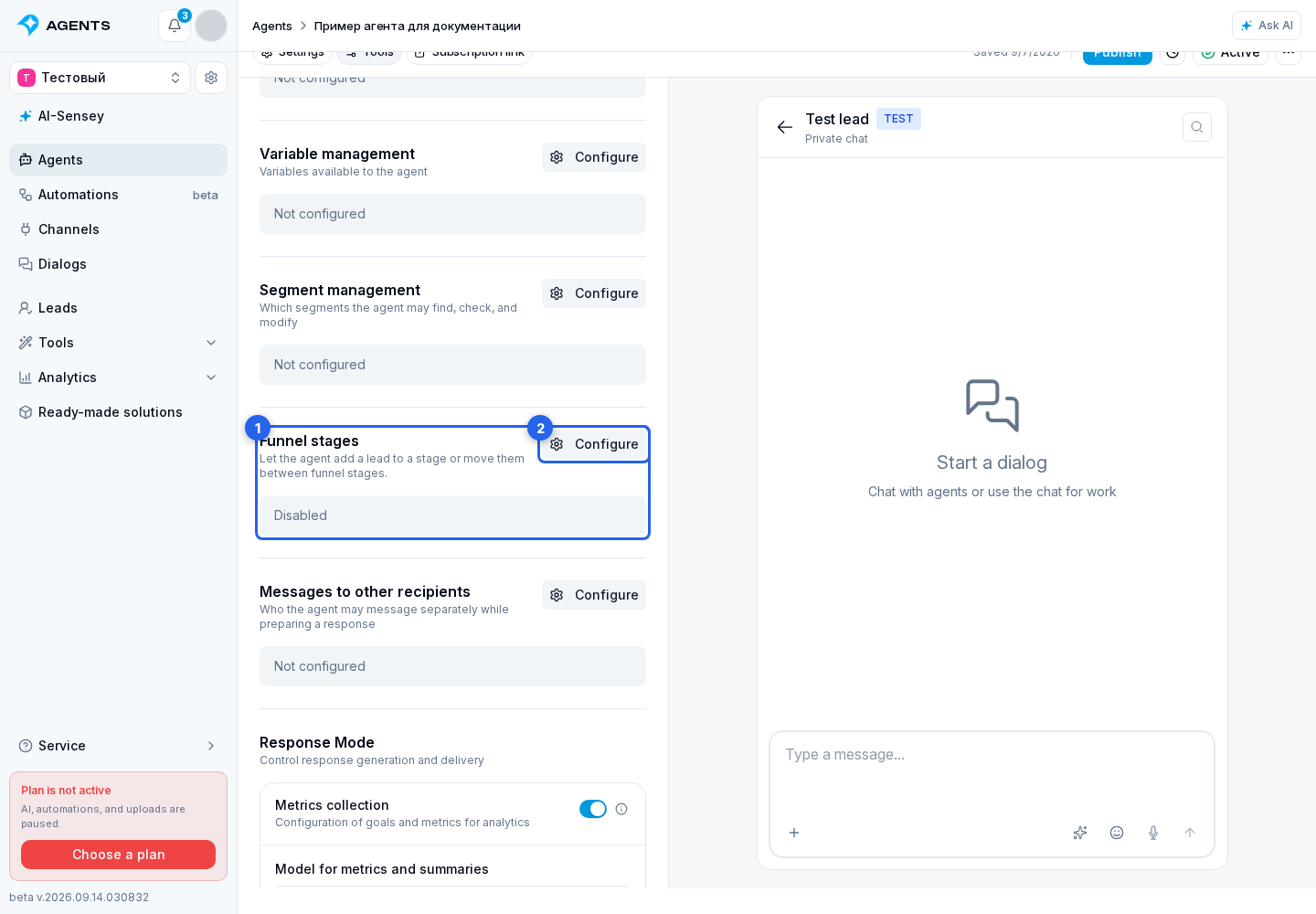
On the Tools tab, find Funnel stages and select Configure.
Choose a mode in the Funnel stages dialog:
- Disabled turns off funnel tools. This is the initial value.
- All stages allows all existing and future stages of the project's funnels.
- Selected stages only limits access to the stages you select.
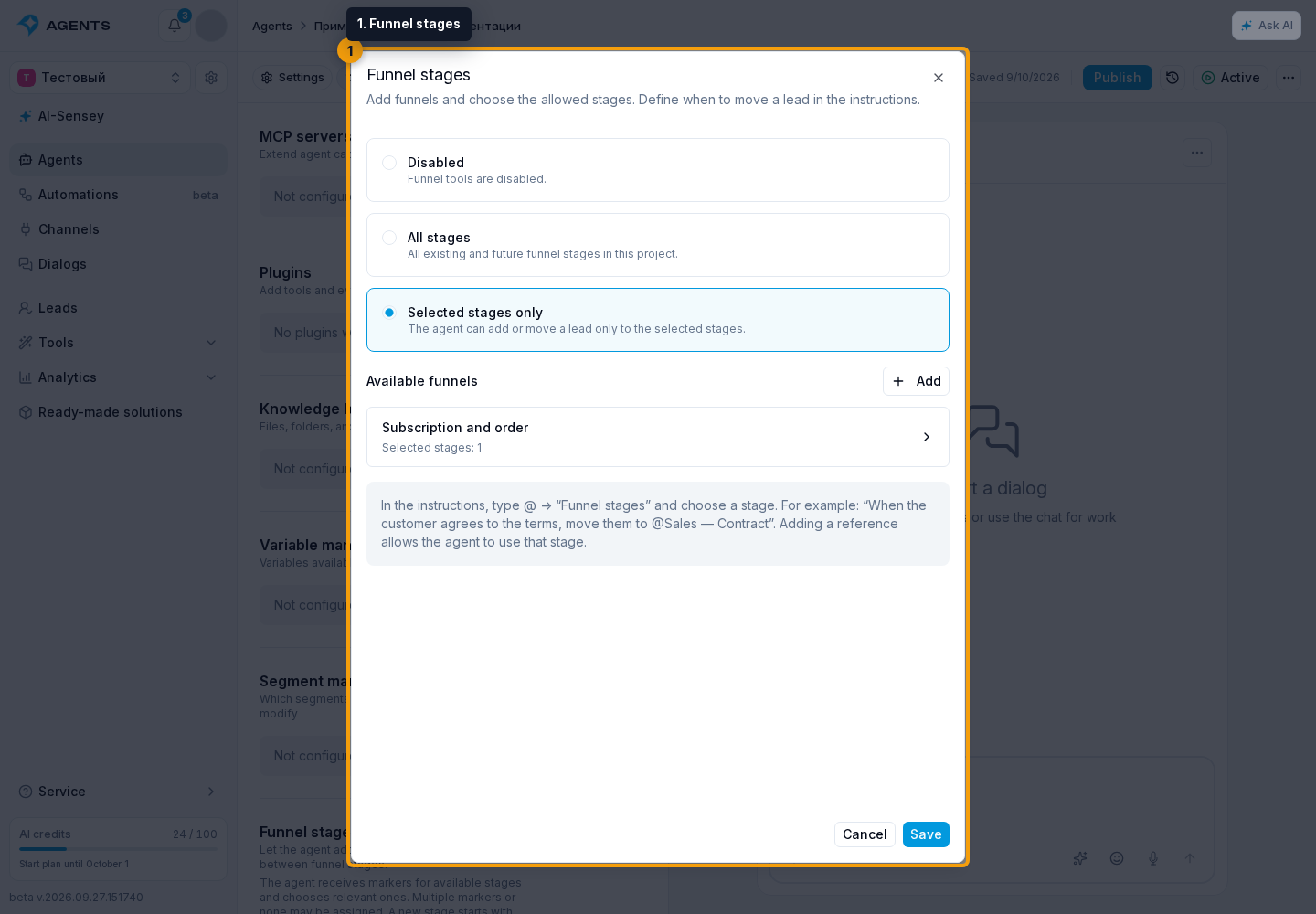
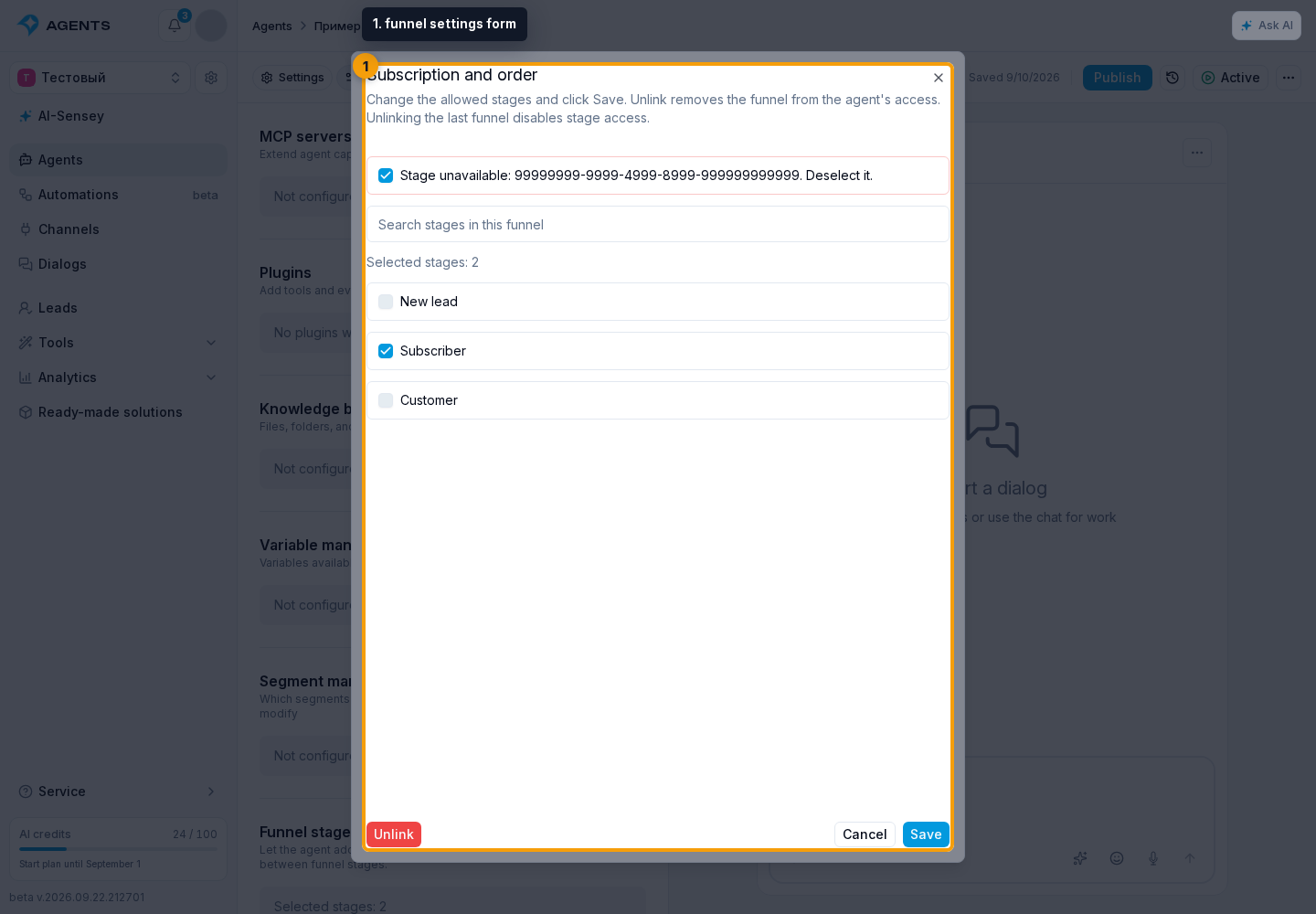
In Selected stages only mode, click Add in Available funnels. In the funnel settings form that opens:
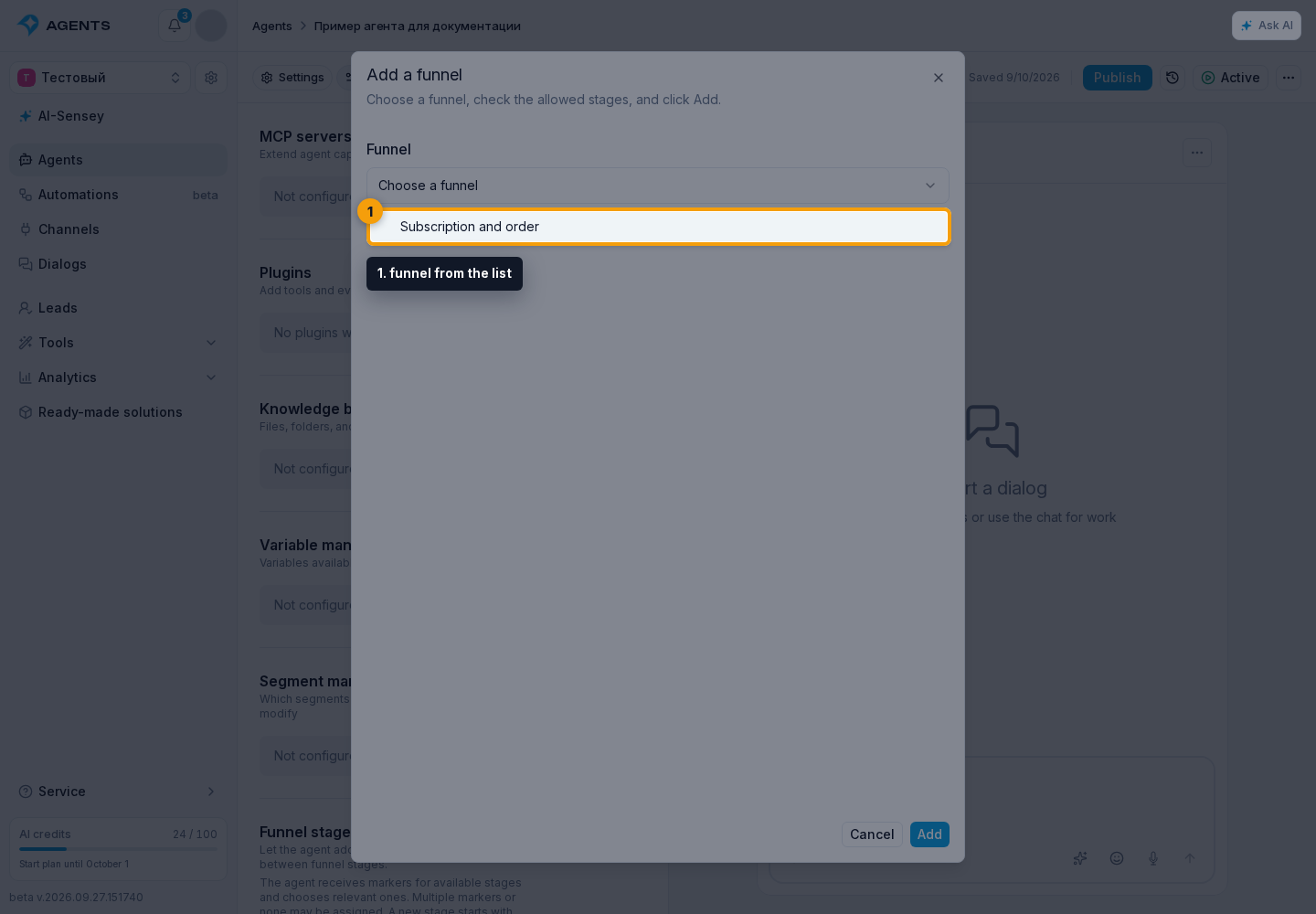
- In the Funnel field, choose a funnel from the list. Funnels already added are not offered again.
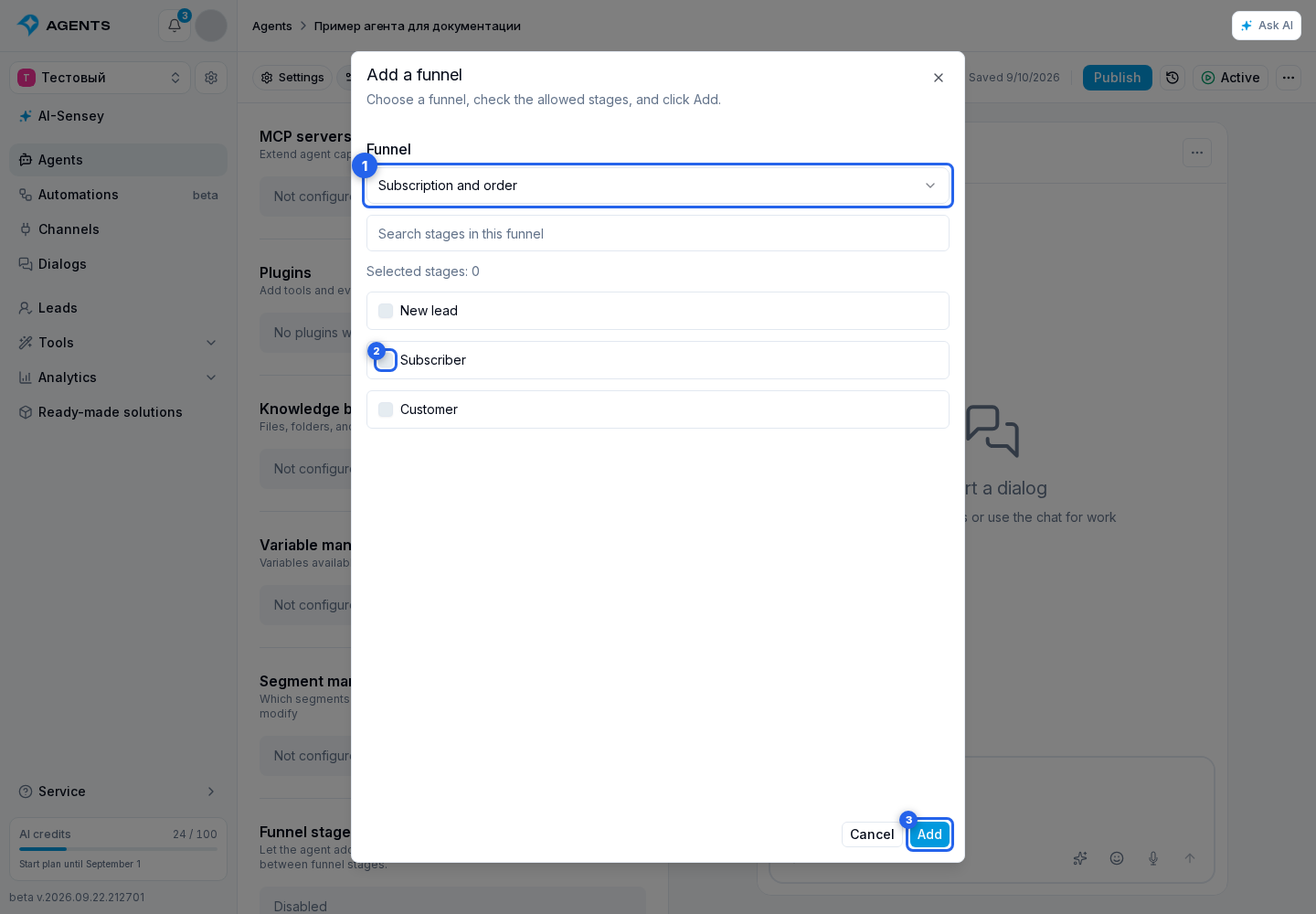
- Check the allowed stages. Use the search within that funnel's stages to find them.
- Confirm with the Add button. The funnel appears in the list with its selected stage count. You can allow between 1 and 200 stages across all funnels.
To change the selection, click an added funnel, change the checkboxes, and click Save in the settings form. Cancel in the settings form returns to the list without applying changes. Unlink removes the funnel from the agent's access while preserving the funnel and its stages. Unlinking the last funnel switches the mode to Disabled.
Select Save to apply the selection to the agent draft. Cancel closes the dialog without changing access.
If a previously selected stage was deleted, open its funnel, uncheck the unavailable stage, and save the selection. Each added funnel must retain at least one available stage. If the funnel is no longer needed or has been deleted, unlink it.
How the agent uses access
The agent can find allowed stages, check a lead's current stage and markers, add or move a lead to a stage, and assign or remove stage markers. It uses existing markers of permitted stages. Access alone does not define when to move a lead or assign a marker: describe that condition in the agent instructions.
For example, write “When the customer agrees to the terms, move them to”, then use @ → Funnel stages to select Contract in the Sales funnel. Choosing a reference from the catalog automatically allows the agent to use that stage. Mentioning its name alone does not grant access.
In a personal dialog, the action applies to the current contact; in a group, the agent must select a specific participant. Moving a lead does not change other funnels or automatically count earlier stages as completed. Moving to the current stage again without changing markers changes nothing. Assigning or removing a marker at the current stage does not create another passage. Moving to another stage does not carry over markers from the previous one. The transition is recorded in the funnel history, but does not itself start an automation.
In agent testing, moving the test lead does not change real data. Save and publish changes for live dialogs.
When copying an agent by link, stage access is not transferred, even within the same project. The copy starts in Disabled mode: configure the required stages again and check their references in the instructions.