
Managing Materials
Open the project Knowledge Base.
Find a Material
On the Knowledge Base page, use the search field. Choose the search scope in the mode menu:
- By name searches the material title or original file name, including inactive materials, and is selected by default;
- By content searches for a phrase inside document text or indexed file content.
Select a mode and enter the query. When a folder is open, search is limited to that folder. Return to the root first to search the entire Knowledge Base.
The list and search results load in batches as you scroll. A counter shows how many materials have loaded and the total number found. Finding an inactive material by name does not make it available to the agent: this mode helps manage the library, not change knowledge access.
To add another material, use the add material button next to the search field.
In the screenshot below, the search field is marked as 1, while the add button is marked as 2.

Open Material Actions
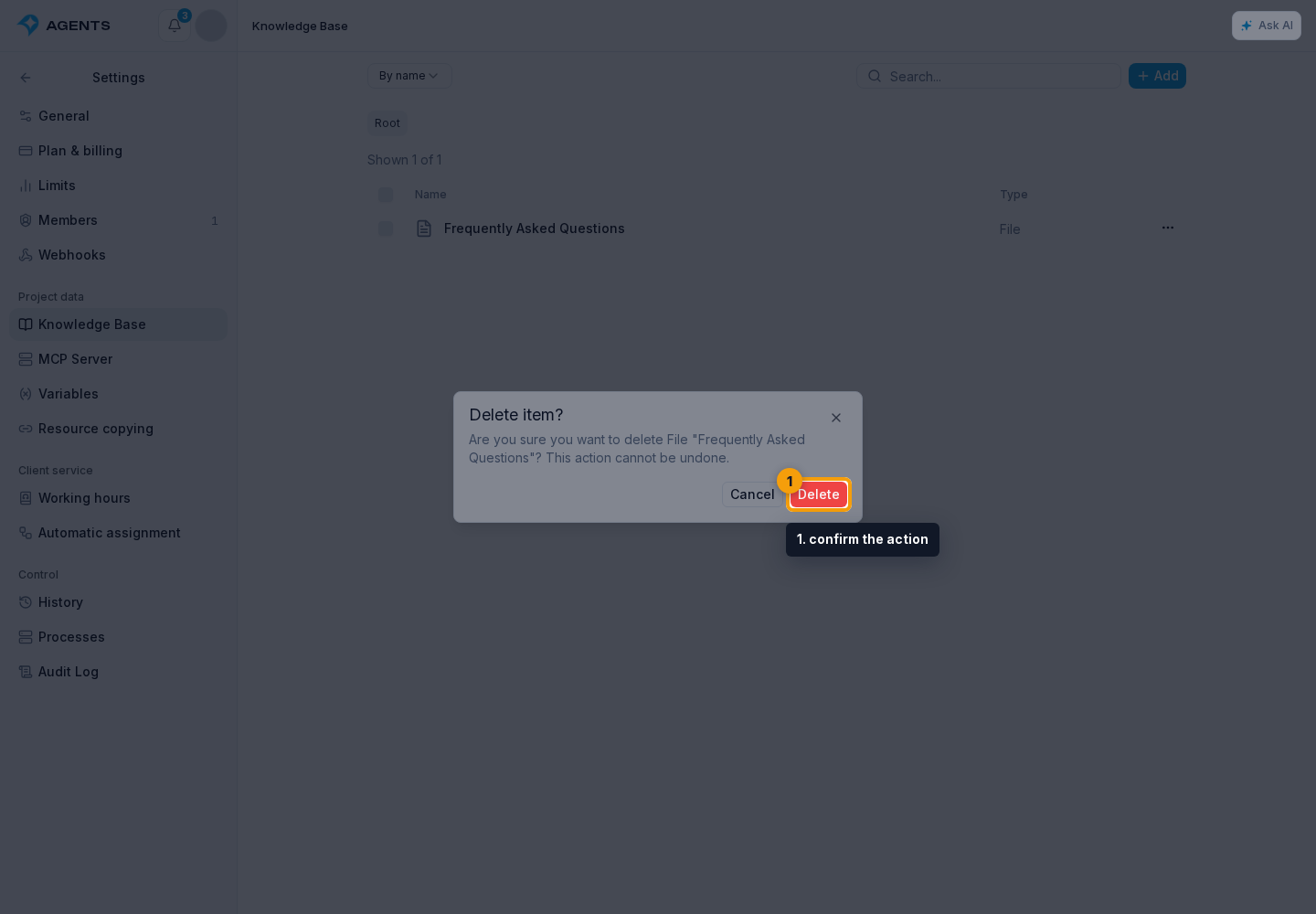
Open the actions menu in the row for the required material. The menu lets you rename or edit it and delete outdated items. The screenshot below first shows the menu button and then the available actions.

You can select several items and move them to another folder, copy them to another project, or share them through a link. When deleting, the cabinet asks you to confirm the action separately. First check whether an agent uses the material; see “Deleting materials” below for details.
Material statuses
Statuses may appear beside a material in the list. Select the processing indicator to view details.
- "Inactive" - the resource is disabled and may not be used in answers.
- "Processing" or "Processing: N%" - the file is still being extracted or indexed.
- "Processing error" - the text could not be prepared; open the indicator, check the reason, and retry the upload when needed.
- "Without text extraction" - the file is saved, but the text is not extracted for search.
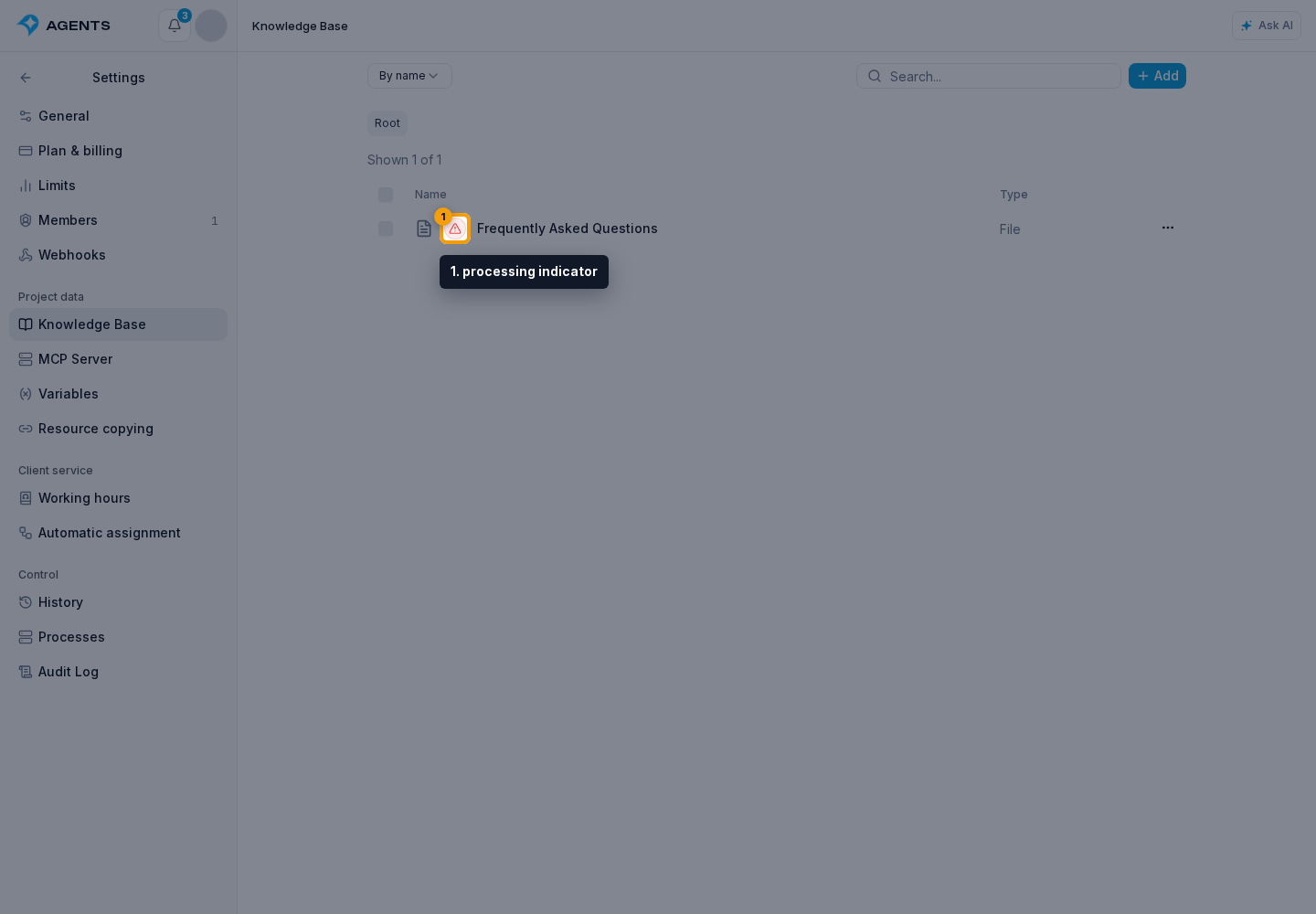
A material with the Processing status is not yet included in search or agent replies. Extraction runs on the server and resumes automatically after a short service restart, so you do not need to reload the page or upload the file again.
An image page shows the picture and recognition result instead of a text editor. See image recognition for statuses and viewing the result.
Moving to a Folder
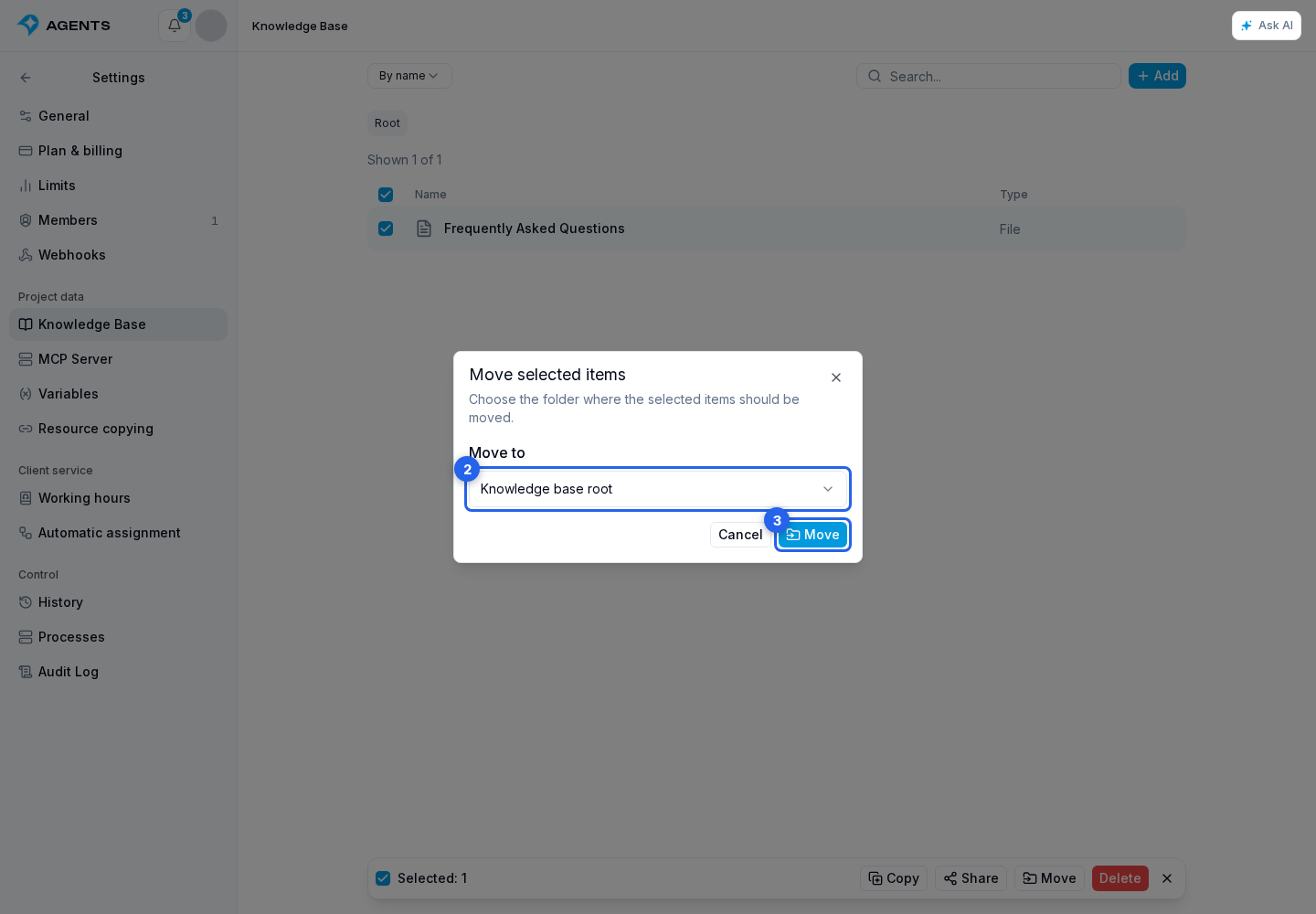
- Select the required materials and click Move.
- Choose the destination folder.
- Confirm with the move button.
Deleting materials
Deleting an element cannot be undone through a regular form. Before deletion, check whether this file, folder, or table is connected to an agent. If the resource is already linked to an agent, first open the agent settings and check the "Knowledge Base" block.
For mass deletion, use Delete and the separate confirmation.
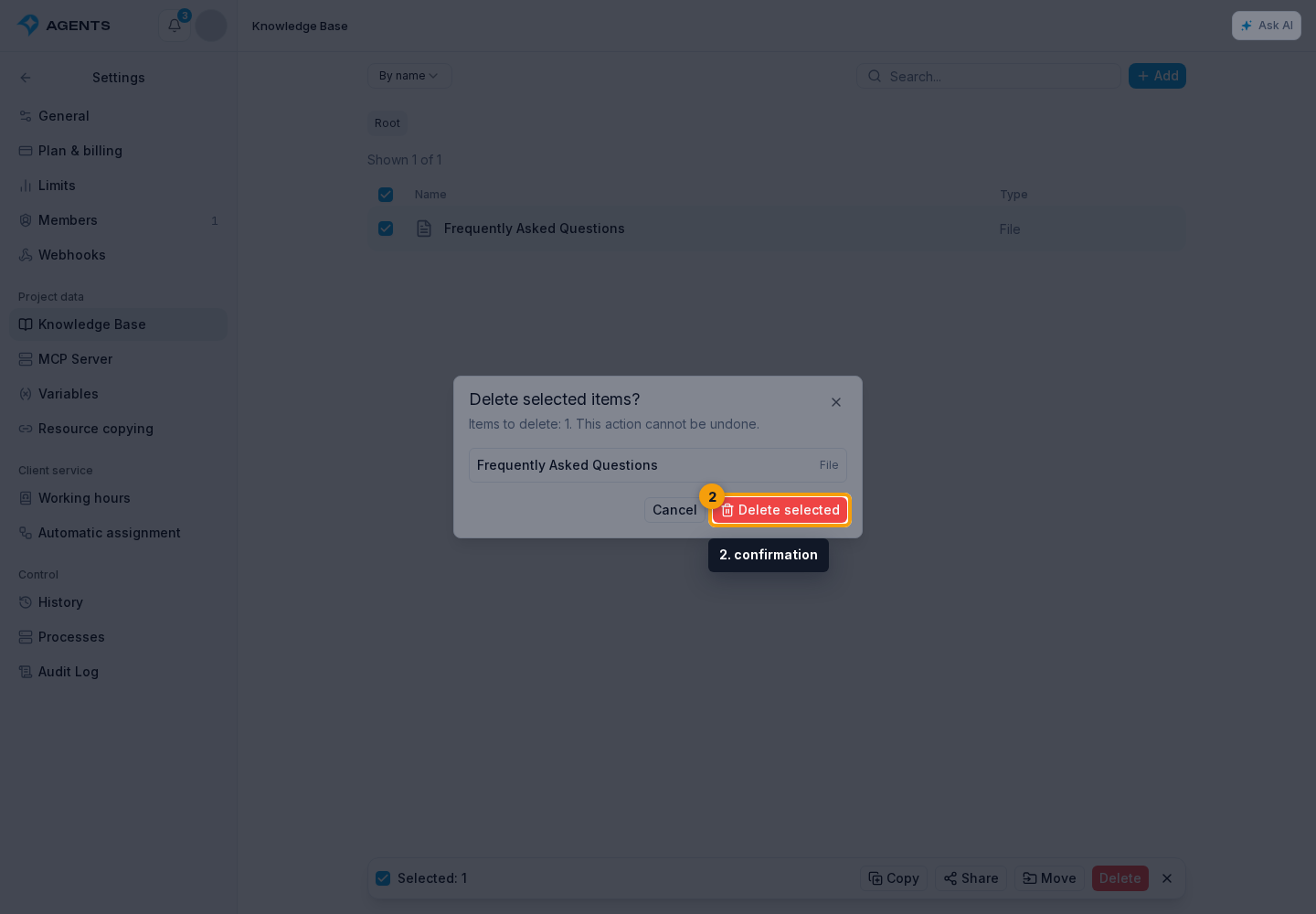
For mass deletion or moving, check background processes and event history: these operations may run sequentially, and the interface does not always show detailed progress for each item.
Transferring to Another Project
If materials need to be moved to another project, select the items and use Copy or Share. These actions create a resource package, and package import is shown as a background process.
For image details, see recognition and viewing descriptions.