
Range protection
Restrict editing or viewing selected table cells.
Configure a rule
Protection can keep formulas or service data visible while preventing accidental edits, or hide the selected range from participants who do not have access. Only the table owner can manage these rules.
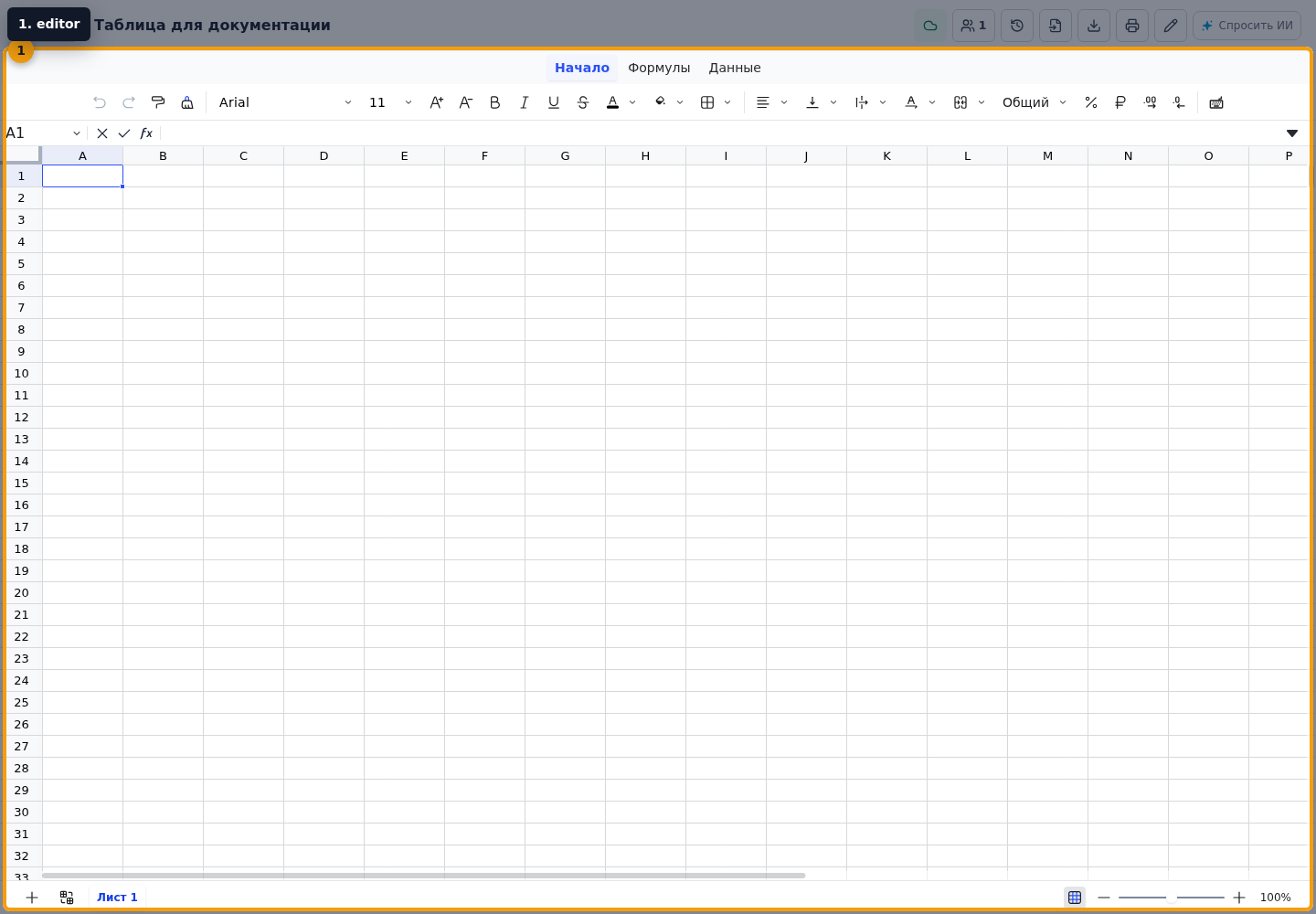
- In the editor, select the required cells and open their context menu with the right mouse button.
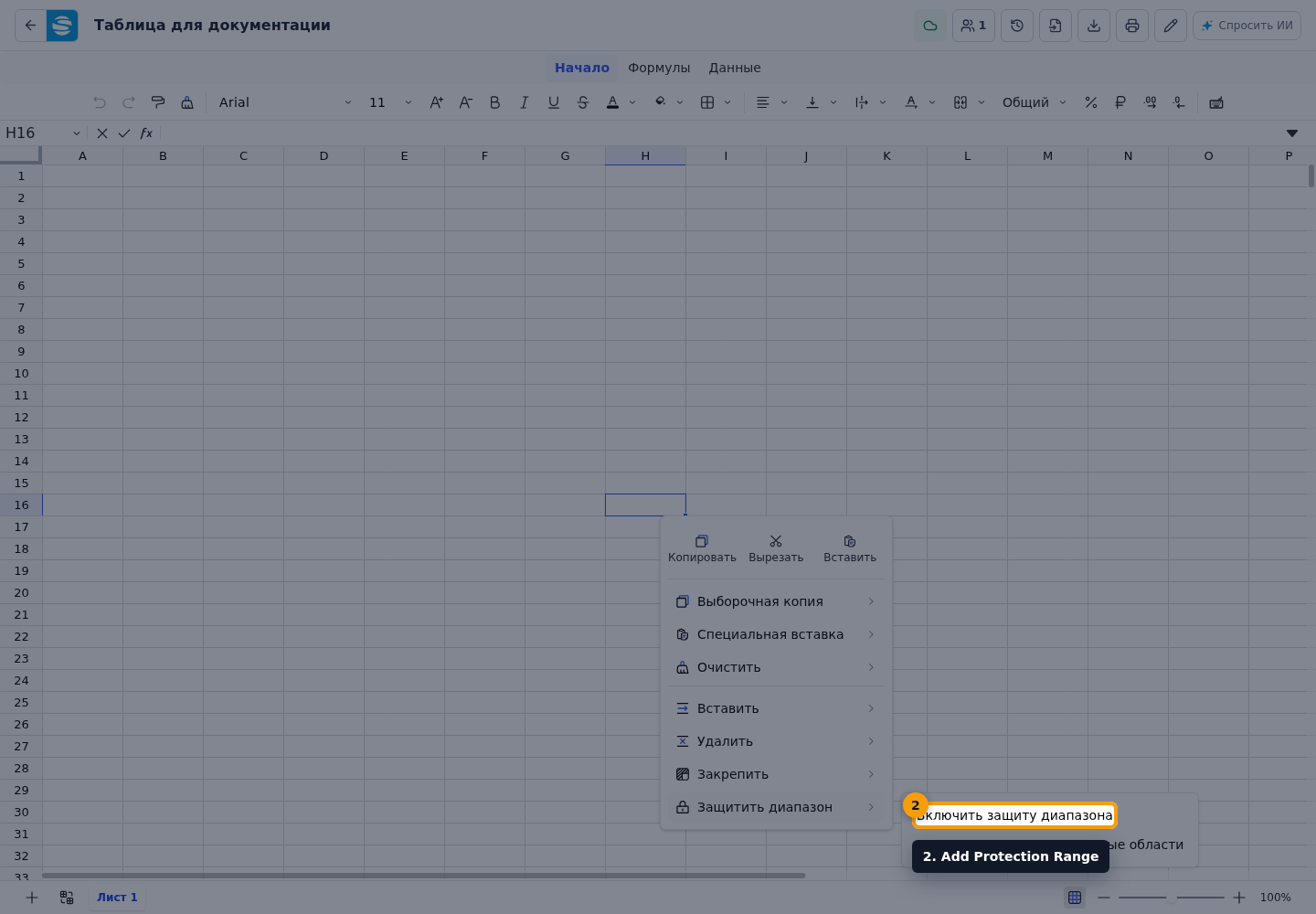
- In the Protect Rows And Columns submenu, choose Add Protection Range. The Cell protection dialog opens.
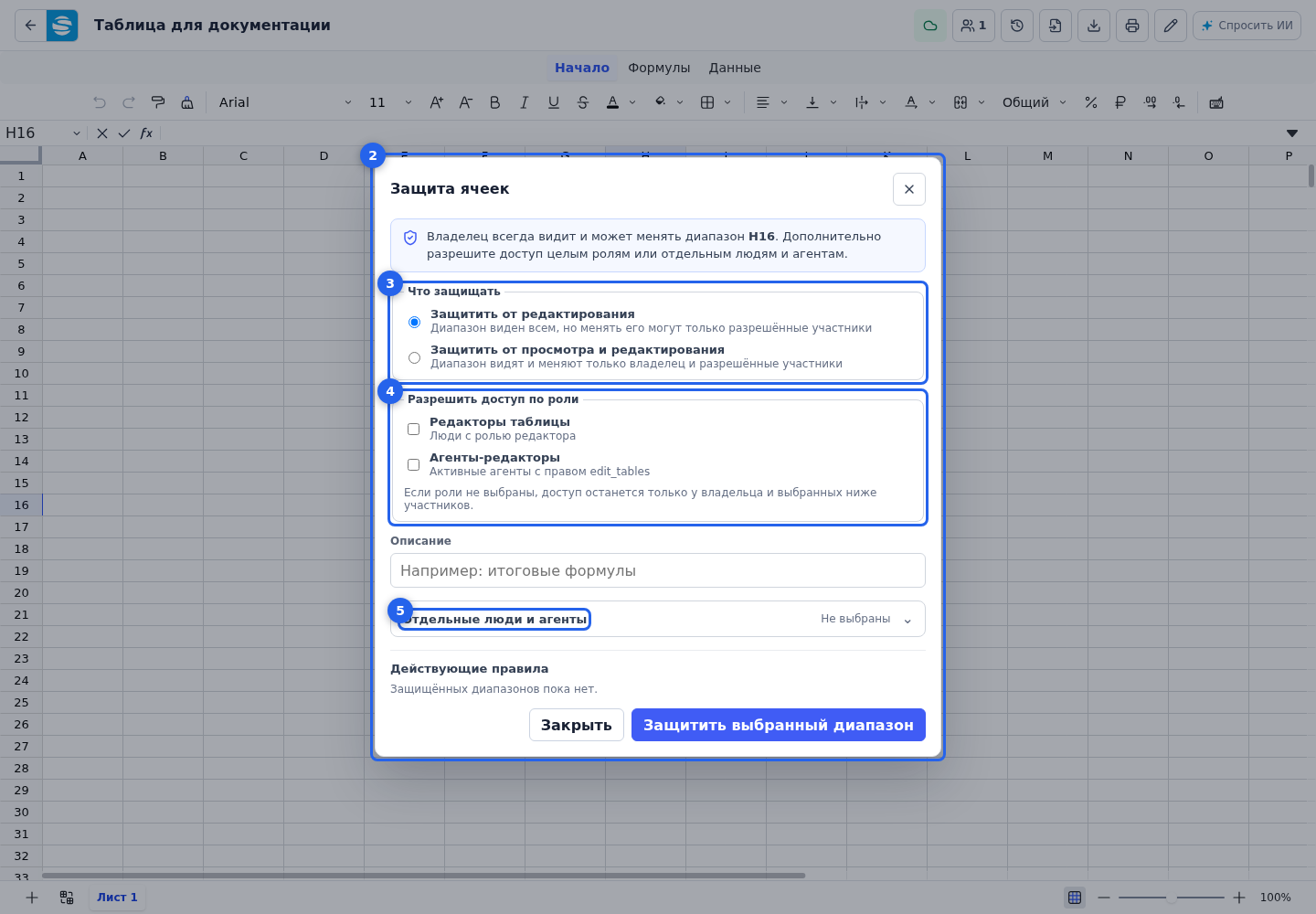
- In the protection mode section, choose Protect from editing or Protect from viewing and editing.
- Under role access, enable the required options: all table editors and/or active agents with the Edit tables permission.
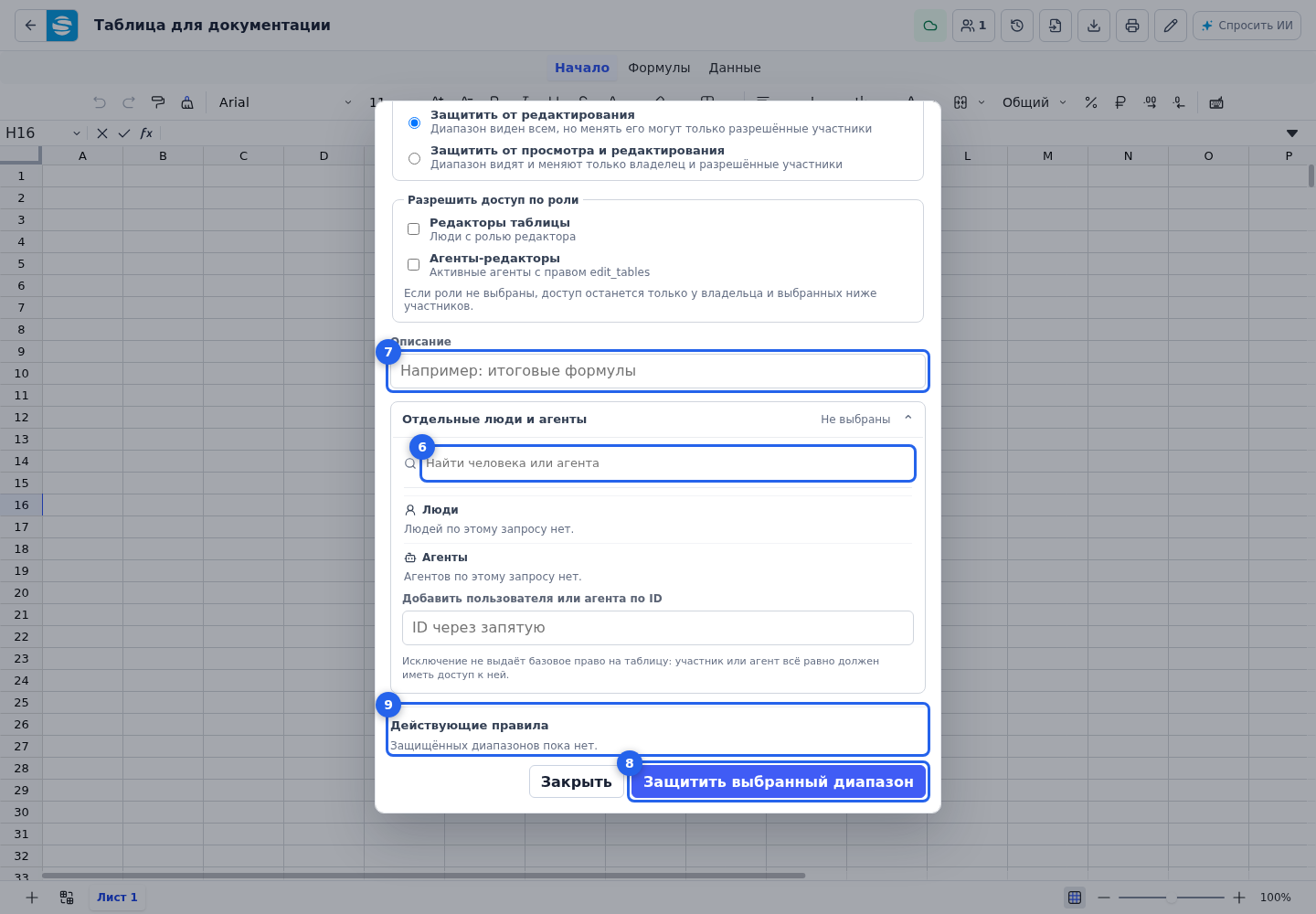
- If a specific participant needs access, expand the section Individual people and agents.
- Use search to find a person or agent and select them from the results.
- Add a description that explains the rule to the team.
- Click Protect selected range.
- Make sure the rule appears among the active rules at the bottom of the dialog. You can open a rule there to edit it or remove its protection.
Access to protected cells
The owner can always view and edit a protected range. An exception in the rule does not grant base table access: a person still needs a suitable participant role, and the table must be connected to an agent with the required permissions.