
Working with media
Enable media recognition, generation, or sending, and select models for the capabilities you need.
Main section: Tools.
Input recognition
- speech recognition;
- image recognition.
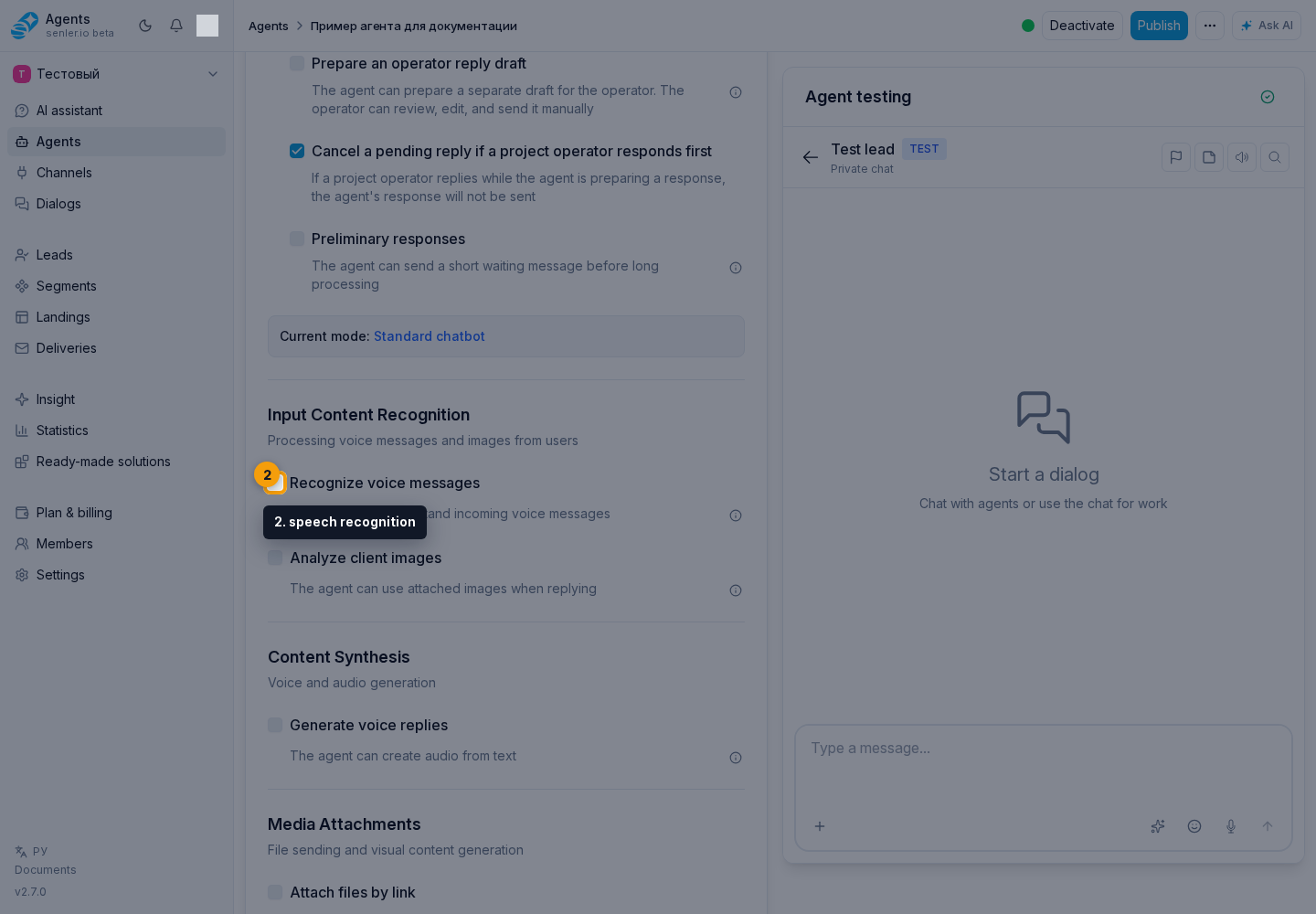
Speech recognition
- allows you to process voice messages;
- the recognition model is selected.
This setting lets the agent understand received audio. The microphone button in the chat records sound through the browser independently of the recognition setting. To check it, enable recognition, select a model, wait for the draft to save, and send a new voice message in the test chat. Publish the changes for live dialogs.
Image recognition
Enable Analyze images from clients so the agent can understand pictures and screenshots delivered by the channel as attachments.
In Image recognition model, choose how to process them:
- Use agent model processes images with the primary model. This option is available only if it supports images.
- A different model from the list recognizes the image, and the agent uses the resulting description to prepare its response. This processing is charged separately from the agent response. The list contains only models that support images.
If the primary model does not support images, select a separate recognition model before saving. Disabling image analysis clears the separate model selection. Check changes in testing; publish the agent for live dialogs.
Content synthesis
- generation of audio/voice-over response;
- voice cloning from an audio sample;
- regular voice-over and voice cloning use separate compatible model selectors.
Voice cloning
Enable Clone a voice from an audio sample to let the agent speak text in the voice from a voice or audio message in the current dialog. The user does not need to copy an attachment identifier: the selected audio sample from the current dialog is passed to the voice-over tool automatically.
If the dialog contains several audio messages, explicitly identify the one to use and the text to speak. Before starting, confirm the right to use that voice in the same dialog. For example: “I confirm that I may use this voice. Say ‘Thank you for contacting us’ in the voice from the latest voice message.” The cloning tool does not run without explicit confirmation. The sample must belong to the current dialog, be a voice or audio attachment that is ready for processing, and be no larger than 15 MB.
After the first successful voice-over, the selected sample becomes the current sample for this agent in that dialog. You can then ask, “Speak another text in the same voice,” without selecting the message again. Identify another sample to switch voices. A sample from another dialog cannot be used. Speed can be set for regular voice-over with a preset voice, but not for cloning from an audio sample.
After enabling the capability, the Voice cloning model field appears. If no model has been set yet, the cabinet selects the first available compatible model; when several options exist, you can choose another. An empty list means that no currently available model supports voice cloning, so the capability cannot be prepared for use.
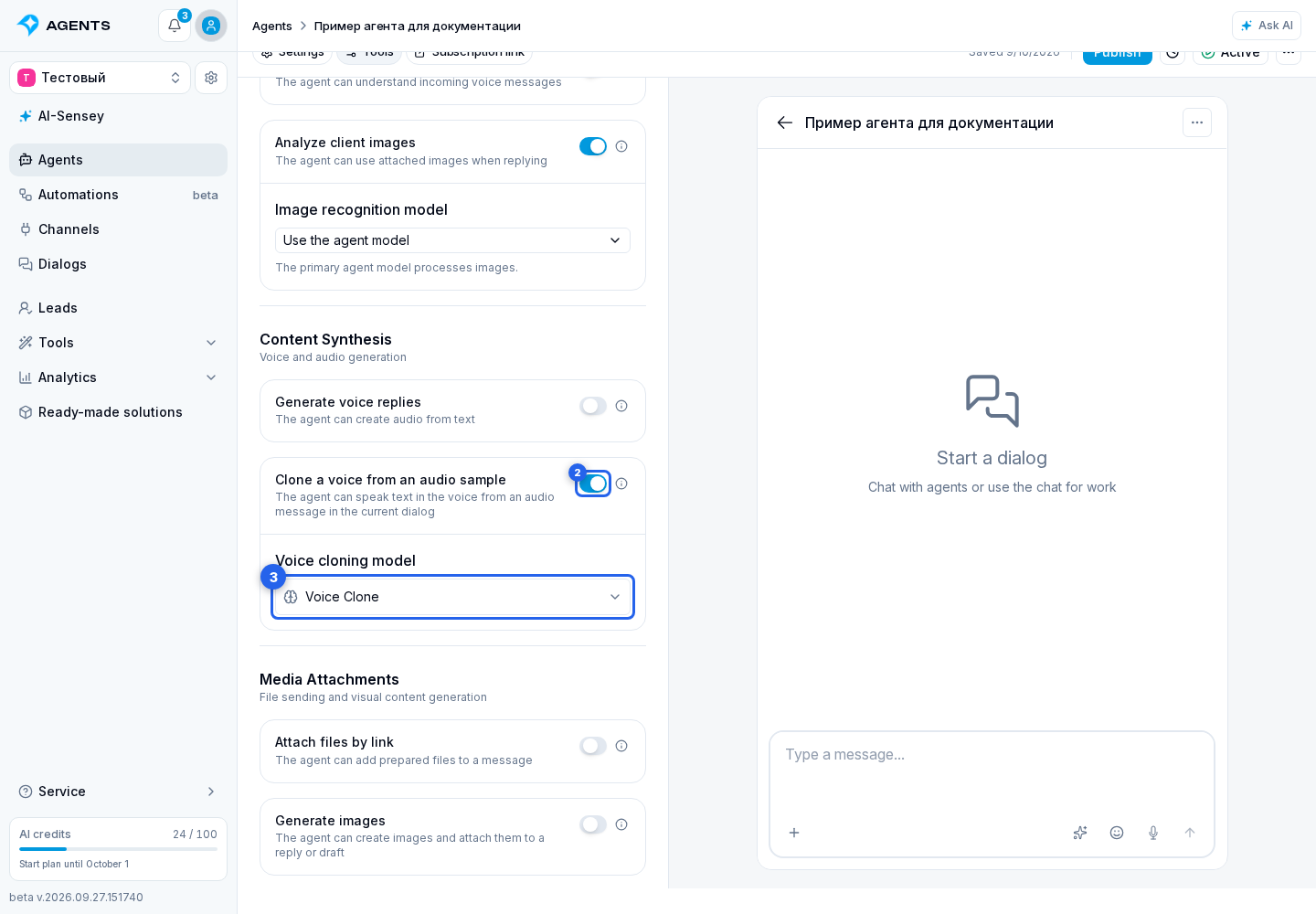
You can verify the change against the draft through agent testing. The published version dialog separately shows whether cloning is enabled and which model it uses. Publish the draft before using it in live dialogs.
Use a voice only with its owner's consent. The agent should clone a voice only after an explicit user request that confirms permission to use the sample.
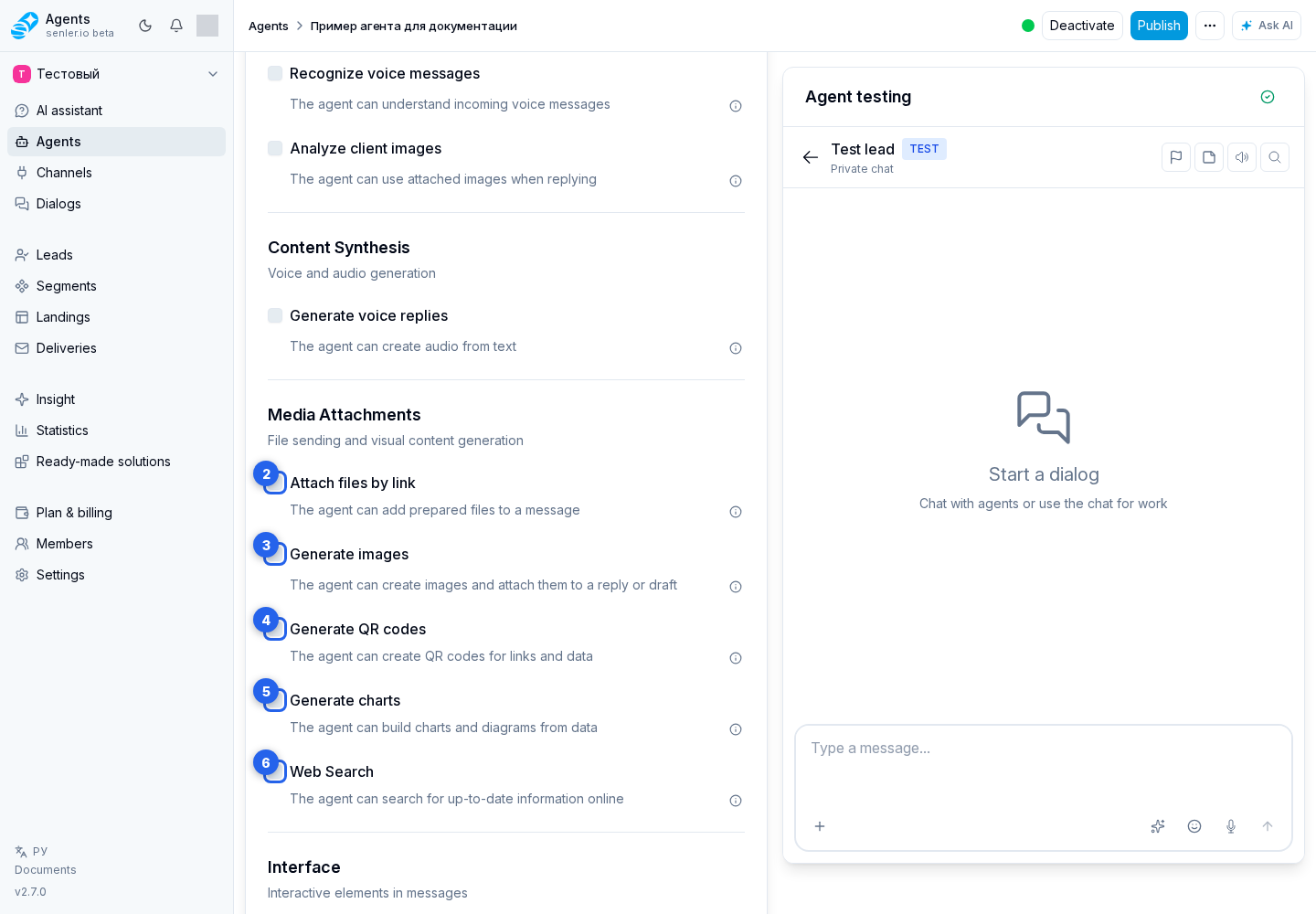
Media and attachments
- custom URL attachments;
- image generation;
- generation of QR codes;
- generation of charts;
- web search.
Attach files by link lets the agent download a prepared file of up to 50 MB from a public HTTP or HTTPS address and add it to the current reply. A link that requires sign-in or special headers will not work. The same capability lets the agent reuse ready attachments from the current dialog; attachments from another project or dialog are unavailable. Up to 10 files can be reused in one reply.
Image, audio, QR code, and chart generation first creates an attachment. The agent decides whether to add it to the current final reply or keep it for a later action. The tool itself does not send a separate client message without the agent's final text.
A generated image is attached to the agent's response, but it does not replace an image in a landing or another entity by itself. If the image must be used in an object being created or edited, explicitly ask the agent to place it in the required field after generation.
Capability models
Some capabilities use a separate model:
- speech recognition uses a recognition model;
- image generation uses an image model;
- audio generation/voice-over uses a voice model;
- voice cloning uses a model that supports cloning.
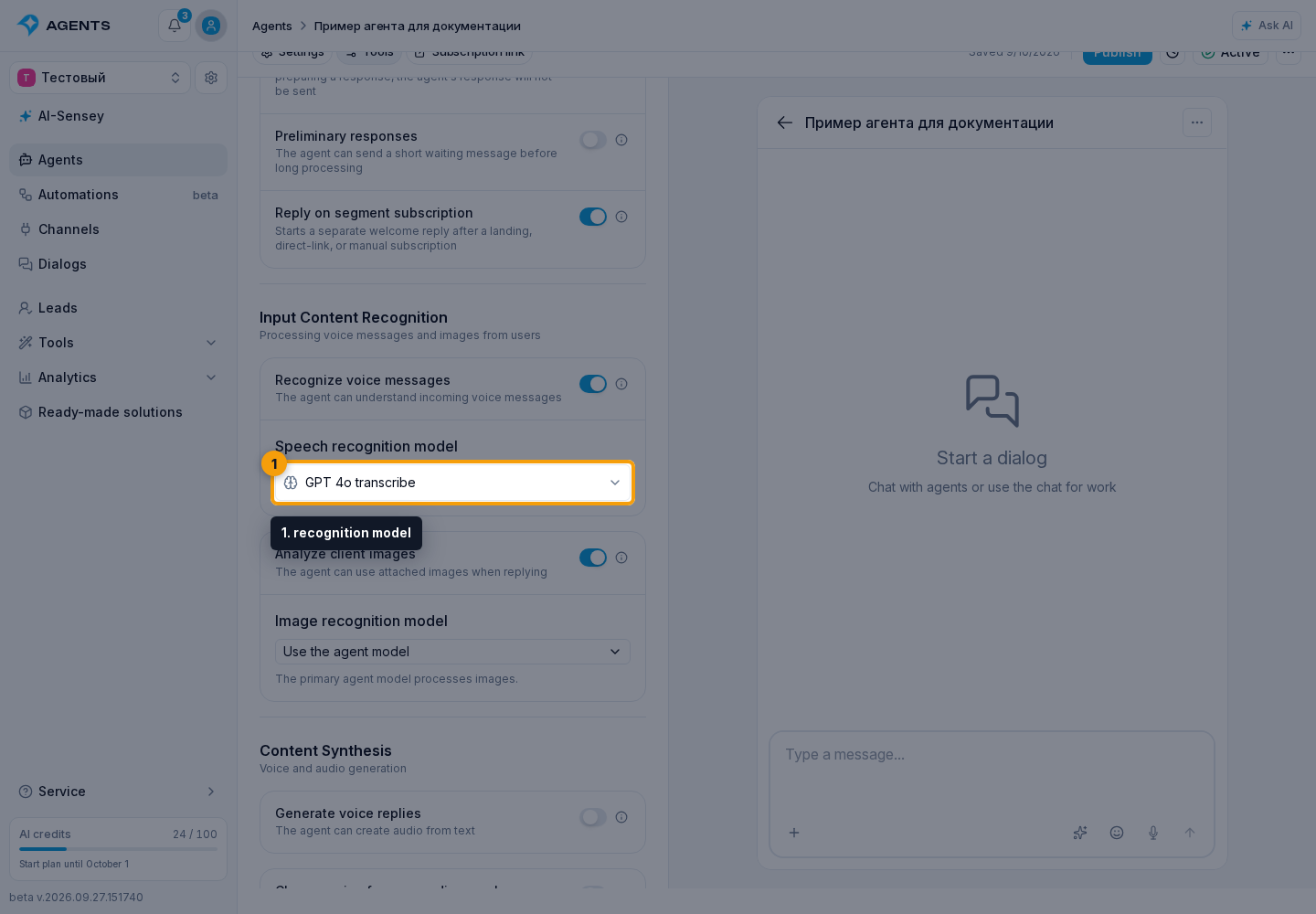
After a capability is enabled, the cabinet normally selects the first available model of the required type. Check that choice before publication. If no compatible model is available, the field has no working option and the capability cannot be saved as fully configured. For image recognition, use the primary agent model or select a separate one.
Tool and media billing
Select the current model to open a searchable list. Model details show credit cost depending on the model type: per response, per image, per 1M tokens, per 1K characters, or per minute.
For image generation, the Quality scale rates the model rather than selecting the quality of an individual image. The agent's tool uses medium quality (medium). With per-image billing, the price range covers available aspect ratios and resolutions at this quality. With token-based billing, details show separate prices for input text and images, output images, and cached input. The total depends on actual usage, not just the number of images.
When an image generation, audio generation, speech recognition, or image analysis tool runs, event history shows the work of the corresponding tool. Charges then appear in credit history and spend operation details.