
Ask About an Element
Select an Element
In the assistant chat, click Select element.
When you select an element, the cabinet enters pointer mode and intercepts the click on the chosen field, button, or block. The element is attached to the question as context, but the click does not perform its normal action or change anything. Press Esc to cancel selection.
Question context
Context chips appear above the message field. The project and current section are added automatically; the open entity and its name appear where they help distinguish the object from the section. For example, an automation page shows both the Automation section and the selected automation, while dialogs show the channel and selected participant. A manually selected element appears as a separate chip.
You can open a chip to verify the context or remove it before sending the message. When you move to another entity, automatic context is refreshed so the assistant does not keep treating the previous entity as open.
The Discuss change button in an AI summary starts a new conversation, attaches the project, agent, issues, and suggestions from the selected recommendation, and then automatically sends a prepared question. Opening this conversation does not change the agent by itself.
Ask AI hints
On a computer, the cabinet can show an Ask AI offer after you hover over a marked element; on a touch screen, it can appear after a long press. The offer opens a new conversation and attaches the project, page, and selected element. You then write the question yourself.
To turn these offers on or off:
- Select the assistant button.
- Open the settings menu.
- Switch element hints.
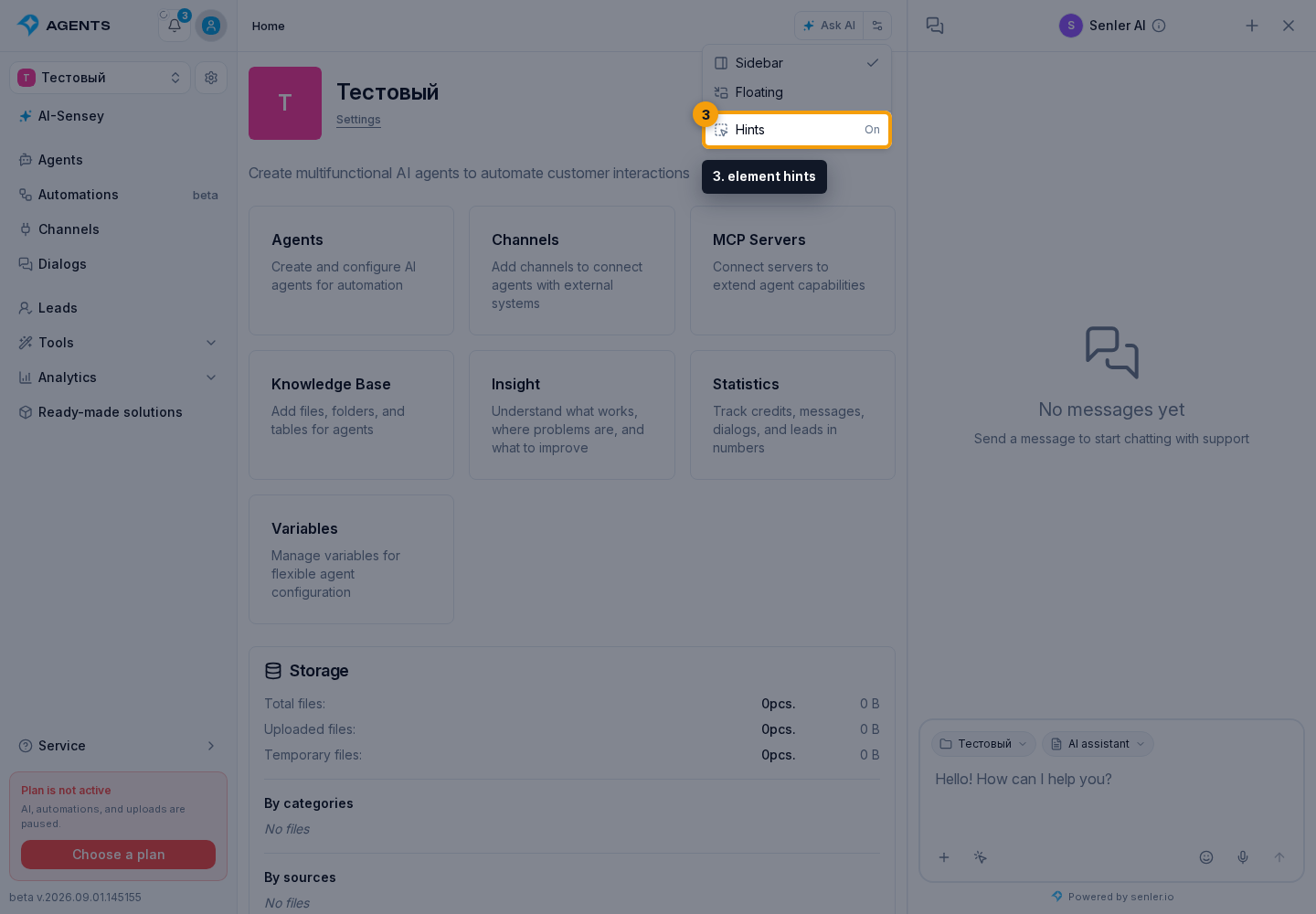
Turning this option off removes only the offer next to elements. You can still open the assistant manually and use the element selection button in the message field. The preference is saved in the current browser and is also passed to the dialogs screen.