
Shared Project Account
Choose a Shared Account
Open your custom server in the project's MCP servers.
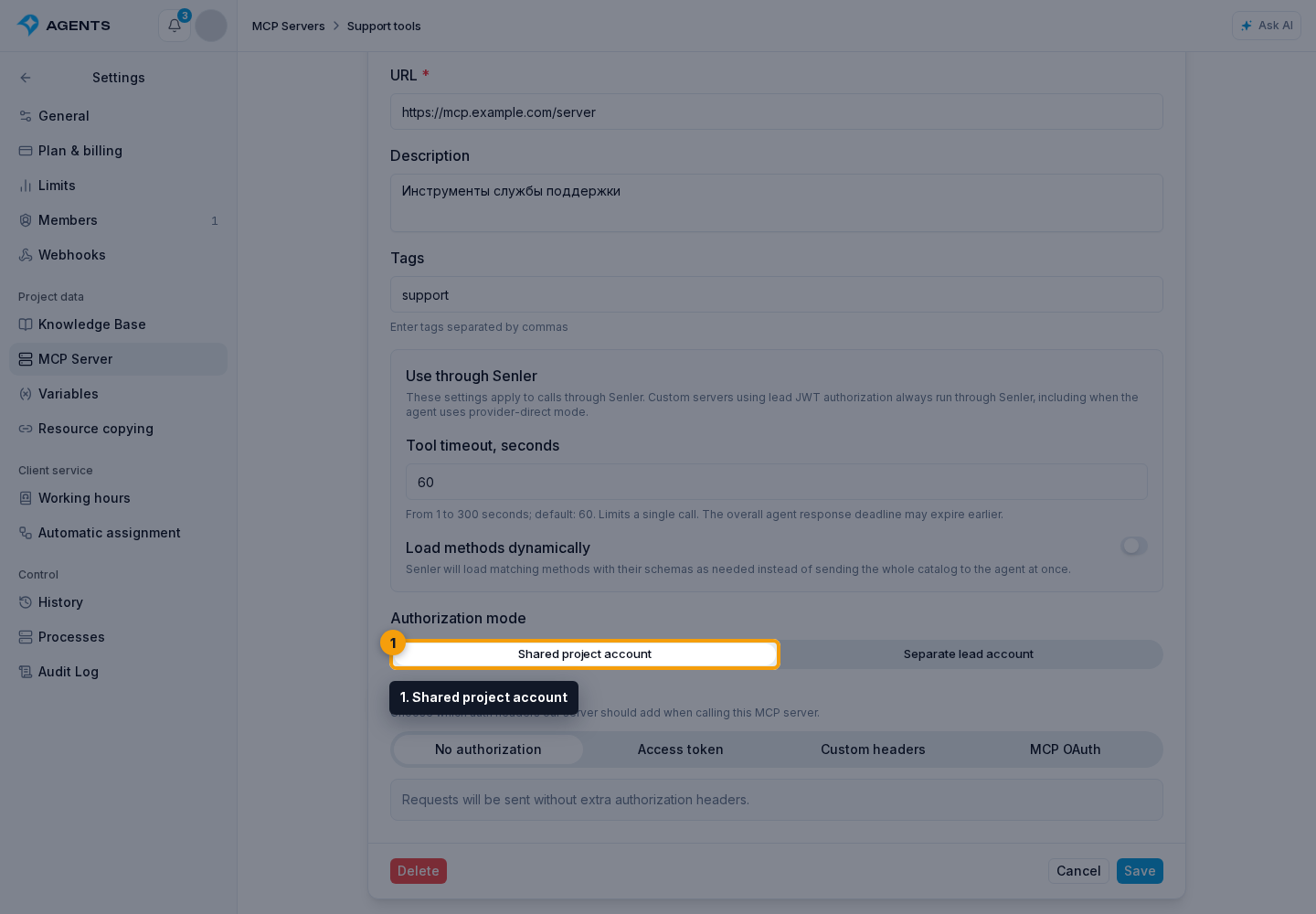
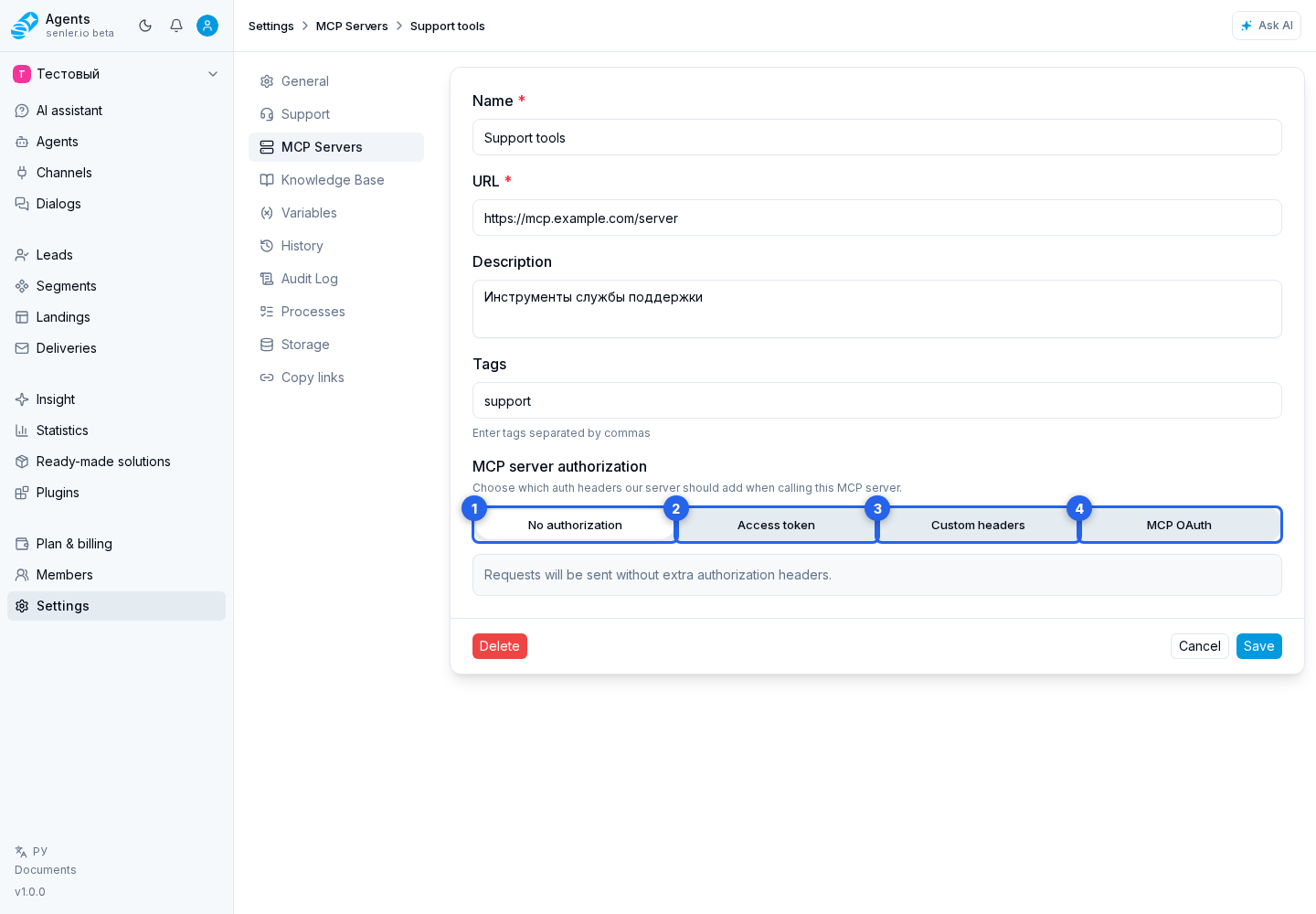
When creating or editing a custom MCP, select Shared project account. Then choose a connection method.
- No authorization;
- Access token;
- Custom headers;
- MCP OAuth.
No authorization
Use this mode when the server accepts requests without additional authorization headers. No secret is required.
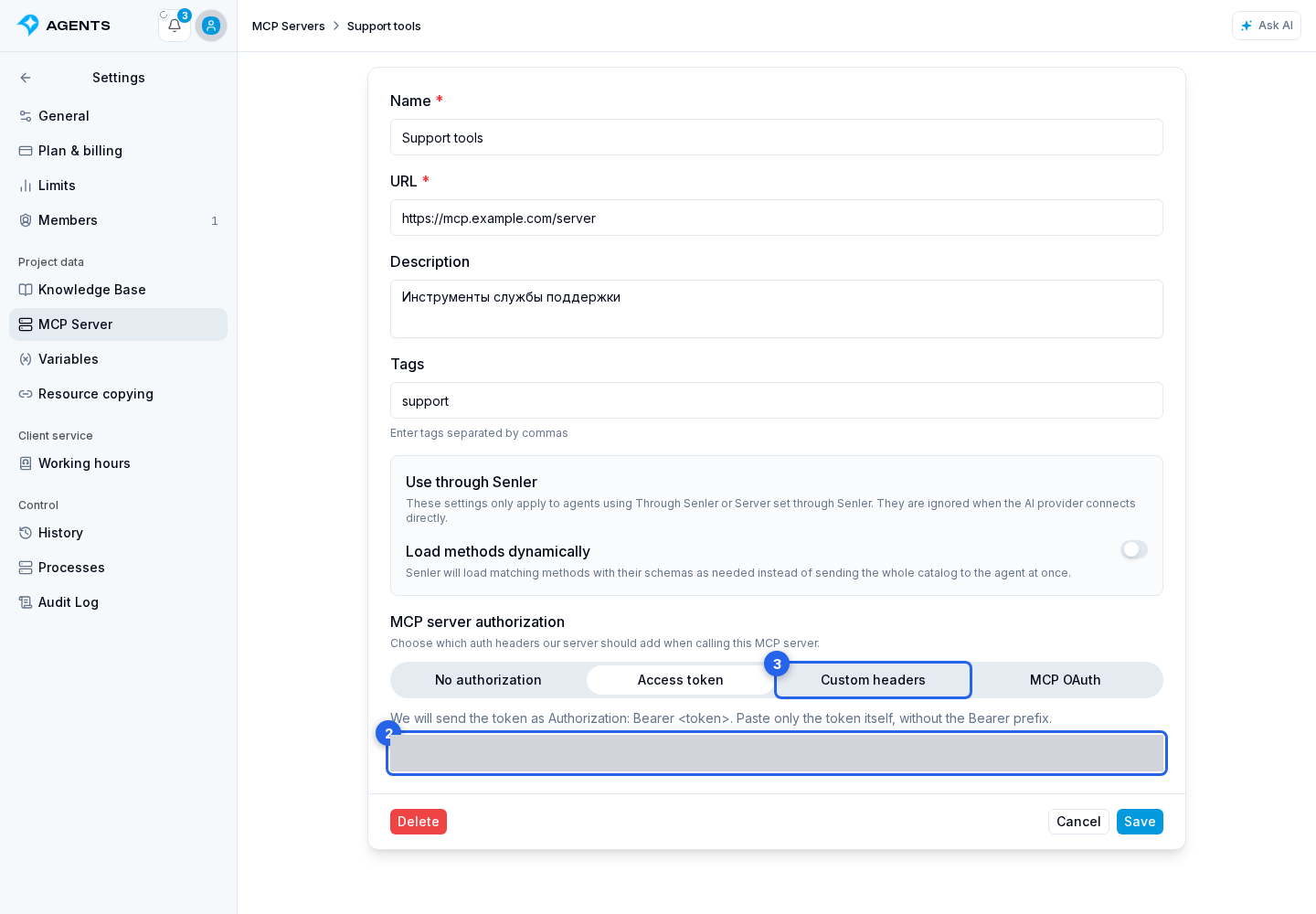
Access token
The cabinet creates the Authorization: Bearer <token> header. Enter only the value in the token field, without the word Bearer.
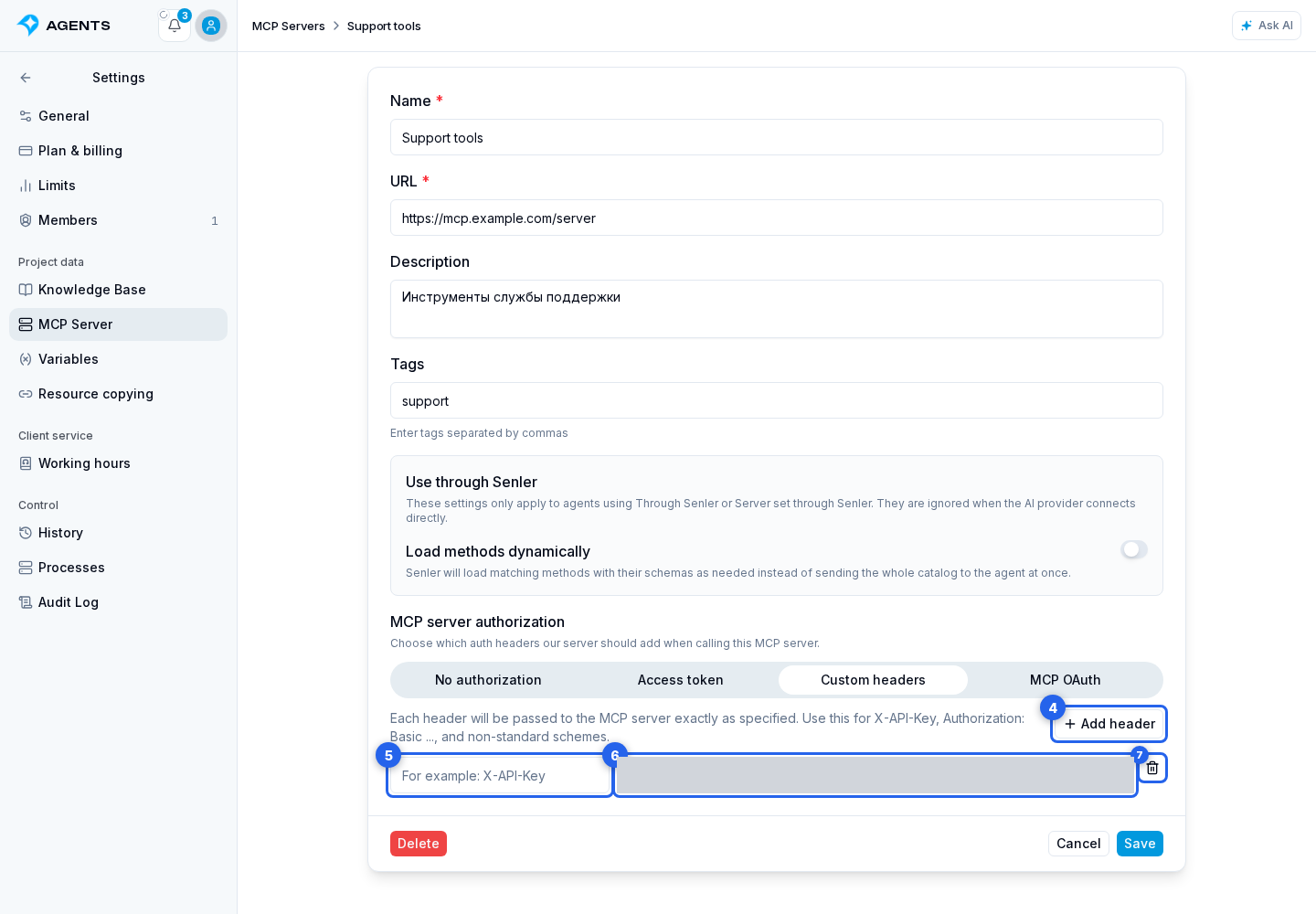
Custom headers
Use the Custom headers tab for name and secret-value pairs required by a nonstandard scheme.
Select Add header, then complete the name and value of every row. You can remove an unused row.
MCP OAuth
The MCP OAuth tab starts the remote MCP server's standard OAuth flow.
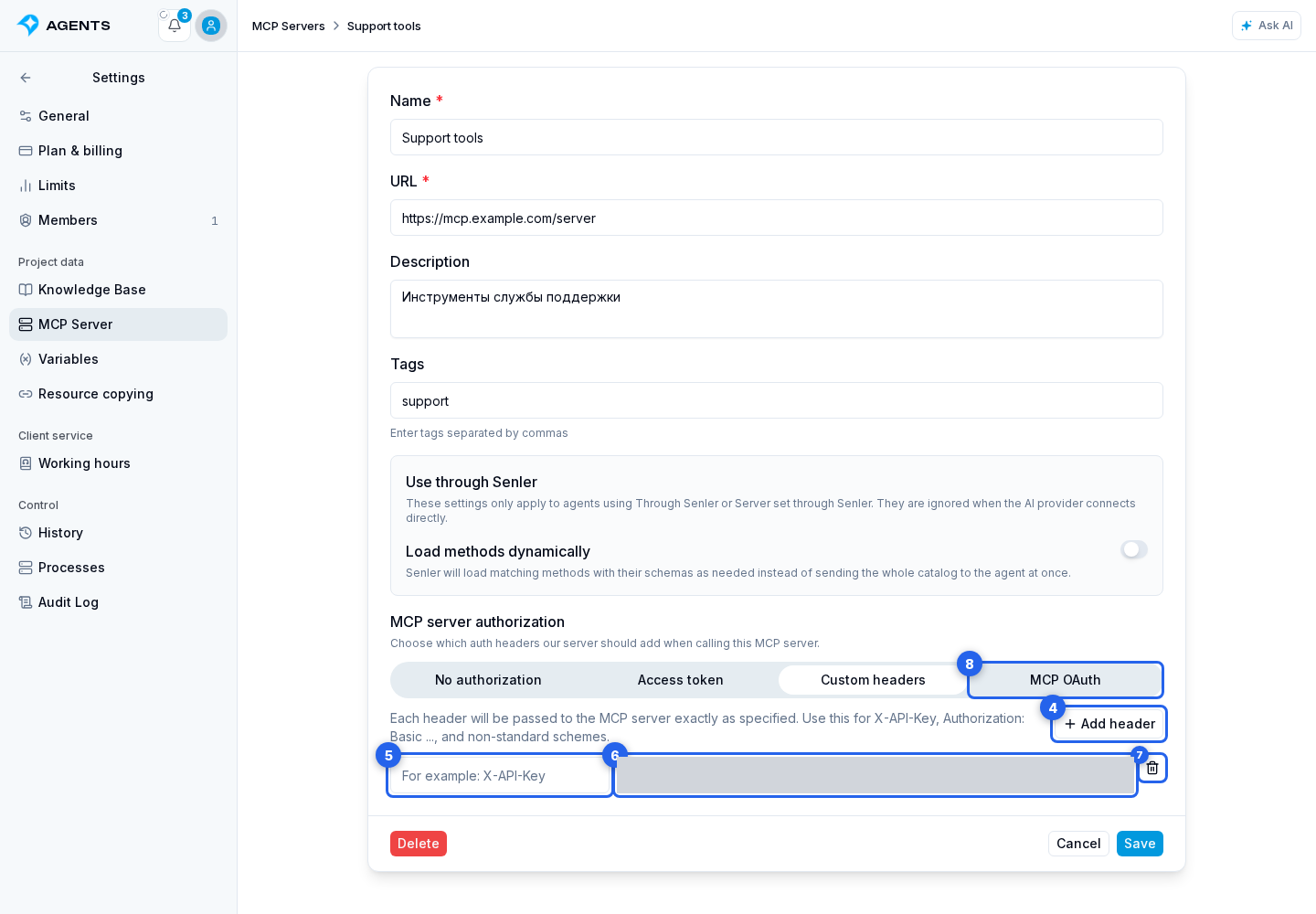
An existing saved secret is not displayed during editing. If the form says the secret is saved and hidden, leaving the field empty preserves it while the same authorization mode remains selected. Switching modes requires the data needed by the new mode.
With MCP OAuth selected, the save button may read Save and authorize. An external OAuth window opens after saving; the connection is complete only after a successful return from that window.
If the MCP server issued a refresh_token and access-token lifetime, Senler refreshes the project token shortly before it expires. If the server returns an authorization error earlier, Senler forcibly refreshes the token once and retries loading methods or calling the tool. When the server rejects the refresh token, the credentials receive an invalid status: complete MCP OAuth again on the connection page. You do not need to enter a new access token manually during a normal refresh.