
Mobile notifications
Open Notifications from the profile menu. For dialog push notifications, enable the mobile app and New dialog messages in project settings.
Mobile app
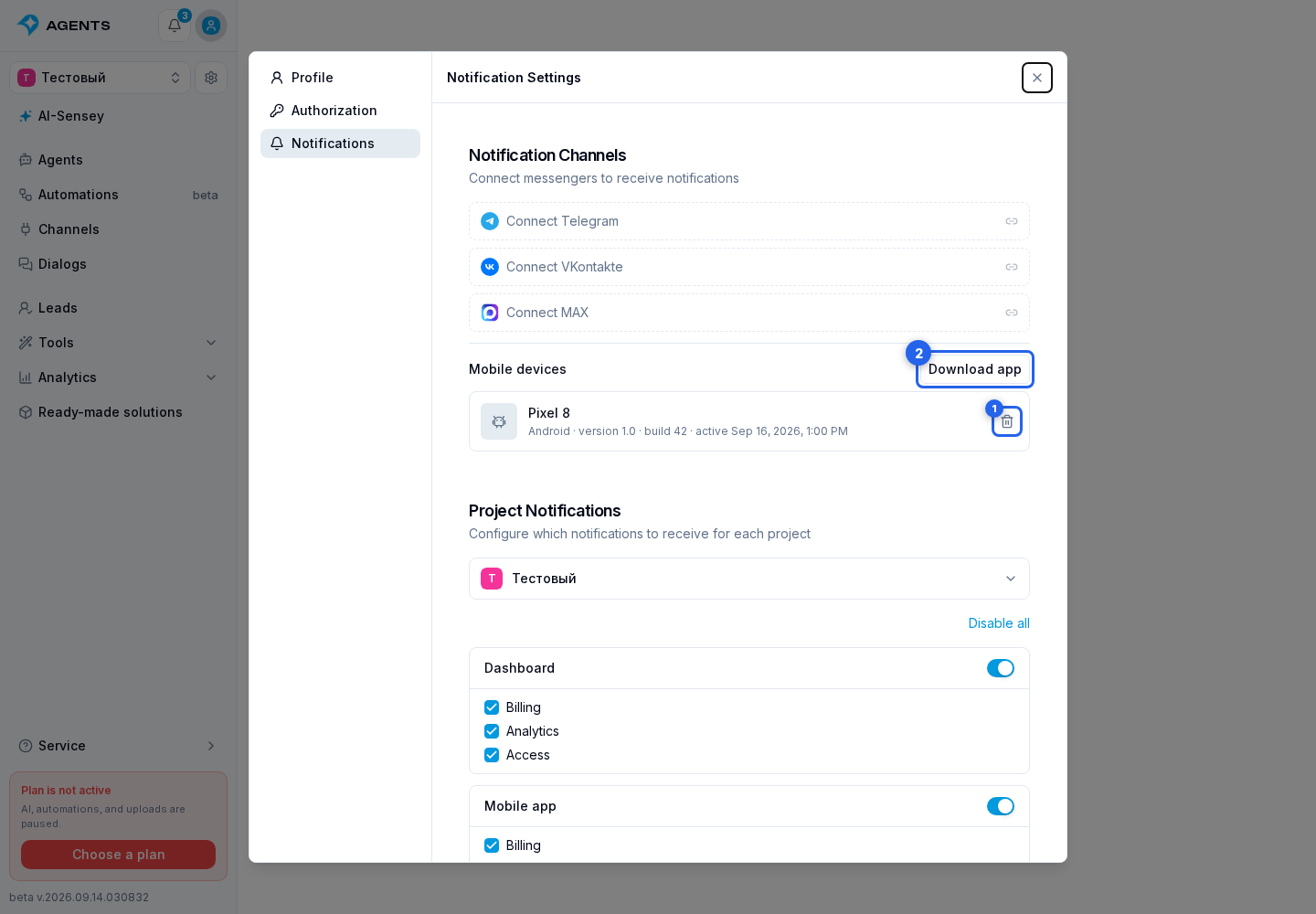
The mobile devices section shows linked devices, their platform, latest activity, and the application version and build when available. Select the trash button beside an unwanted device to disable push on it. This happens immediately, without a separate confirmation; other devices and project event settings remain unchanged.
On the notifications page, select Download app. In the dialog that opens, choose the Android version or the iPhone version in TestFlight. If the current iPhone build number is temporarily unavailable, the TestFlight link remains available.
A new-message push shows the latest message text or a clear attachment type, such as a photo, file, voice message, or poll. Selecting it opens the corresponding project and dialog. After signing out, the device stops receiving this account's pushes until the next sign-in and notification permission is granted again.
If push notifications do not arrive
Check notification permission on the device, its presence in the device list, and the selected categories for the correct project.