
Automation Testing
Open the automation editor. Before starting, the system validates the workflow.
A test can perform real actions: the context-specific restrictions are described below. Use safe test data.
Start The Draft For Testing
Select Testing. The testing panel opens on the right. If the workflow has several triggers, choose one in Start step.

For a For dialogs automation, choose one of the three context options:

- Test dialog creates an isolated test dialog and lead and displays the dialog inside the panel;
- Select dialog opens the list of existing dialogs. If the project has several channel types, you can select a channel type above the list; dialog search is always available. The run receives the selected dialog's linked lead and channel when available;

- Lead lets you select an existing lead. If the project has several channel types, you can restrict the list by channel type; lead search is always available. The system determines the selected lead's channel automatically.
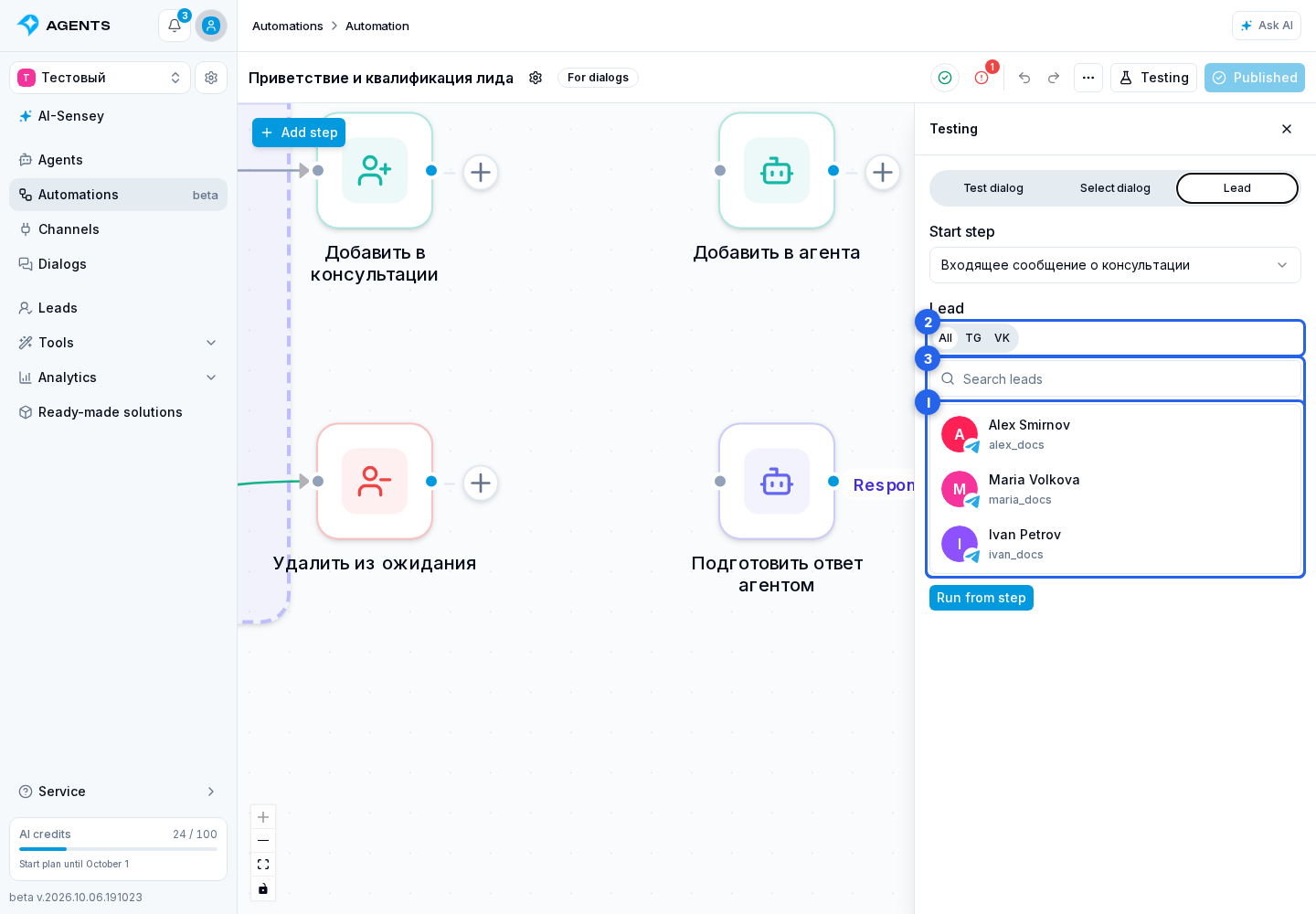
A background automation starts without a lead or dialog, so it does not show the context switcher.
In Test dialog mode, the panel list belongs only to the selected automation and selected trigger. Test dialogs from another automation or trigger do not appear in it.
In a test dialog, agent assignment and execution steps use the agent's saved draft and allow an inactive agent. When you select a regular dialog or a real lead, the agent uses published settings and must be active. Testing an automation draft does not by itself switch real conversations to agent drafts. See agent testing for version selection.
The project must have an active tariff for a test run. If it does not, the system does not create a run and immediately returns an error.
Select Run from step. The system validates the current draft and creates a separate test run from the selected trigger without waiting for a matching event. This does not publish the draft or change the regular triggers of the published version. You can then find the run under Runs.

You can also test a disabled automation: pausing the automation does not apply to test runs. Pausing the entire project or manually pausing an individual test run still stops its continuation.
After the run starts, the compact progress row automatically updates the current step, run state, and number of completed steps. Select the view run button to open the existing Runs dialog with the ID filter filled in and the matching run already selected.
When starting a run for a selected dialog or lead, the recipient list is replaced by Process started. This confirms that the run started, not that all its steps succeeded. Back to list returns to recipient selection without stopping the run already created.

The panel close button does not change the draft or stop a run already started. To pause or stop it, open its actions.
A test run is not a visual preview. Test dialog mode isolates the current conversation and lead, but not every action in the workflow. A message to an explicitly selected recipient, a table write, or changing a project variable can affect real data. If you select an existing dialog or lead for the test, messages and actions involving them can also be real. Test with safe data.
Some steps have test-specific limitations: funnel stage and marker changes stay within the test run, while an HTTP step sends a real request but does not save its result to persistent project, lead, or dialog variables.
Check The Trigger Condition
Run from step tests workflow execution. To check whether the trigger condition matches, use the separate trigger check:
- Choose Test dialog and an Incoming message, Segment entry, or Event trigger.
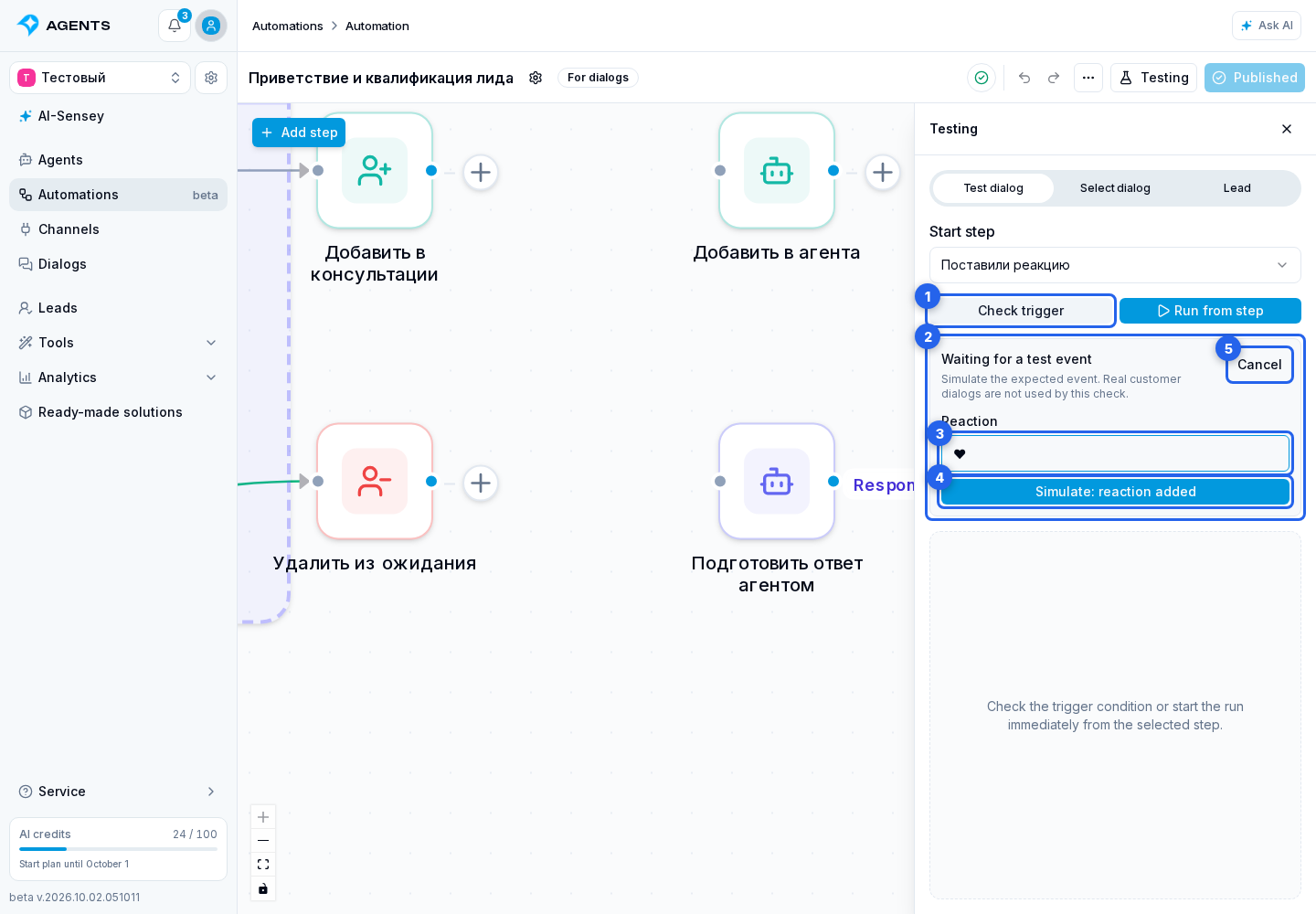
- Select Check trigger. The panel shows the check status.
- For an incoming message, send a sample phrase in the test dialog that opens. The run starts only when the condition matches. If it does not match, the check keeps waiting, so you can send another example.
- For another event, use simulation. When checking reaction addition or removal, first enter an example in Reaction. You can leave it empty if the trigger accepts any reaction.
- Select Simulate followed by the event name.
The check waits for an event for up to 30 minutes and uses the draft as it was when you selected Check trigger. If you change the condition or steps, or the waiting period expires, start the check again.
When the condition matches, the panel shows the match and progress of the new test run. This executes the draft's actions, so the safe-testing limitations above apply here too. Cancel in the waiting block ends the wait for an event without starting a new run.
After a successful test, publish the version.