
Stage markers
A marker describes a lead's state within a funnel stage without moving them to another stage. For example, leads at the “Discussion” stage can have “Demo requested” and “Budget agreed” markers. A lead can have several markers at once. Each stage has its own set of markers.
Create stage markers
- Open the funnel, switch to “Edit” and open the three-dot menu of the required stage. Choose “Stage markers”.
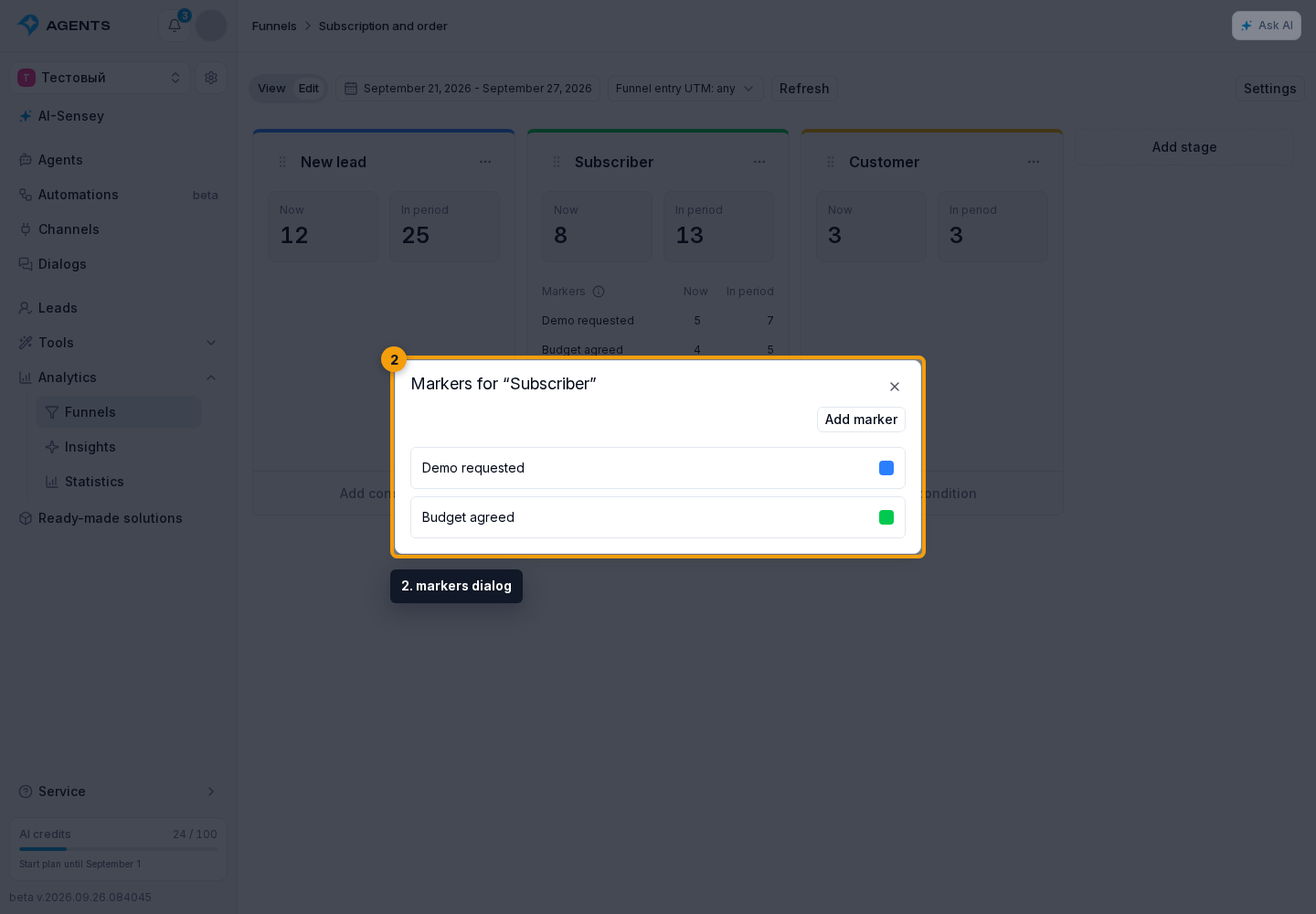
- In the markers dialog, click “Add marker”.
- Enter a name, choose a color and optionally add a description explaining when to assign it. Click “Save”.
A stage can have up to 100 markers. Names must be unique within the stage, ignoring case. A name can contain up to 120 characters and a description up to 500.
Assign or remove markers
For one lead, open funnels in their profile. In the “Funnels” block, find the required stage and click “Edit markers”. In the marker list, select the markers to keep, deselect the others, and save. The stage and its entry date do not change.
For several leads, choose “Move leads” from the stage menu. In the placement dialog (illustrated instructions):
- specify “Add markers” and “Remove markers”;
- enable “Include leads already at this stage” to change markers without moving leads;
- find and select the leads, then click “Move selected”.
The same marker cannot be added and removed at once. Markers not selected for a change are kept when the lead stays at the same stage. If the selected markers are already assigned or removed, repeating the action changes nothing.
When moving to another stage, markers from the previous stage are not carried over. The new stage receives only markers selected for that move; without a selection, the lead enters without markers. Past assignments remain in history.
Assign automatically
The “Move to funnel stage” step lets you select markers to add and remove. If the lead is already at that stage, the step only changes markers.
Allow the agent to work with the required stages and describe when to assign a marker in its instructions. For example: “If the customer requests a demo, add the ‘Demo requested’ marker at the ‘Discussion’ stage.” The agent uses existing markers of permitted stages; the instruction does not create a new marker.
Read statistics
A stage column with configured markers includes a “Markers” list. Each marker has two counts:
- Now — how many leads are currently at this stage with this marker. Clicking the count opens their list.
- In period — how many distinct leads received the marker during the selected dates, even if it was later removed or the lead moved on. Assigning it to the same lead again does not increase this count.
The “Without markers” row shows the current number of leads without markers and the number of distinct leads who entered the stage without markers during the period. Removing the last marker alone is not a new stage entry.
In the “View” tab, click a stage name to see its marker list in the details panel. It shows only the metric selected above the chart: “Now” or “In period”. With “Now” selected, clicking a marker's count opens leads with that marker; the count in the “Without markers” row opens leads without markers at this stage.
A lead can appear in several rows, so their sum does not have to match the stage's total. The stage's “In period” count measures entries, including repeated ones; the marker's count measures distinct leads. Period and entry UTM restrict these statistics in the same way as stage statistics: dates affect only “In period”, while UTM affects both counts.
Edit or delete a marker
In “Stage markers”, click a marker, edit its name, description or color, and save. To delete it, click “Delete marker” and confirm. It disappears from current lists and marker statistics, but past assignments remain in history. Deleted markers cannot be restored.
Configuring the marker catalog requires analytics management permission. Changing leads' markers also requires lead view and management permissions.