
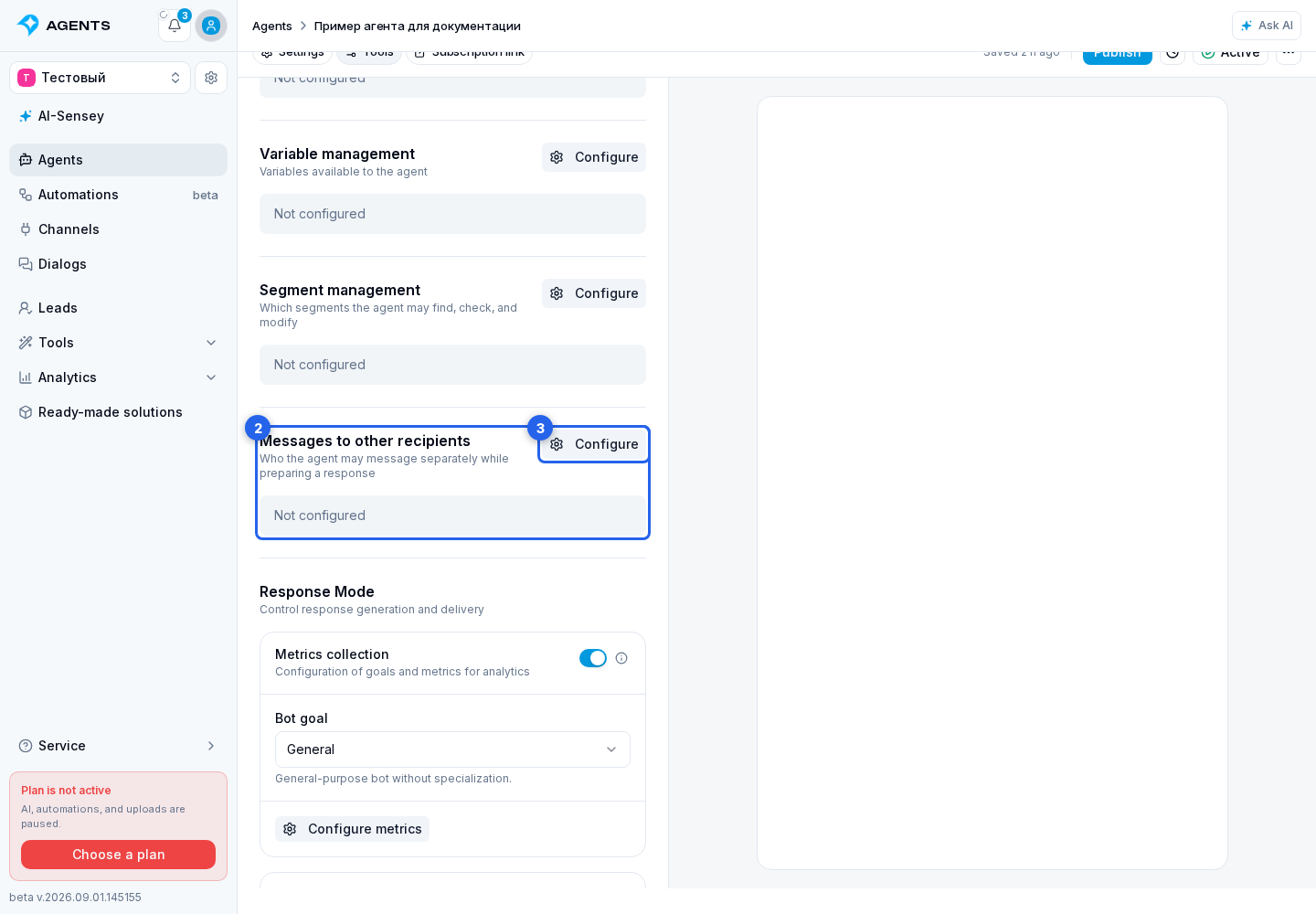
Messages to other recipients
The agent can notify a manager or message another lead during the current conversation. First choose which recipients it may contact.
Main section: Tools.
Allow messages to recipients
The Messages to other recipients section controls whether an agent can send a separate message to another dialog or lead while processing the current request. The default is Do not allow, so the agent responds only in the current dialog.
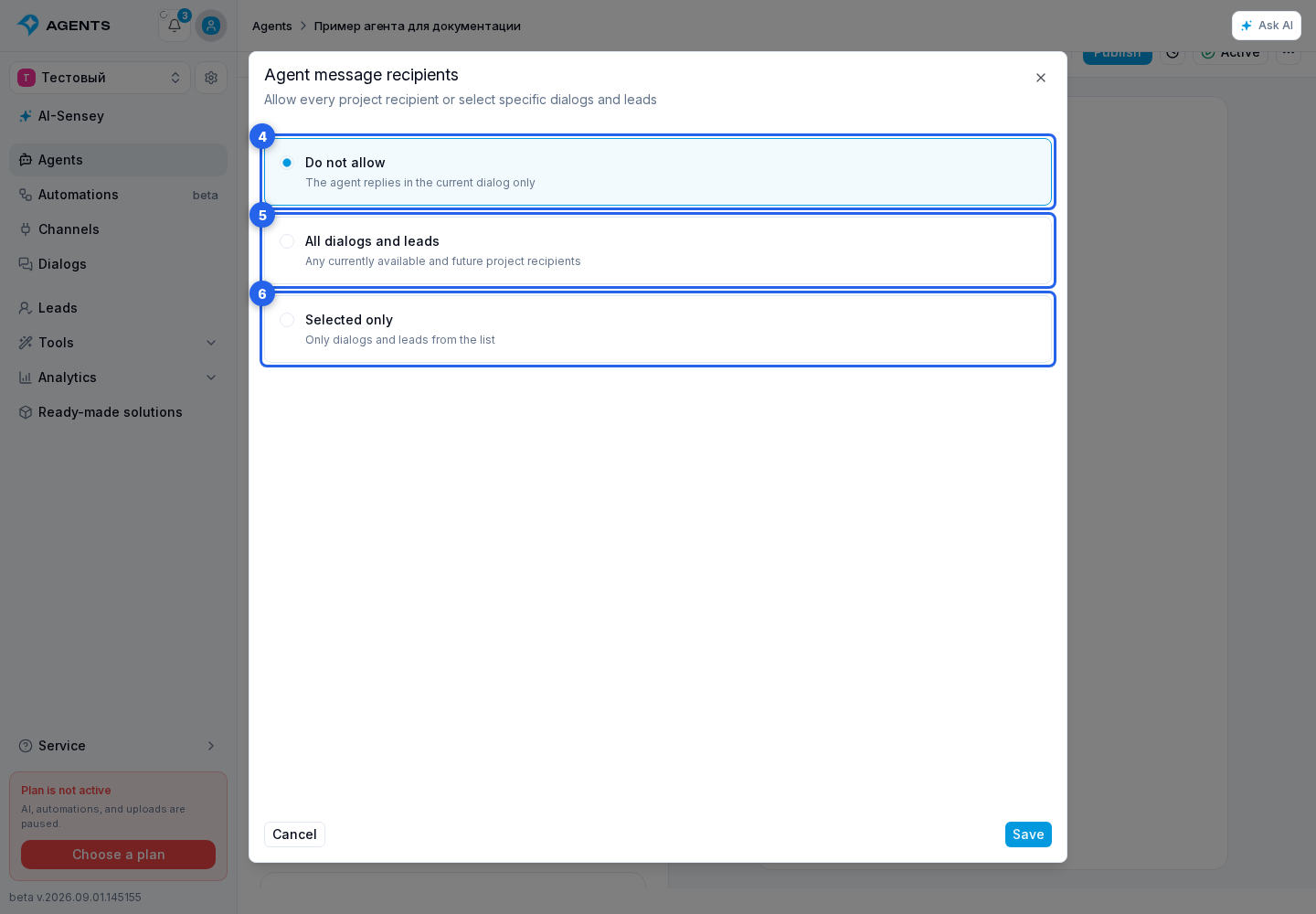
Select Configure. In the recipient selection dialog, choose a mode:
- Do not allow disables separate messages;
- All dialogs and leads lets the agent search recipients that are available now or created later in the project;
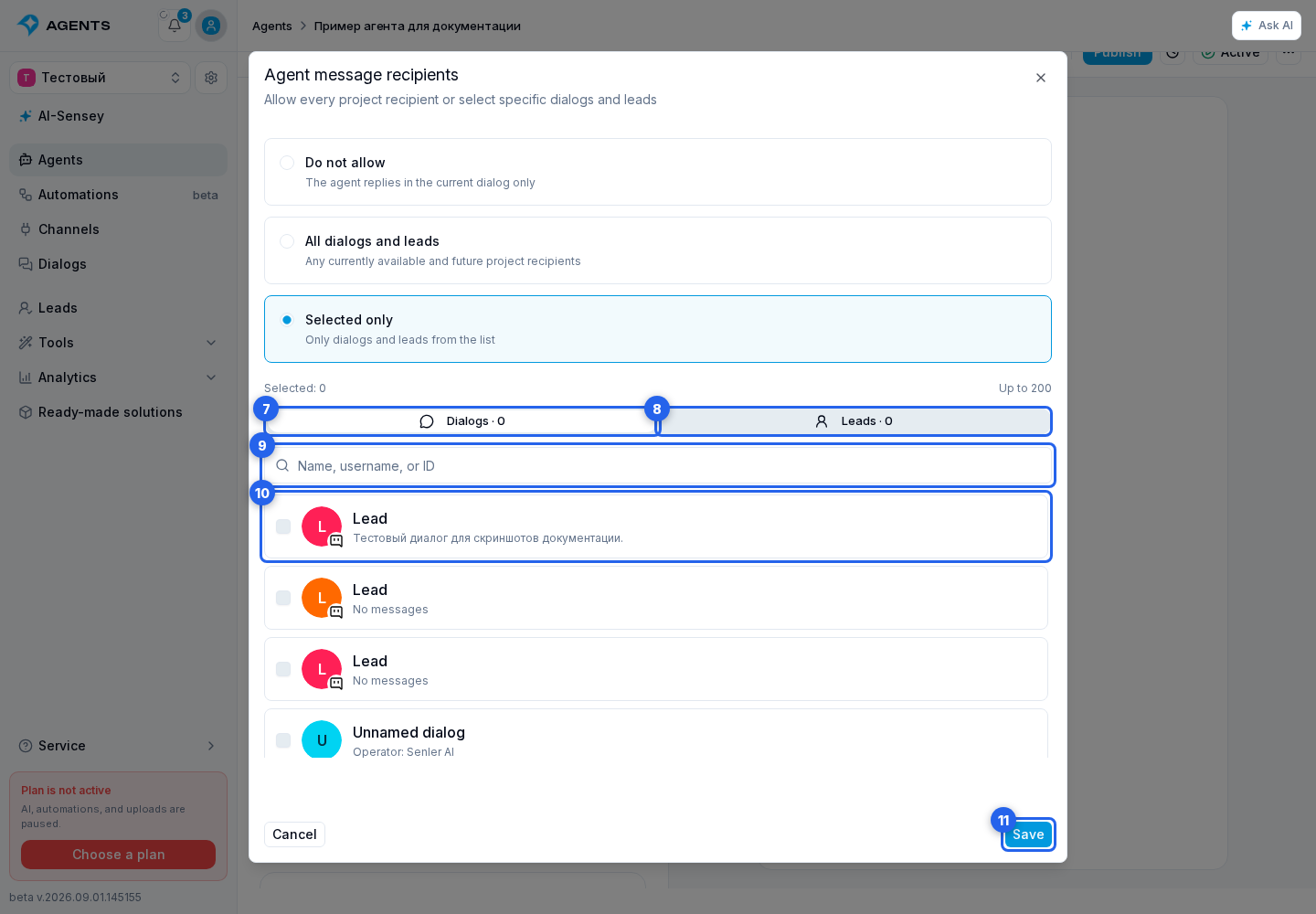
- Selected only exposes only the dialogs and leads you allow. You can select up to 200 recipients in total.
In Selected only mode, switch between Dialogs and Leads, filter by channel type, and use the name, username, or ID search. Select the required recipients.
To let the agent notify a manager in MAX, choose Selected only and find their dialog by name or username with the MAX filter. If the dialog does not exist yet, the manager needs to message the MAX bot connected to this project first. Then search again. If names match, clarify which dialog to use. There is no need to look up an external MAX ID manually: select the recipient from Senler dialogs. Agree separately on when to send the notification and what it should contain, and put these rules in the agent's instruction.
To review your selection before saving, select Show next to the counter.
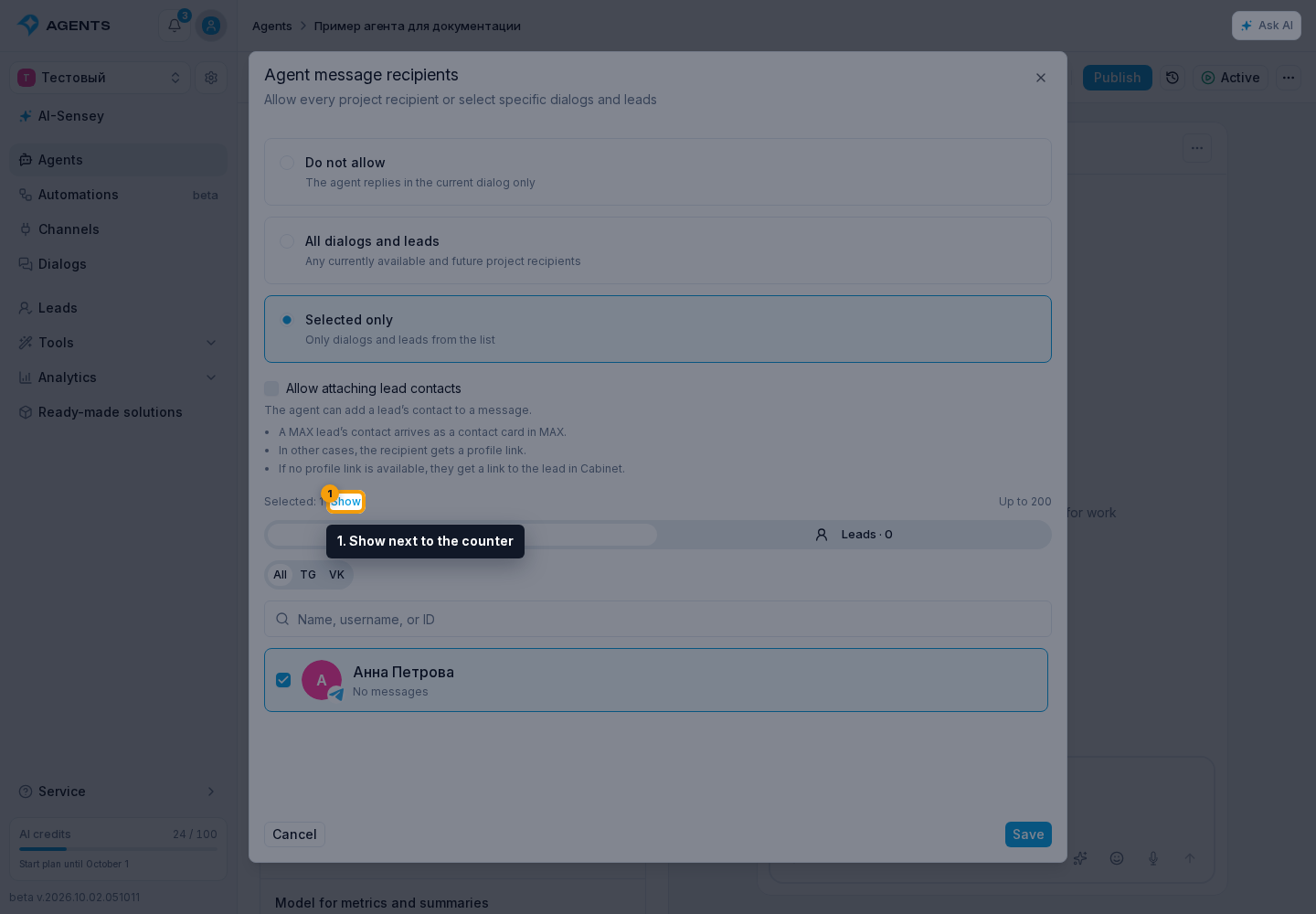
The search and channel filter clear; the Dialogs and Leads tabs show only selected recipients with their names and avatars. Uncheck a recipient directly in the list to remove them. The cross on the Selected badge restores the full list while keeping your selection. Deleted or unavailable recipients are marked separately and can also be removed from the selection.
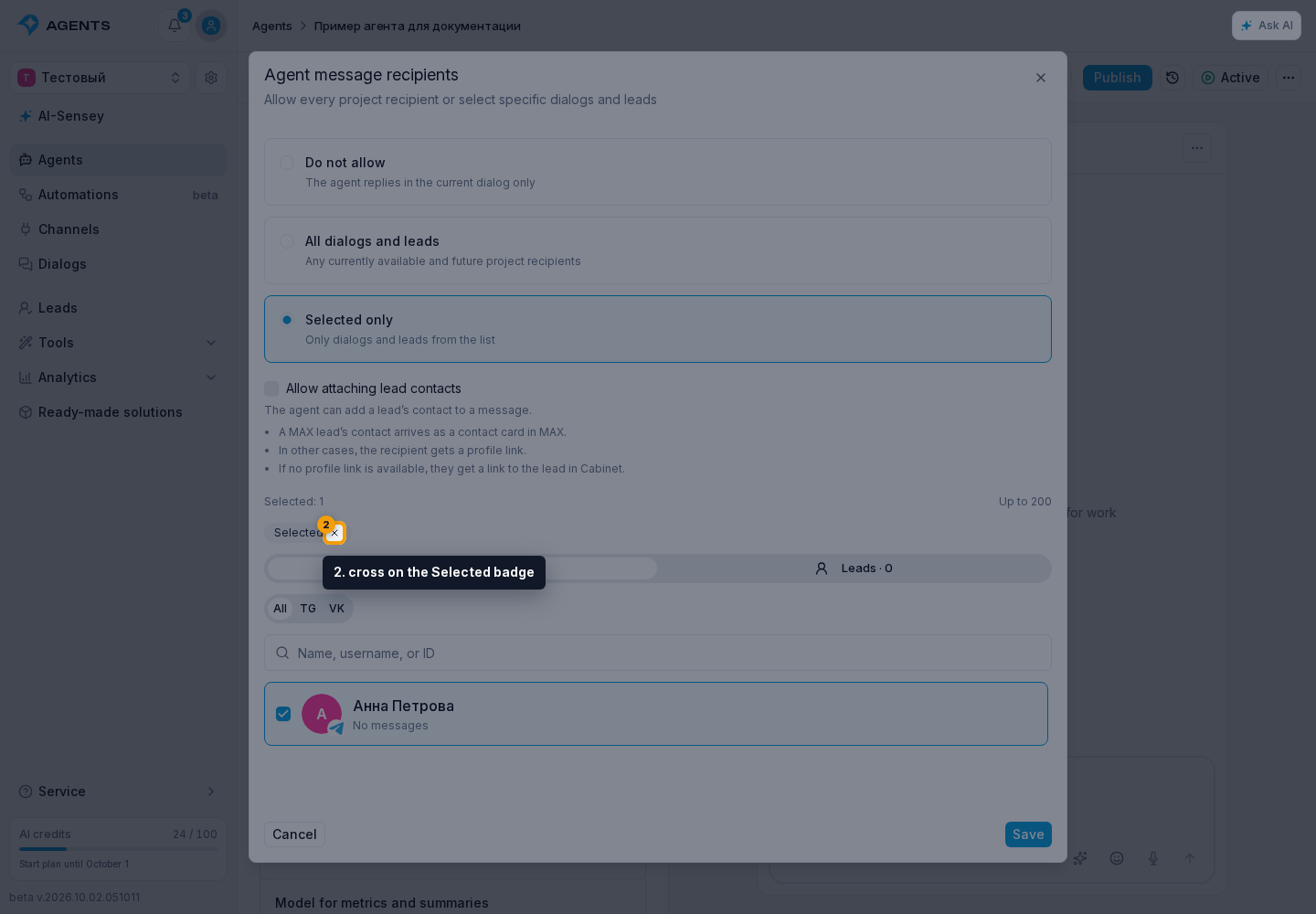
Select Save to apply the selection to the agent draft.
The current dialog is not duplicated in the recipient list because the regular agent response already goes there. For a selected lead, Senler uses an existing private dialog. If none exists, a new private dialog can be created for Telegram, VK, MAX, Discord, and the website widget. For Email and Avito, the agent can message a lead only through an existing dialog. Sending to StreamVi is unavailable, even in an existing dialog.
A separate message can contain text. Files are available when at least one agent capability for creating or sending files is enabled; buttons are available when Buttons is enabled and the recipient channel supports them. These settings define access boundaries; specify when and why to send a message in the agent's instruction.
Changes take effect in live dialogs after the agent draft is published.
Lead Contacts
To let the agent pass a client's contact to a manager:
- In the Messages to other recipients dialog, allow all or only selected recipients.
- Enable Allow attaching lead contacts and save the selection.
- Specify when and to whom the contact should be sent. For example, when the client asks to speak to a manager, the agent sends a short request summary to the allowed Sales dialog and attaches the current lead's contact.
- Publish the agent changes.
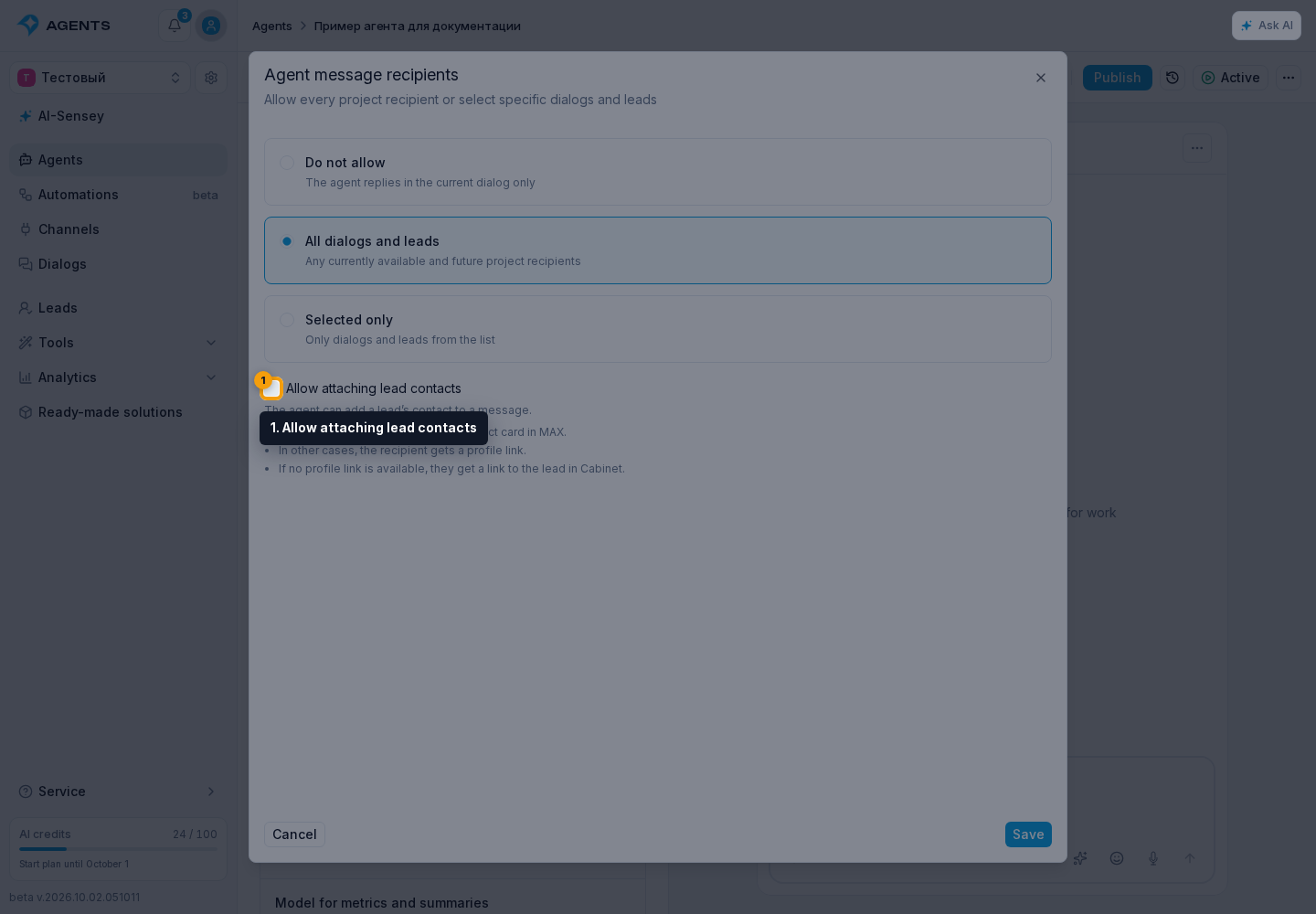
Contact permission is off by default and independent of file access. The agent can attach the current lead's contact or another lead's contact from the same project, but can send it only to an allowed recipient.
The format depends on the platform: a MAX user's contact sent to MAX arrives as a card; other cases use a name with a platform profile link or a link to the lead in the cabinet. If the agent includes text, files, or multiple buttons with a MAX card, the recipient first receives the text, files, and buttons, followed by the contact card in a separate message. The agent only needs one send operation through the tool. See contact formats for details and an example of handing a VK client to a manager in MAX.