
Funnel sources
- Open a funnel.
- Switch to the “Edit” tab.
The “Add source” menu offers two options:
- Event moves a lead to a stage when a selected event occurs and the rule parameters match.
- Plugin adds external metrics alongside stages. These values are not added to lead counts, and viewing the metrics does not move leads between stages.
Event
To add a rule:
- At the bottom of the target column, click “Add source”.
- Choose “Event”.
To edit an existing rule, open a saved rule by its name in the column.
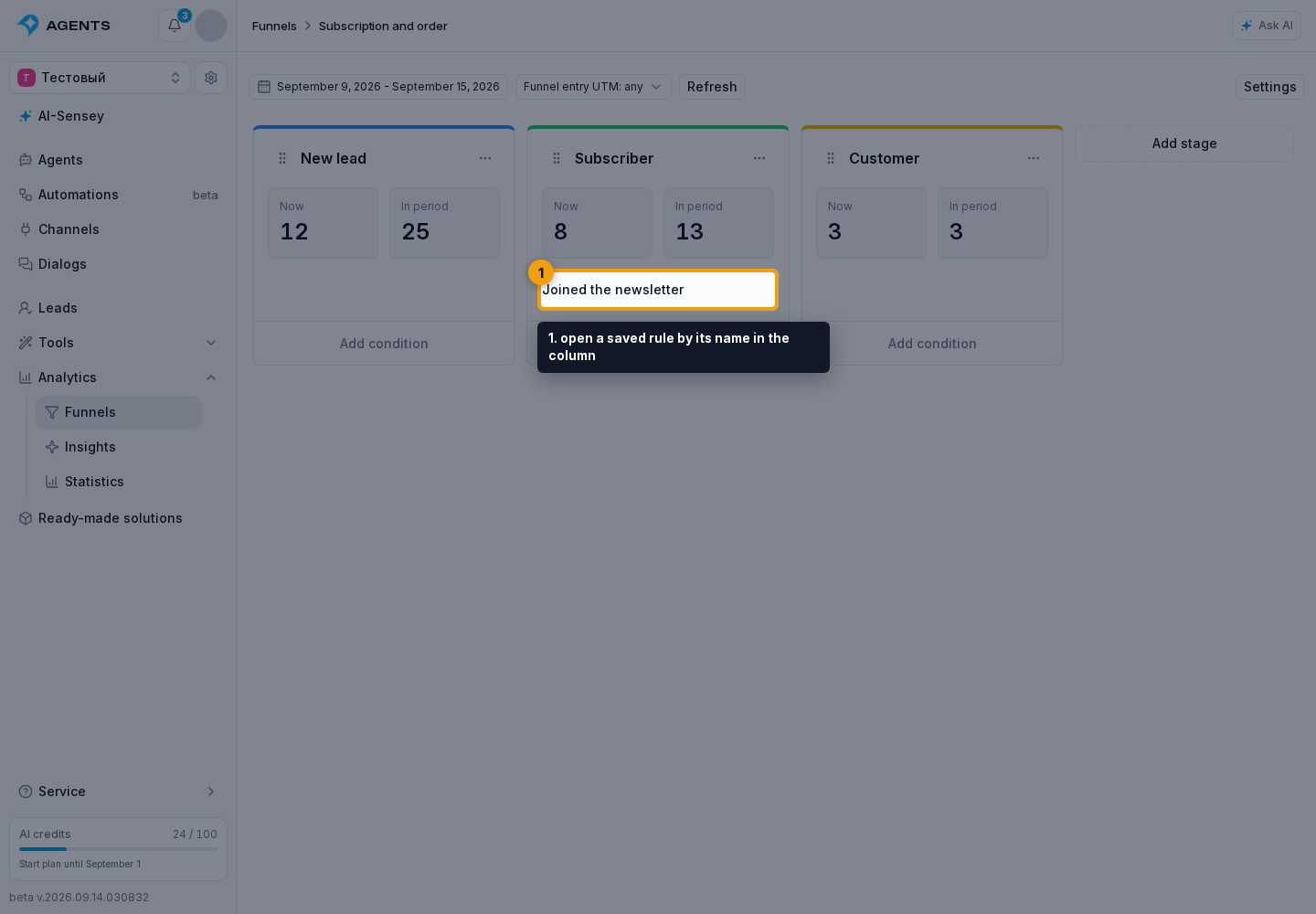
Then:
- Check the target stage in the transition settings dialog.
- Give the rule a clear name, such as “Joined the newsletter”.
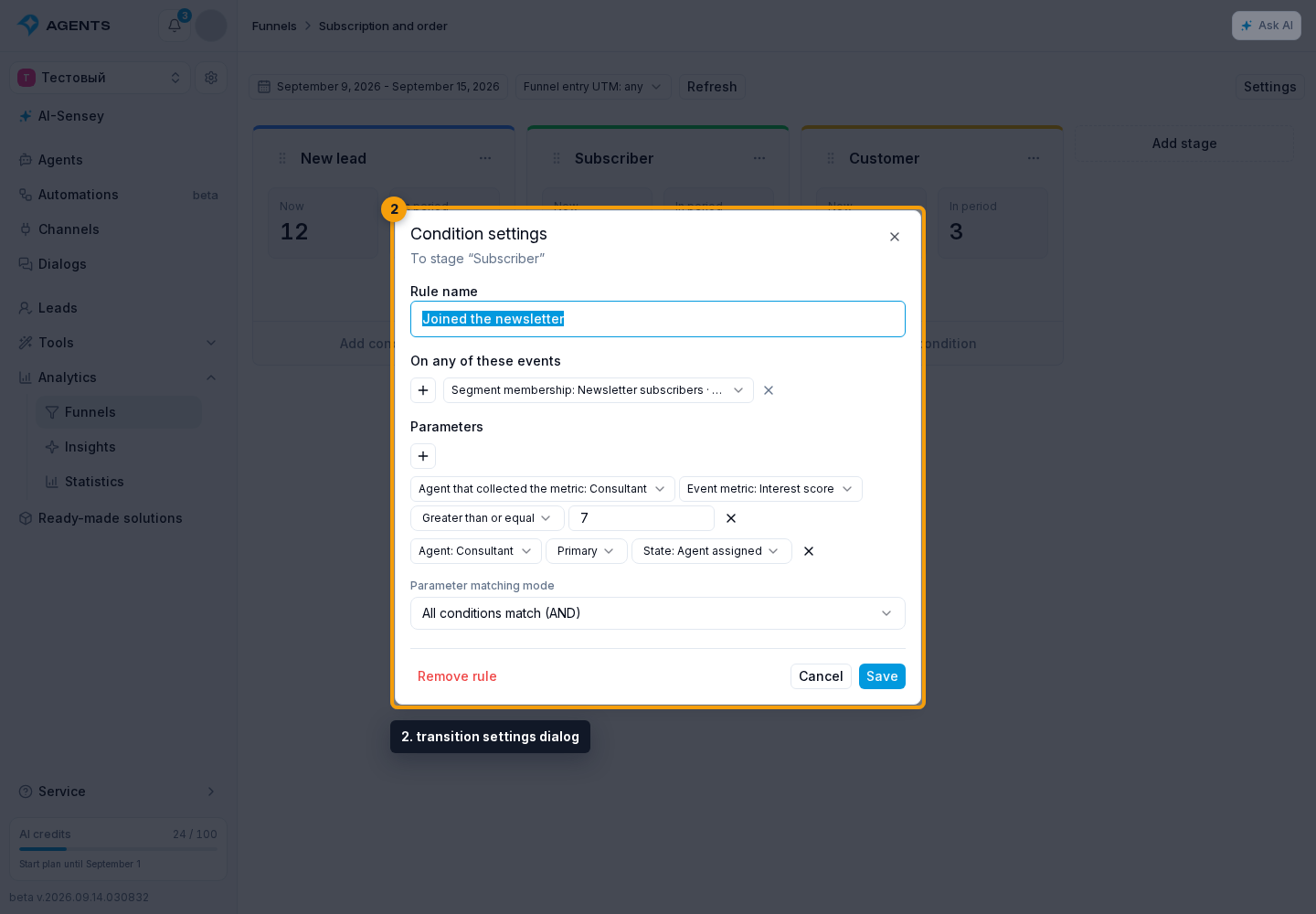
Events: when to check
- In “On any of these events”, click “Add event”.
- Select an event.
You can select several events: each one independently triggers the rule check. At least one event is required.
Available events cover lead creation, subscription, blacklist or block changes, section or segment participation, agent assignment in a private chat, consent acceptance, and extraction of an event metric.
To specify which change to react to:
Click an event chip.
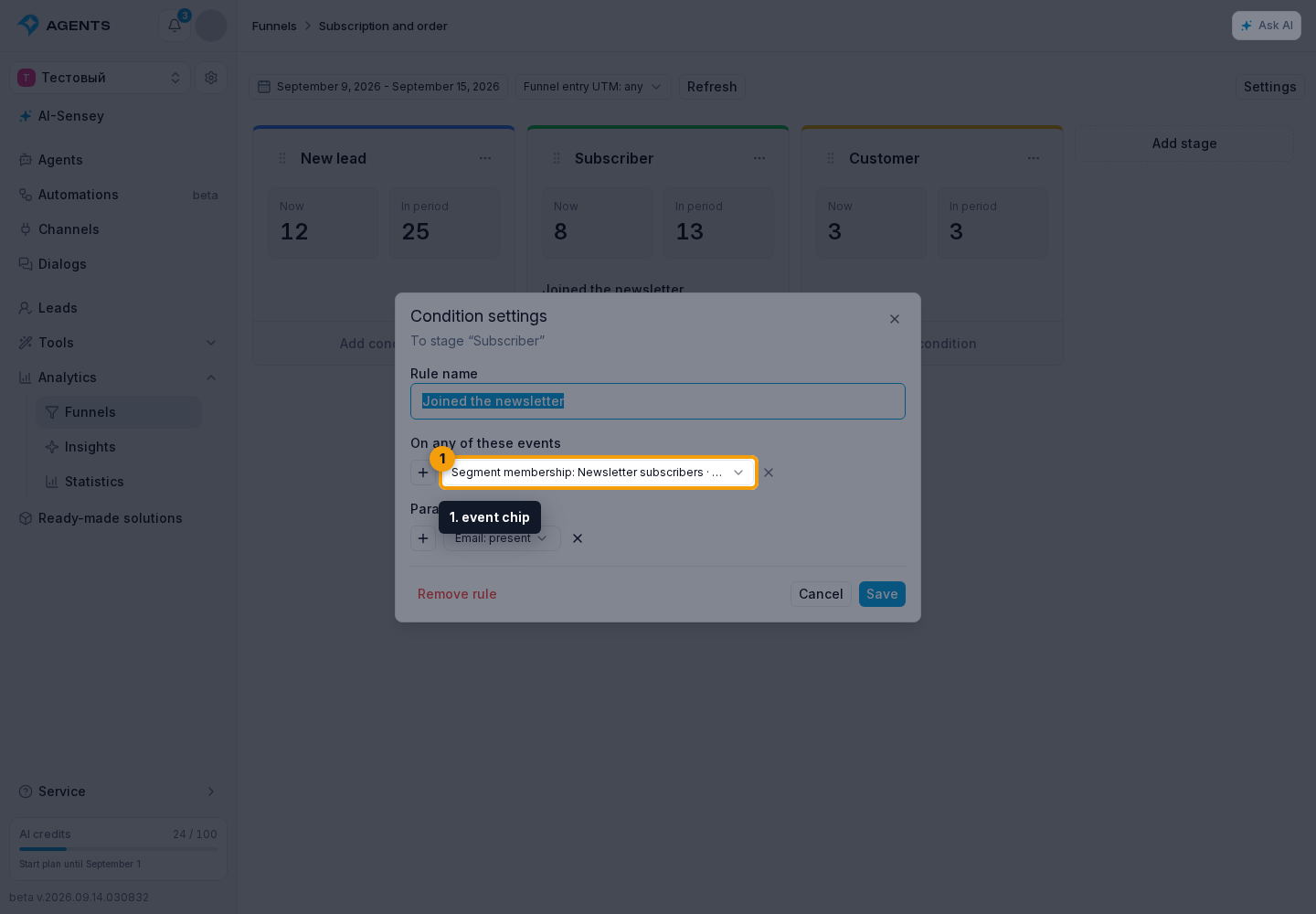
- Set the required restrictions in the event dialog.
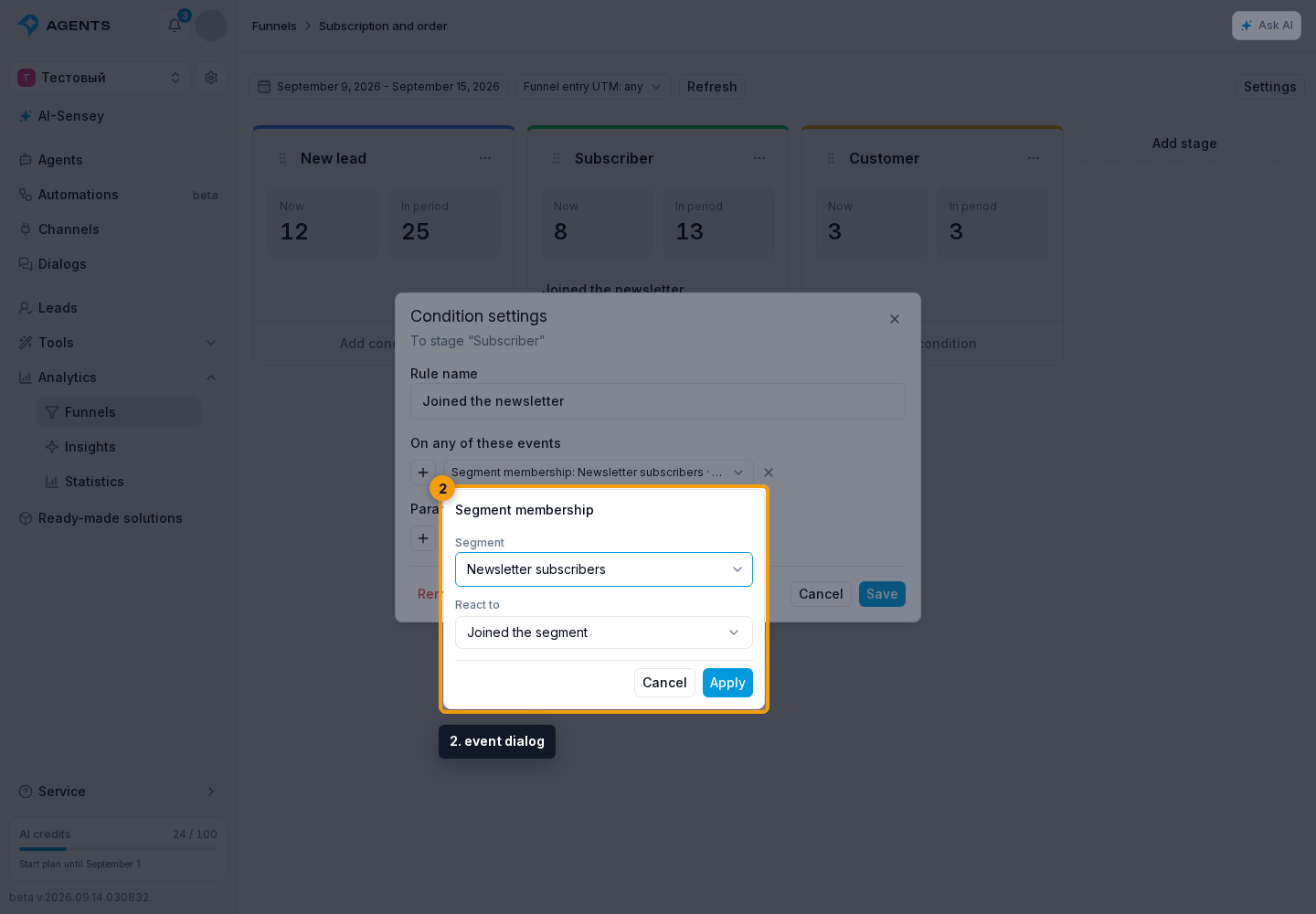
- Click “Apply” to return to the rule.
For “Segment membership”, you can choose a segment and joining, leaving, or pending membership. For assignment, you can choose an agent and role; for metric extraction, an agent and metric. Without these restrictions, the event reacts to any matching change. “Lead creation” has no additional settings.
“Cancel” closes the dialog without applying restrictions. The cross beside the chip removes the event. After configuring all events and parameters, save the rule itself.
Parameters: which leads qualify
Click “Add parameter” if not every lead associated with the event should move. Parameters are optional: without them, the selected event and its restrictions are enough.
- Subscription, blacklist, block status — the required lead state.
- Segment and section participation — whether the lead belongs to a selected segment or section. Segment participation also supports former and pending membership.
- Lead variable — a value or whether a field is filled in.
- Agent assignment in a private chat — whether the selected agent is assigned in the specified role.
- Lead event metric — an analysis result from the selected agent. This belongs to a specific event, not to the whole dialog.
- Channel and channel type — selected connections or platforms.
- Source, creation date, last update, Email, and phone — the record's origin, dates, and contact availability.
- Funnel and stage — current membership in a selected funnel or its selected stages.
- Broadcast — participation in a selected broadcast and its completed run result: all recipients, sent, failed, or not sent.
- Find a segment, agent, variable, or other resource using search by name.
- Select the required resource.
- Fill in the fields available for this parameter: a metric or broadcast run, agent role, comparison, and value.
Available fields depend on the parameter. After changing the agent, select the metric again. The parameter cross removes it from the rule.
With several parameters, choose AND or OR in “Parameter matching mode”: all parameters must match, or at least one. This choice applies to parameters, not events: any selected event still triggers a check.
For a metric, “Missing” means the selected agent performed an analysis but the metric has no value. If that analysis never occurred, the condition does not match.
For example, “Segment membership” restricted to joining the “Newsletter subscribers” segment triggers the check, while “Email — present” admits only leads with an email address. Adding an email later does not trigger this rule: it waits for the selected event. Likewise, a variable change, broadcast completion, or agent reply is not itself a funnel trigger event.
Apply the rule
- Click “Save” to apply the rule.
- Click “Cancel” to close without saving.
- You can delete an unneeded rule.
A funnel supports up to 100 rules, with up to 20 parameters per rule.
A lead can enter from any earlier stage or from outside the funnel. If several later stages match, the furthest column is chosen. One event causes one transition in each funnel; intermediate stages are not counted. Rules do not move leads backwards or to their current stage. For manual control, use lead placement or automation steps.
A transition does not itself assign agents, subscribe leads to segments, or start automations. New and changed rules apply to new events: existing leads and history are not recalculated. After conditions or stage order change, earlier events no longer apply; renaming and color changes do not alter transition logic.
After a manual move or an automation move, events that happened beforehand do not undo the selected stage. In a group chat, the rule applies only to the lead associated with the event, not to all participants. Test leads do not participate in real funnels.
Plugin
- In Add source, choose Plugin.
- In source settings, choose an installed plugin.
- Choose an element.
- Choose a metric.
- Set the source name.
- Set its placement relative to stages.
If the plugin requires configuration, its embedded form opens here.
To edit an existing source:
- Click the pencil on its card.
- Change its title or placement.
- Save the general settings.
Changing the general settings does not call the application. “Application settings” opens a separate form for application settings and lead matching; saving returns to the general settings. If permission to use applications is missing, clicking the button displays an explanation. An error keeps the current form open. If the application or element is unavailable, general settings and source deletion remain available.
Changing the counter, account, or external ID scope opens the “Replace the data source?” confirmation. Click “Replace” to create a new connection with the same title and position among neighboring sources. The previous connection is soft-deleted; its saved matches are not transferred. “Cancel” returns to the form without replacement.
The source card appears between stages in the editor and in the same sequence in View mode. Source values are not added to stage lead counts. The common funnel scale applies to metrics measured in leads with matching aggregation: unique leads in Current mode and summed passages in Period mode. Other metrics appear as separate cards on the same diagram. This view does not calculate person-level end-to-end conversion. If the stage that the source precedes is deleted, the connection remains after the other stages and can be repositioned in settings.
Current / Period applies to sources. Unsupported modes show a dash with an explanation. A measured zero is shown as 0. UTM filtering applies to lead stages: selecting a filter hides external values to avoid mixing filtered and overall data.
If a refresh fails, the last received value remains on the card and in the funnel width calculation. “Could not refresh” appears beside it: hover to see when the data was current, or click the retry icon. If no successful response has been received, a dash and an error are shown.
If the source supplies external identifiers:
- Enable lead matching.
- Select a lead variable.
- Enter the counter or account ID.
The variable must contain a scope:ID string or an array of these strings. The counter or account ID belongs in the variable value; its name does not need to change. For example, metrika_client_ids can contain ["counter-111:abc123", "counter-222:xyz456"]. Identifiers from another project or account do not match; multiple matching leads remain unattributed.
Click the source value to open details. This requires lead viewing permission. With analytics management permission, Save matches on this page fixes the matched identities and original dates. A weekly total stays weekly: no daily events are created from it. Saving again does not add duplicates. Reading a report alone does not save new matches, invoke an agent, or change lead stages.
In Current mode, a source may return people without event dates. Matched leads remain accessible in the details; the date column is hidden when the entire page has no dates. Save matches on this page is not shown for pages containing undated records. The report freshness timestamp is not an event date.