
Starting a check
Start AI analysis of selected objects, set a spending limit, and monitor progress.
First select the objects to check.
Starting AI analysis
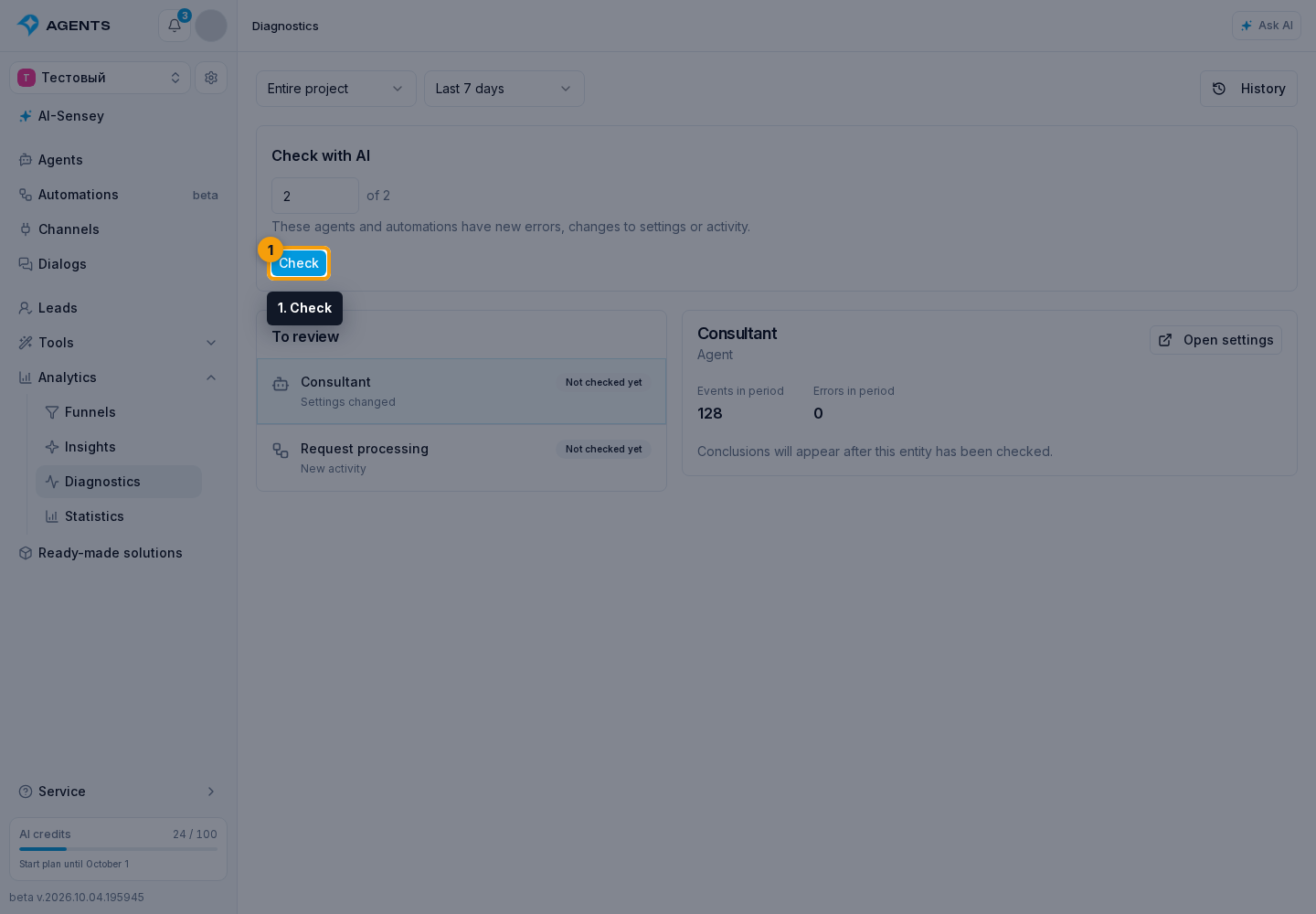
1. Select Check at the bottom of the selected objects block.
- In the launch dialog, choose a model.
- For a new check, set the total spending limit. When continuing a check, enter how much more may be spent; the amount already spent is shown separately.
- Review the limit and select “Start check”.
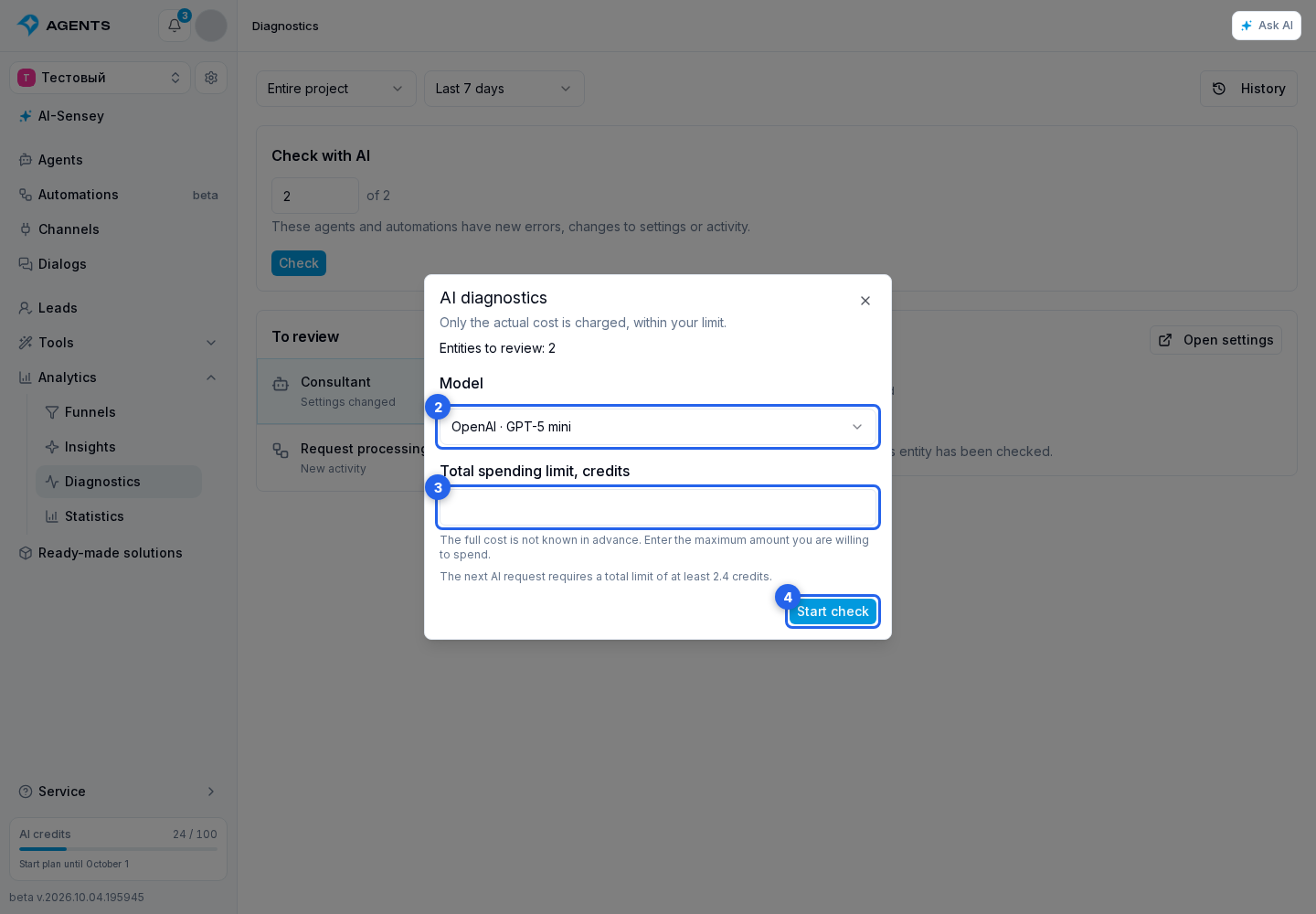
The full check cost is unknown in advance: it depends on the amount of settings, linked agents and automations. For a new selection, enter the maximum amount you are willing to spend. The field shows the allowance needed for the next AI request, including room for its response. This is not an estimate of the full check cost. Only actual AI request costs are charged.
When the remaining limit is too low to continue, the check pauses. The message shows the number of checked entities, spending and an “Increase limit” button. It opens a dialog with an “Allow additional spending” field. The overall spending ceiling combines the amount already spent and the additional allowance and is shown below the field. The check resumes only after selecting “Continue check”; the model stays the same.
If no entity has been checked and no findings exist yet, the message explicitly says that conclusions are not ready: work in progress is saved. Completed conclusions are available below for entities marked “Checked”. Preliminary findings, if any, are also available, but do not mean the check is finished. During final reconciliation, AI refines them or removes them if the rest of the scenario disproves the concern.
Check progress
Starting the check opens a report with one overall progress bar, for example “Checked 3 of 10”. It shows completed reviews among the selected objects. The current object and action appear below; while reading data, the settings or instruction being reviewed are identified. Each object in the list has a “Waiting”, “Checking” or “Checked” status. “Checked” means the review is complete; any errors and recommendations remain in the results.
Objects are reviewed in order. Each review covers the entire scenario, including connected agents and nested automations. These connections do not increase the selected-object count. Once an object's review is complete, its result is saved and the bar advances. A complex automation may take longer than a simple agent, so the remaining-object count is not an estimate in minutes.
Check more or start again
Starting the check opens a report without selection filters. It shows the results and the number of reviewed entities. If more entities remain, finish the current analysis, enter how many to add, then select Check more. Before analysis starts, the dialog shows the actual number of new entities and the model. Enter an additional spending allowance to continue: the previous limit is not filled in automatically for the new scope. Earlier results remain in the report; AI reviews only the added entities. Total report spending is retained, and previously reviewed entities are not charged again. The period and entity type stay the same.
To change the scope or period, select New check. This opens the filters for a new selection. You can also return using the “Diagnostics” link in the “Diagnostics → Report” header.
If the check's data has expired, the same button appears in the message on the page or in the model selection dialog. It prepares a fresh entity selection using the current filters. AI analysis must be started separately.
If a run has stopped and cannot be resumed, the report shows “Check stopped”, the reason and a “New check” button. The progress bar is hidden because the check is no longer running. The button opens a new selection; paid analysis starts only after confirming the model and spending limit.
Select Pause to take a break. The part already running will finish and be charged. Closing the page prevents new parts from starting; the current request may still be running. Reopening the report shows its state. Resuming after a pause requires clicking the button; opening the report does not call AI.
When settings and observations match a saved result, it is reused. The record of reviewed settings and events is stored separately: working data expiry alone does not return an unchanged entity to automatic selection. If AI has responded but saving the result failed, retrying the same check resumes the saved operation without another AI request. If the last AI request’s outcome is unknown, another paid request is blocked.
When a check stops because data is unavailable, the message identifies the source when known. Restore access and select “Continue check”: previously read data, findings and spending are retained. New AI requests are charged within the selected limit. If settings changed during reading, select “New check” and start a review of the current version. If AI repeats the same actions with the same results for several requests, the check stops to avoid further spending. For this stop, or a stop caused by data volume or analysis duration, send the check link to support before running it again. Saved findings remain available but do not mean the entire scenario was reviewed.
Permissions
Paid AI analysis requires analytics management permission in addition to viewing access. See diagnostics access.