
Publishing a Version
Before publishing, check resources and dependencies.
Configure the Update
On the version page, choose how the update is applied. After Confirmation leaves the update start to the user and allows update steps. Automatically updates an installation without confirmation only when every version between the installed and new versions is automatic. An automatic version cannot contain update steps, and its installation step set must exactly match the previous published version. It also cannot remove installed resources or require the user to reconnect MCP access or reconfigure a landing button subscription. Use After Confirmation for such changes.
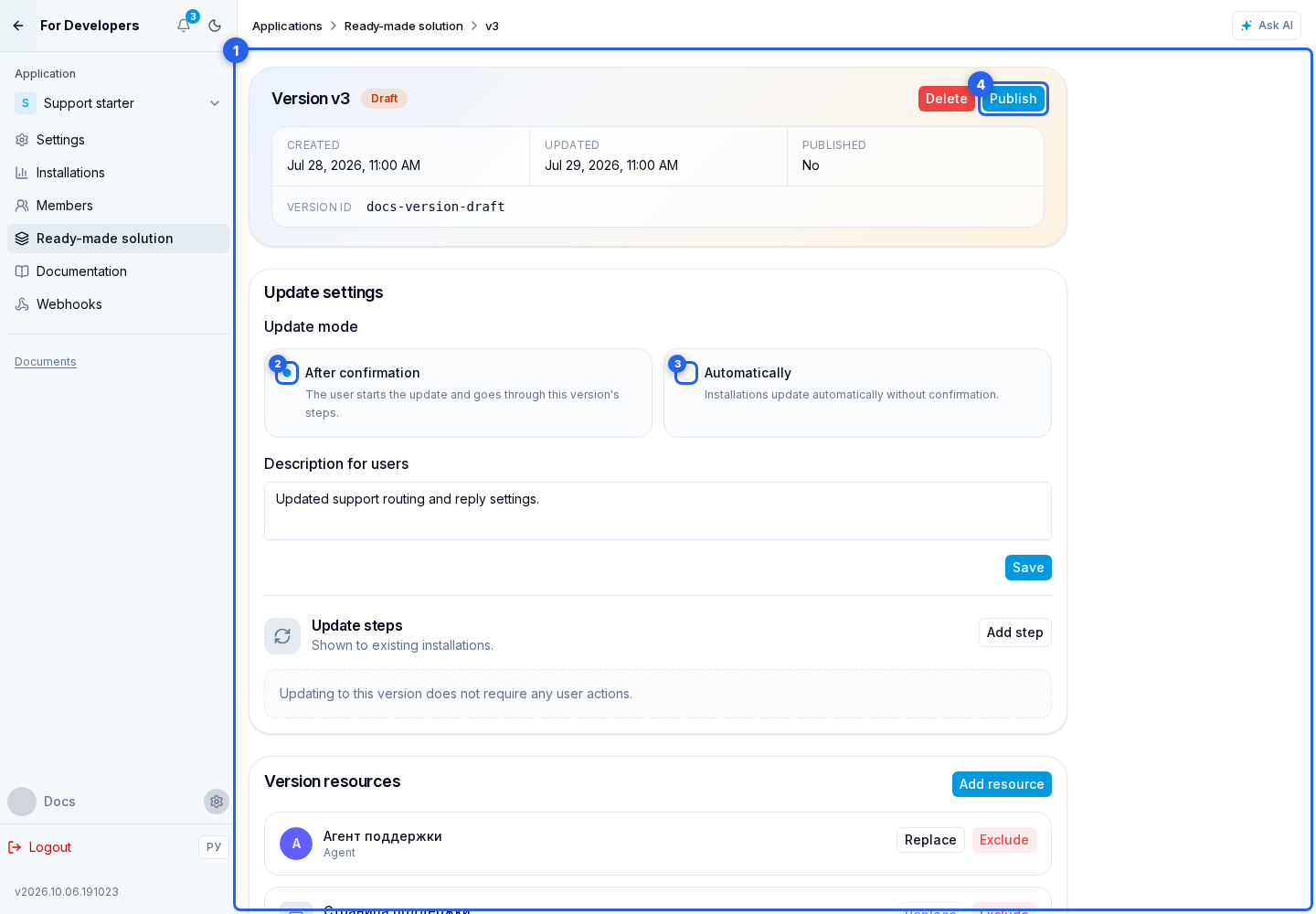
Enter release notes and click Save. Describe what changes for the user: new capabilities, changed settings, important limitations, and actions required after upgrading.
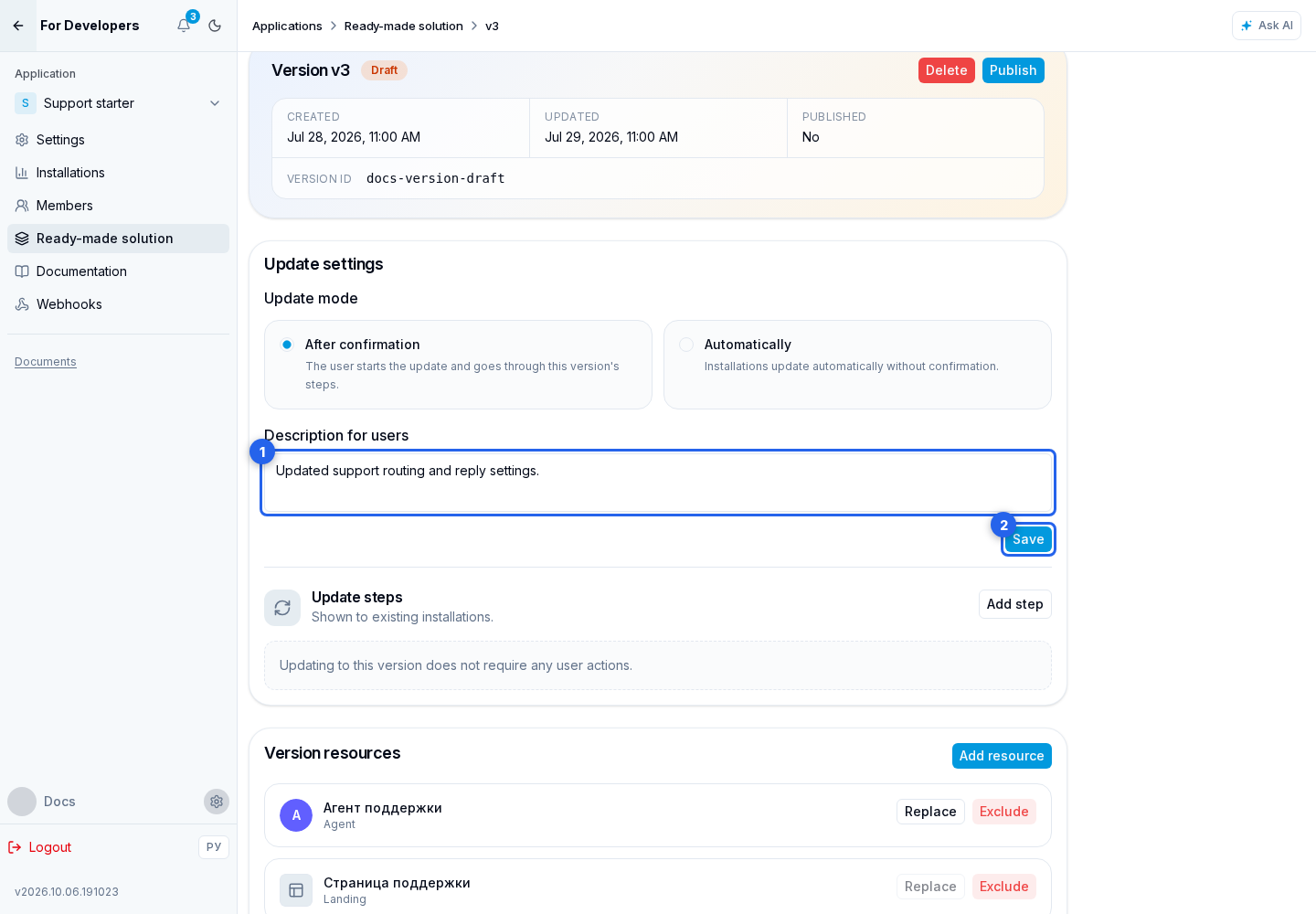
Publishing
Before publishing, keep at least one primary resource in the version, review the final composition, unavailable dependencies, and setup steps, and publish working versions of changed agents and landings. Then click Publish. In addition to version-management permission, this action requires permission to publish ready-made solution versions.
After publishing, the highest-numbered version becomes available for new installations and upgrades. An After Confirmation version waits for user action and, when needed, guides the user through update steps. An automatic update runs only across an uninterrupted chain of automatic versions.
Catalog publication
Publishing a version and publishing the ready-made solution card in the catalog are separate stages. After releasing the first version, open the ready-made solution general settings and use the submit for moderation button. The same block is available in the general settings of the other application types.
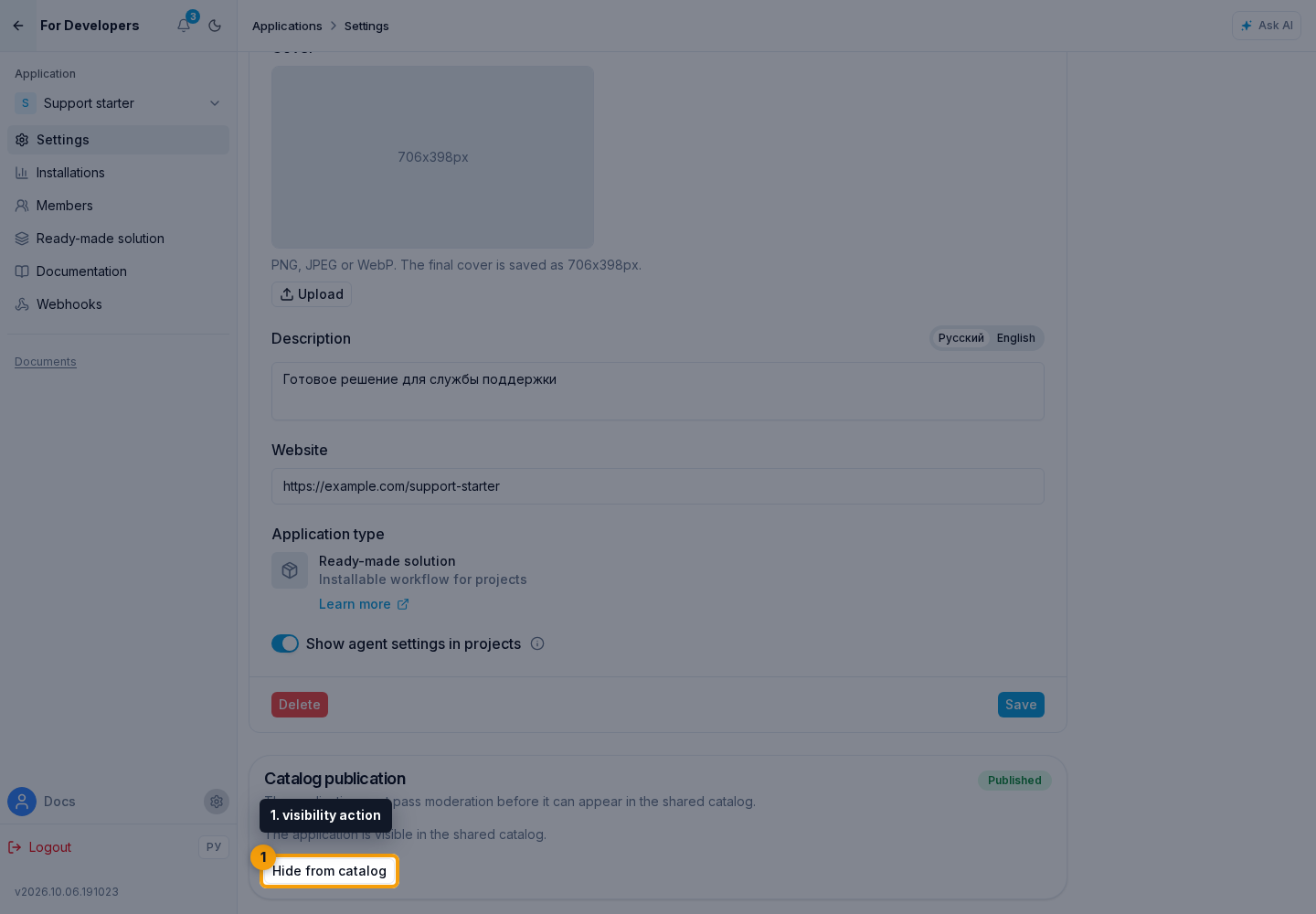
After approval, use the visibility action to hide the ready-made solution from the catalog or show it again without another moderation review. See Catalog publication for the requirements of every application type.
Installed ready-made solutions
An installation can upgrade only to the newest published version. The cabinet synchronizes resources from every skipped release in sequence and pauses at each release's update steps. Installation steps do not run again. Selecting an arbitrary older version and rolling back to a previous version are not supported.
Before a manual upgrade, the user sees release notes and impacts that require attention: resource removal, reconnecting MCP access, or reconfiguring a landing button subscription. Automatic versions are applied in the background only across an uninterrupted automatic chain with no manual boundary.
Developer dialog access
The owner of the installing project separately decides whether to grant the developer access to ready-made solution dialogs. Access is enabled by default during installation, but the user can turn it off before installation or later on the installed ready-made solution page. The ready-made solution author does not control this choice for another project. This is not full project access: the developer sees only dialogs in which ready-made solution agents participated.
The author can also hide installed agent settings. In that case, the project user sees Settings Hidden and can test the agent, but cannot change its configuration.