
Execution Errors
Open the automation runs and select a run. Actions require permission to manage automations.
Handle Errors
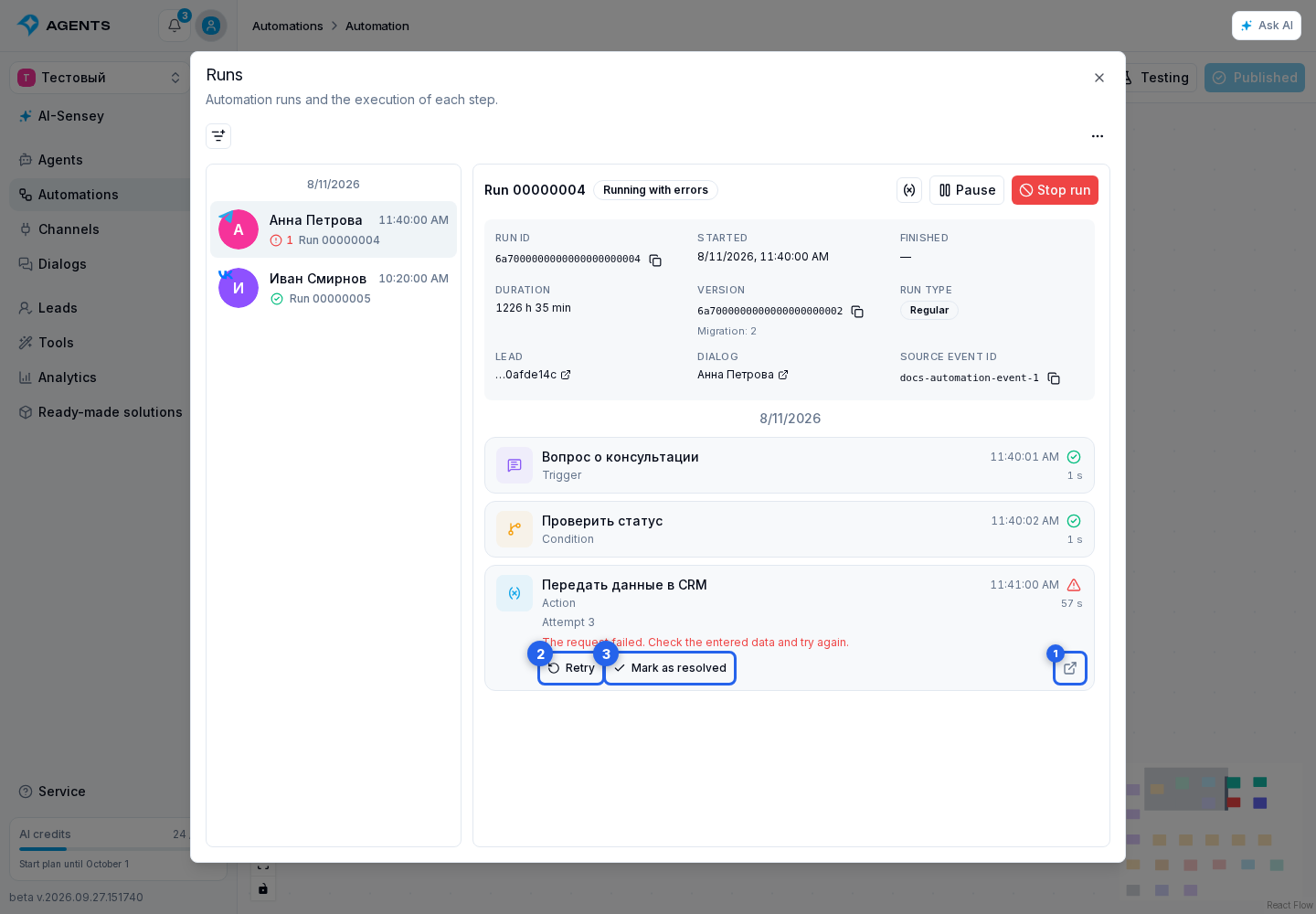
- Add the Require attention filter and select a run.
- Find the failed step and read the message below it. If you opened the dialog from the editor, the go to step button opens it on the workflow.
- After addressing the cause, select Retry to execute this step again in the same run. Previously completed steps are not executed again. Check the previous attempt's result in the external service: retrying can perform its action again.
- If no retry is needed, select Mark as resolved. The error remains in history but no longer requires attention. This does not execute the step or resume the run.
Check the Result
While a retry is awaiting its result, you cannot retry or resolve the same error again. A resolved error has an Error closed label. Once all errors are handled, the run leaves the attention list; its history is preserved. A stopped run cannot be retried.
From the editor, open affected runs through the problems indicator, or use View errors in a failure notification.
For multiple runs, use bulk actions.