
Step execution
Choose when the automation continues and return the execution result from your application.
Open the application step you created.
Configure how the automation continues
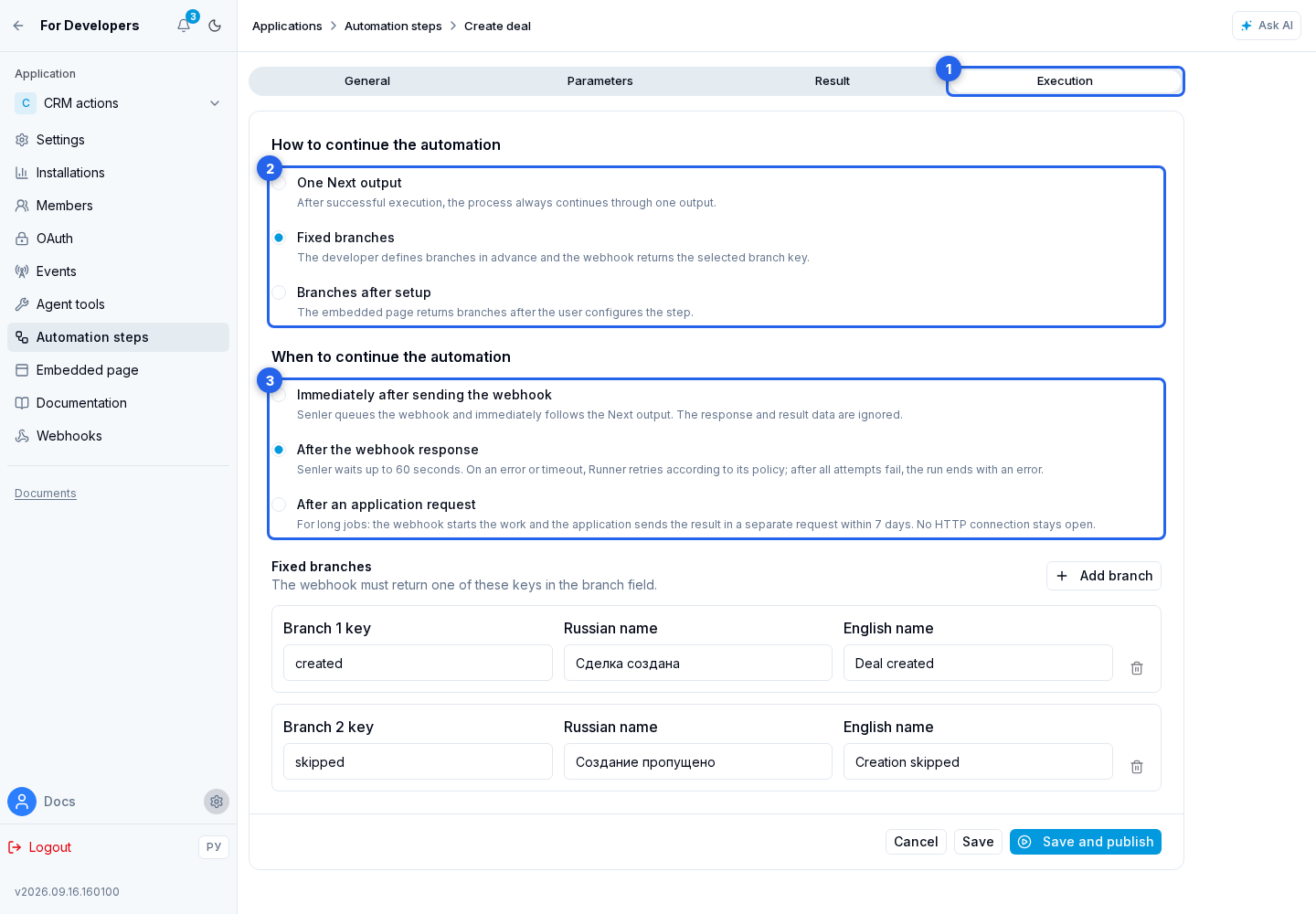
Now decide what happens after the step runs. Open the Execution tab.
First, choose the step outputs in How to continue the automation:
- One Next output gives the node one output, and the webhook must not return
branch; - Fixed branches lets the developer define 2–20 branches with stable keys and names in both languages; the webhook returns the selected key in
branch; - Branches after setup lets the custom embedded form create branches separately for each configured node; the webhook returns one of the saved keys.
The continuation mode cannot change after the first publication. A published fixed branch cannot change its technical key or transfer it to another branch.
Then, in When to continue the automation, choose when Senler may follow the selected output:
- Immediately after sending the webhook queues the webhook and follows the Next output immediately. The application response and result fields are ignored. Use it for a command whose outcome does not affect the rest of the graph;
- After the webhook response waits up to 60 seconds for the HTTP response and reads its branch and result. Runner controls step retries after an error or timeout;
- After an application request starts a long-running operation with the webhook. The application receives a one-time completion URL and token and sends the result in a separate request within 7 days.
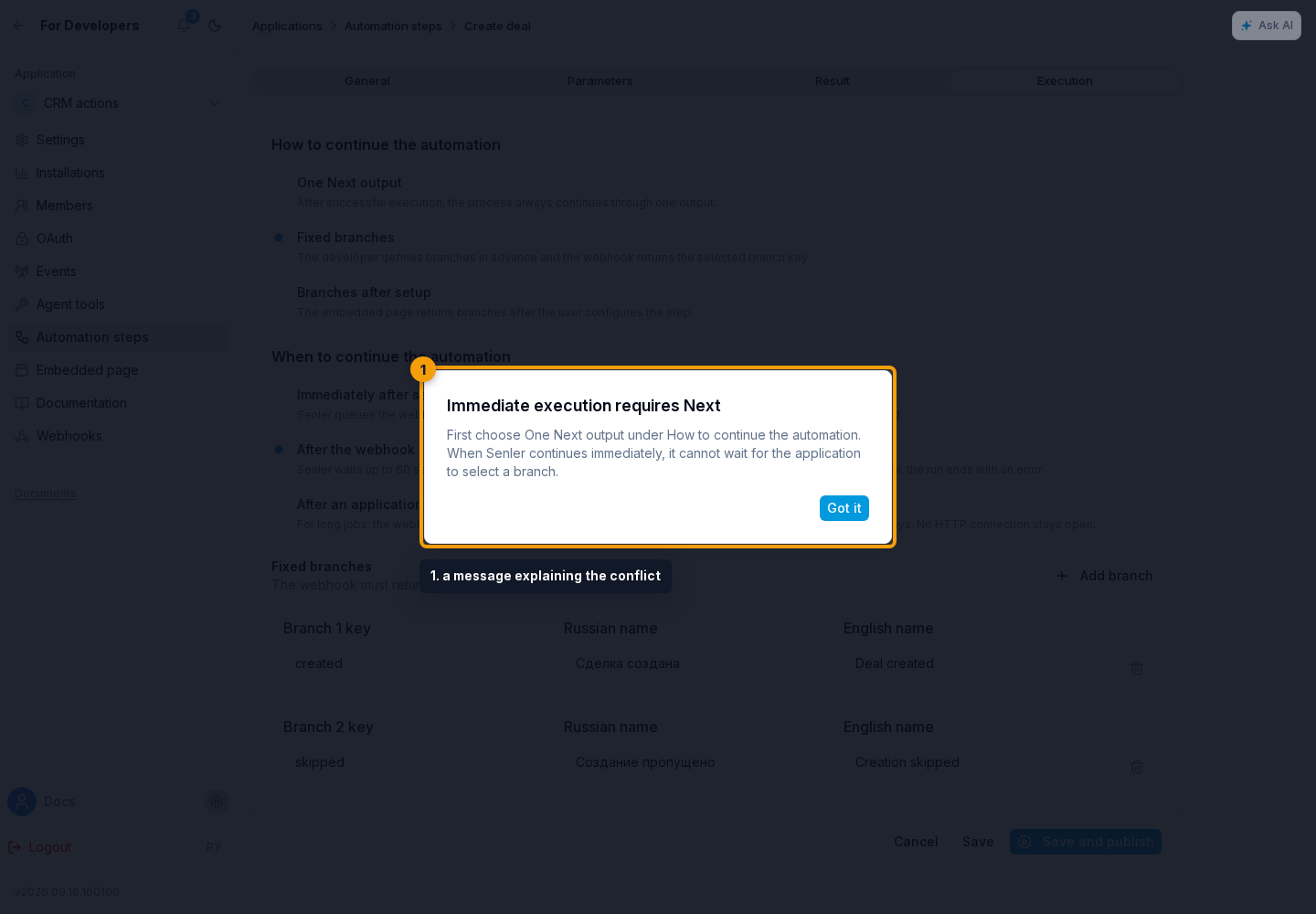
Immediate mode works only with the Next output and a step without result fields. To use branches or result data, wait for the webhook response or a separate application request.
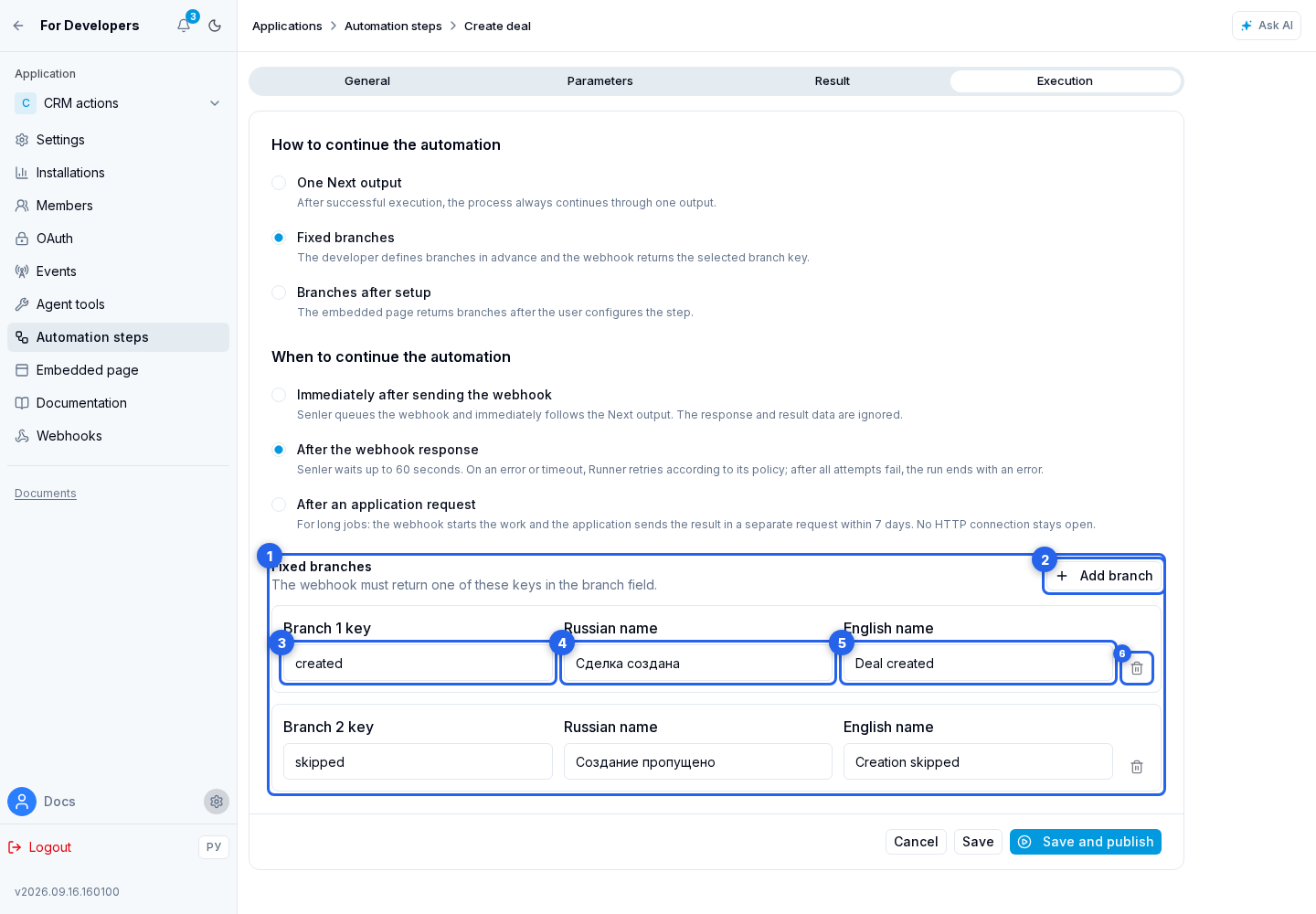
In Fixed branches, select Add branch. Enter the branch key, Russian name, and English name. You can delete a branch as long as at least two remain.
If selected modes are incompatible, the form shows a message explaining the conflict and does not apply the selection. Got it closes this message; you must adjust the settings separately.
You can change the completion mode after publication. New nodes receive the current option, while nodes already added to graphs keep their previous option. After changing it, test a new automation and an existing one separately.
Handle the webhook
When the step runs, Senler sends a POST request to the configured URL. In Immediately after sending the webhook and After an application request modes, the delivery is queued. In After the webhook response mode, Senler keeps the request open until the response arrives, for no more than 60 seconds.
{
  "event_id": "event-id",
  "idempotency_key": "automation-task-id",
  "event_type": "automation_step",
  "timestamp": "2026-08-20T08:00:00.000Z",
  "app_id": "app-id",
  "installation_id": "installation-id",
  "project_id": "project-id",
  "automation_id": "automation-id",
  "run_id": "run-id",
  "task_id": "task-id",
  "node_id": "node-id",
  "lead_id": null,
  "dialog_id": null,
  "channel_id": null,
  "is_test": false,
  "channel_type": null,
  "platform_user_id": null,
  "step_id": "step-id",
  "step_name": "create_deal",
  "parameters": {
    "amount": 1500
  },
  "configuration": {
    "pipeline_id": "sales"
  }
}
is_test is true when the step runs in an editor test dialog. Channel and platform user fields may be null for this run; do not persist test data as production data. Lead and dialog context fields may also be null, especially in a Background automation. The request is signed with the application's shared secret according to the application webhook rules. Verify the signature and acceptable request age before processing the data.
In After the webhook response mode, the response must be a JSON object. For a branched step, return branch and place declared builder data in result:
{
  "branch": "created",
  "result": {
    "deal_id": "deal-42"
  }
}
Do not return branch for a single-output step. An empty body is allowed only when the step does not need a branch or required result fields. Invalid JSON, an unknown branch, a mismatched result type, or a webhook error makes the step fail.
In Immediately after sending the webhook mode, Senler does not read the response because the process has already followed the Next output.
In After an application request mode, the original webhook also contains a completion object:
{
  "method": "PUT",
  "url": "https://api.senler.io/api/automation-step-executions/task-id/completion",
  "token": "one-time-execution-token",
  "expires_at": "2026-08-27T08:00:00.000Z"
}
When the long-running operation finishes, send a PUT request to completion.url, pass the token as Authorization: Bearer <completion.token>, and provide the successful result:
{
  "status": "succeeded",
  "branch": "created",
  "result": {
    "deal_id": "deal-42"
  }
}
For a failed completion, send status: "failed", a stable error_code, and a safe error_message. An accepted request returns { "accepted": true }. The URL and token apply to one execution only and expire at expires_at; do not store the token as the application's shared secret.
A delivery or task may run again, so the external action must be idempotent. Use the original webhook's idempotency_key to prevent duplicate changes in the external system.