
Chat capabilities
Configure the chat features available to visitors and the limits on credit spending.
Main section: Widget.
Chat features
- file upload;
- voice messages;
- emoji;
- split view of the dialog list and chat;
- chat history in the widget header;
- chat history search;
- page element selection.
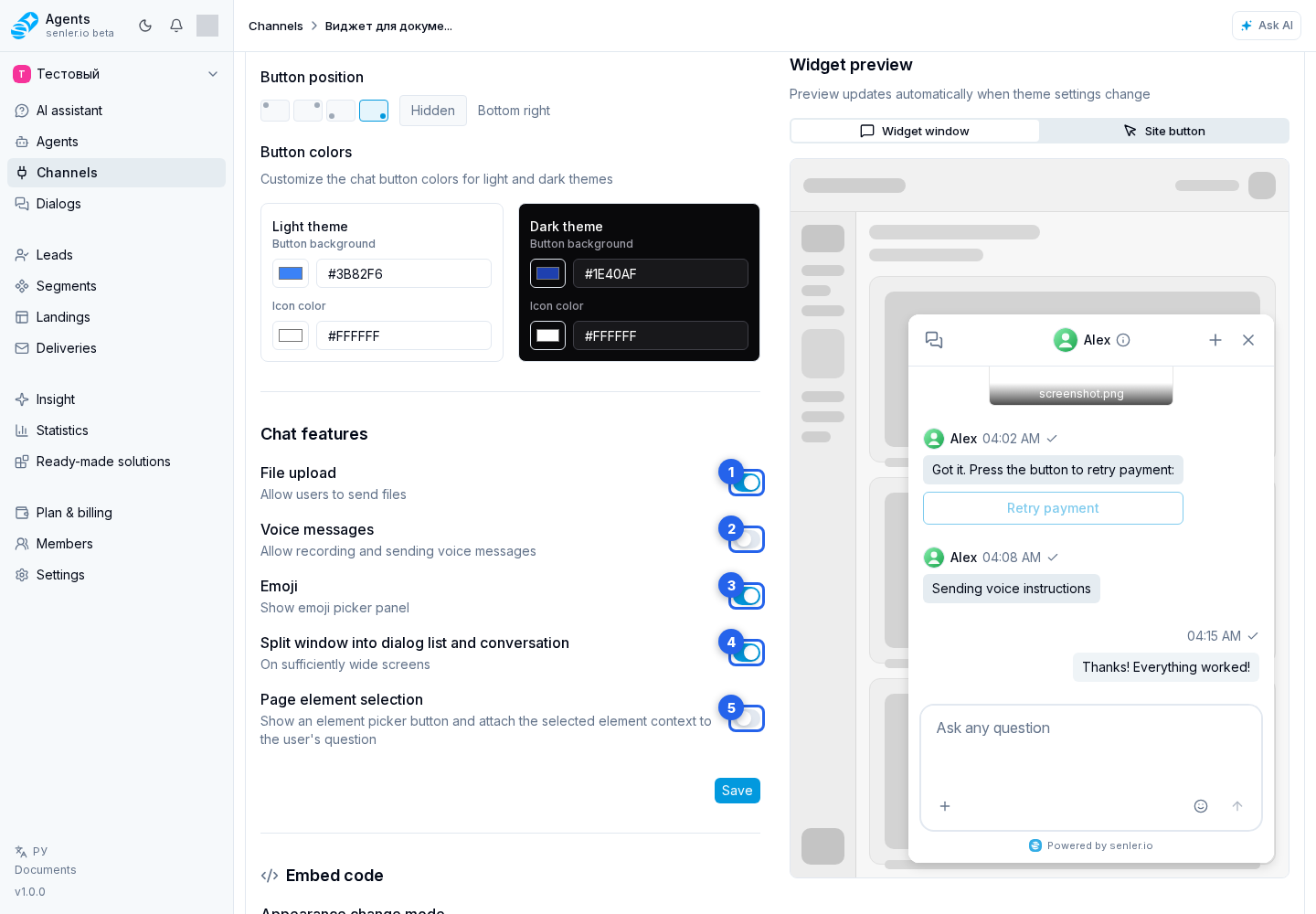
Switches in the "Chat features" block control what the site user sees:
- File upload allows sending files through the widget;
- Voice messages enables recording and sending voice messages;
- Emoji shows the emoji picker;
- Split window into dialog list and conversation shows the dialog list next to the selected chat on sufficiently wide screens;
- Page element selection shows the element picker button and sends the selected site place together with the user's question.
Visitor credit limit
When a personal limit applies to this channel:
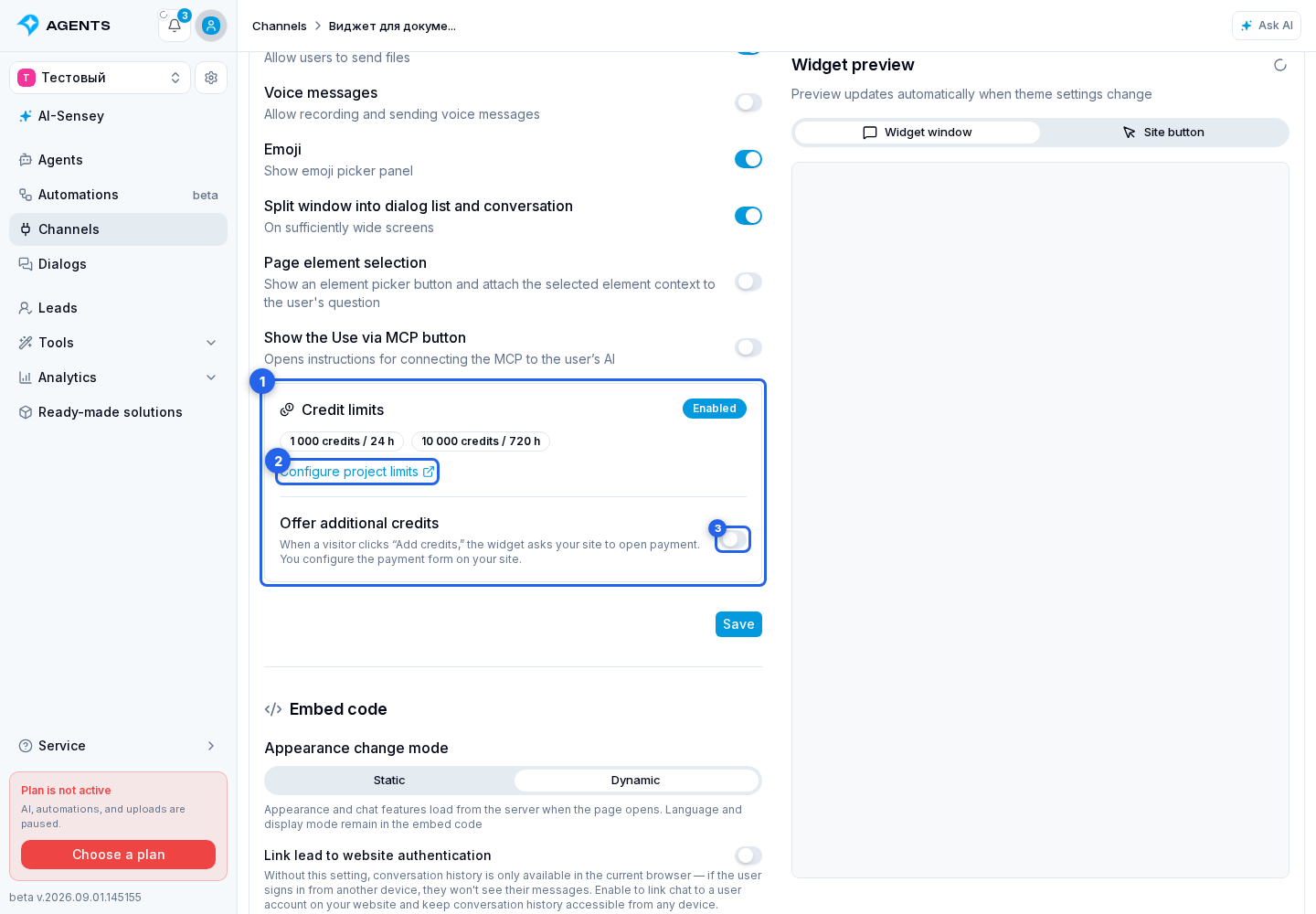
- Find the Credit limits section in the channel settings. It displays the rules that actually apply to the widget: the project's default periods or the channel's custom periods.
- Click Configure project limits to change the periods, make this channel unlimited, or assign custom rules to it.
- If needed, enable Offer additional credits. This switch adds a top-up button to the exhausted screen.
When the limit is enabled, a ring indicator of the available amount appears in the chat header. Selecting it opens details for every period: the remaining amount, total limit, and start time of the next period. If the lead received extra credits, their remaining amount and the total available amount appear below.
After exhaustion, Credits used up. The agent won't reply, but an operator can help. appears above the composer. The visitor can still send a message, including through a welcome button, and an operator can reply. The limit stops agent runs for this lead in this channel, not the conversation itself.
After the limit is exhausted, the widget owner can offer the visitor one or both ways to continue:
- Add credits — the button sends a request to the website, where the owner opens a custom payment form and grants extra credits to the lead after a successful operation. Event setup and source validation are covered in Credit top-up request.
- Connect your AI — the button opens instructions for connecting the project's selected MCP server to a compatible AI client. Setup and connection methods are covered in Use via MCP.
These are independent options: connecting MCP lets the visitor work with the service from their own AI client and does not by itself grant extra credits for continuing the conversation in the widget.
Chat history in the widget
All visitor-facing controls and states are described separately in Website Widget Interface.
- if the site user already has dialogs, the widget may automatically open the current dialog on first entry;
- a chat history button is available in the chat header;
- the history menu can open the full chat list, create a new dialog, or find a dialog through search;
- history search starts from two characters;
- unread messages are shown as a counter on the dialog.