
Folders
Open the project Knowledge Base.
Create and Open a Folder
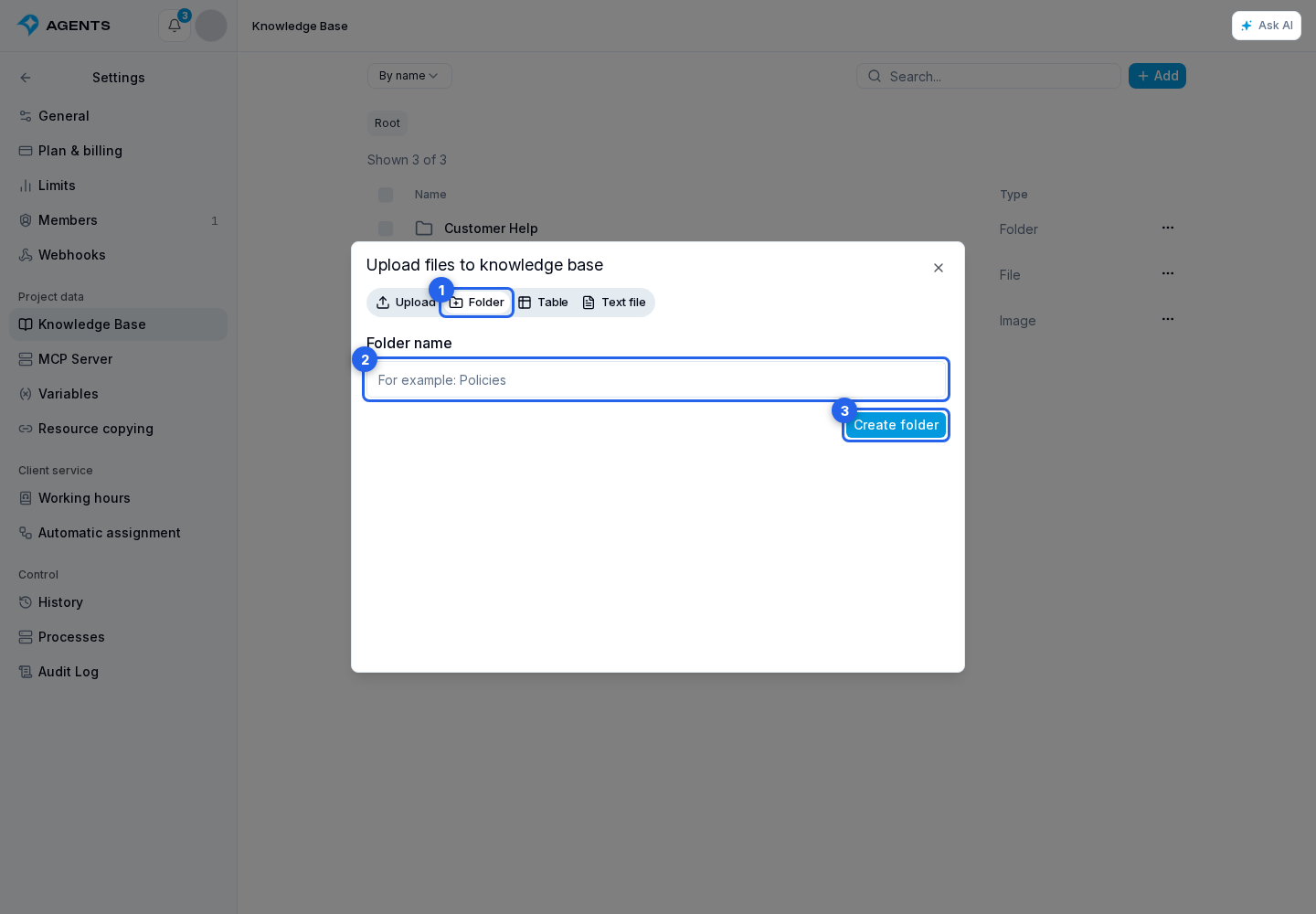
As the collection grows, create separate folders, for example by product, team, or task.
- Click Add and open the Folder tab.
- Enter a clear name.
- Click Create folder.
Open and Rename a Folder
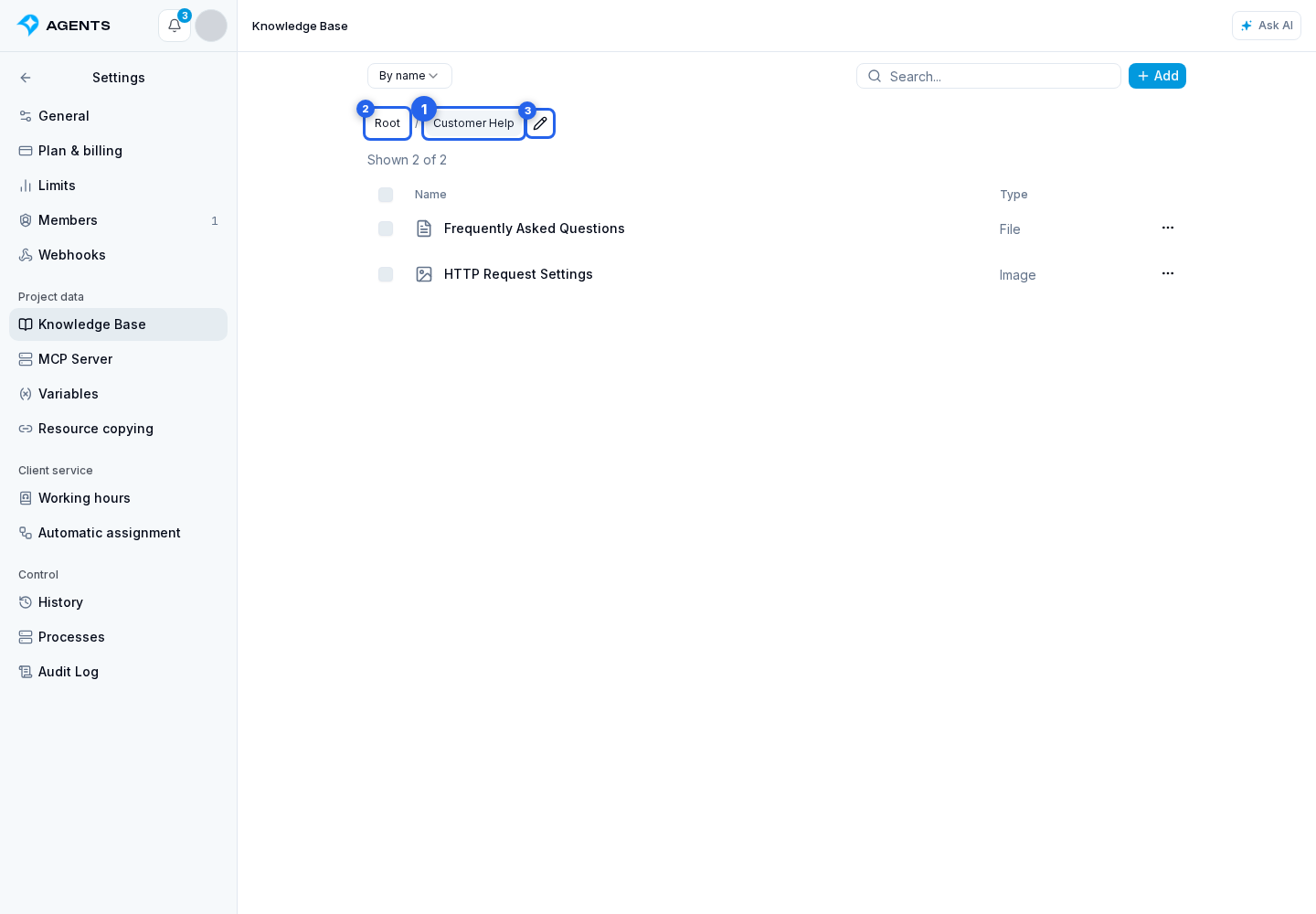
To view a folder's contents, select the folder. The path above the list lets you return to the previous level or the Knowledge Base root.
To rename the folder:
- Open its settings.
- Change the name.
- Click Save.
You can bookmark the open folder's address or share it with a colleague who has project access. The folder stays open after a page refresh. Returning from editing a material also takes you back to the same folder.
To move existing materials, use actions for selected materials. If you connect the folder to an agent, its current and future items become available to that agent.