
Response mode
Choose when the agent replies to customers, when it assists an operator, and what it shows while preparing a reply.
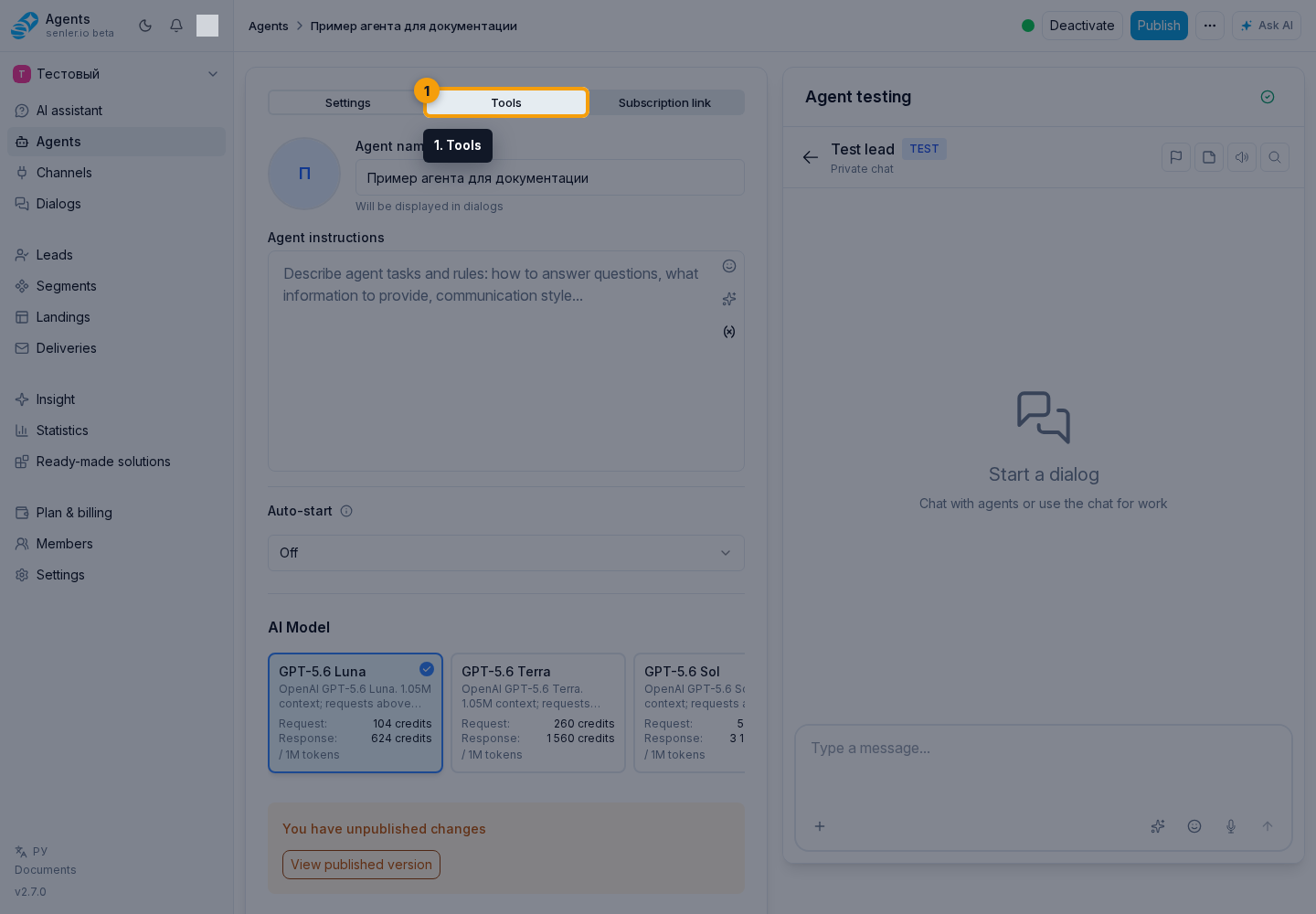
Main section: Tools.
Choose settings for a scenario
| Goal | What to enable or check |
|---|---|
| Reply to clients automatically | Enable Prepare replies and perform actions, and leave Do not send replies to the client off |
| Perform actions without a final client-facing reply | Enable Prepare replies and perform actions and Do not send replies to the client, and grant access to the required tools |
| Collect analytics only | Disable Prepare replies and perform actions, enable metrics collection, and configure metrics |
| Give the operator a ready draft instead of an automatic reply | Enable AI processing and Prepare an operator reply draft, then describe in the instructions when a draft is needed |
| Avoid a second reply after a person has responded | Keep pending response cancellation after a project operator message enabled |
| Avoid a second reply after an automation message | Keep pending response cancellation after an automation message enabled |
| Notify the client before lengthy processing | Enable Preliminary answers |
| Send a separate greeting after a subscription without a message | Enable Reply on segment subscription for the agent assigned to that segment |
| Show response preparation without technical details | Under Widget behavior, select Reasoning stages |
| Show only the regular typing indicator | Under Widget behavior, select “Agent is typing” status |
| Show the response as it is generated | Enable Show response while it is being generated |
| Highlight or change website elements at the user's request | Enable Website element actions, use a Widget channel, and mark up the required page elements |
| Send separate messages to other leads or dialogs | Configure Messages to other recipients and describe the sending condition in the agent instruction |
Dependent settings may stay hidden until their parent capability is enabled. For example, pending response cancellation and operator drafts are shown only with AI processing enabled. Permission to skip individual replies and preparation of operator drafts are enabled independently. Check the settings in the test chat, then publish the changes for live dialogs.
Reply mode
Reply preparation, delivery to the client, and metrics collection are configured with separate toggles:
- To talk to clients, enable Prepare replies and perform actions, and leave Do not send replies to the client off.
- To perform actions without replying to the client, enable both toggles. The agent continues using available tools, and replies stay in the cabinet. Preliminary replies are turned off; operator draft preparation is configured separately.
- To collect analytics only, disable Prepare replies and perform actions and separately enable metrics collection. Ordinary messages no longer run agent tools, including segment actions. Preliminary replies, skipping individual replies, and operator drafts are also turned off.
These toggles work the same way for primary and background agents and do not assign the agent to a dialog. Configure autostart, channels, and the assignment role separately. Changing the role does not change the reply mode. To use tools in the background, keep Prepare replies and perform actions enabled.
For example, a background agent should add interested clients to a segment without messaging them. Keep Prepare replies and perform actions enabled, enable Do not send replies to the client, and allow adding leads to the required segment. If reply preparation and actions are disabled, segment permission remains, but ordinary messages no longer trigger the action.
Sending no reply does not mean using no credits: background actions and separately enabled metrics collection use AI. See tool and media billing.
Check the settings below:
- what to show in the widget while processing;
- show the response while it is being generated;
- Prepare replies and perform actions;
- Do not send replies to the client;
- selective answers;
- operator reply draft;
- cancel a pending reply if a project operator responds first;
- cancel a pending reply if an automation responds first;
- preliminary answers;
- reply on segment subscription.
Widget behavior
The What to show while processing field controls what a website visitor sees before the response appears:
- Reasoning stages shows safe, understandable statuses such as “Thinking…”, “Searching for information…”, or “Creating an image…”, without tool requests, tool results, or internal reasoning;
- “Agent is typing” status keeps the regular typing indicator without naming the current stage;
- Do not show hides both indicator variants.
Reasoning stages is selected by default. This setting applies to the website widget and takes effect in live dialogs after the agent draft is published.
The Show response while it is being generated toggle solves a different task: it displays the response text in parts as it is created. It can be combined with any processing indicator option. Progressive output is unavailable when AI response generation or client response sending is disabled. It also requires streaming support from the selected model; without it, the complete response appears after preparation.
Prepare replies and perform actions
Prepare replies and perform actions enables the model, reply preparation, and available tools. When it is disabled, the agent does not prepare replies or perform actions on incoming messages. Metrics collection continues if enabled separately. For example, permission to manage segments does not by itself trigger adding a lead to a segment.
Do not send replies to the client
Enable this toggle when the agent should perform actions without a final reply to the client. Replies are saved in the dashboard but are not sent to the channel or widget. The setting applies independently of the agent's instructions.
Tools continue to run: for example, the agent can change a variable or add a lead to a segment. This is not an operator approval mode for actions. For text that an operator reviews and sends manually, use an operator reply draft.
Show response while it is being generated
- the answer appears in parts;
- works in the Senler AI cabinet and website widget;
- does not replace the stage indicator shown before the text or between lengthy operations.
Selected answers
- some messages can be left without an automatic response;
- useful if not every message requires a reaction.
Operator reply draft
- enabled through Prepare an operator reply draft when AI processing is on; permission to skip individual replies is not required;
- the automatic client-facing reply may be skipped, while the suggestion is saved only for the operator;
- the client does not see the suggestion;
- the suggestion should be ready client-facing text, without service headings such as "Client reply:", "Template:" or explanations for the operator;
- the reason for the suggestion is only for the operator and processing history, the client does not see it;
- the suggestion may include text and prepared attachments from agent tools;
- in the dialog, the operator can send the suggestion as is, move it into the draft, edit text and attachments, or discuss the suggestion with AI;
- image links in suggestion text are not treated as attachments: an attachment must be prepared by an agent tool or added by the operator;
- the suggestion itself already means the automatic client-facing response is not sent, so there is no need to separately skip the response only for that.
Preliminary answers
- short message before lengthy processing;
- useful for long queries, image generation, external queries and waiting for tools.
Reply on segment subscription
When the agent is assigned to segment members, Reply on segment subscription sends a separate greeting after a subscription without an incoming message: through a landing, direct link, or manual addition. The subscription event is saved in the private dialog history and passed to the agent as the current context. If the setting is disabled, this kind of subscription does not itself trigger a reply.
This setting is enabled by default for a new agent and is nested under Prepare replies and perform actions. When AI processing is disabled, a separate subscription reply is unavailable as well.
When working with automations is configured, the agent's separate greeting does not start if a selected automation accepts the subscription or is already processing this dialog. The automation can send the greeting itself or explicitly call the agent from a step.
A subscription by keyword or the Any message rule happens while an incoming message is being processed. The agent replies to that message, so the separate subscription reply setting does not affect this scenario.
If an operator replies first
A message from a project member or a sender marked as a Project operator does not trigger the agent. If the agent is already preparing a response to the client's previous message and an operator replies first, the pending AI response is canceled by default. This prevents the client from receiving consecutive replies from both a person and the agent.
The cancellation affects only the response that was still being prepared at that moment. The client's next message is processed under the regular agent assignment rules again.
Cancel a pending reply if a project operator responds first is in Response Mode, enabled by default, and shown only when Prepare replies and perform actions is enabled. If you turn it off, an AI response that has already started may arrive after the operator's message.
Change the setting in the draft, save it, and publish a new version. Until publication, live dialogs continue to use the previous value. You can verify the effective value in the published version dialog.
How to choose a lead or space, how this mark differs from a project member role, and how to verify the result safely are covered in Project Operator and Agent Replies.