
AI condition step
The AI condition step selects one output based on the meaning of text. For example, it can route a pricing question to Sales and a report of a fault to Support. The step is available in both For dialogs and Background automations.
It does not reply to the client or run your agent. Use Run agent for replies or tool calls, and variable conditions to compare exact values without AI.
Write the instruction
Add AI condition from the step catalog and open its settings.
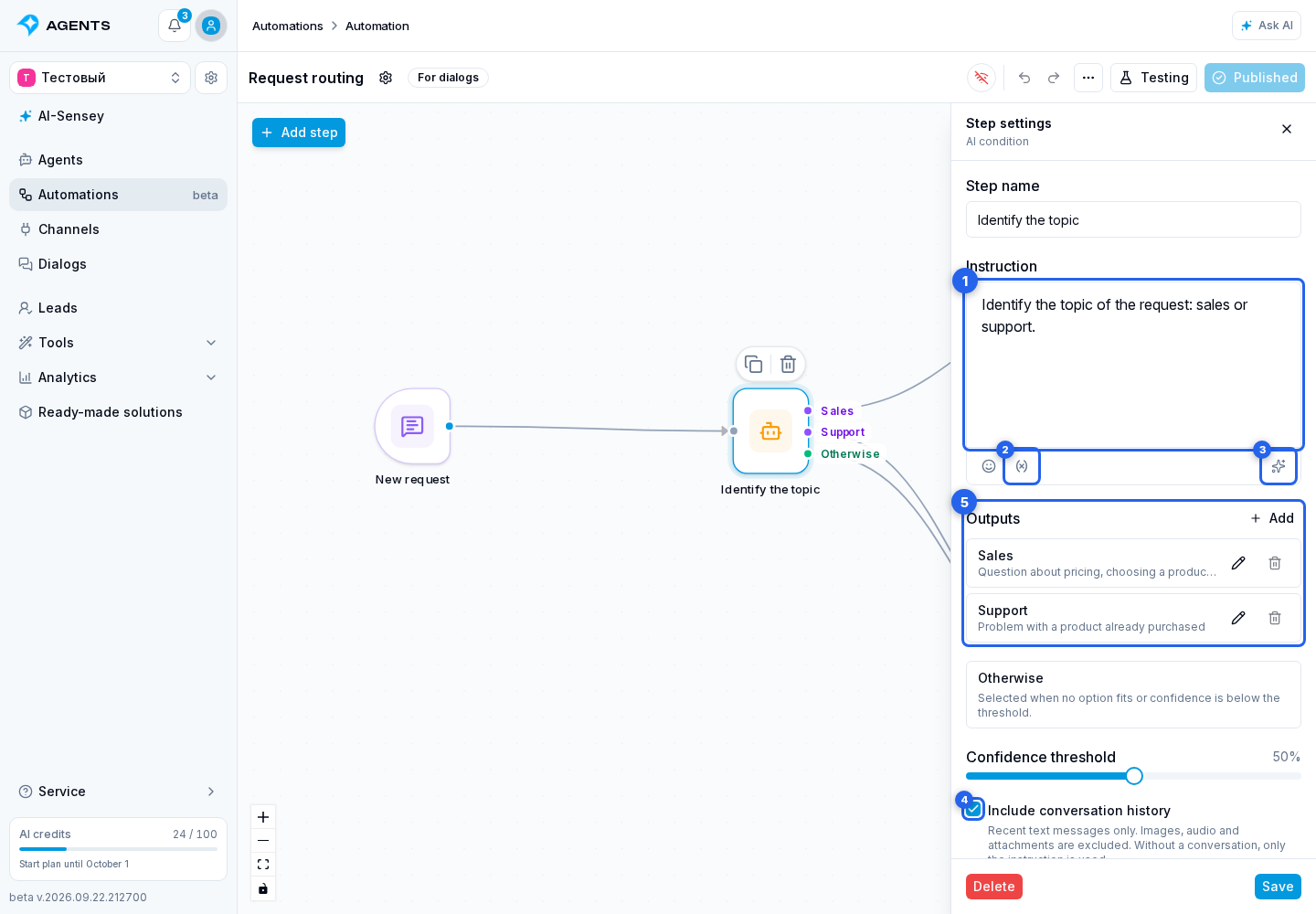
- In the instruction, describe what to determine. For example: "Identify the topic of the request. Questions about prices and purchases belong to Sales; problems with an already purchased product belong to Support." The maximum length is 2000 characters.
- Use Insert variable to add text or other data to evaluate. You can use project, lead, dialog, current run and trigger variables. The AI editing button helps phrase the instruction.
- Enable Include dialog history if the conversation is needed to determine the meaning. This includes the text of up to 50 recent messages; images, audio and files are not analyzed. If the run has no dialog, only the instruction with substituted values is used.
Configure outputs
In the outputs section, define between 2 and 10 options. Click Add or edit an existing output.
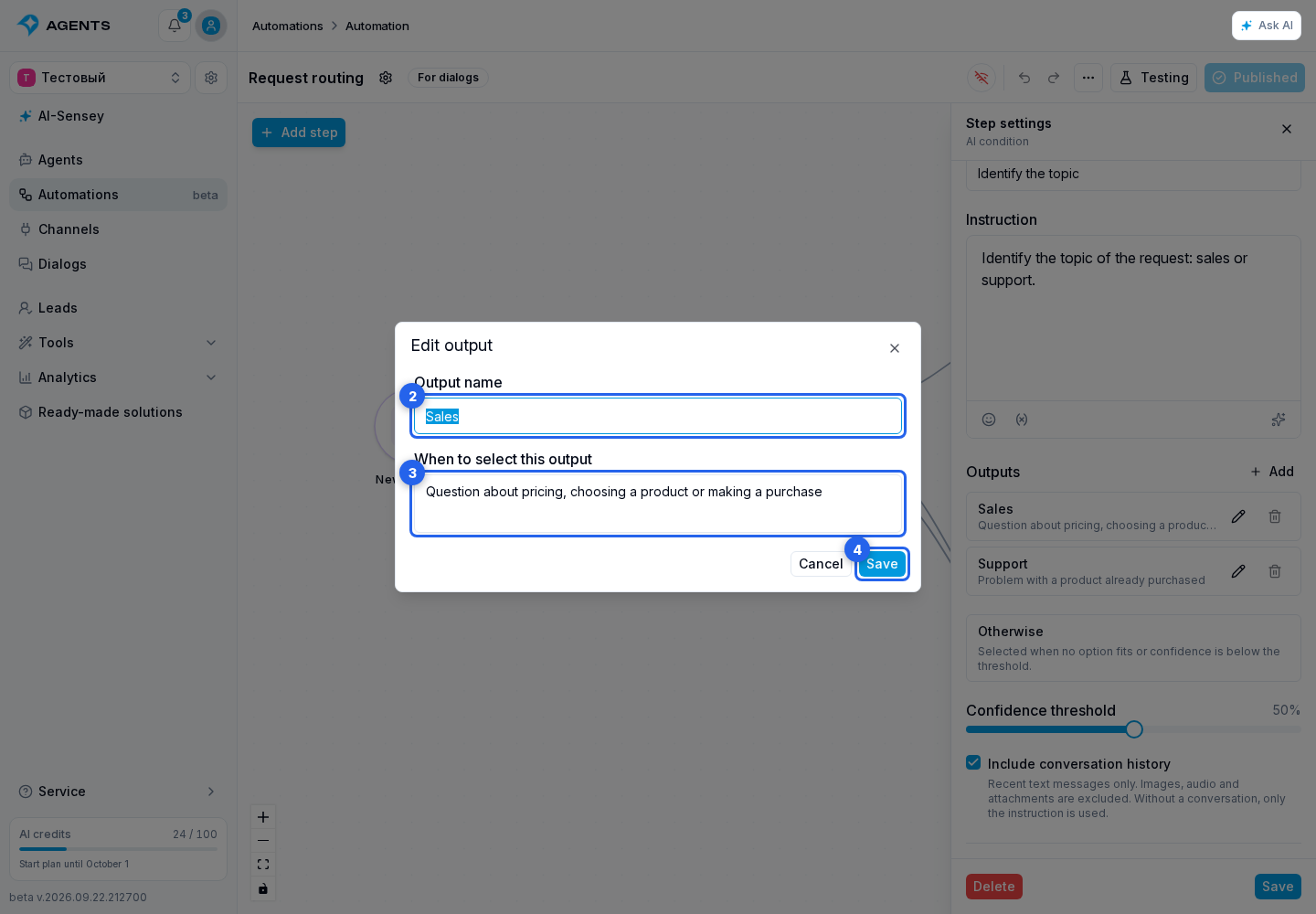
In the output dialog, enter a name of up to 80 characters and a selection condition of up to 2000 characters. For Sales, this could be "The user wants to check a price, choose a product or make a purchase." Make the conditions clearly distinguish the options.
Click Save or Cancel to close without changes. You can remove an unwanted output as long as at least two remain.
Confidence and the Otherwise output
The confidence threshold sets how confident the AI choice must be: from 0 to 100%, with 50% as the default. If confidence is below the threshold, information is insufficient or no option fits, the run follows the additional Otherwise output. For example, connect it to a message asking the client to clarify their question.
Connect both the named outputs and Otherwise to subsequent steps. An AI request failure is not an Otherwise result: check it in the run history.
Testing and credit usage
Try several clear and ambiguous examples using automation testing. Then save and publish the workflow.
The service uses a separate model to select an output; you do not choose an agent model here. AI processing is included in project expenses. Longer instructions and dialog history increase the amount of text processed.