Deleting a Message
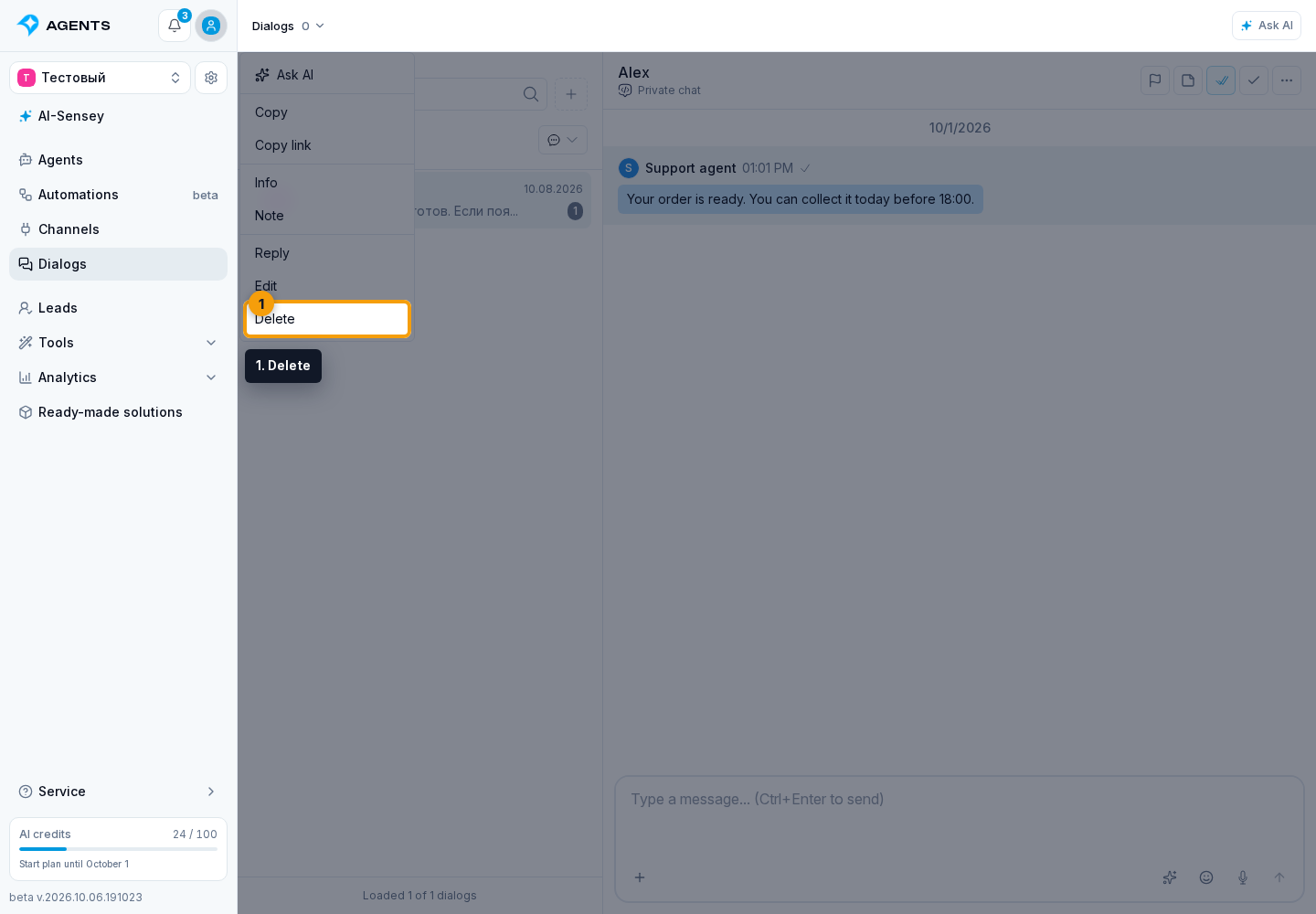
Find the required message and open its action menu.
Delete a Message
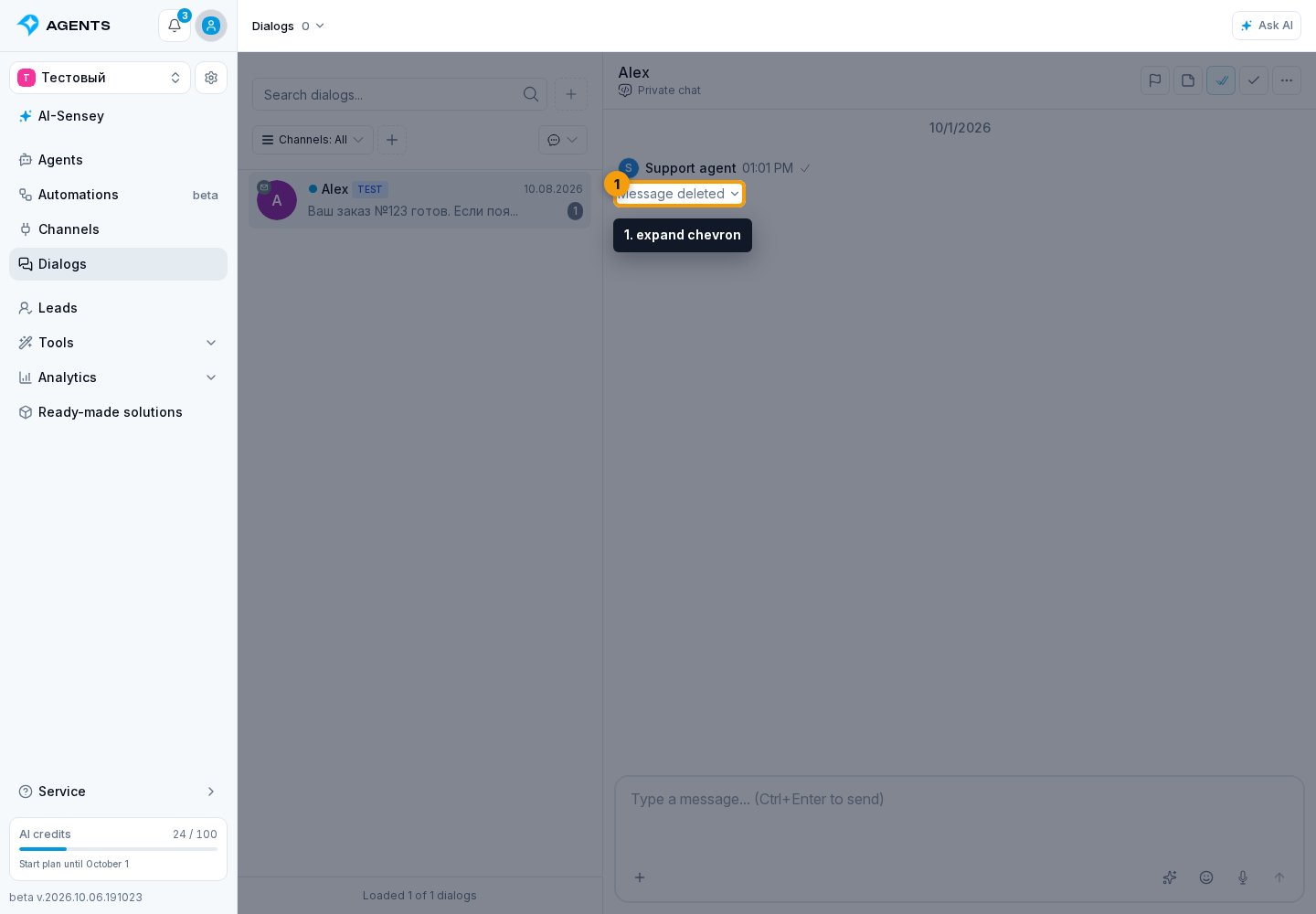
Before deleting, make sure you selected the correct message: there is no separate confirmation. Then select Delete. Whether deletion is available, and for how long, depends on the connected channel. After deletion, a Message deleted marker may remain in the history.
In Telegram groups, incoming participant messages can also be deleted if the connected bot has the required rights: it must be an administrator in a regular group, or an administrator with permission to delete messages in a supergroup. Senler checks these rights before deletion; if they cannot be verified, the message is not deleted.
If a long VK message was delivered in several parts, Delete applies to all of its parts known to Senler AI.
In MAX, a message with a lead contact can arrive in two parts: text with attachments and a separate contact card. Deletion applies to all sent parts. You cannot delete this message while delivery or a delivery retry is still in progress: wait for the delivery result.
View a Deleted Message
When a deleted message still has saved content, an expand chevron appears next to “Message deleted.” Select it to show the saved text and attachments; select it again to hide the content. The chevron is not shown when no saved content is available.