
Subscription Links
In the version draft, create an installation step and complete its common fields.
Subscription Links step
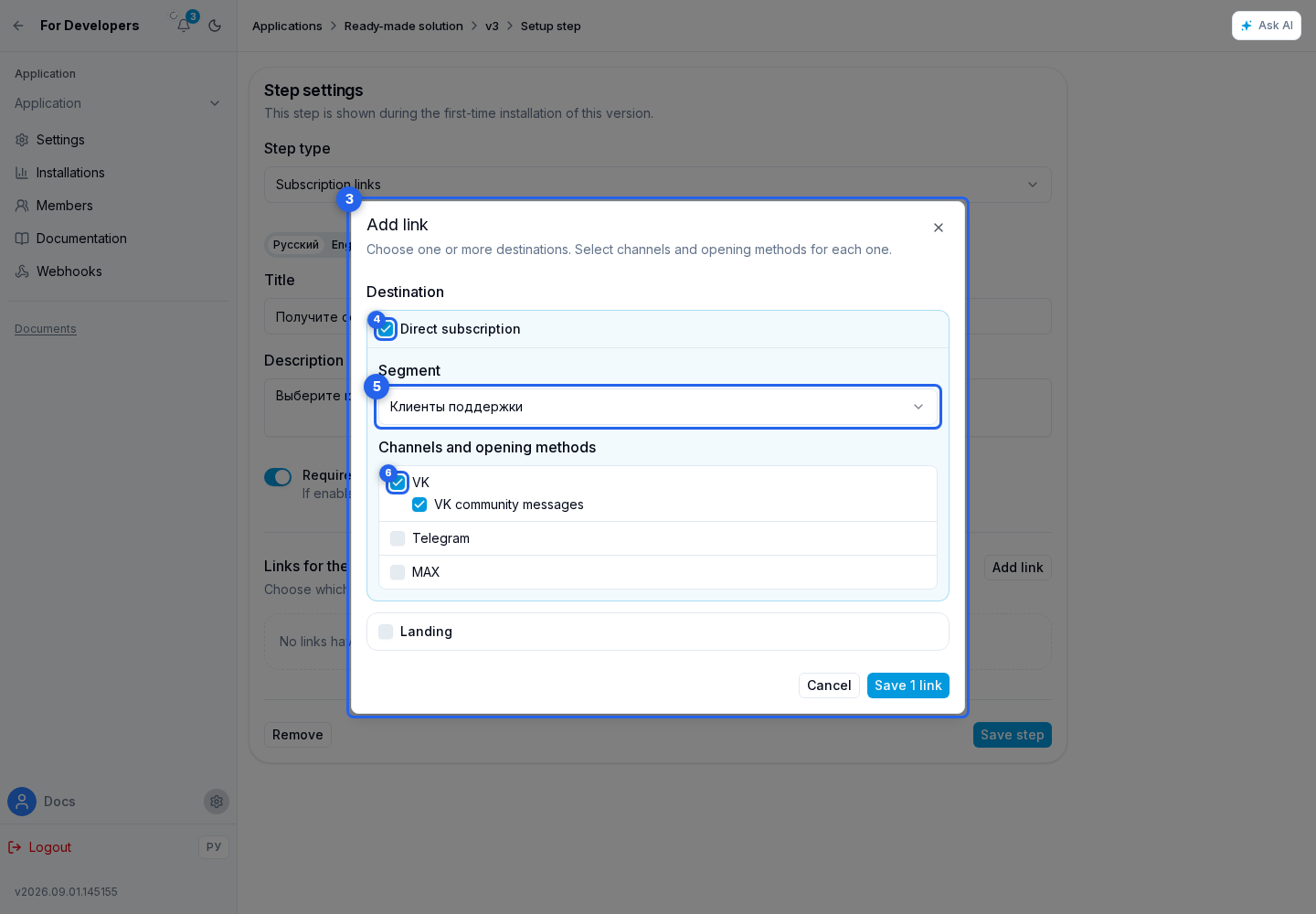
In the links section, add at least one link through Add Link. A single settings dialog can include one or both destinations and prepare several links at once:
- select Direct Subscription, Landing, or both destinations;
- for each destination, choose a segment or landing from the current version;
- select one or more channels: VK, Telegram, or MAX; a regular website link is also available for a landing;
- within each channel, select one or more opening methods. Available options depend on the destination and channel, such as a Telegram bot, Telegram Mini App, VK app, or regular landing.
The save button shows the number of selected combinations. Each resource, channel, and opening method combination appears as a separate row in the link list, where you can edit or remove it. The same combination cannot be added twice.
What the User Sees
During installation, Senler generates addresses for resources created by this ready-made solution. If several channels are compatible, the user selects a specific channel. An unavailable link shows the exact reason and, when possible, a Configure action. The step can be completed after at least one link becomes available.
After configuration, save the step.